Import rules #
Transactions that arrive on their own — from Apple Wallet or SimpleFIN — come with the bank’s text, not your categories. Import rules close that gap: a rule looks for some text in an imported transaction and then classifies it, or skips it.
Rules apply only to imported transactions. Transactions you enter yourself are never touched.
In this section #
- Creating a rule
- Rules from your corrections
- AI rule suggestions
- Ordering, editing and deleting rules
Creating a rule #
Open Settings → Import rules and press Add rule.
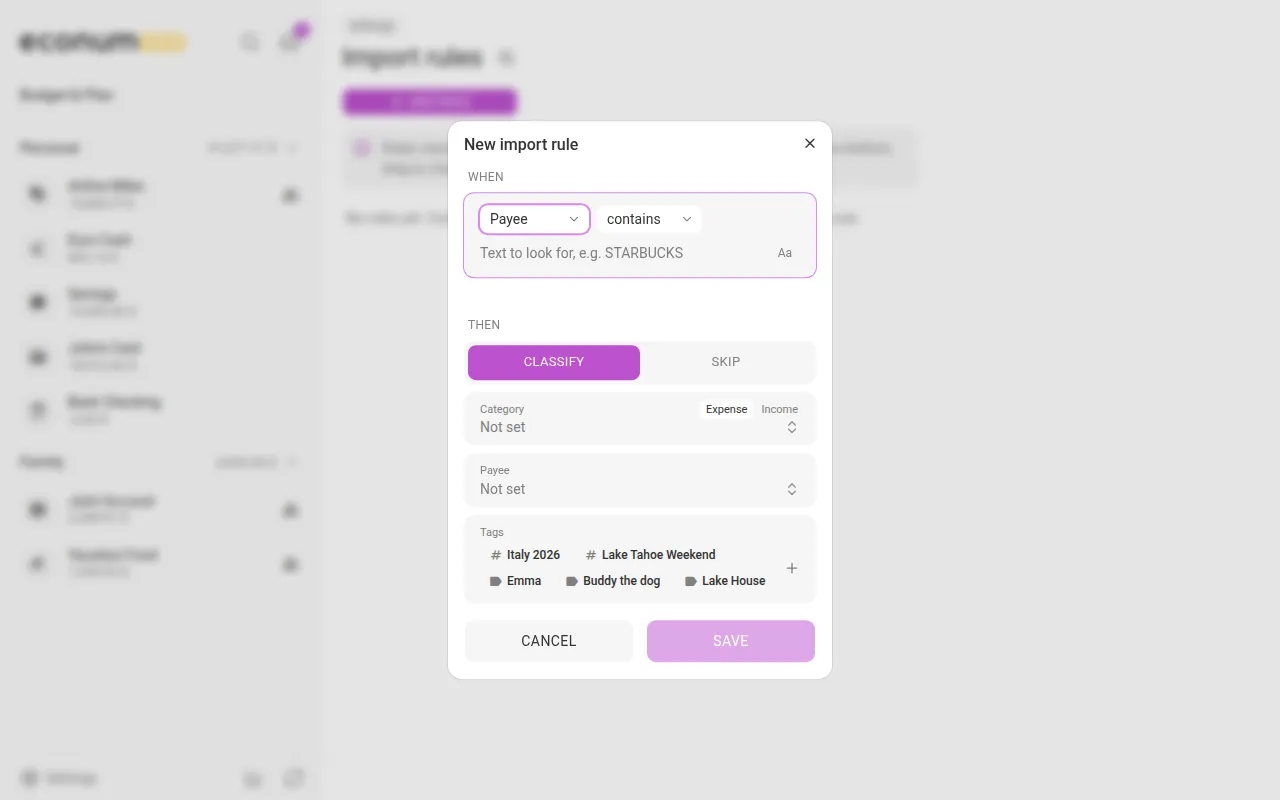
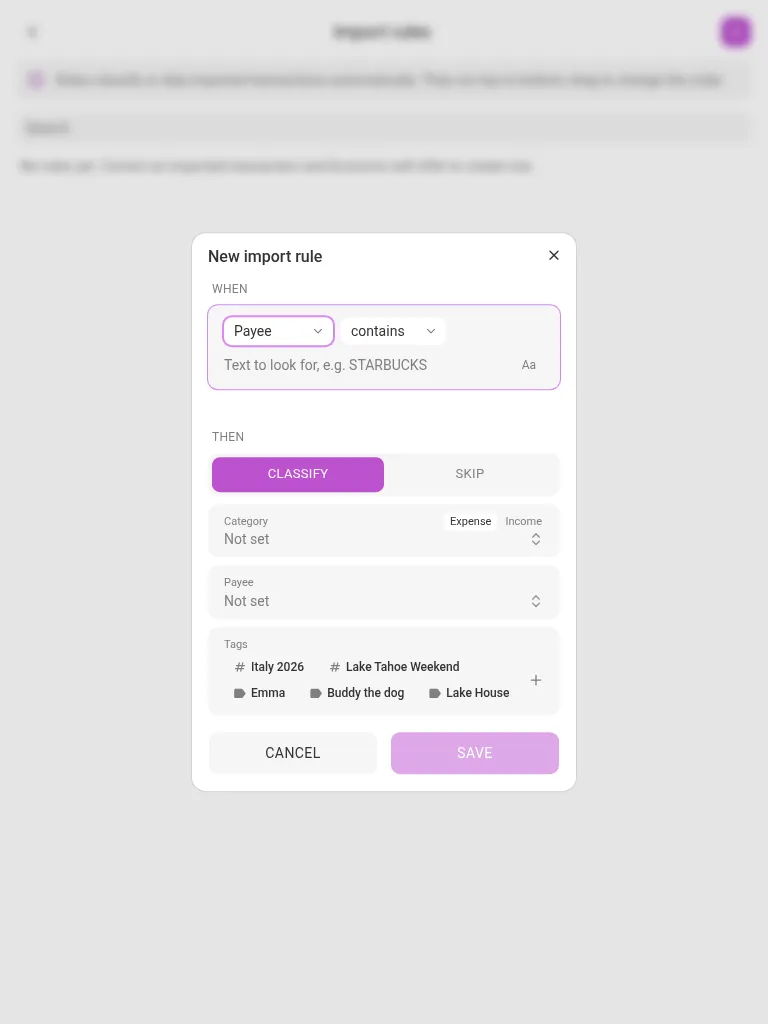
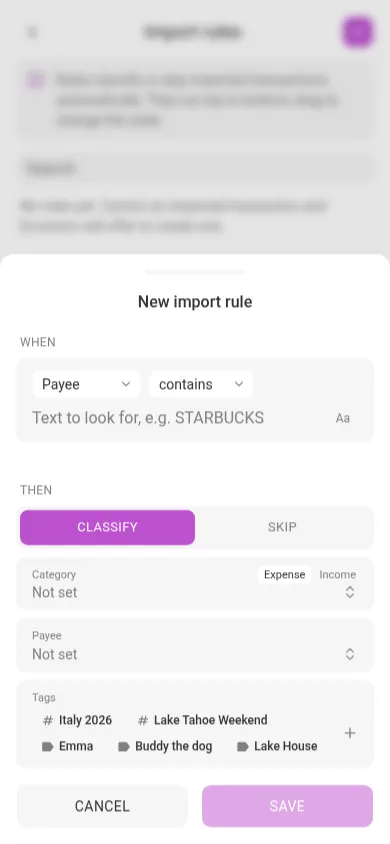
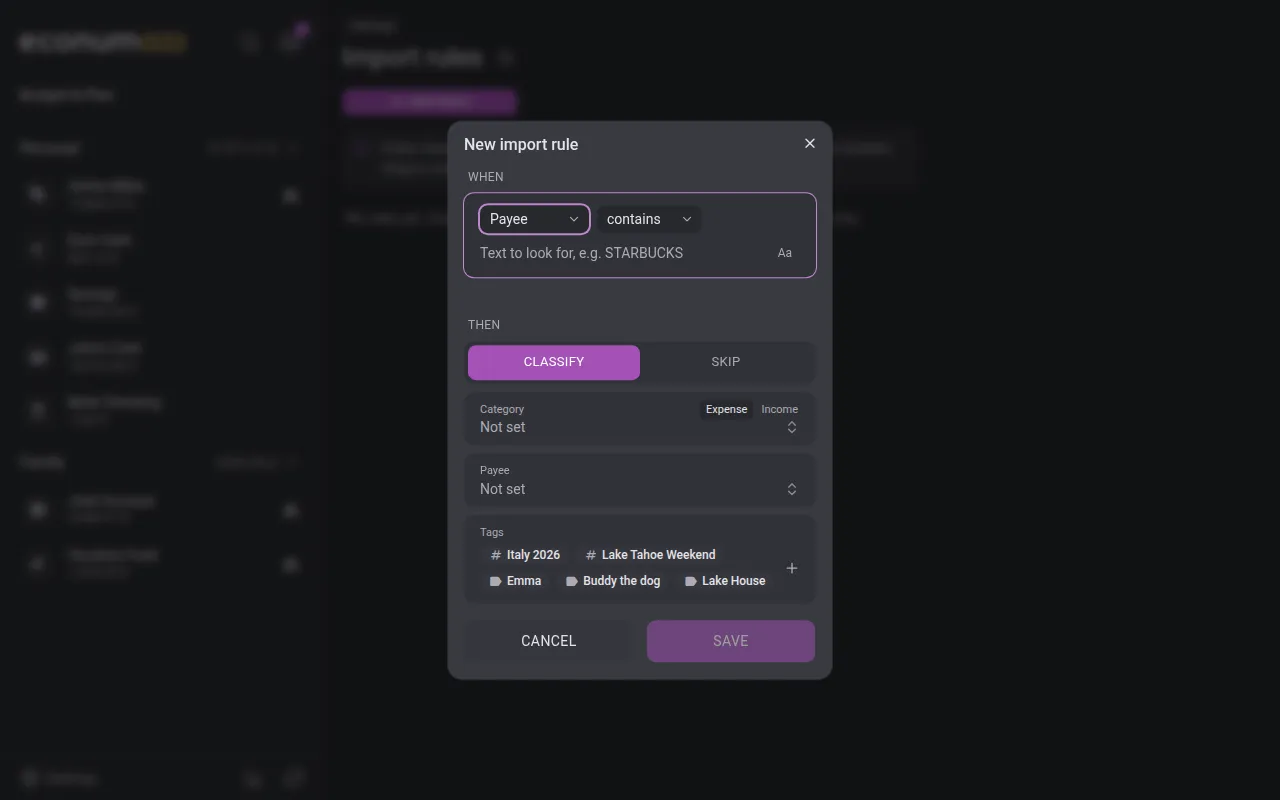
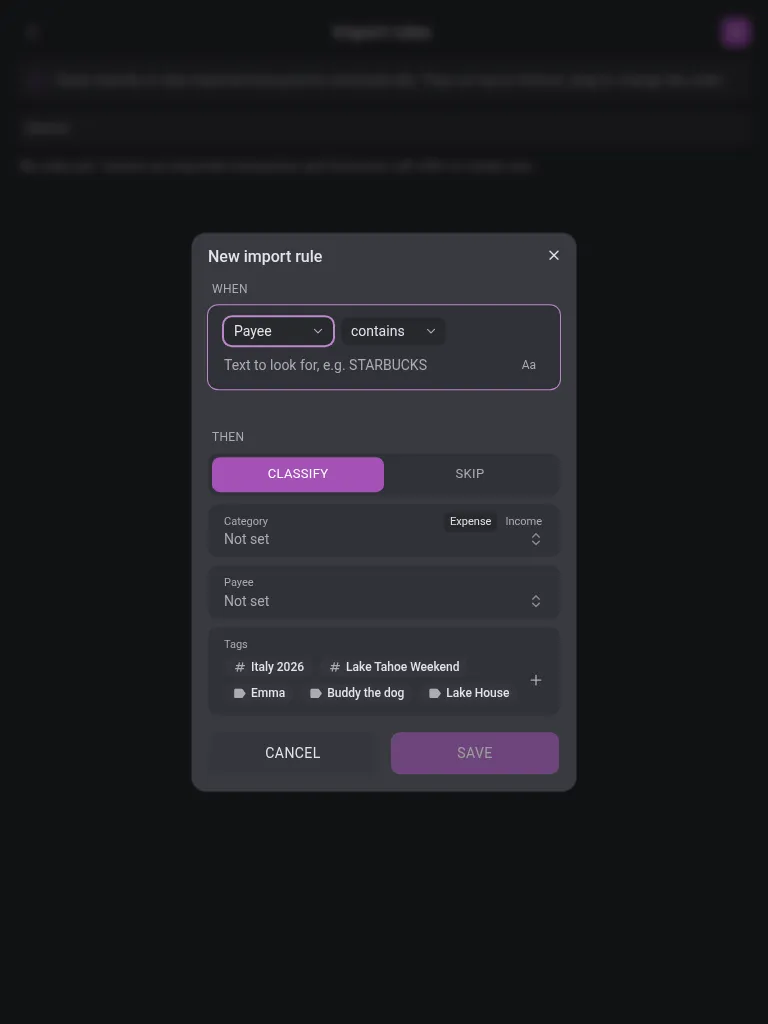
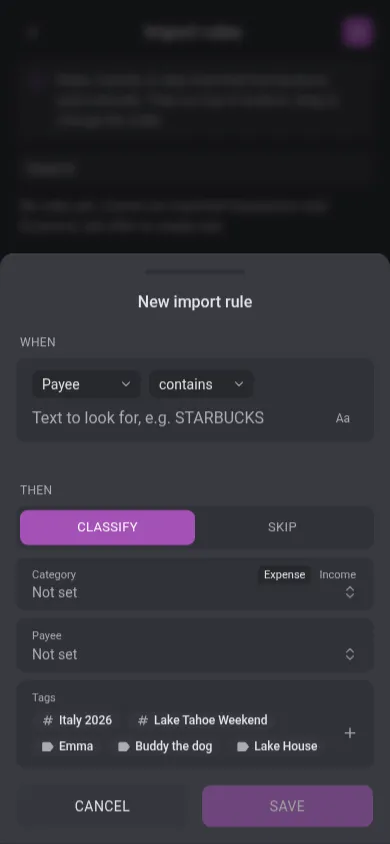
- Under When, choose what to look at — the Payee or the Description the bank sent — and how to compare: contains, starts with or is exactly. Type the text to look for, for example STARBUCKS. The Aa button makes the match case-sensitive.
- Under Then, choose what happens:
- Classify — set a Category (pick Expense or Income: only transactions of that type get it), a Payee, and tags — a budget tag and any reporting tags.
- Skip — matching transactions are not imported at all.
- Press Save.
Rules from your corrections #
You don’t have to write every rule by hand. When you change the category, payee, tag or reporting tags of an imported transaction, Econumo offers to Create an import rule for similar imports, with the match text filled in. It can also apply the new rule to the other imported transactions it would change.
AI rule suggestions #
When AI is available on your Econumo server, new imported transactions that no rule classified get rule suggestions in your Inbox — one per merchant, for example “BLUE BOTTLE · 3 transactions → Coffee · Blue Bottle”. Tap a suggestion to open the rule editor with the match text, category and payee filled in. Saving creates the rule and fills in only the empty fields of those transactions. Dismiss removes the suggestion.
The AI only picks from your existing categories and payees, and it never changes a transaction by itself. On a shared account, suggestions go to the account’s owner.
To turn AI features off, open Personal settings → AI features — see User profile.
Ordering, editing and deleting rules #
Rules run from top to bottom; drag a rule to change the order. Each rule’s menu has Edit and Delete.