Debts #
A debt tracks a loan — a mortgage, a car loan, a student loan — inside your budget, without opening an account for it. Your net worth and account totals stay clean, and the budget still shows how the loan is going: how many payments are left, how much of each payment is interest, and when the loan will be paid off.
A debt sits on an expense category (or an envelope). The expenses you already record in that category are its payments, so nothing changes in how you enter or import transactions. Each payment is split bank-style into interest and principal, and Econumo works out the rate your lender is charging from the loan’s terms — you never have to type it in.
In this section #
Tracking a loan as a debt #
Give the loan its own expense category first (for example Car Loan) and record its payments there, from an account that belongs to the budget. Then, on the budget page:
- Open the category row’s ⋮ menu and choose Track as debt. On a tablet or a phone, press Configure → Edit structure first — the rows get their ⋮ menus there.
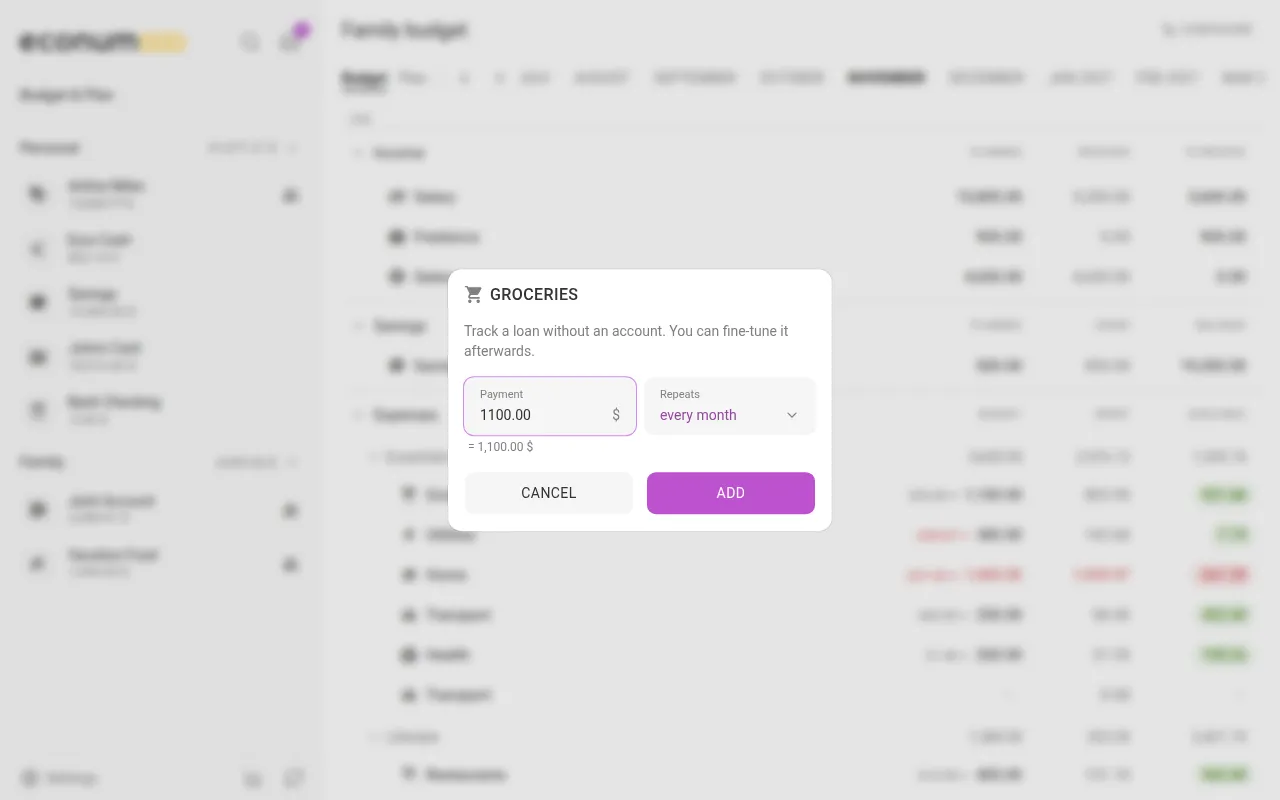
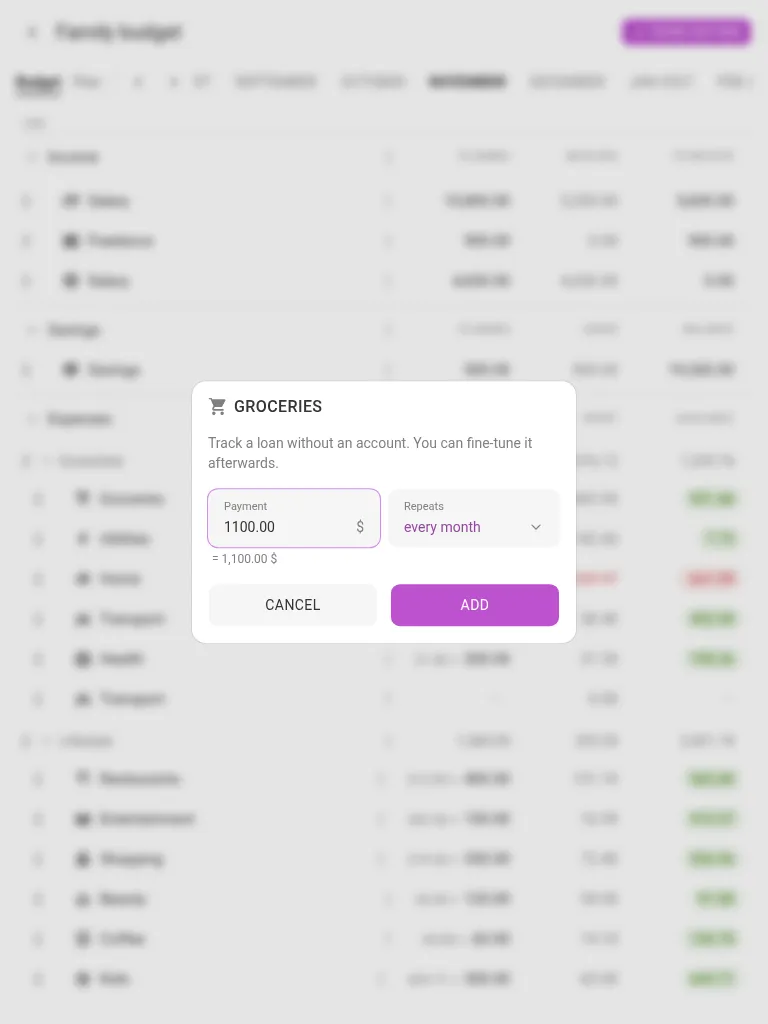
- Enter the regular Payment — Econumo suggests the amount planned for the row — and how often it Repeats (every week, every 2 weeks, every month, every quarter or every year).
- Press Add.
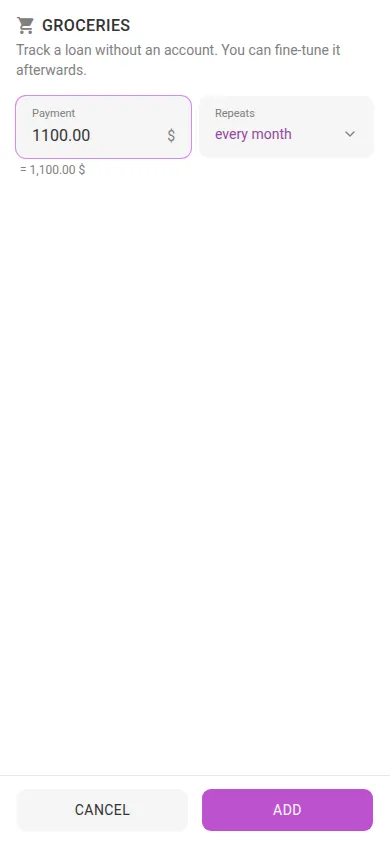
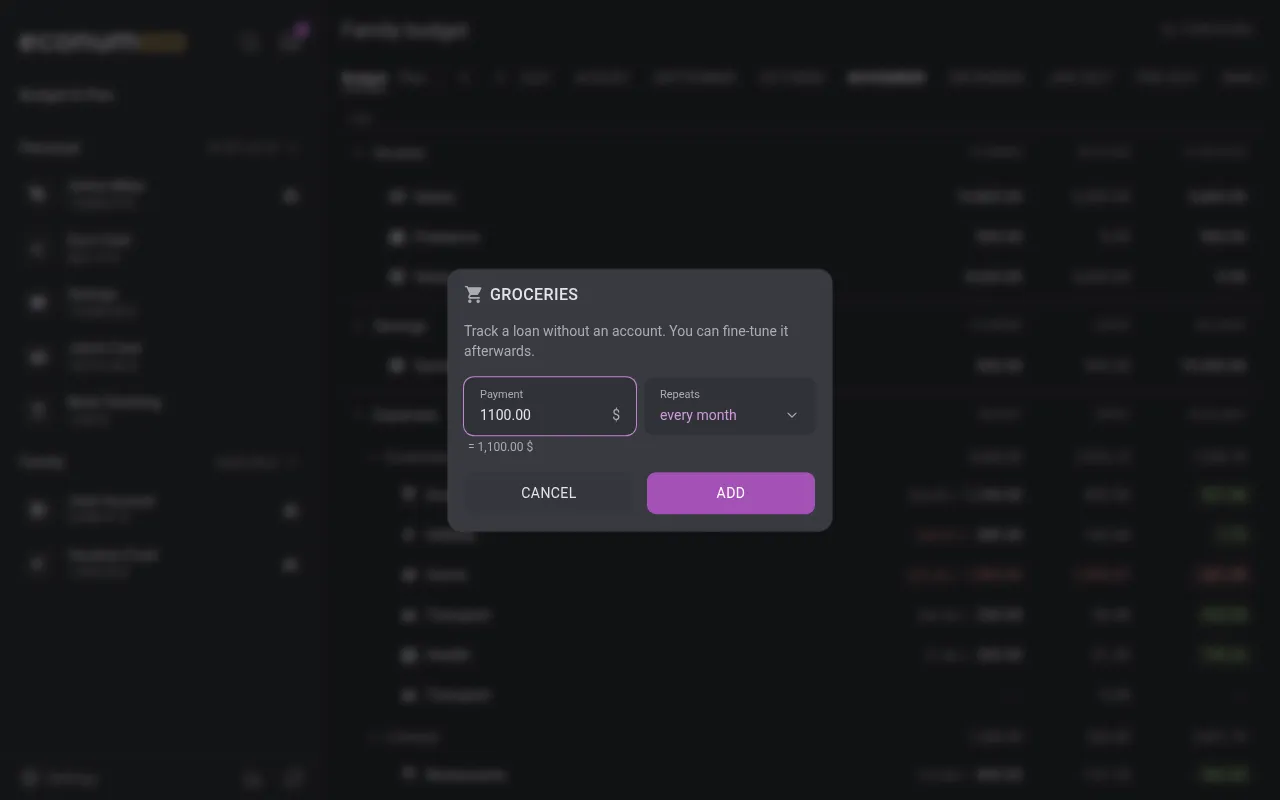
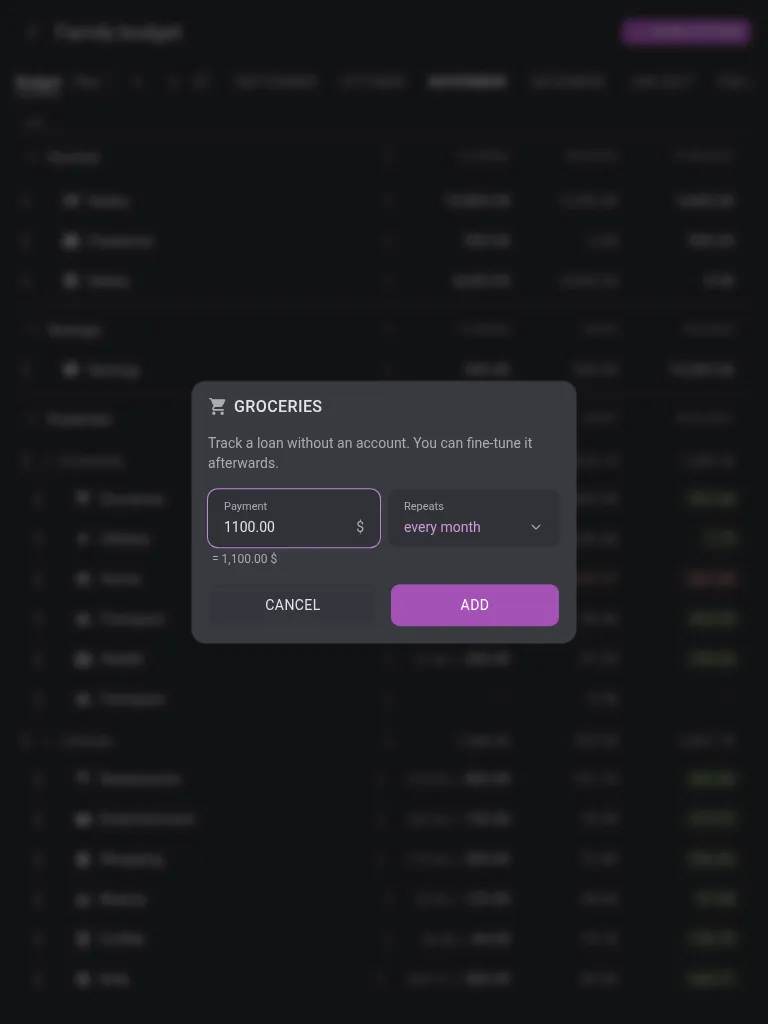
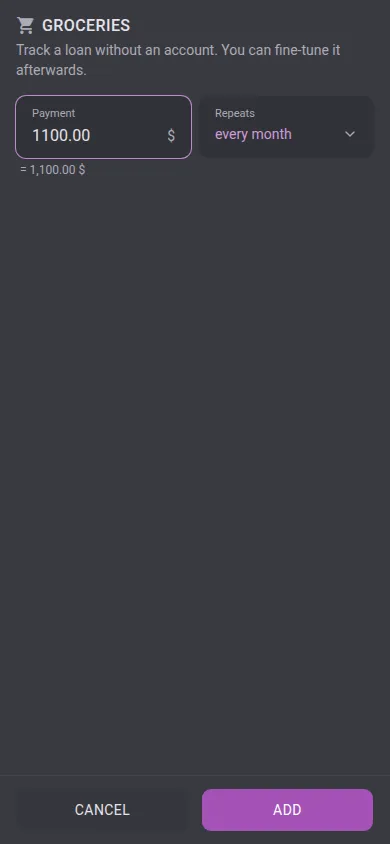
The debt starts collecting its payments straight away. To see the balance, the payments left and the payoff date, finish setting it up: open Debt details, go to Settings, and enter the Amount borrowed, the Start date (when the loan began) and the Last payment date (when the loan ends).
Note Only expenses on the budget’s own accounts count as payments. If you pay the loan from an account that isn’t part of the budget, add that account in Budget settings first.
Debt details #
Open the debt row’s ⋮ menu and choose Debt → Debt details. On a phone, tap the row and then Debt details in its sheet. The details open in a dialog with four tabs.
Overview #
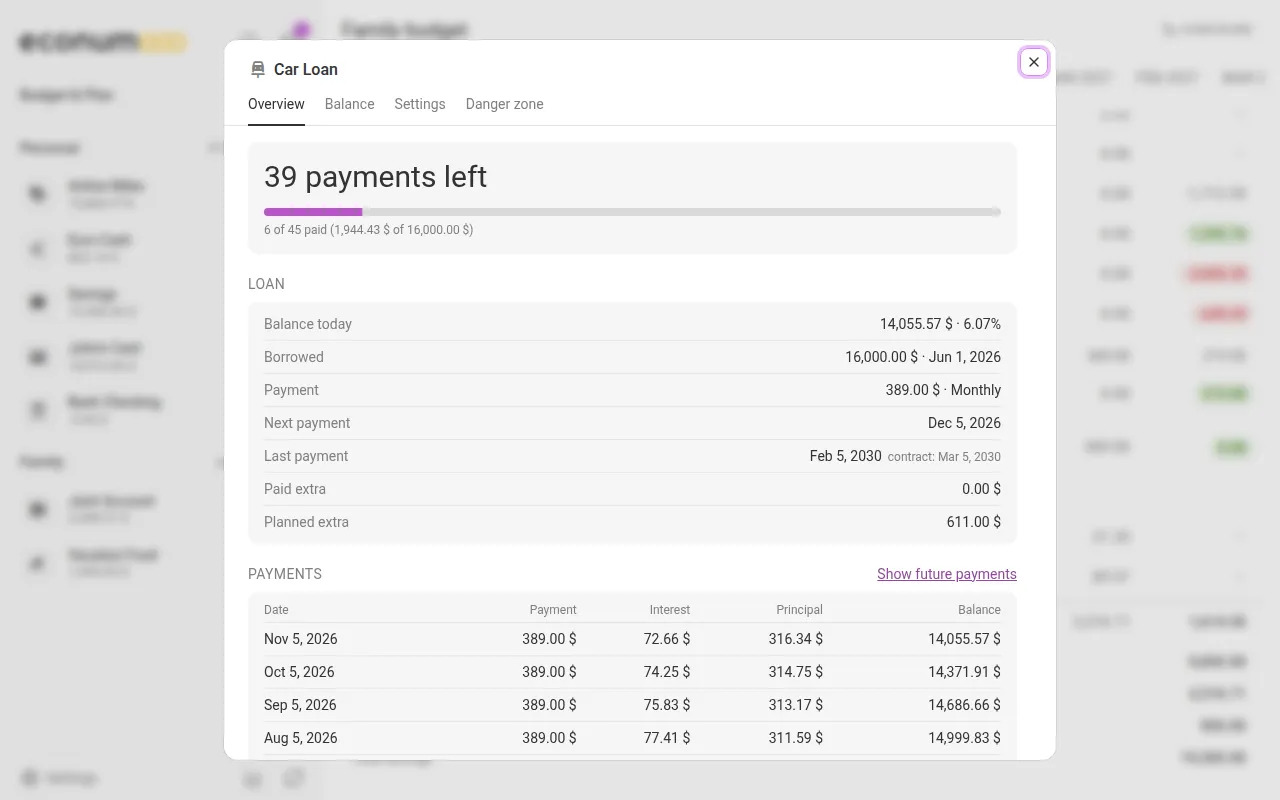
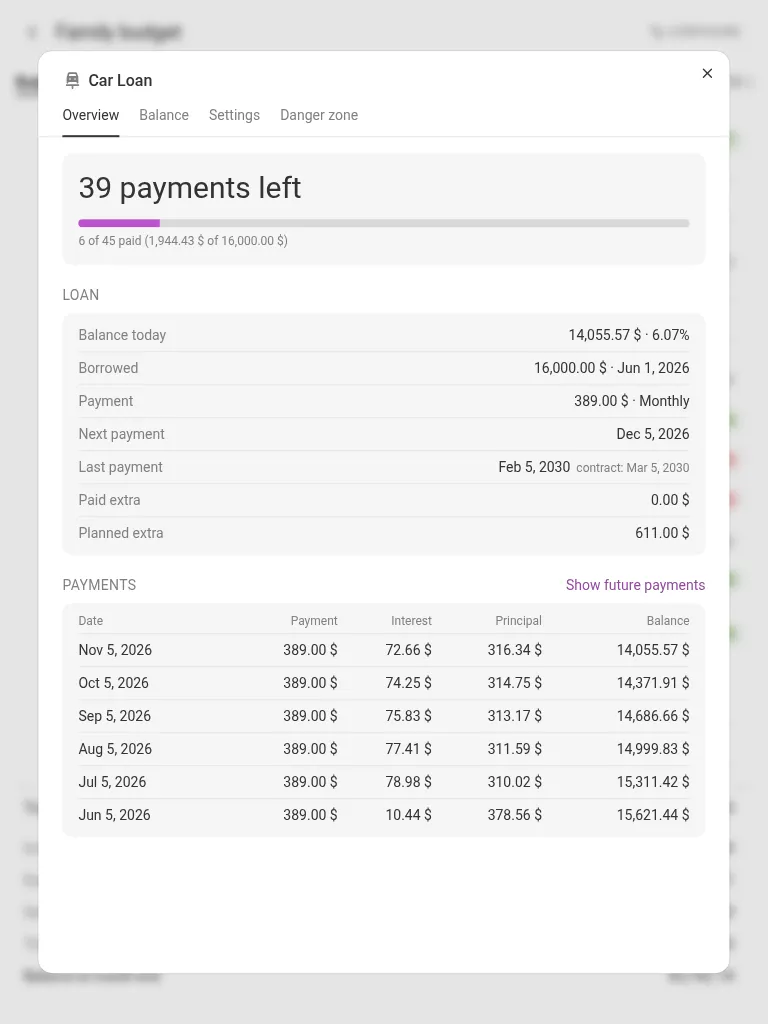
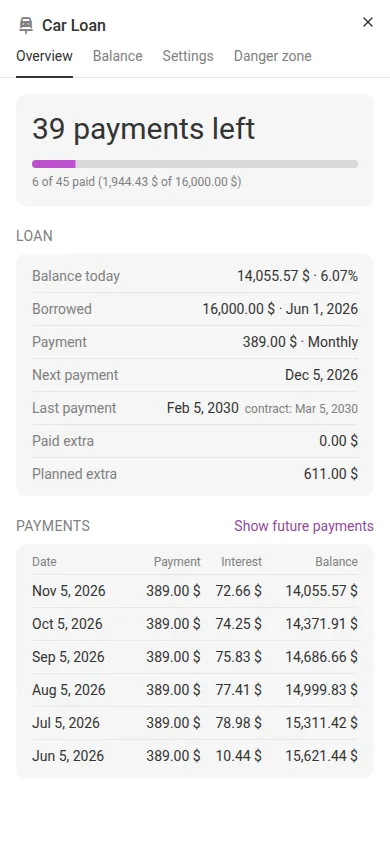
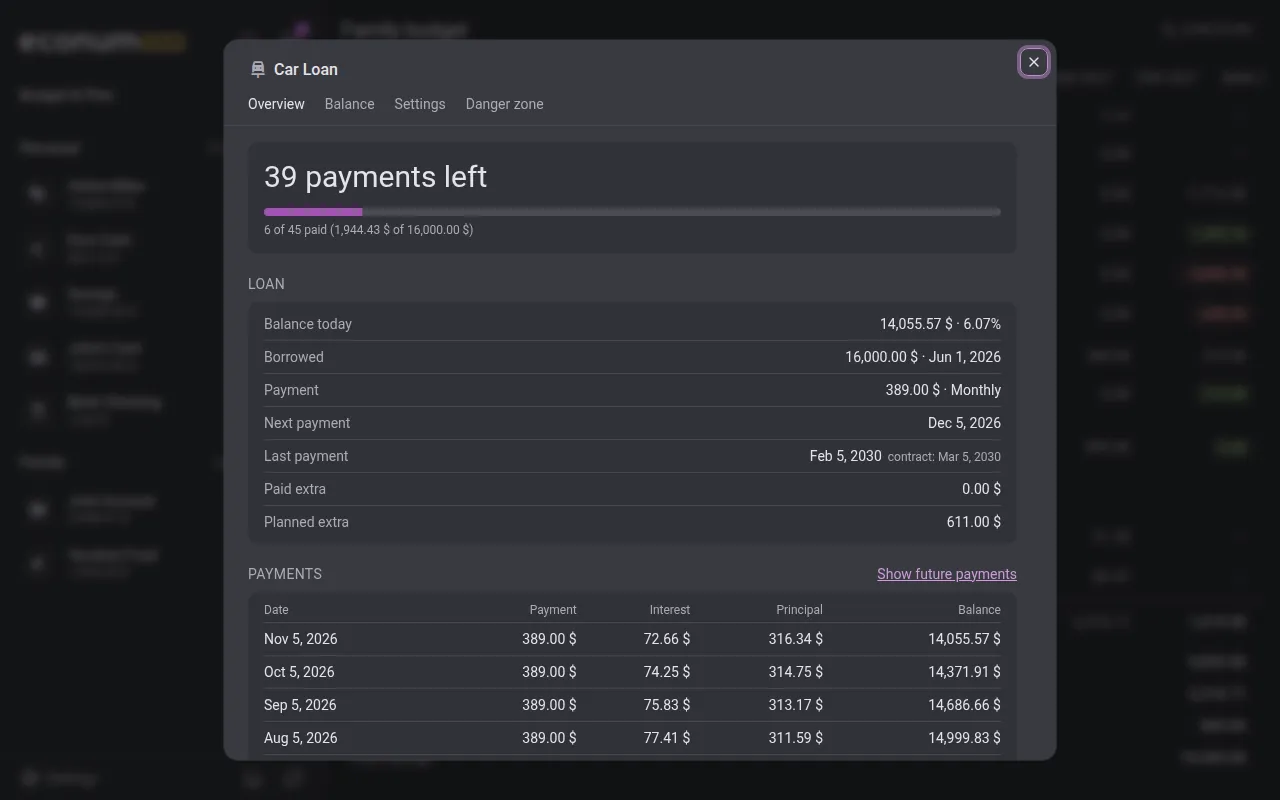
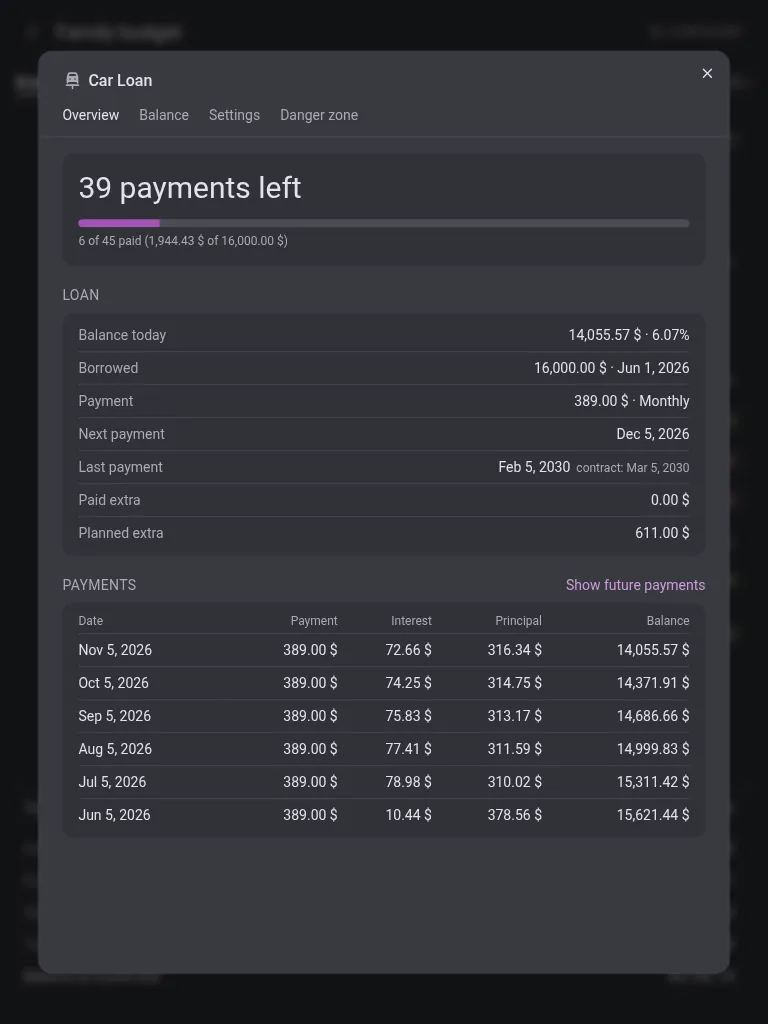
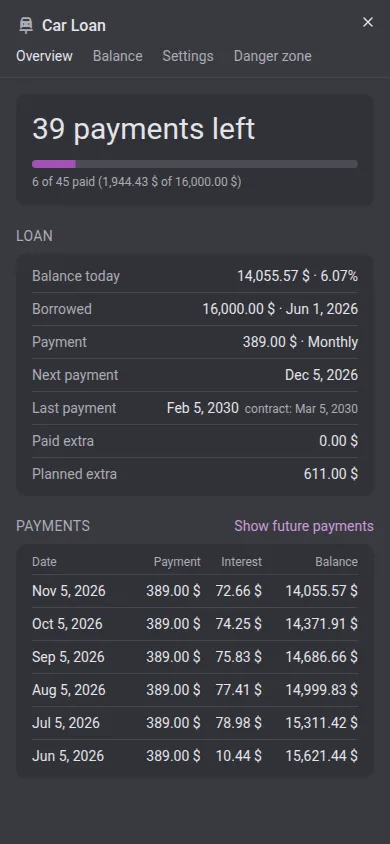
The top shows how many payments are left, with a bar for the payments made so far (“6 of 45 paid”). Under it, Loan lists the balance today and the rate Econumo worked out, the amount borrowed and when, the payment and how often it repeats, the next and the last payment, and how much you have paid — and still plan to pay — on top of the schedule. Payments lists every payment with its interest, principal and the balance after it; Show future payments adds the schedule ahead.
Balance #
Balance today compares Econumo’s figure with your bank statement. When your lender sends a statement, press Add a statement and enter the balance it shows; Econumo uses it from that date on. Rate today shows the rate and the payment in force. If your lender changes the rate, press Add a rate change.
Settings #
The loan’s terms: Amount borrowed, Start date, Last payment date, Payment and Repeats. Correct them here if you entered something wrong; Econumo splits every payment again with the new terms.
Paying off or deleting a debt #
The Danger zone tab has two buttons:
- Mark as paid off sets what is owed to zero and stops counting down the payments — use it when you settle the last small amount.
- Delete removes the debt and its history. Your transactions are not changed.
Both are also in the row’s ⋮ menu under Debt.
Debts in your budget and plan #
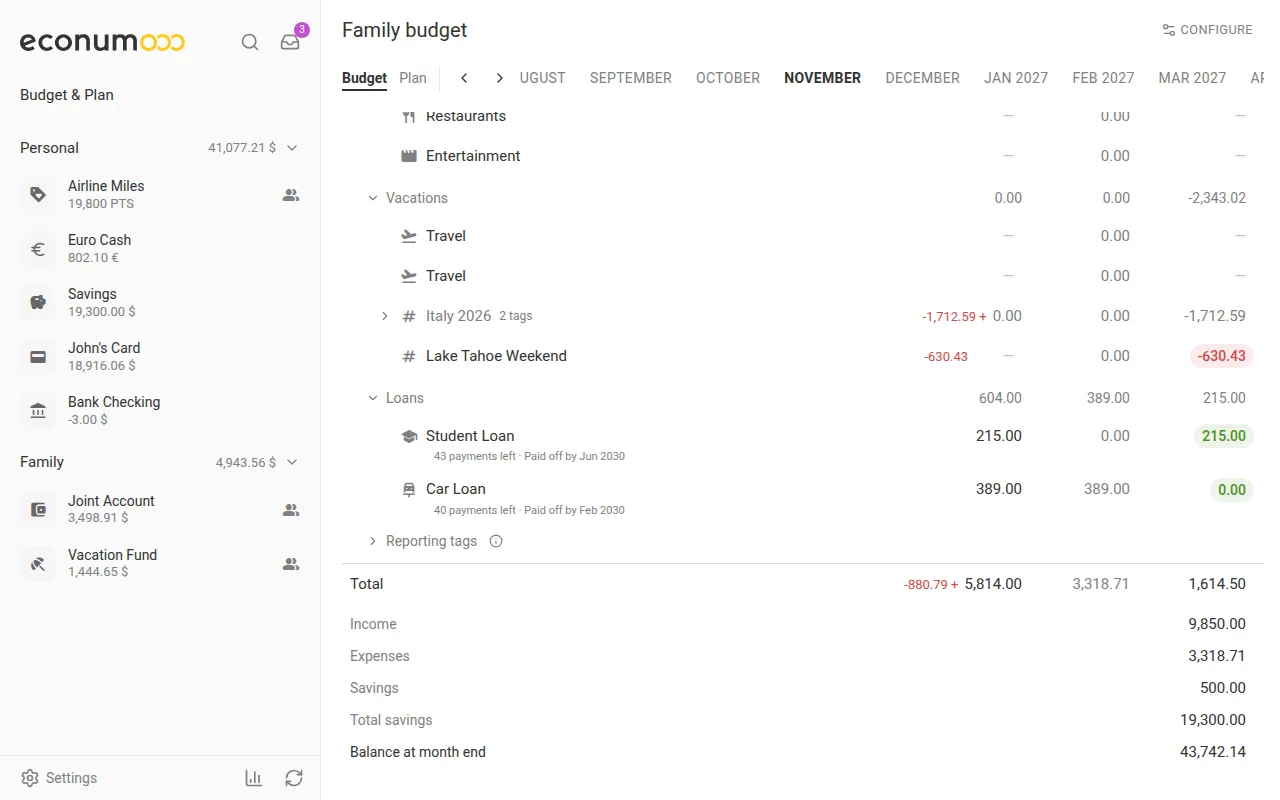
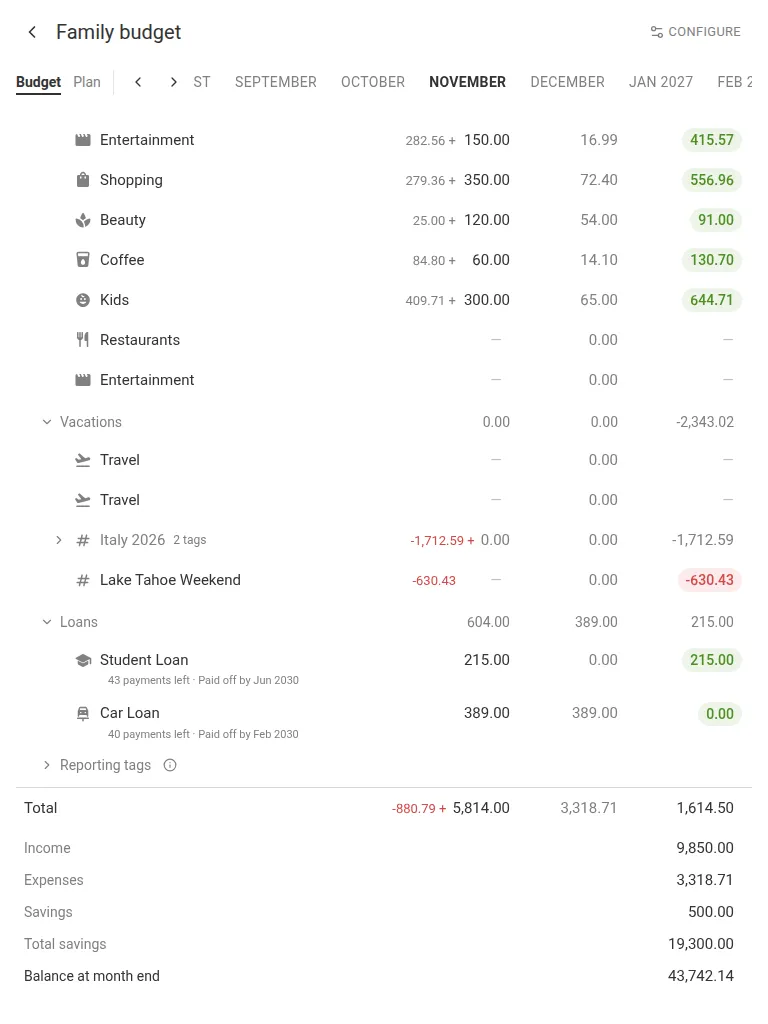
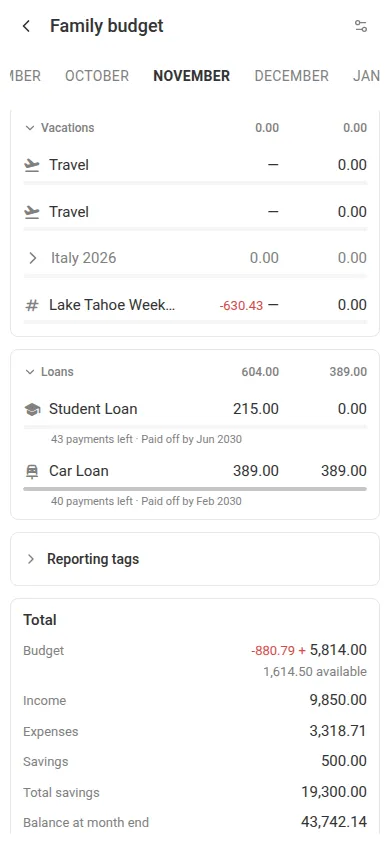
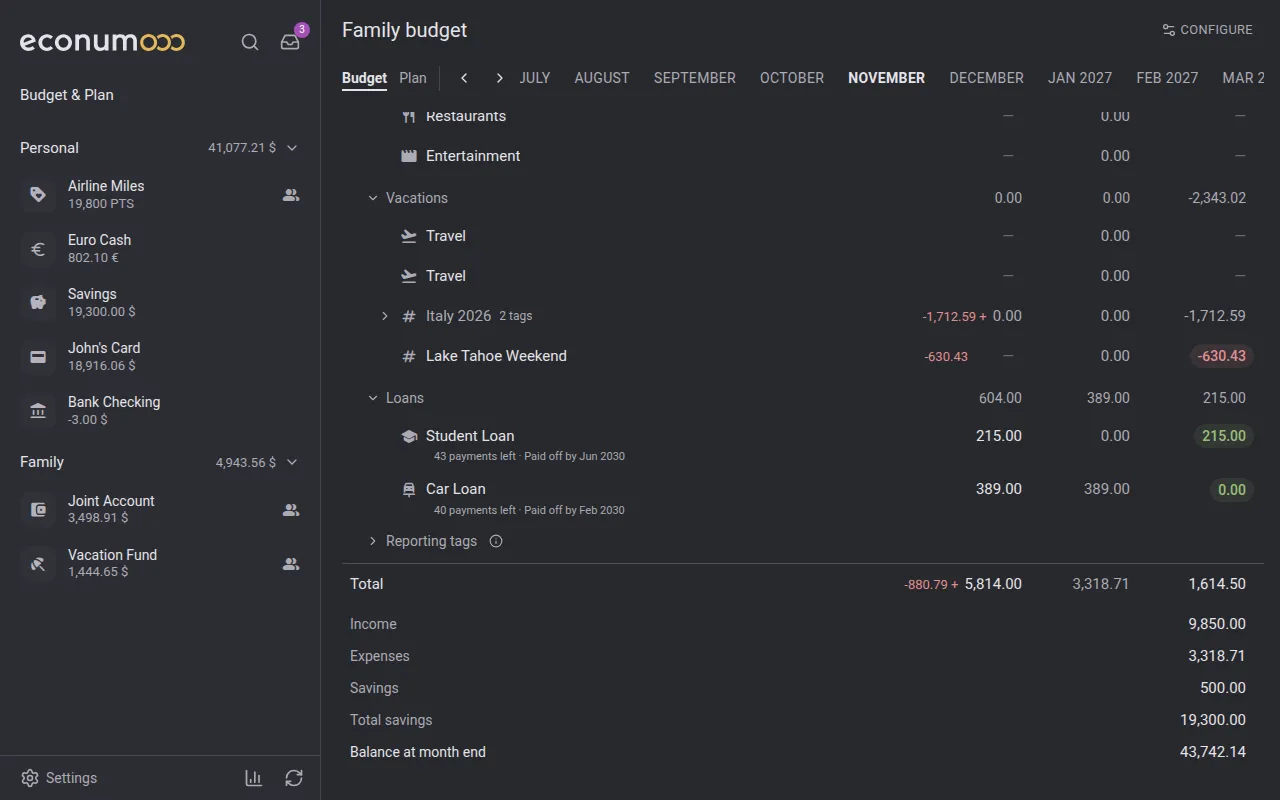
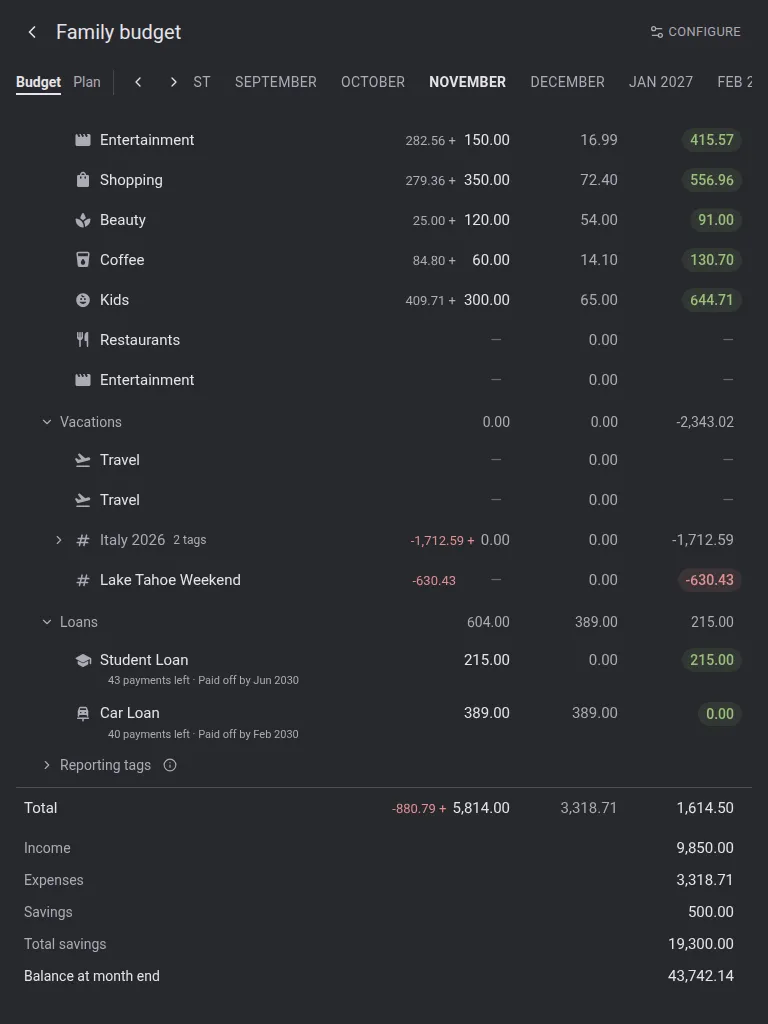
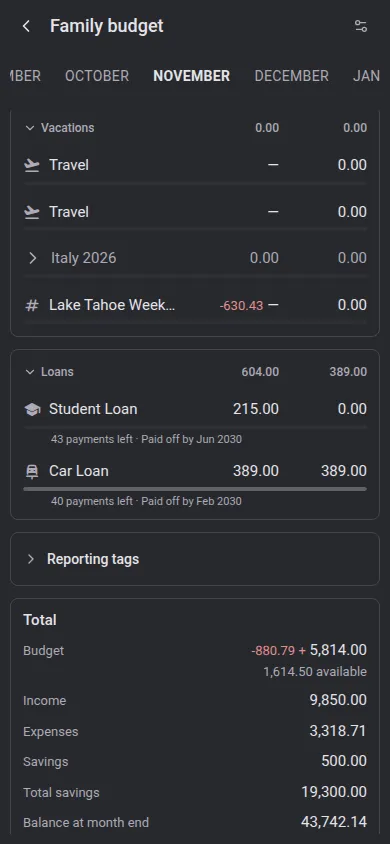
A debt stays in its row. Under the name it shows the payments left and the payoff date (“40 payments left · Paid off by Feb 2030”), and its Budget and Spent columns work like any other row.
Plan the debt as you would any category, in the budget or the Plan view. Planning more than the scheduled payment counts as an extra payment: the payoff date moves earlier, and the overview shows it under Planned extra.
Debts in a shared budget #
Everyone with access to the budget sees each debt by name, with its payments and balance — the Budget settings dialog says so under the accounts. People who can manage the budget can also open and change its details; with view-only access, you can look but not edit.