Accounts #
This section covers the basics of ‘Accounts’ in Econumo.
Accounts represent your accounts in financial institutions — for example, “Savings account” or “Cash”. Each account has its own currency, and accounts are grouped into folders (such as “Personal” and “Family”) that structure the sidebar and the mobile home screen.
In this section #
Account creation #
Open Settings → Accounts and press the + button on the folder you want
the account in. Specify the account name, current balance, currency, and icon.
The balance field comes with the same built-in calculator (+, −, ×, ÷,
=) as the transaction dialog.
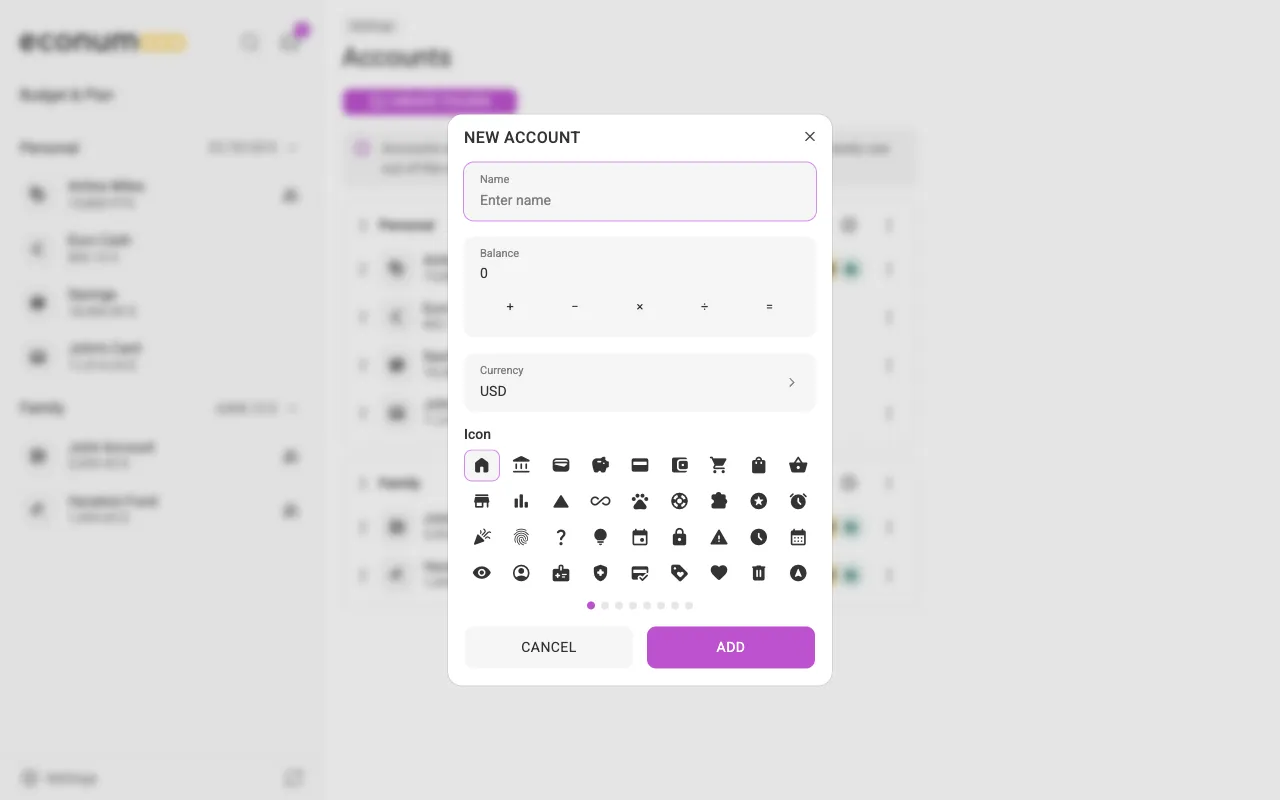
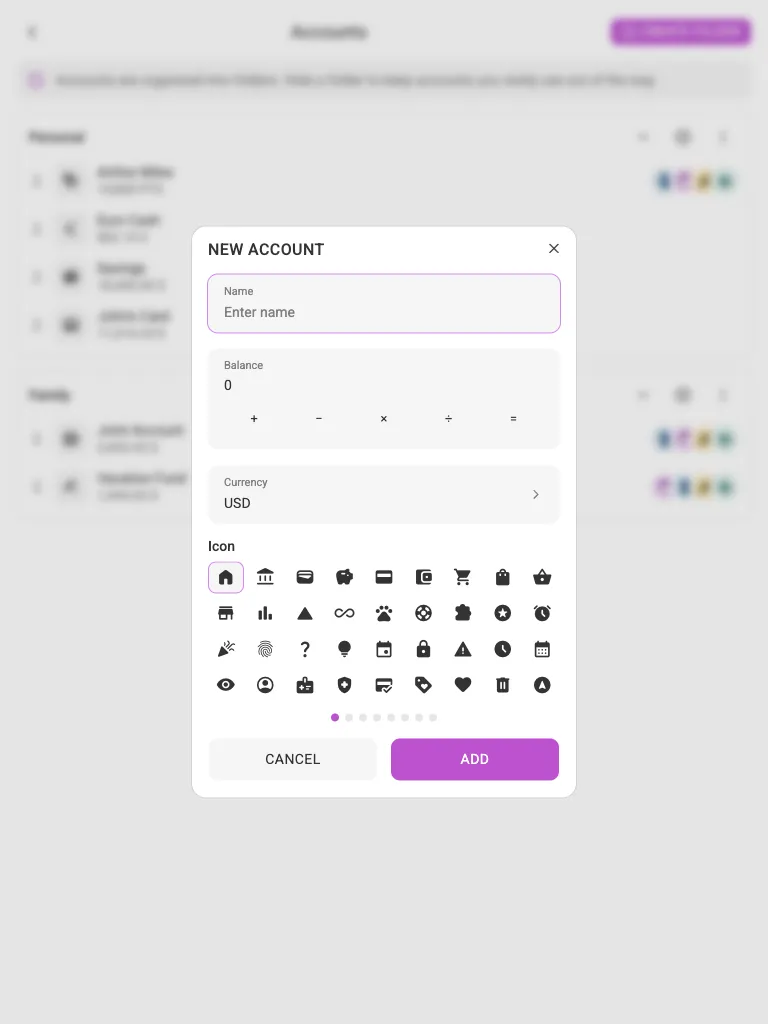
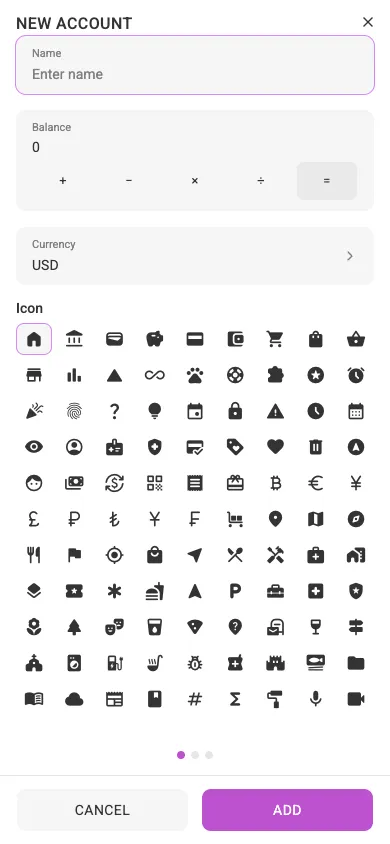
Note The starting balance is recorded as a regular transaction dated the day you created the account, so your history starts consistent from day one.
Managing your accounts #
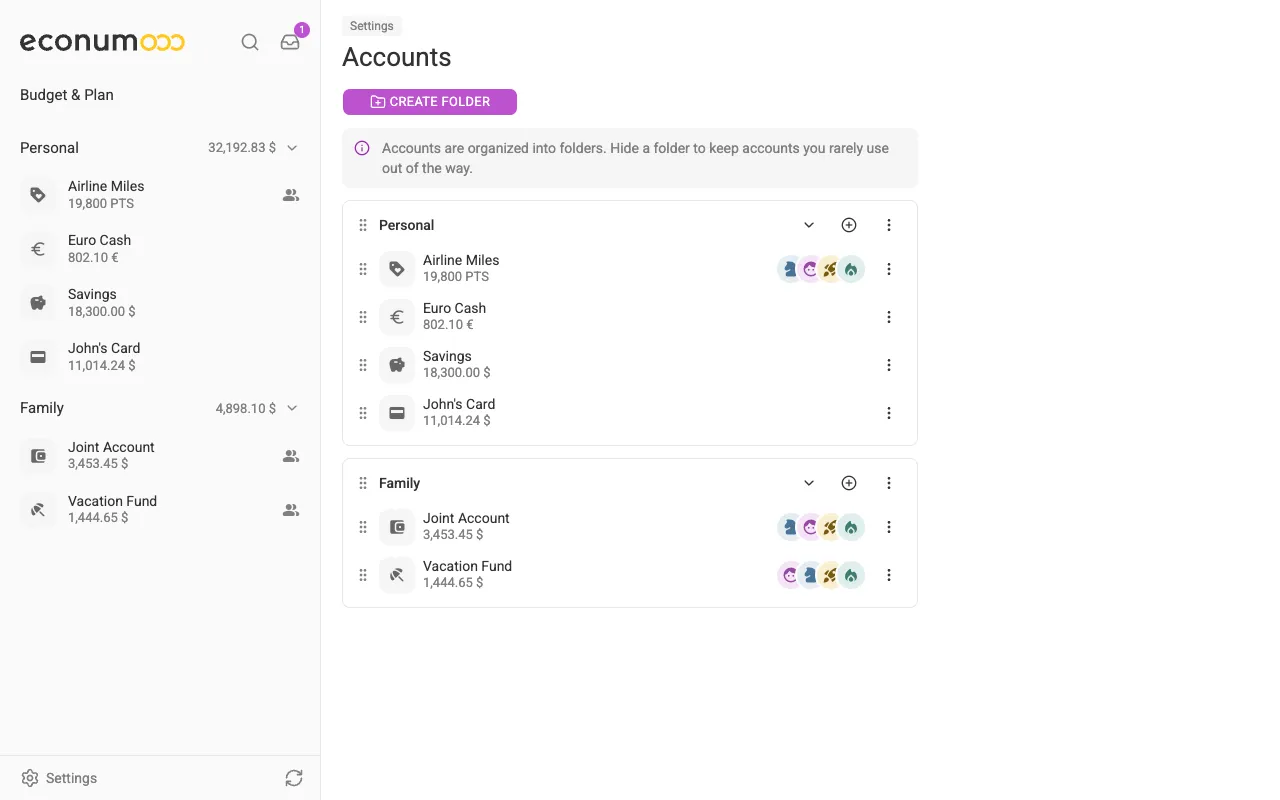
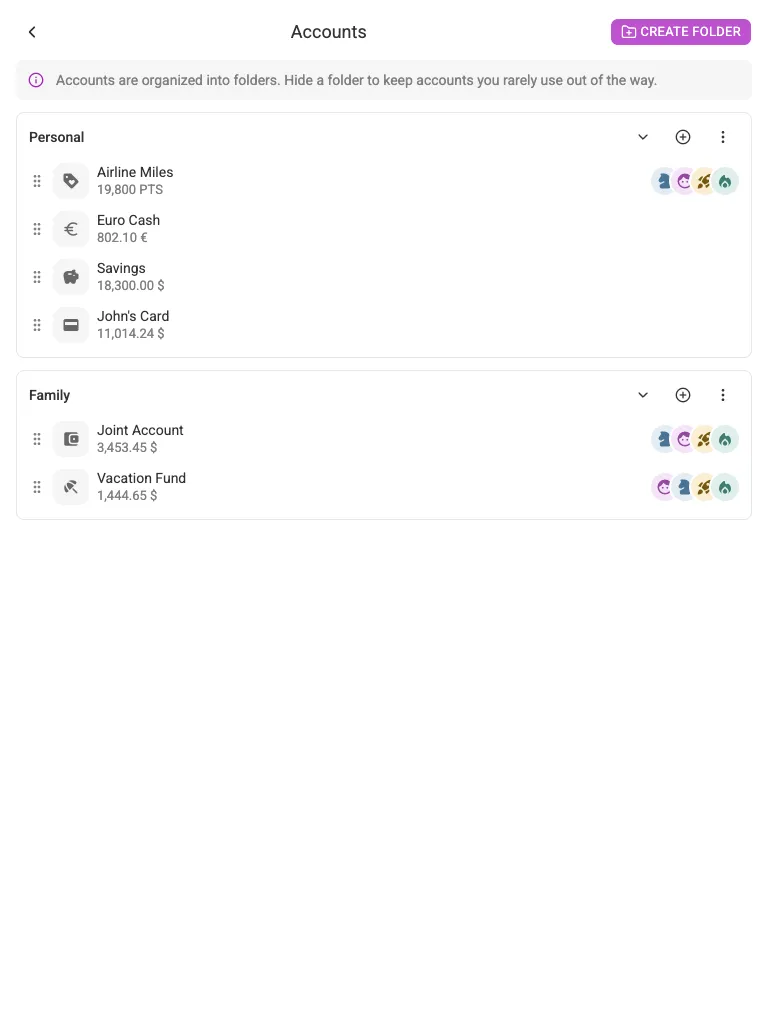
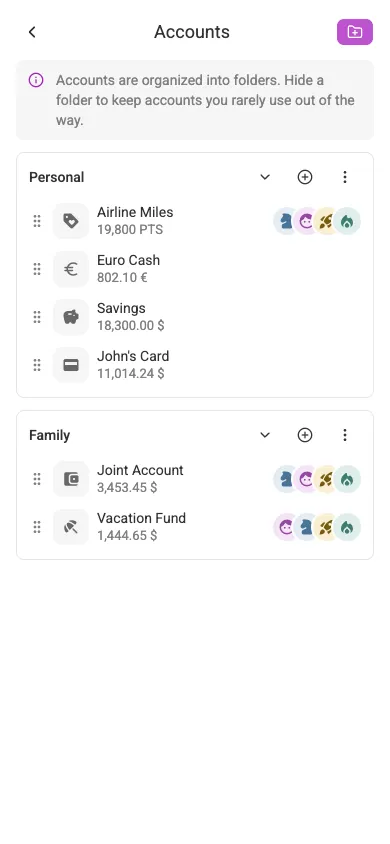
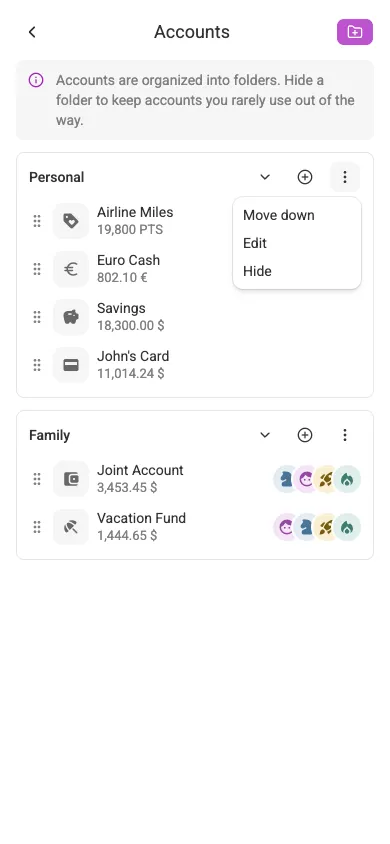
All your accounts are accessible via Settings → Accounts. This screen shows every folder with its accounts, including the ones shared with you (marked with the avatars of everyone who has access).
Organize accounts in folders #
Create folders with the Create folder button and drag accounts between them using the dots handle next to their names. The folder structure is reflected in the left sidebar on desktop and on the home screen on mobile.
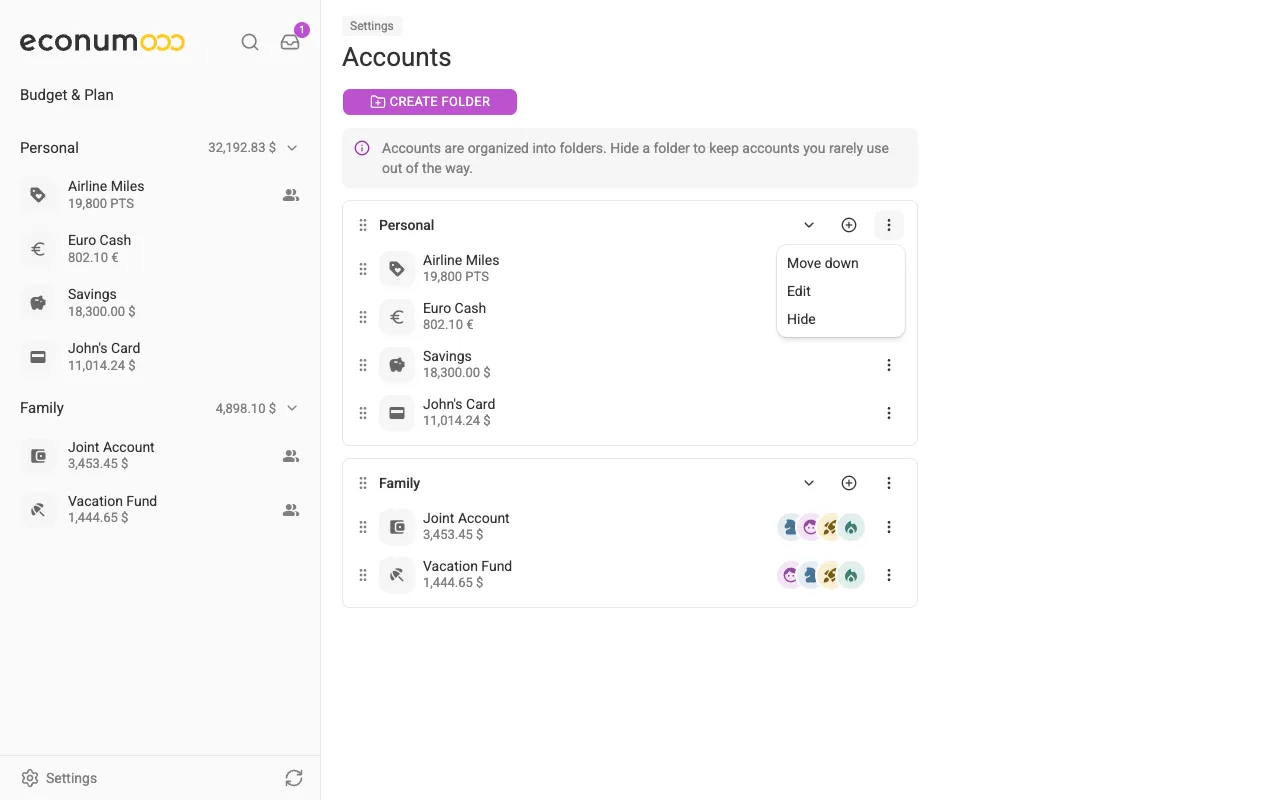
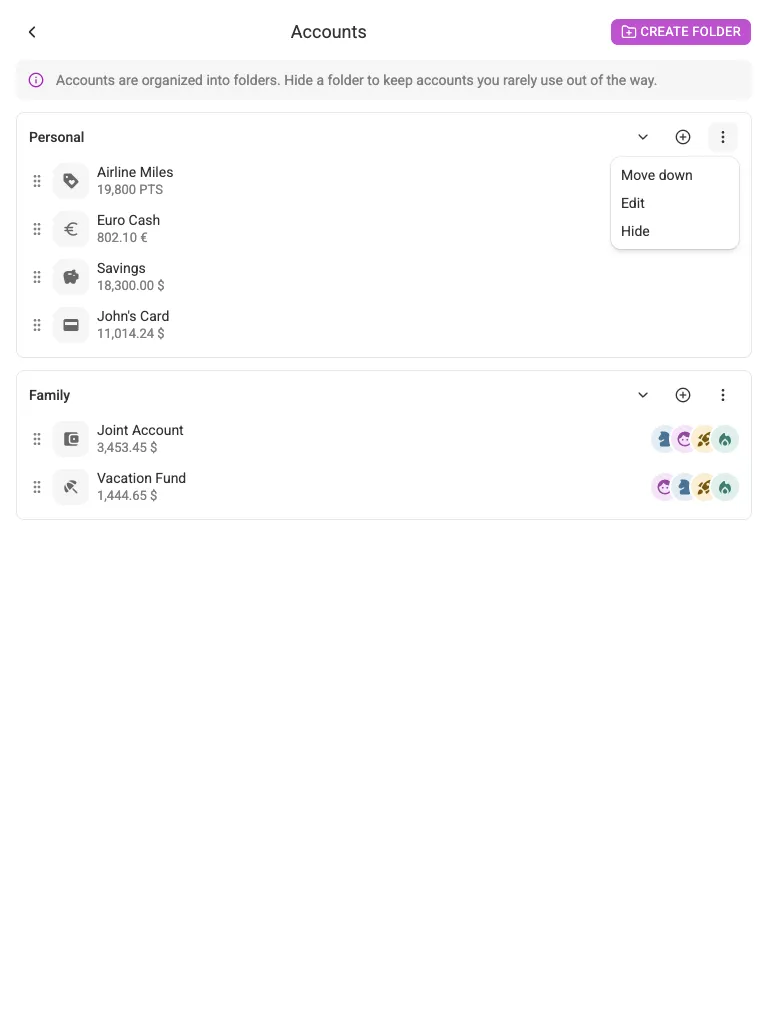
Use the folder menu (the three dots on the folder row) to edit a folder’s name, move it up or down, or hide it. A hidden folder disappears from the main screen — handy for accounts you rarely use — and can be shown again from the same menu.
Editing an account #
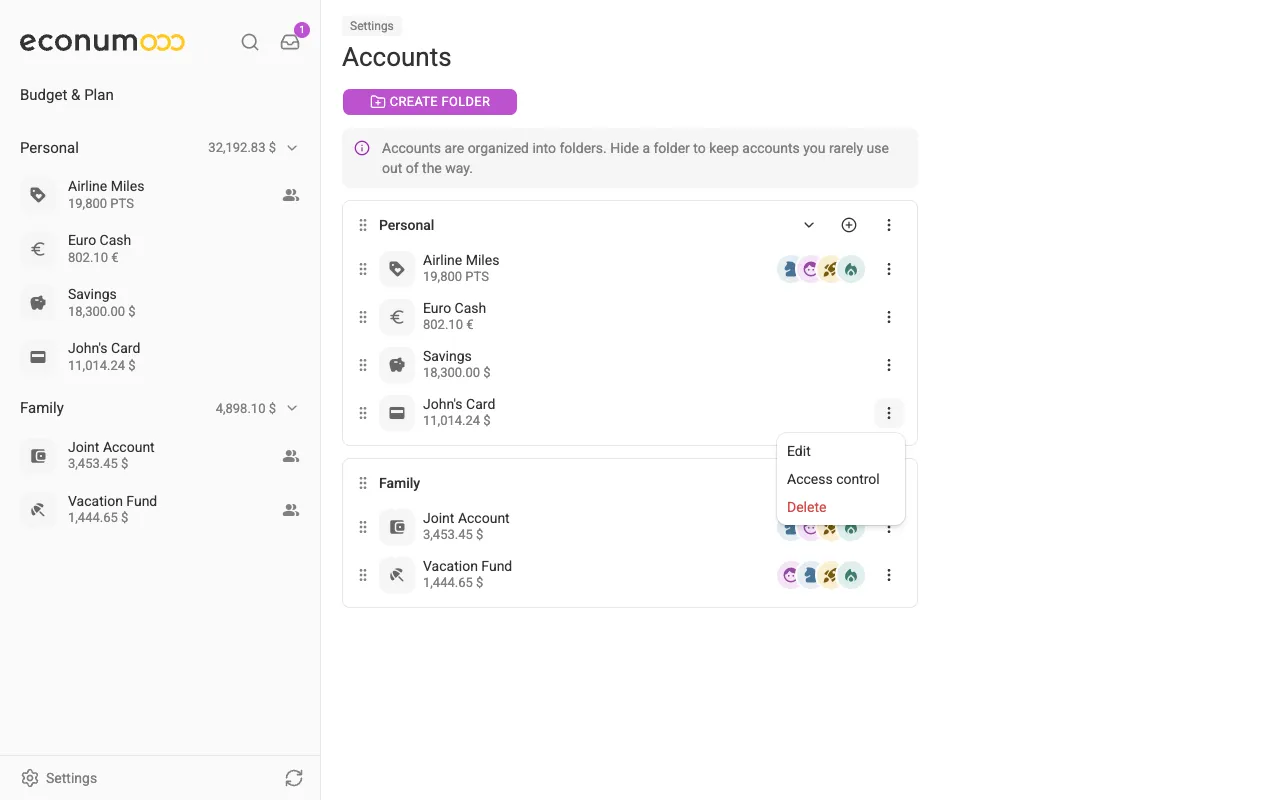
Open the account menu to edit or delete an account. On desktop and tablet, click the three dots next to the account; on mobile, tap the account row to open its details.
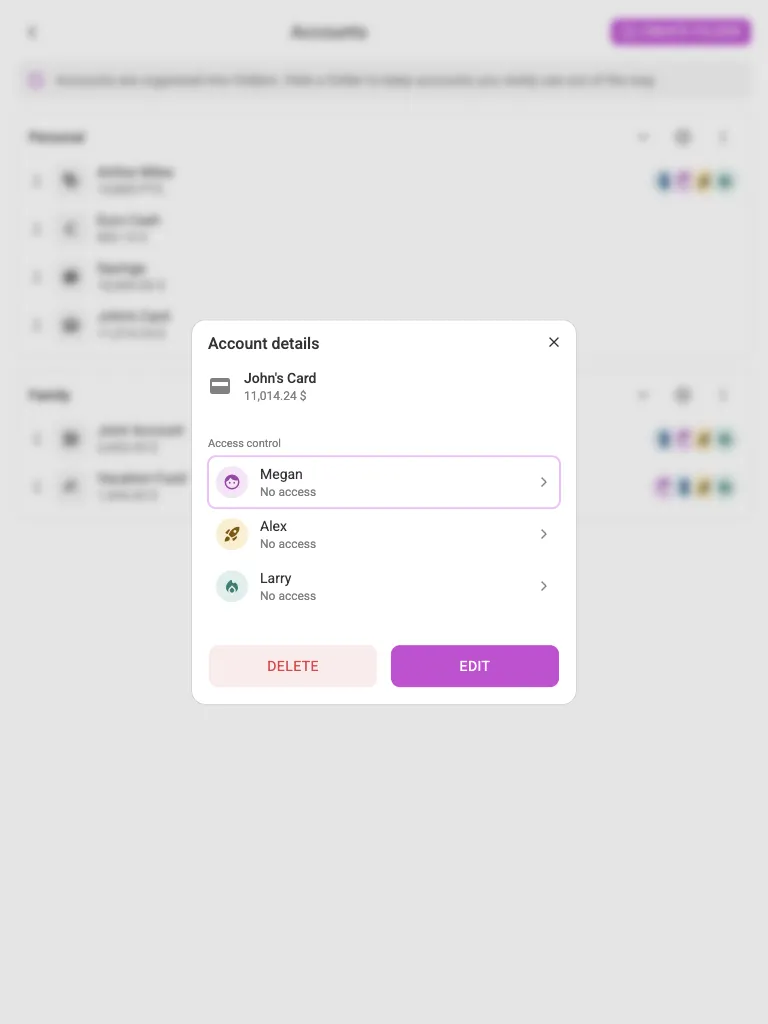
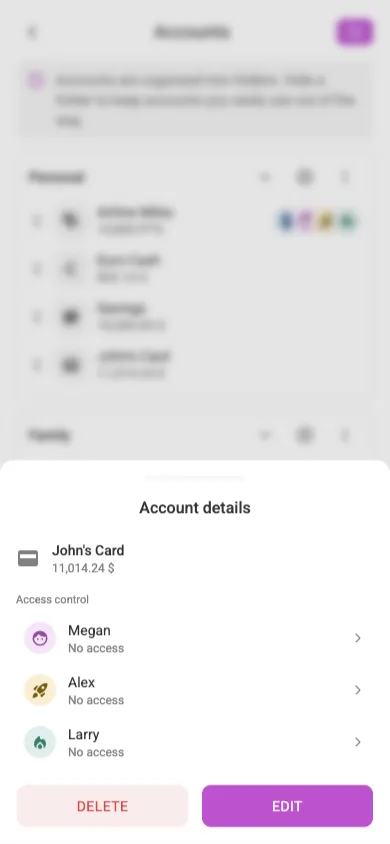
Editing lets you change the name, balance, currency, and icon. You can also open the same dialog from the account page itself via the Configure button.
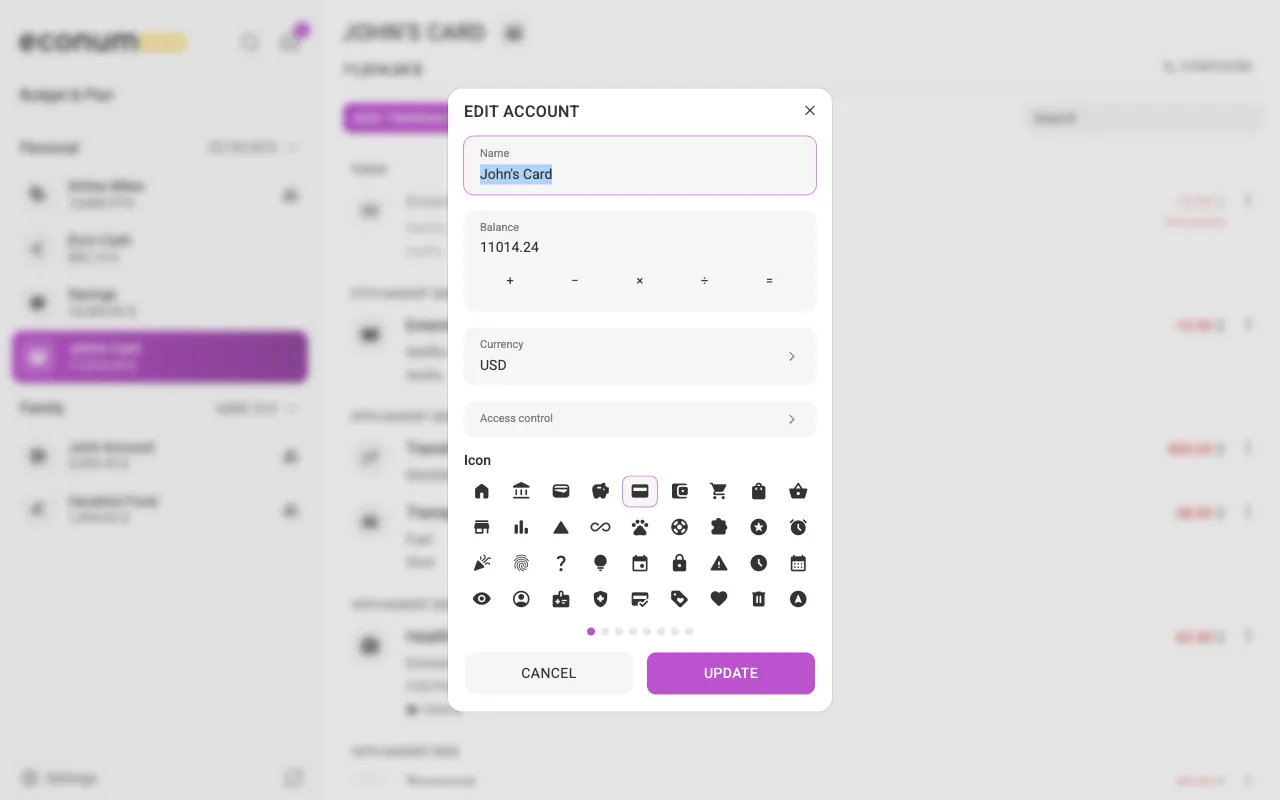
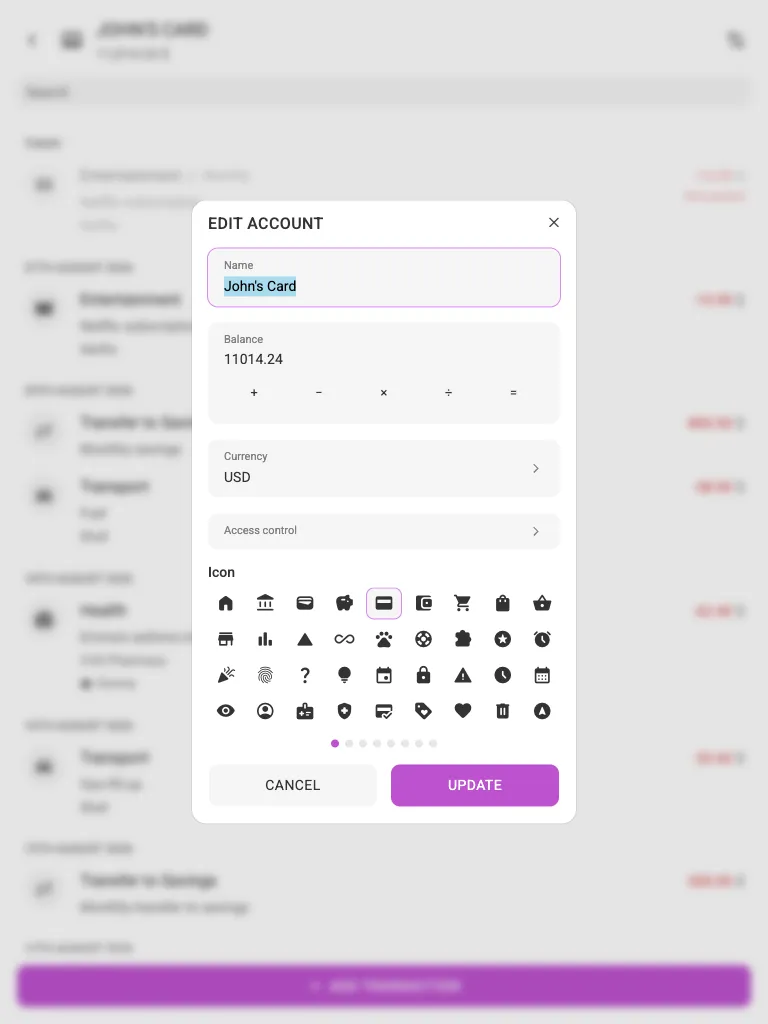
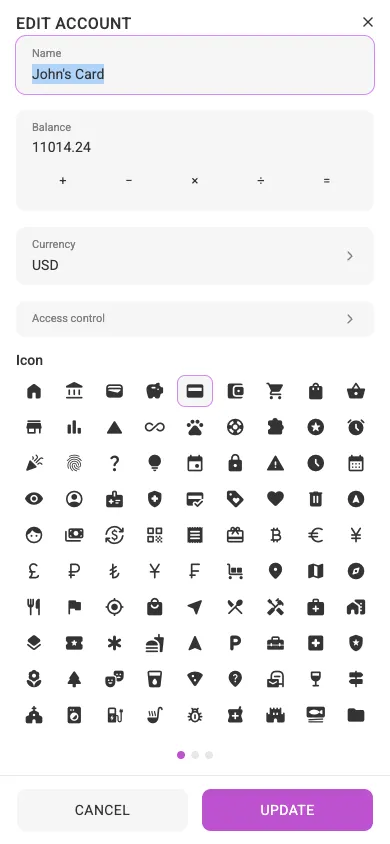
Note Correcting the balance in the edit dialog records a compensating transaction for the difference, so your transaction history always adds up.
Shared access #
If you are connected with your partner, you can share access to specific accounts. On desktop and tablet, choose Access control in the account menu — or press the Access control button inside the edit-account dialog — then select the person and the access level.
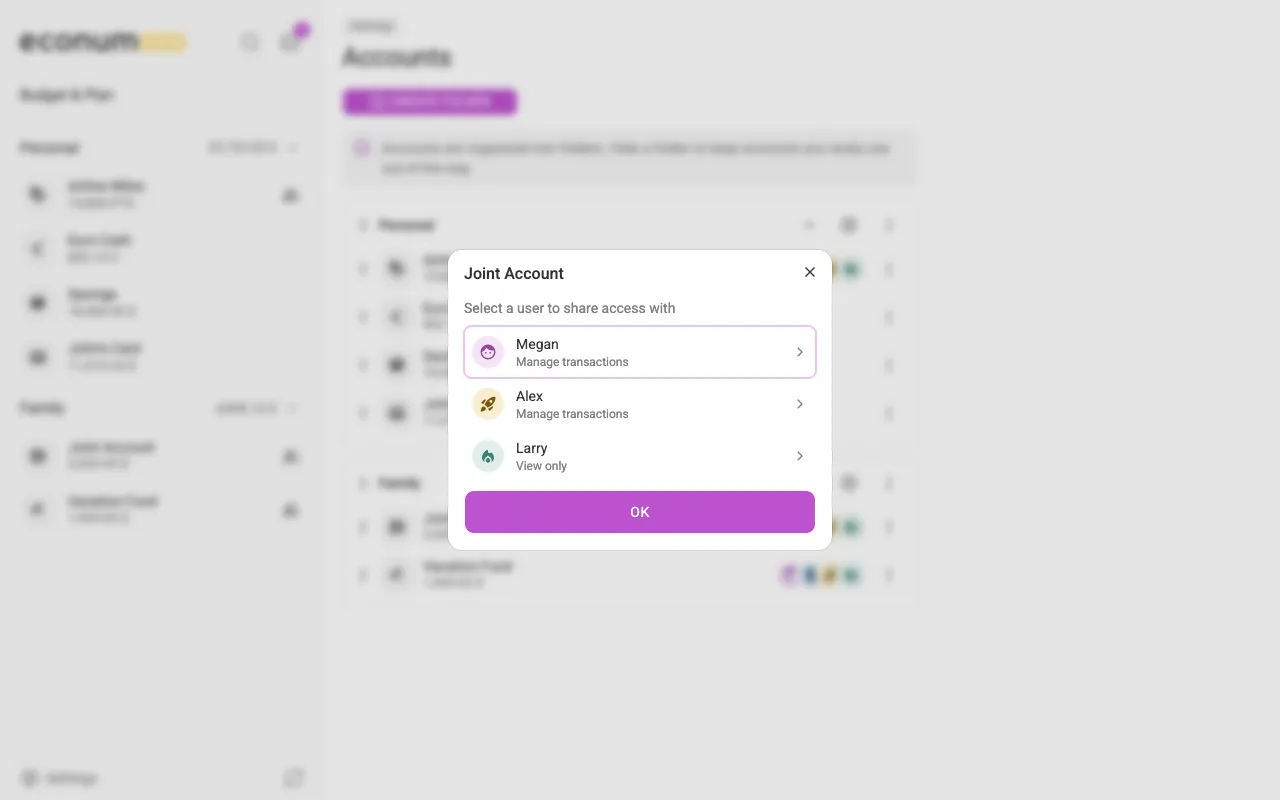
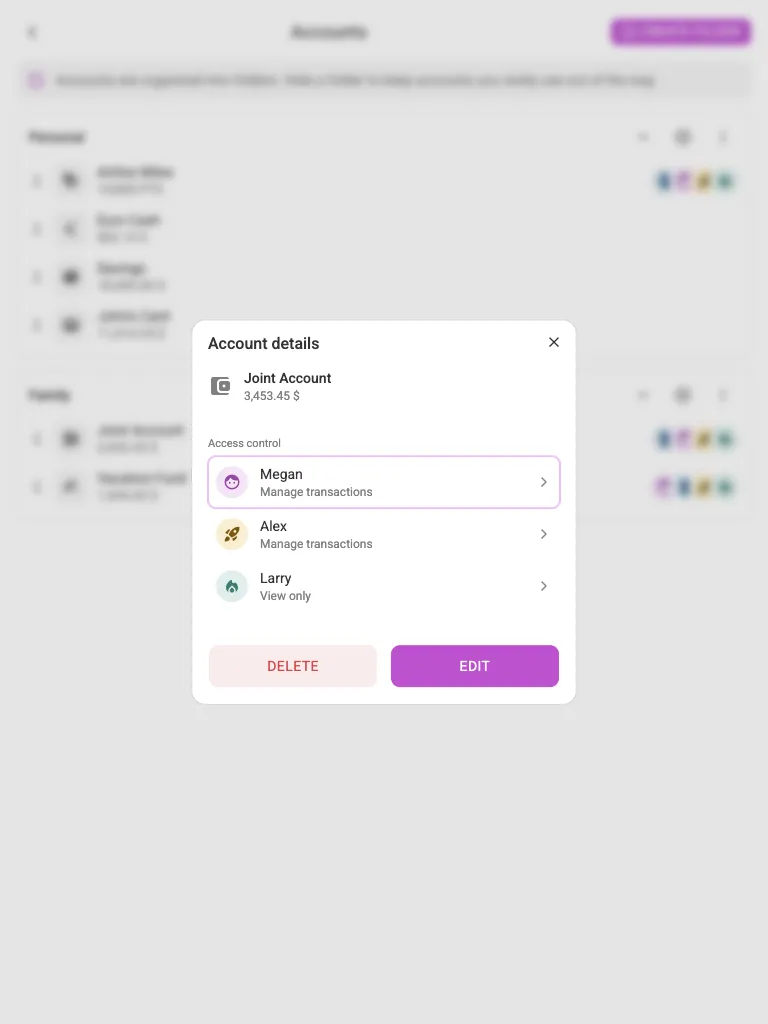
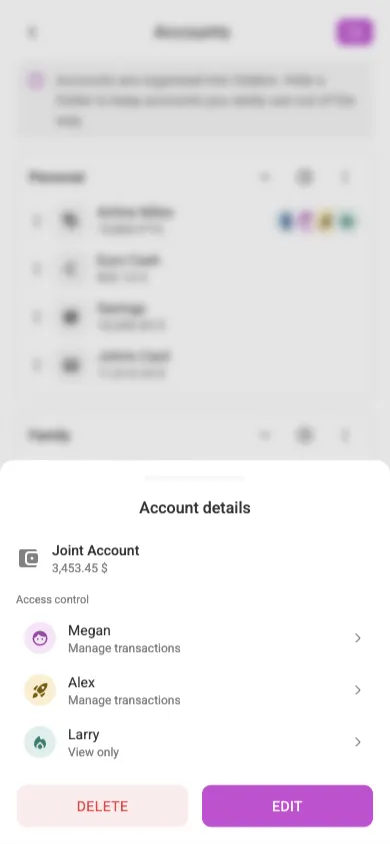
Econumo offers three levels of shared access:
- View only — the invited user can see only the balance and the transaction list.
- Manage transactions — the invited user can also add, update, or delete transactions.
- Full control — the invited user can manage all aspects of the account, including adding categories, tags, and payees on your behalf.
Granting access doesn’t add the account to your partner’s account list right away: Econumo sends them a pending invite instead of sharing it outright. They accept it — choosing which folder to file the account under — or decline it, from their Inbox — see Shared Access. Until they respond, the Access control dialog shows invitation pending next to their name. Once accepted, the shared account shows the avatars of everyone who can use it — both in the sidebar and in Settings → Accounts.