Budgets #
This section introduces the basics of ‘Budgets’ in Econumo.
Budgets enable you to implement a “Cash Stuffing” method, also known as the envelope budgeting approach, which uses envelopes to manage spending.
The concept is straightforward: take a few envelopes, label each with an expense category — such as groceries, rent, or car loan — and place the amount of money you plan to spend in each envelope. This way, you set limits on your spending for each category.
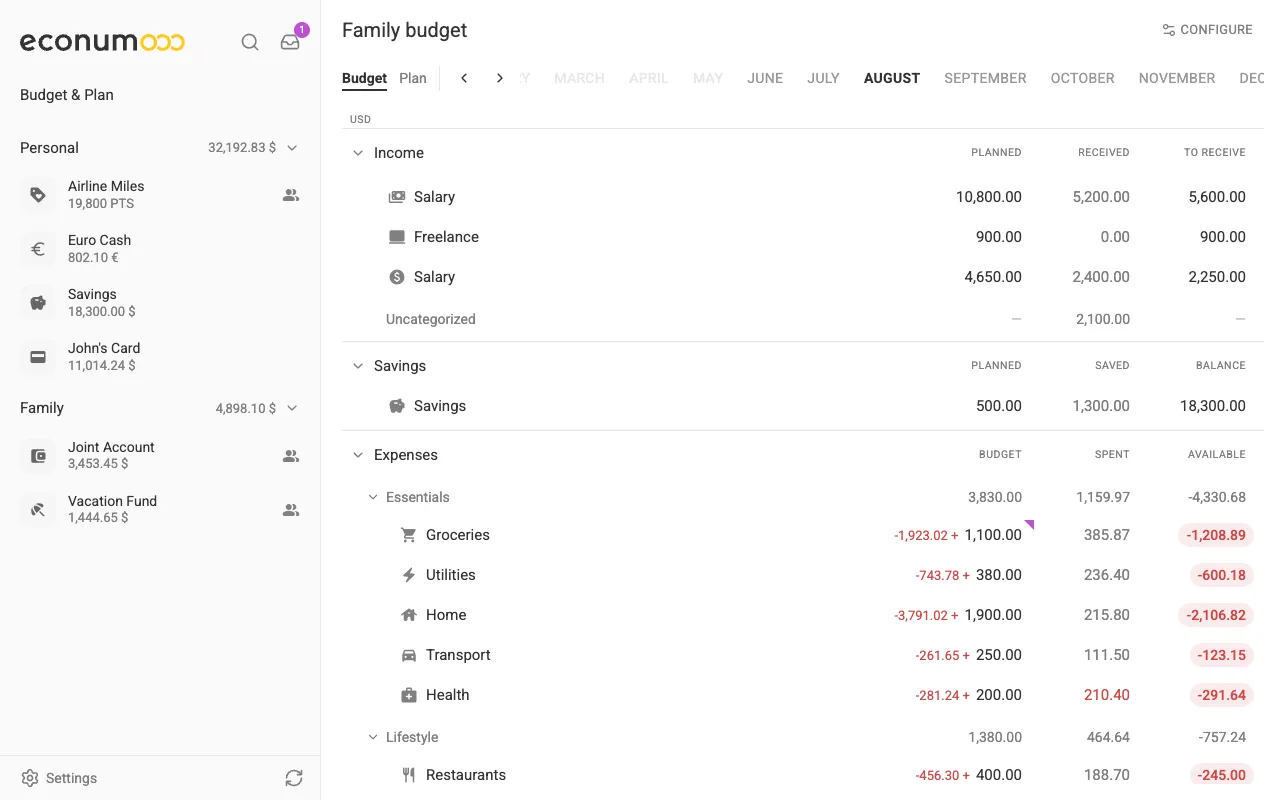
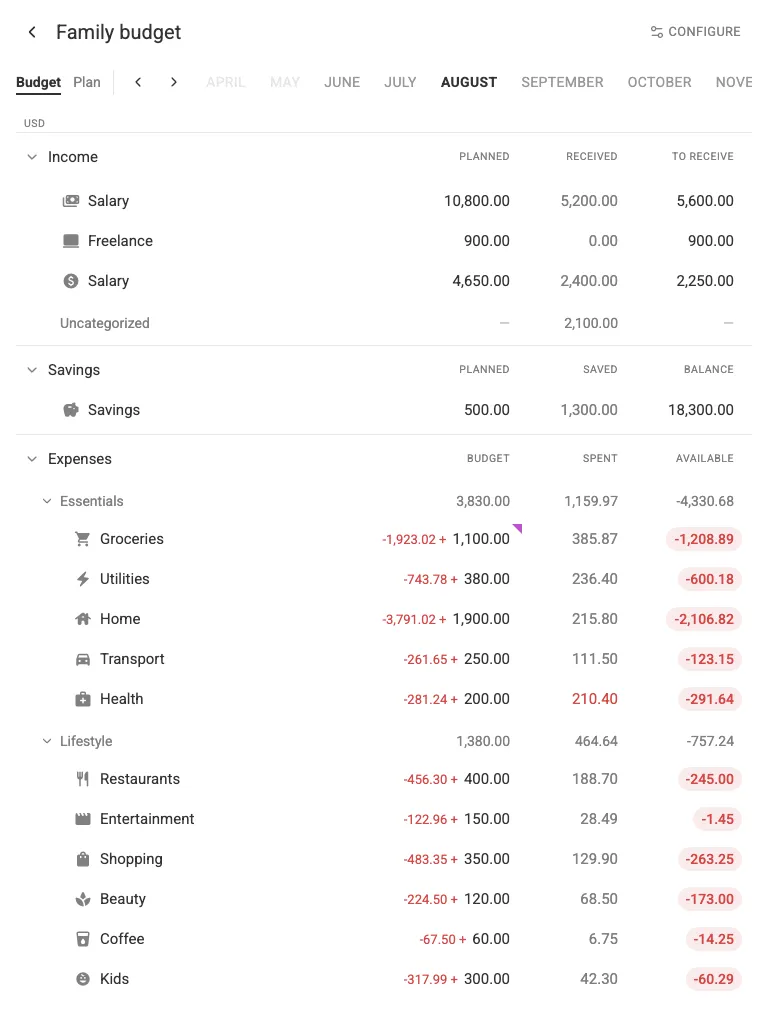
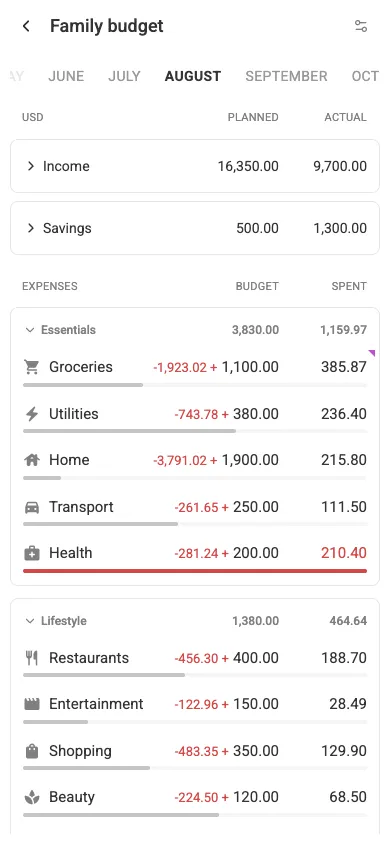
Econumo allows you to create virtual envelopes and allocate your funds accordingly, so you can easily track how much money remains for each specific category:
In this section #
- Budget creation
- Update budget details
- Manage your budget
- Budgets list
- Completing, duplicating and archiving a budget
- Shared access
Note To plan several months at once instead of one at a time, switch the budget to its Plan view with the Budget / Plan tabs beside the months bar — the same budget laid out as a month-by-month sheet.
Budget creation #
Open Settings → Budgets & Plans and press Create budget (on mobile, the + button in the header). Give the budget a name, pick its base currency, and switch on the accounts that take part in it — the counter above the list keeps track (“3 of 5 included”). Once accounts are in, Savings accounts lets you mark some of them as savings.
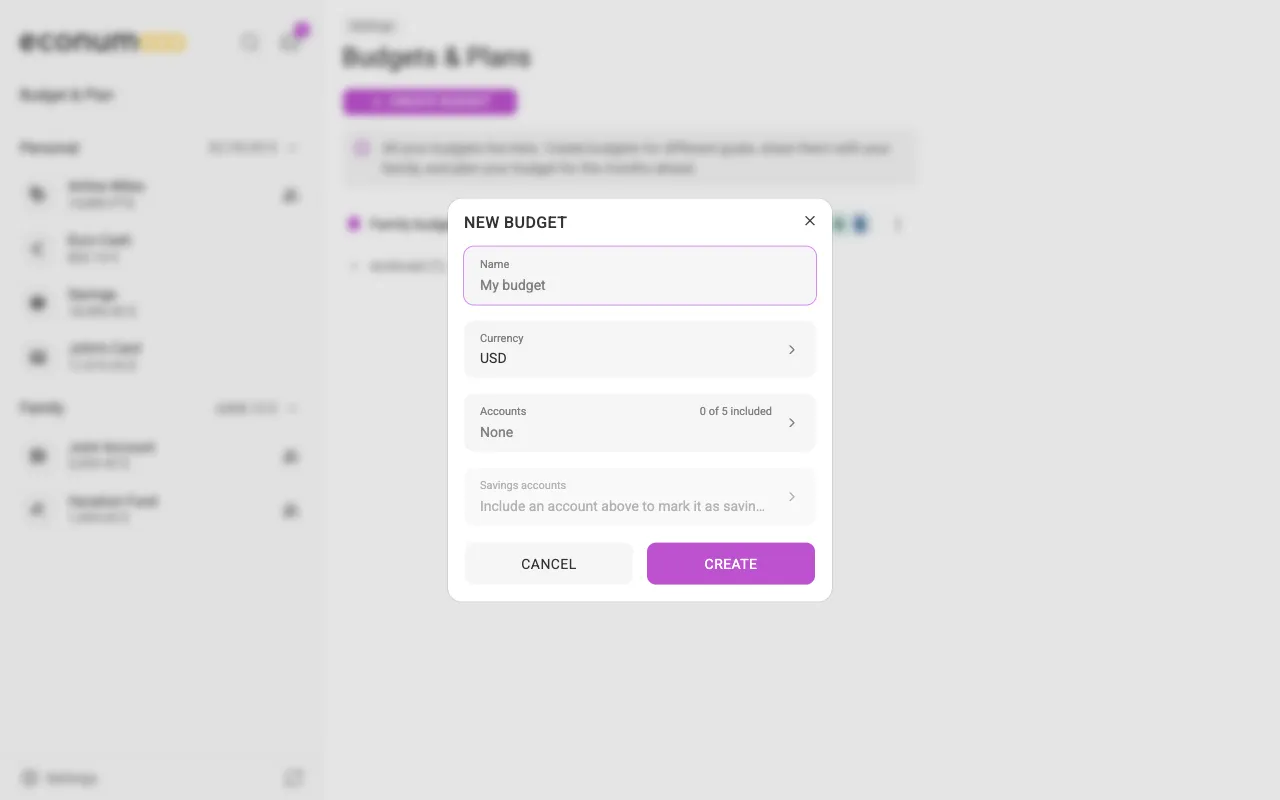
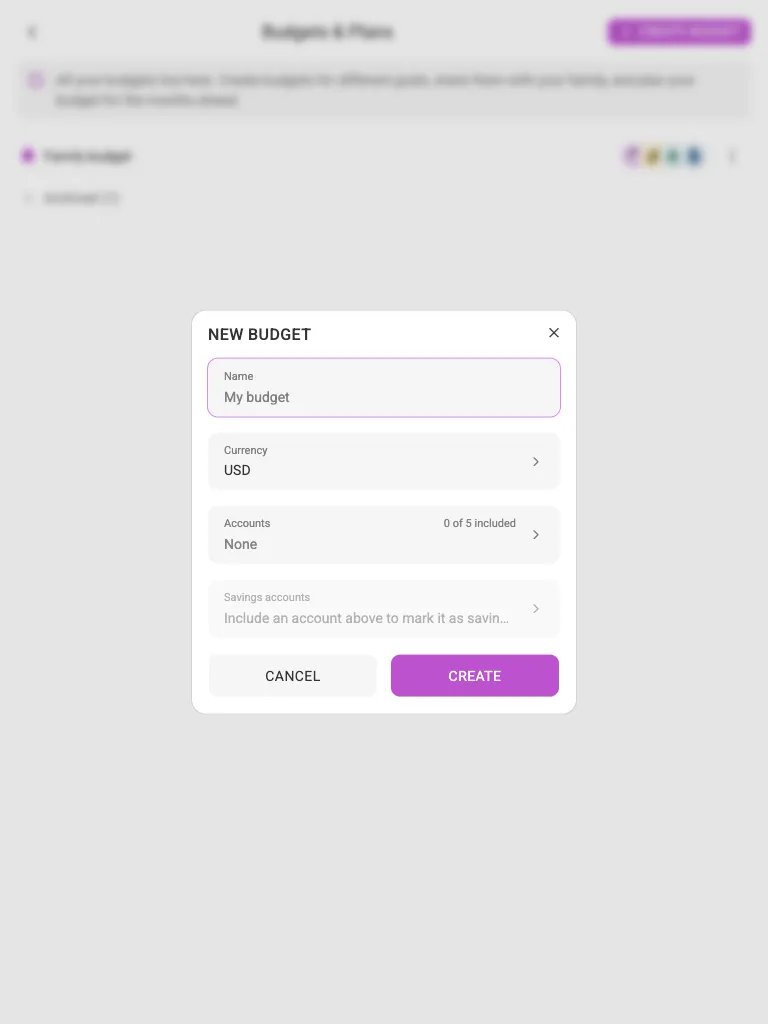
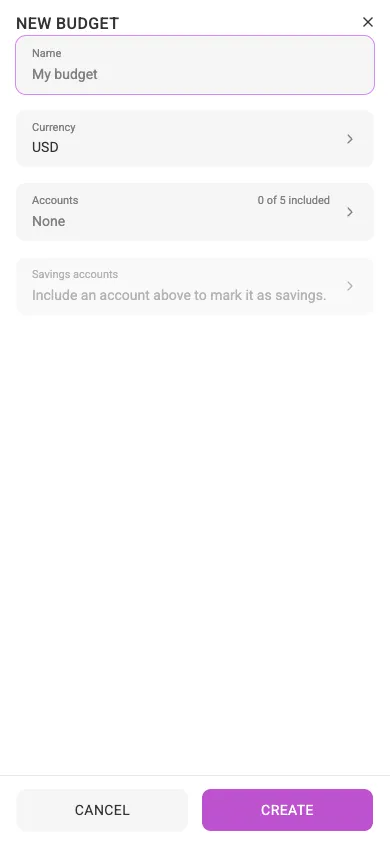
Note Account membership is an explicit list, and a new budget starts with every switch off — turn on the accounts you actually budget from. Budgets start from the current month.
Update budget details #
Open your budget and press Configure in the top-right corner. On desktop it opens Budget settings straight away; on a tablet or a phone it opens a short menu — choose Budget settings there. In the dialog you can rename the budget, change its currency, add or remove accounts, and choose which of them are savings accounts:
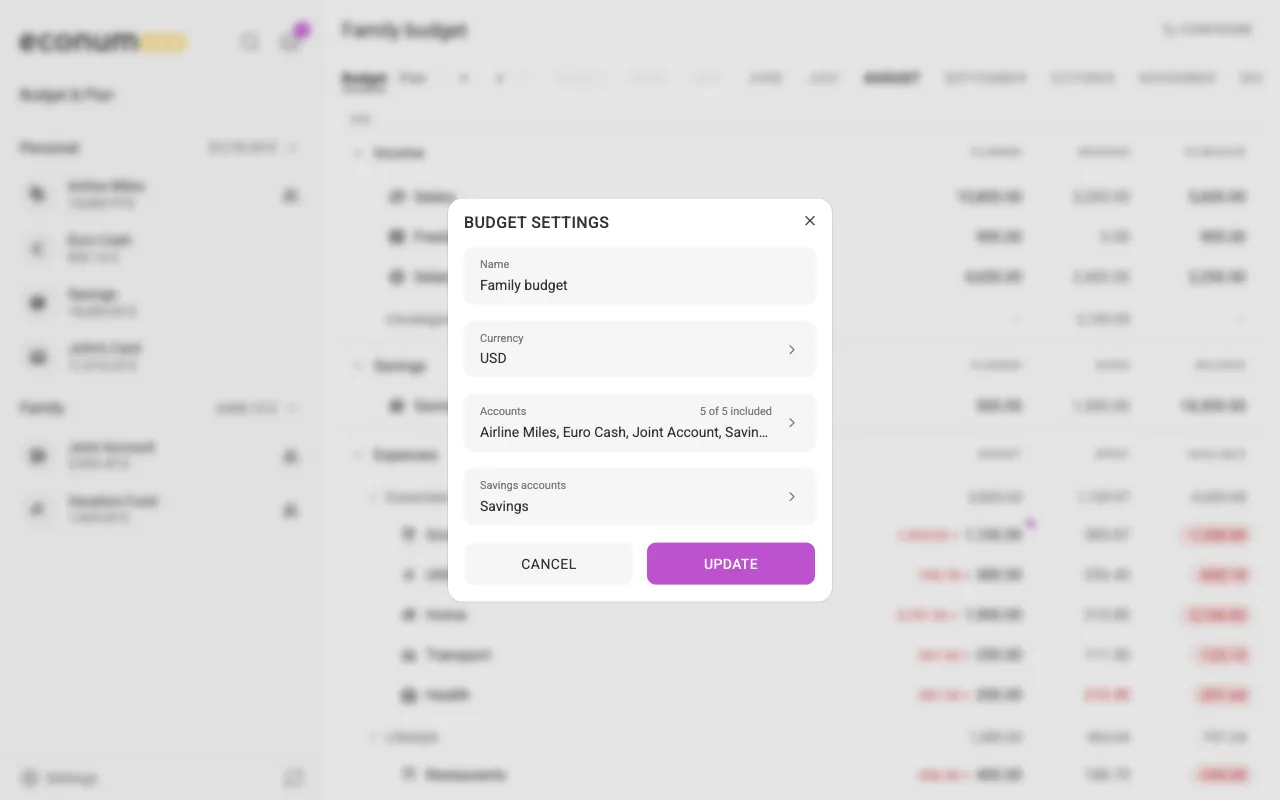
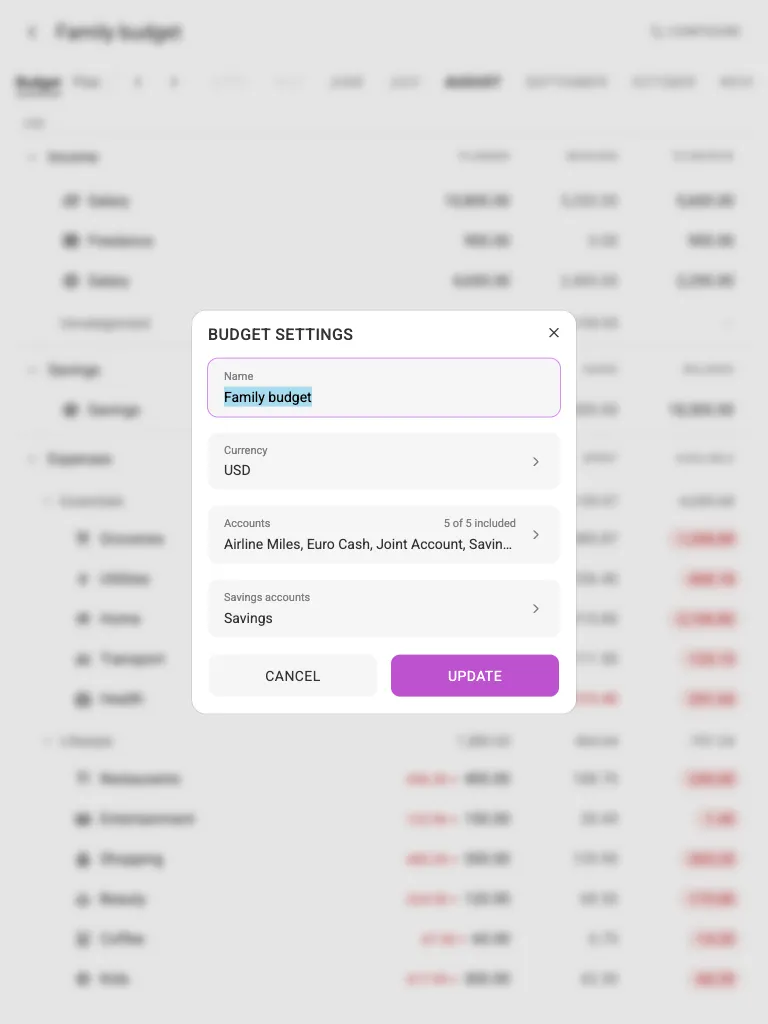
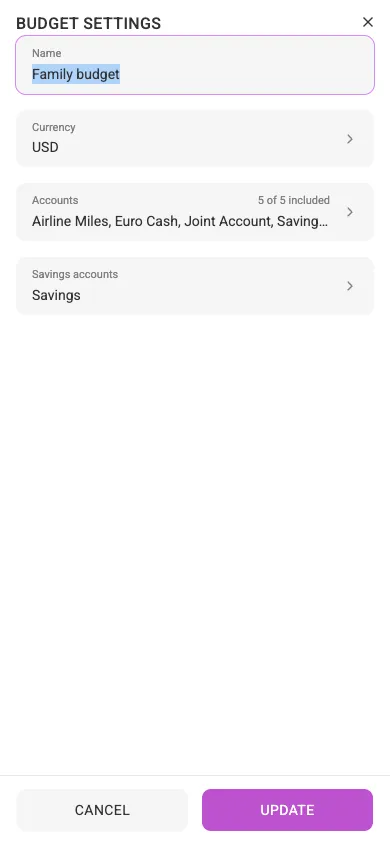
An account that already carries transactions in past months of this budget cannot be removed from it — taking it out would rewrite months you have already closed. The dialog says so under the list.
The other entry in the tablet and phone Configure menu, Edit structure, is described in Organizing your budget.
Manage your budget #
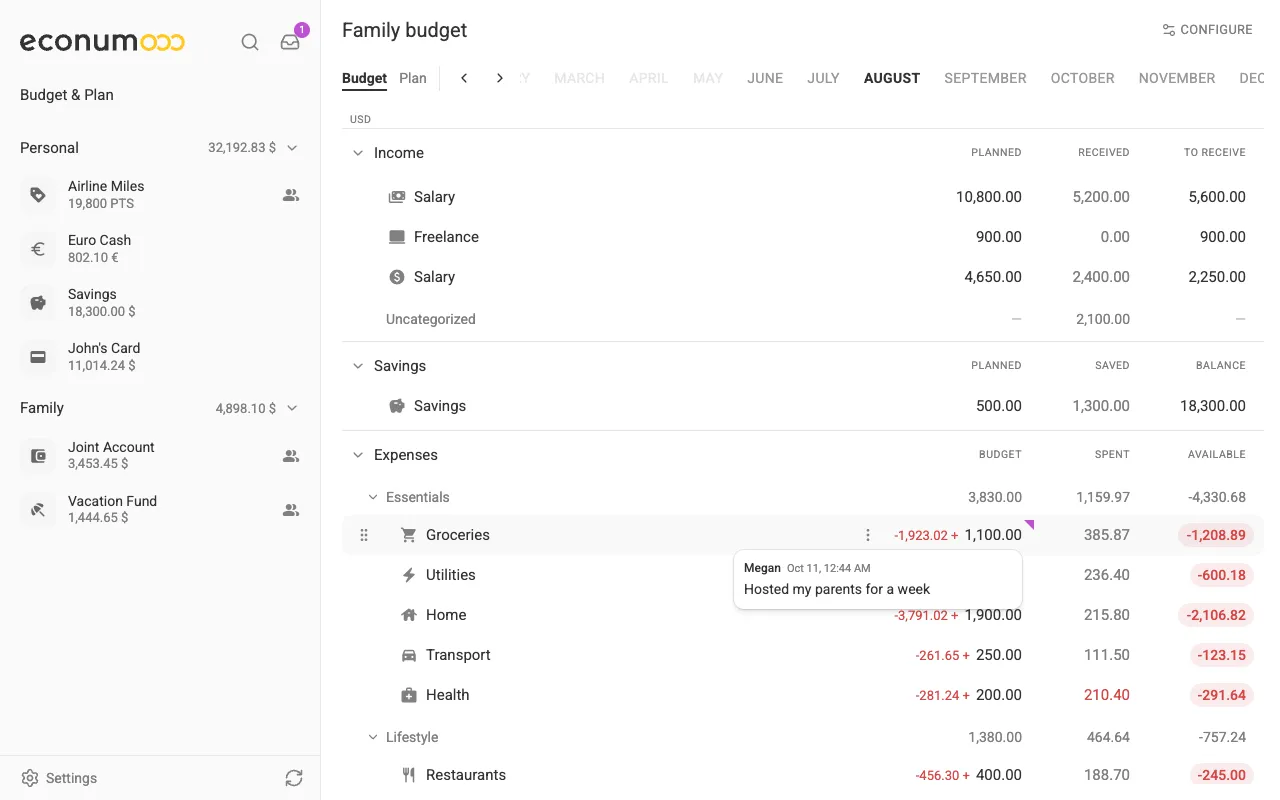
The budget page has three sections, in the same order on every screen size:
- Income — what you expect to earn: Planned, Received and what is still To receive.
- Savings — your savings accounts: Planned, Saved and the Balance at month end.
- Expenses — what you plan to spend: Budget, Spent and Available.
Underneath sit the totals for the month, ending with your Balance at month end.
Inside the sections you work with these entities:
- Budget Folders — to organize your spending conveniently (in the screenshots: Essentials, Lifestyle, Vacations).
- Categories — your Econumo categories.
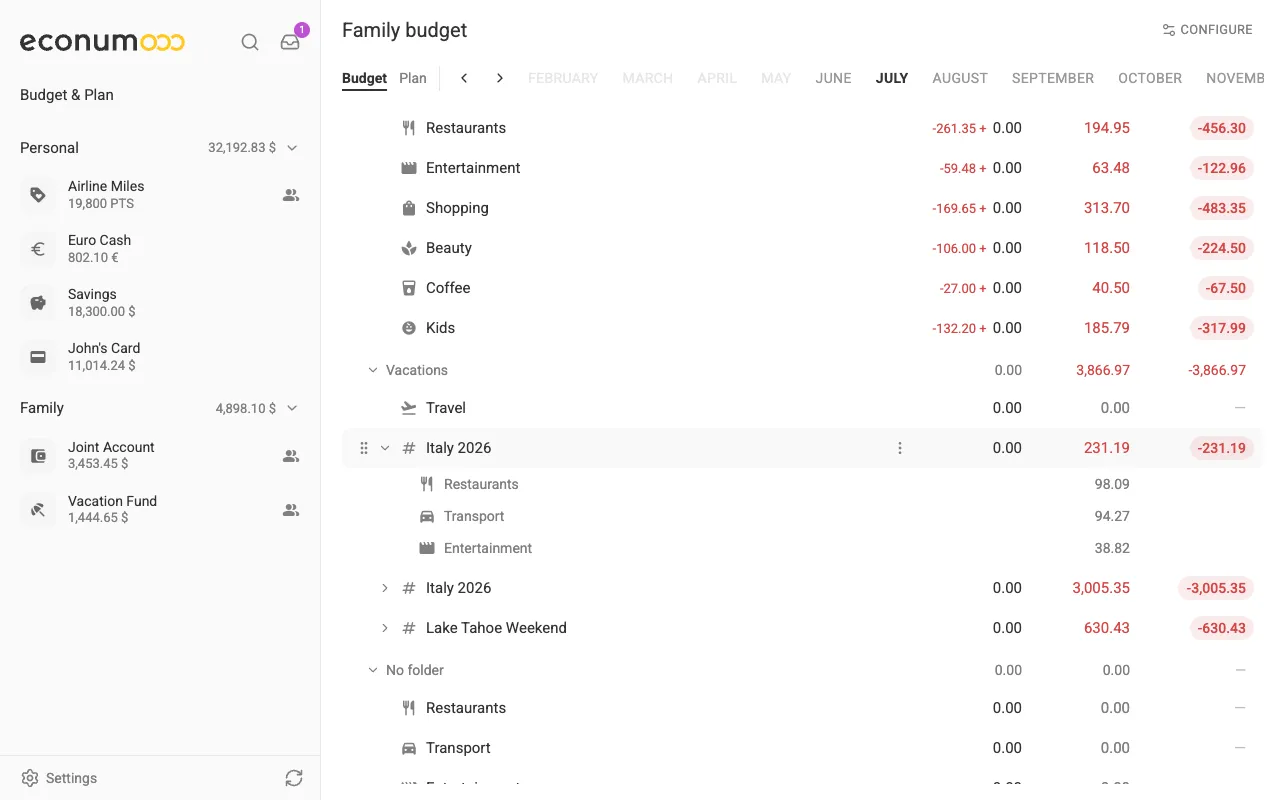
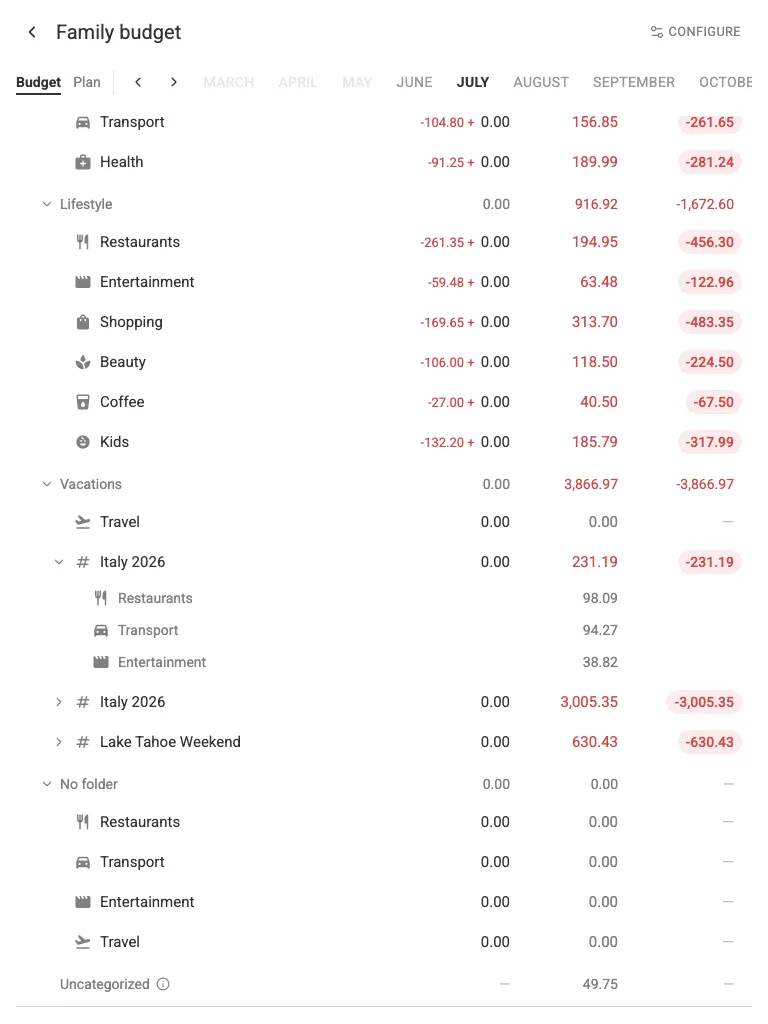
- Tags — your budget tags. These aggregate spending across categories (e.g. the whole Italy 2026 vacation). Reporting tags are not budgeted; they get their own block at the foot of the page.
- Envelopes — these group several categories into one limit (e.g. an envelope for Food could contain Groceries, Drinks, and Restaurants). Both Income and Expenses can hold envelopes.
Budgeting #
The goal of budgeting is to maintain your monthly budget. Ideally, you should prepare your budget before the month starts and make minor adjustments during the month as needed. The months bar at the top switches between periods — on desktop and tablet the ‹ and › arrows beside it step through the months — and the budget shows how much money remains in your virtual envelopes. The bar is clamped to the budget’s own lifetime: an open budget runs well into the future, while a completed one stops just past its final month.
Each expense row has three columns:
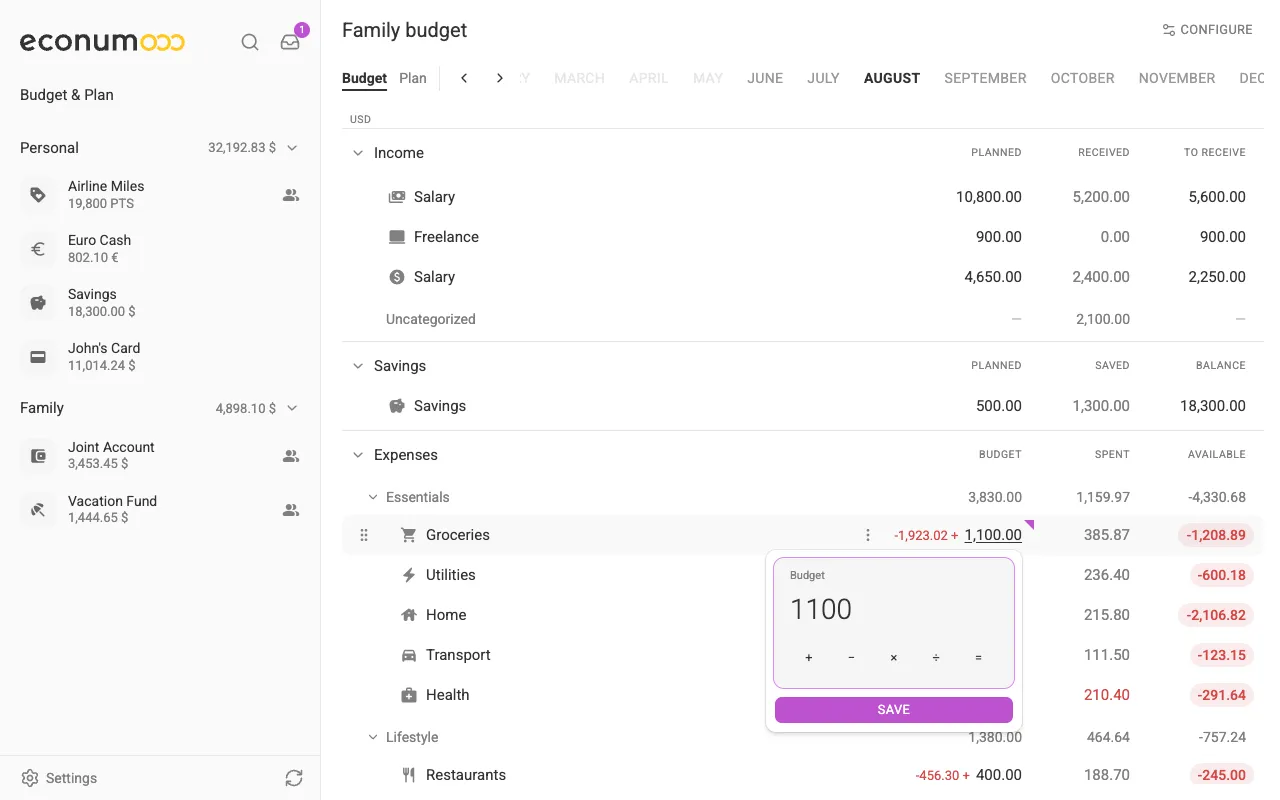
- Budget — the amount you plan to spend this month. A small figure in
front of it, such as
-1,923.02 +, is what is left from earlier months. - Spent — the amount you have actually spent.
- Available — what is left: the budgeted amount plus anything carried over. It shows as a green pill, or a red one when the row is overspent.
On desktop, click a number in the Budget column to change it. The amount
field takes the same calculator keypad (+, −, ×, ÷, =) as the
transaction dialog; press
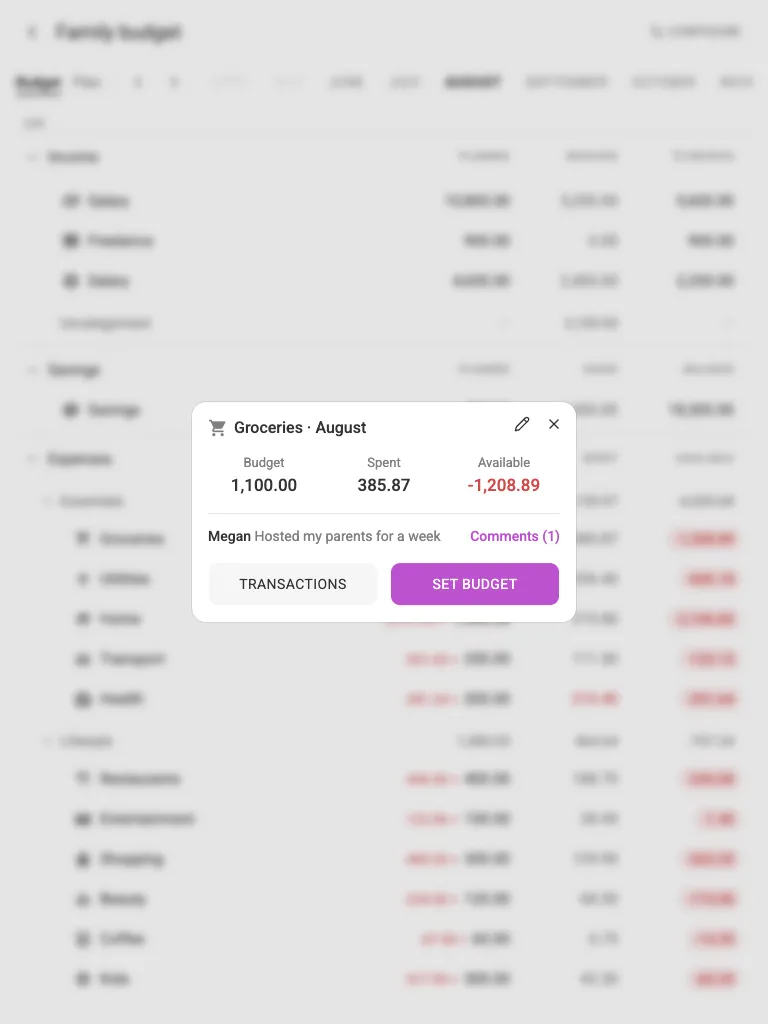
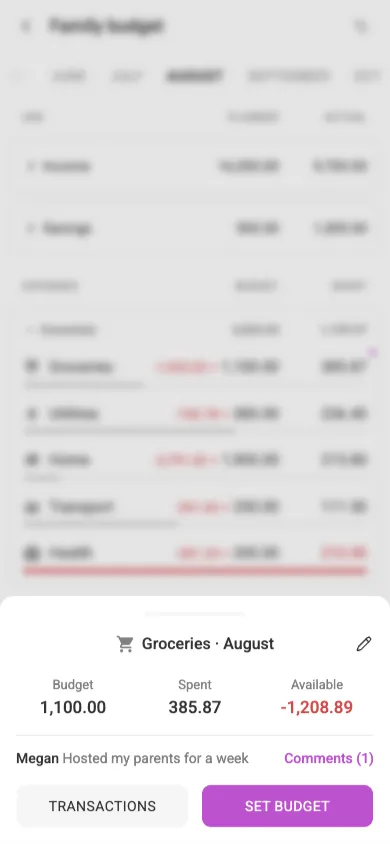
Save. On a tablet or a phone, tap the row’s figures to open its sheet and
press Set budget:
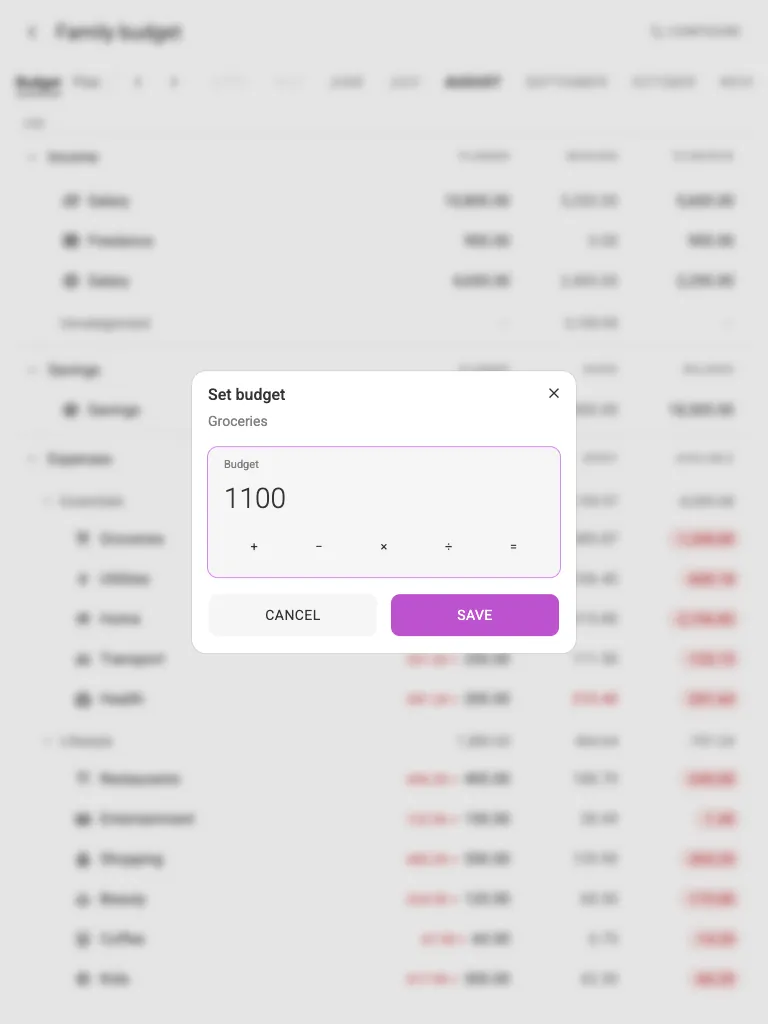
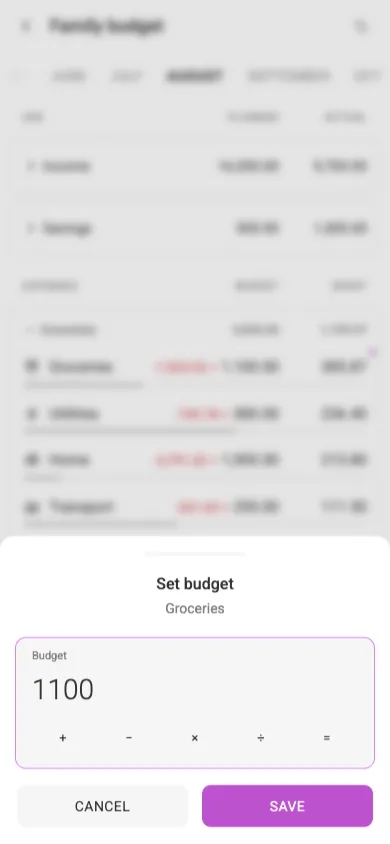
On a phone the budget is a single-month view. Each row shows Budget and Spent, with a thin progress bar under it that turns red once spending runs past the budget. Tap a row’s figures to open its sheet: the month’s figures, the latest comment, Transactions to list what was spent, and Set budget (Set plan on a savings row). The pencil icon in the sheet’s header edits the item itself. On a tablet, the desktop-style rows open the same sheet when you tap their figures:
If a transaction has no category, its amount still counts: it appears as a read-only Uncategorized line at the end of the Income or Expenses section — no Budget or Available figure, just the amount — instead of being silently left out. Assign a category to those transactions and they move into the rows above.
Savings accounts #
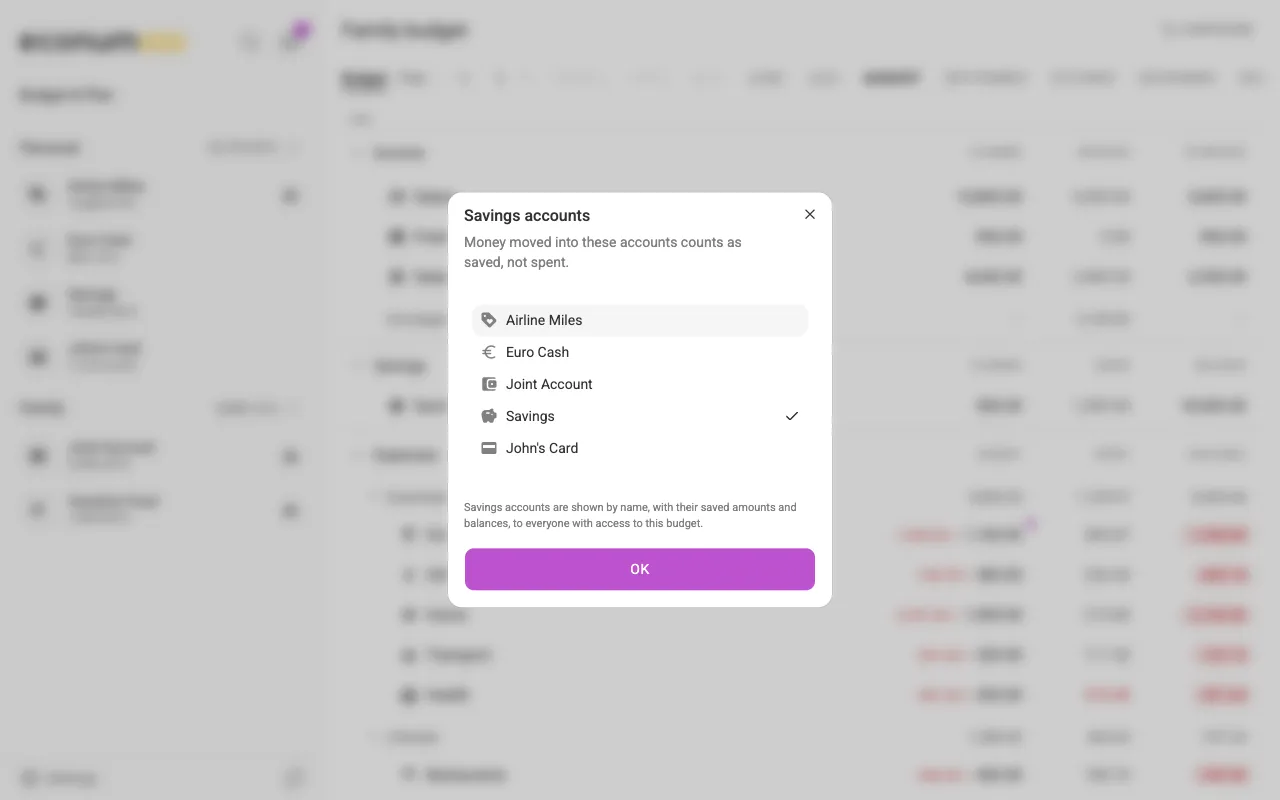
Money you move into a savings account isn’t spent — it’s saved. Mark any of the budget’s accounts as savings in Budget settings → Savings accounts (the Savings section’s three-dots menu has a shortcut to the same list):
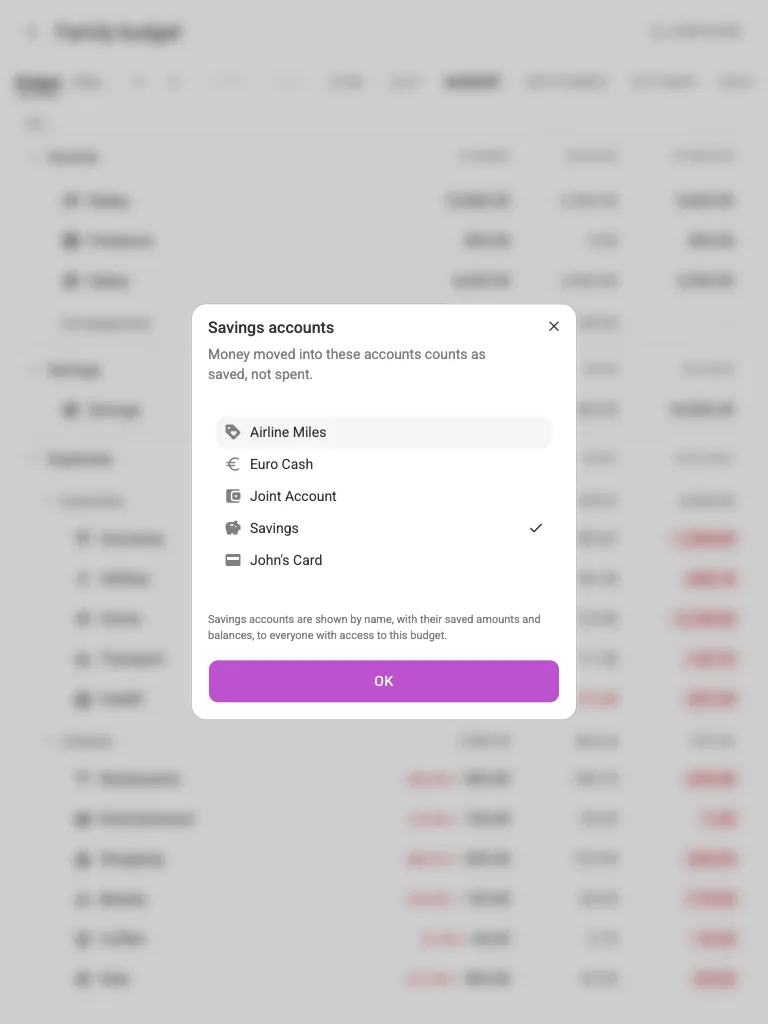
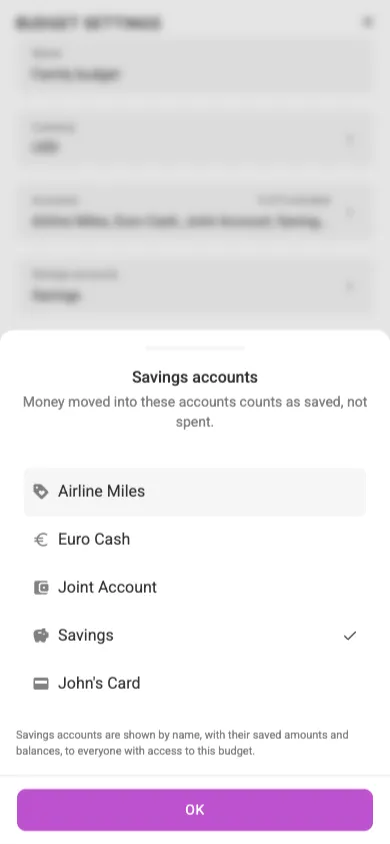
Each savings account gets its own row in the Savings section:
- Planned — how much you mean to put away this month.
- Saved — the account’s whole net change for the month: transfers in and out, interest and fees.
- Balance — the account’s balance at the end of the month. For future months it is projected from your plans.
The totals under the budget add a Savings line for the month and a Total savings line for the combined balance.
The savings flag belongs to the budget, not to the account, so the same account can be savings in one budget and everyday money in another. Turning an account’s savings flag off deletes the planned amounts and comments of its savings row in this budget; the saved amounts and the transactions themselves are not touched.
Organizing your budget #
You change the structure right on the budget page.
On desktop, hover a row: a drag handle appears on its left and a three-dots menu beside its name. Drag rows and folders by the handle to reorder them or move them between folders, and use the menus for everything else.
On a tablet or a phone, press Configure and choose Edit structure. Every row then shows its handle and three-dots menu; press Done editing when you are finished.
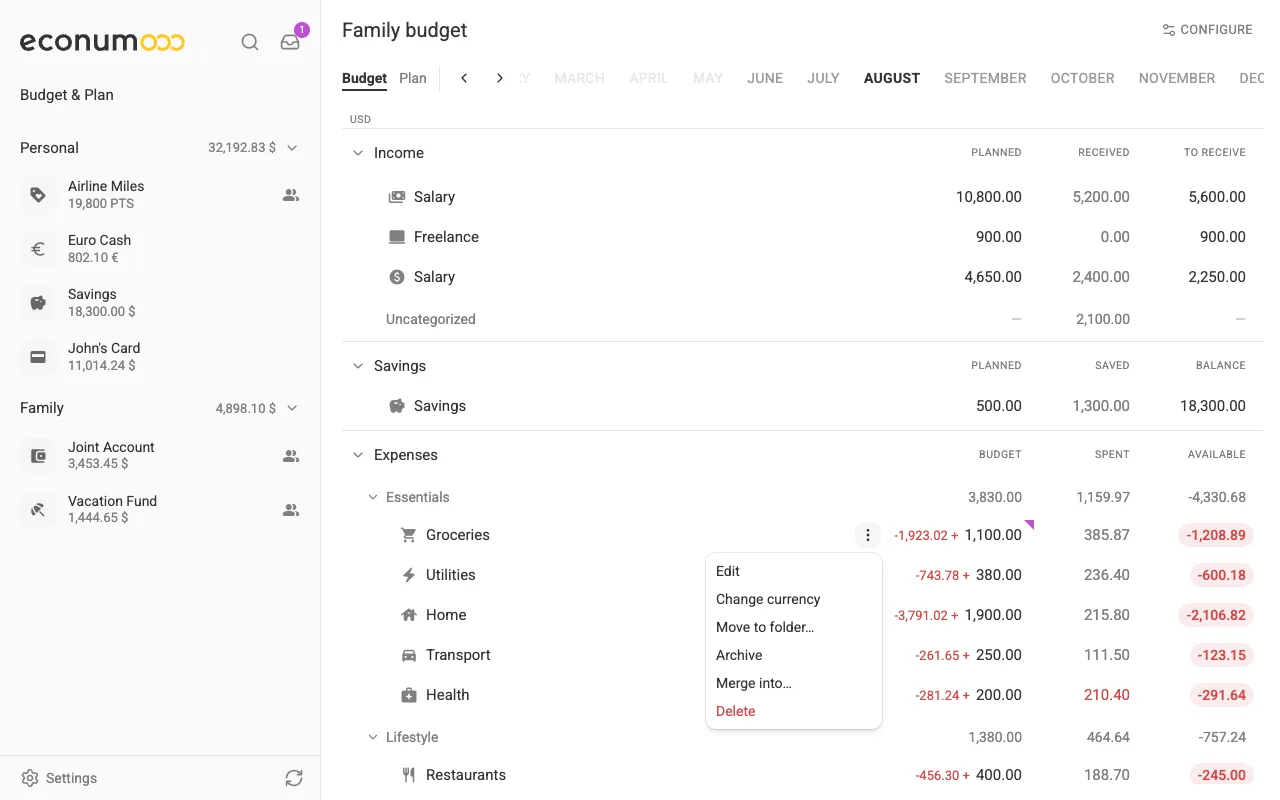
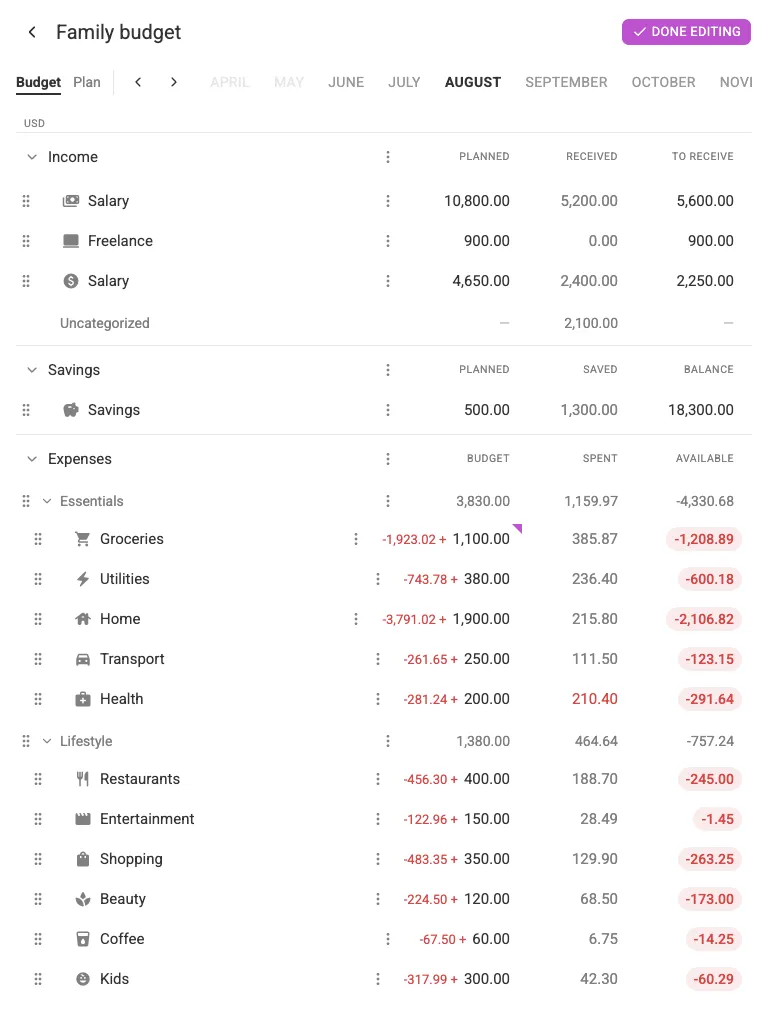
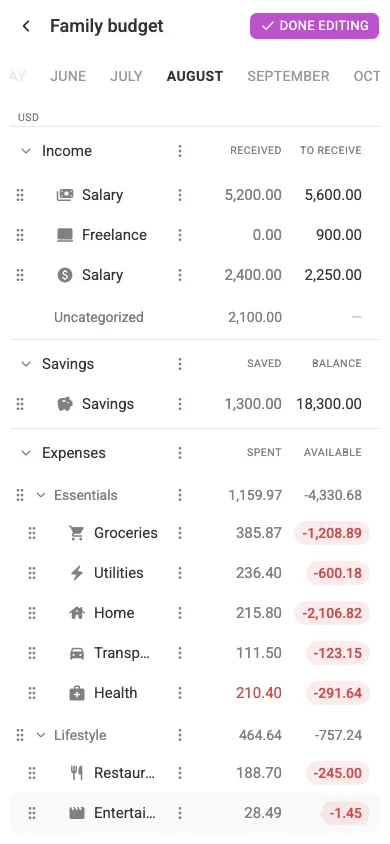
The menus offer:
- Income and Expenses section headers — Create folder, New envelope, New category.
- A folder — New envelope, New category, Edit (rename), and Delete folder.
- A category, tag or envelope — Edit, Change currency, Move to folder…, Archive, Merge into… and Delete.
An action you can’t take right now is greyed out and says why — a folder that still holds items reads Delete folder (not empty), and an item you don’t own reads (no access):
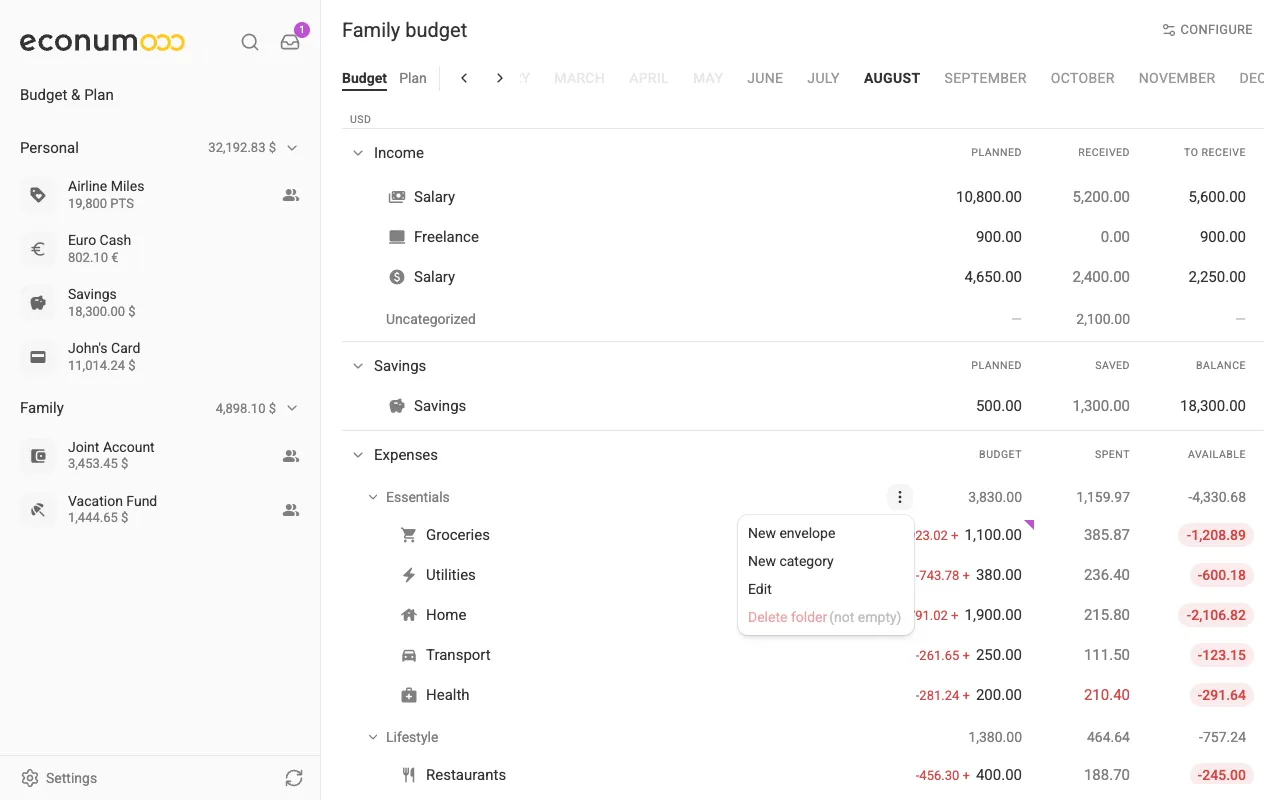
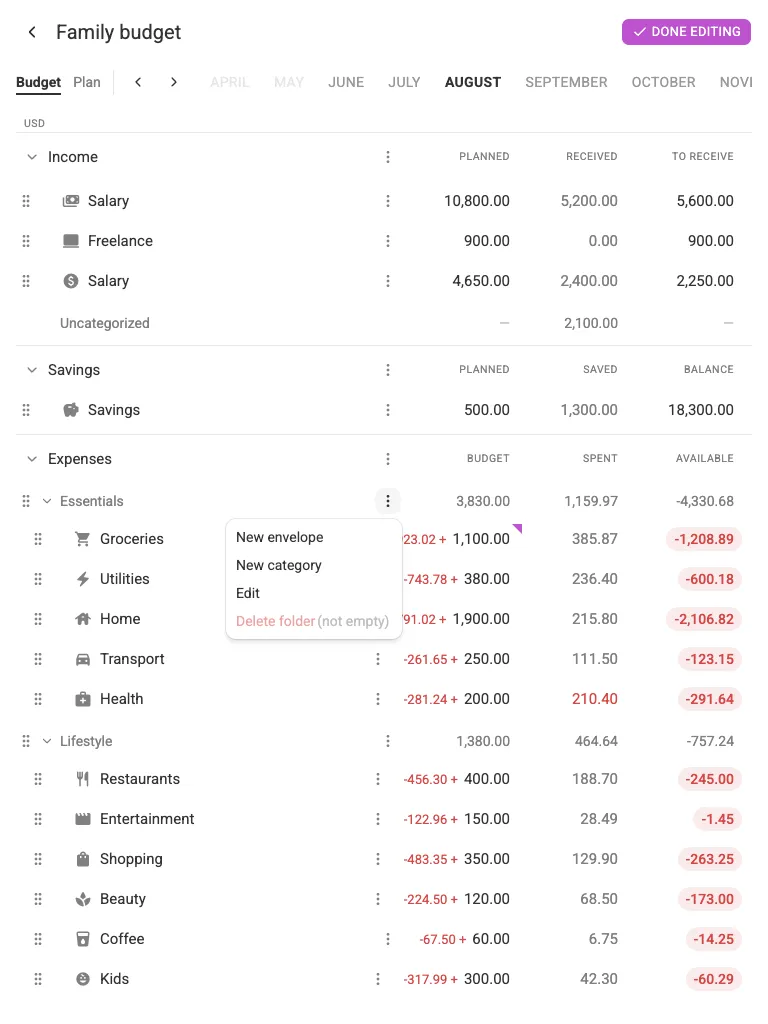
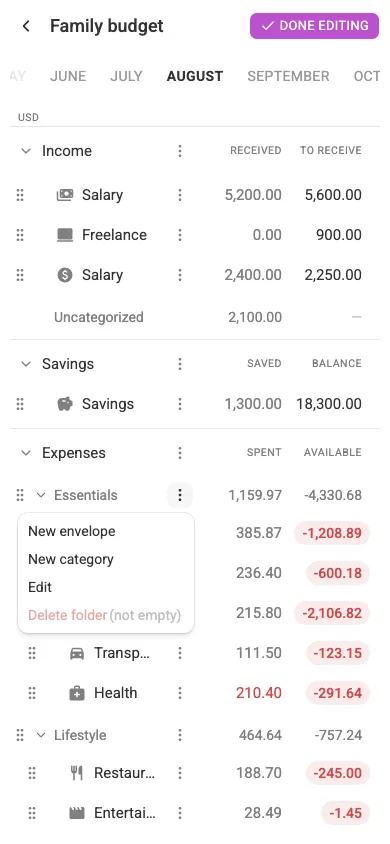
Items that are not in any folder collect under No folder at the end of their section.
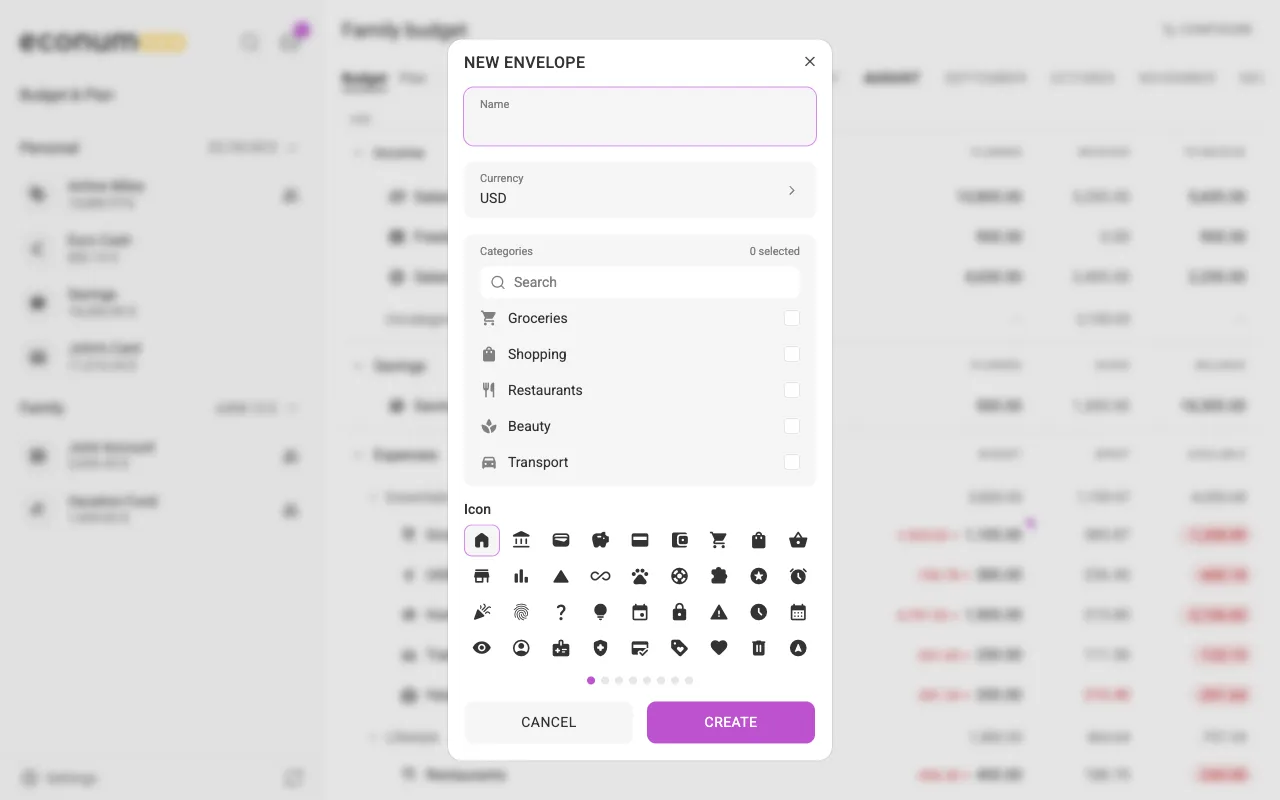
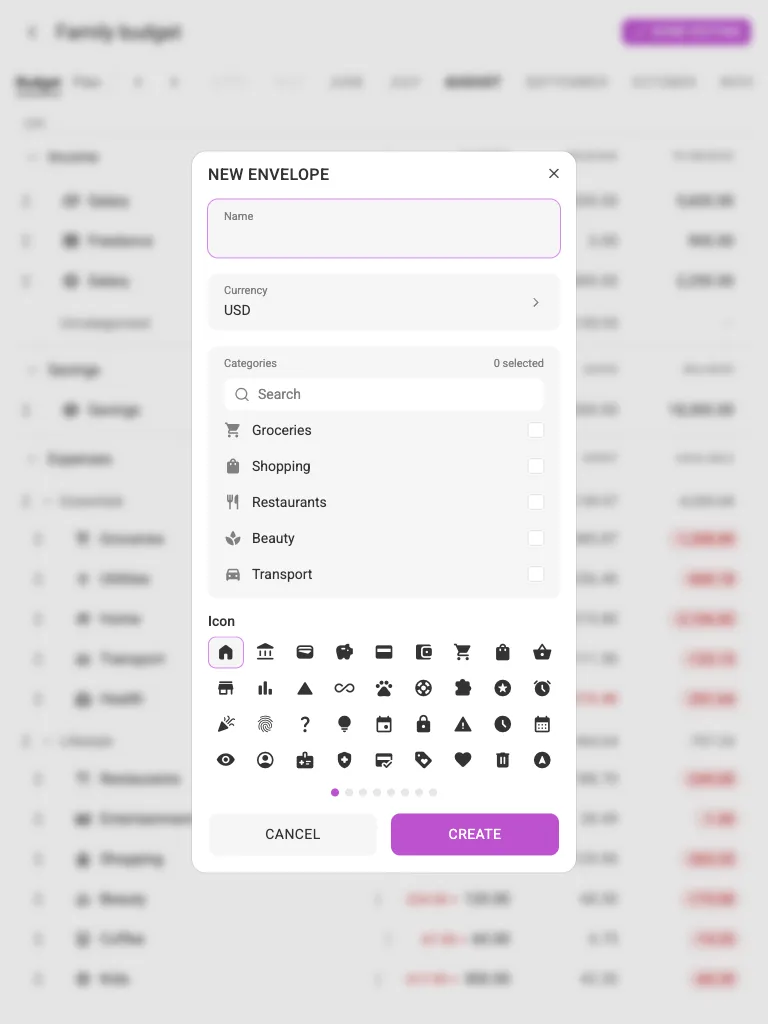
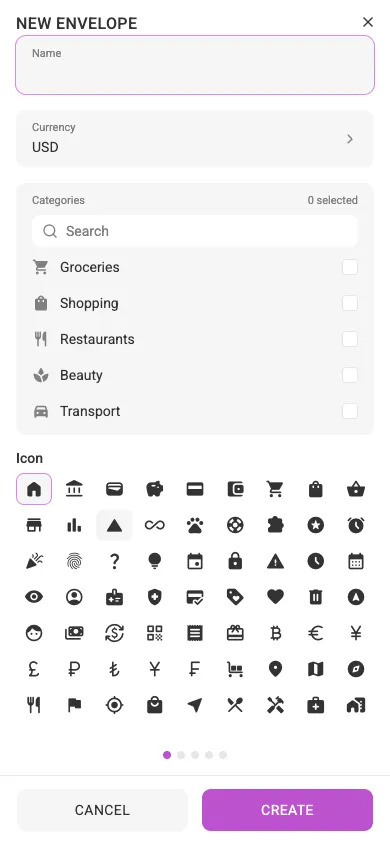
Envelopes. Choose New envelope in a section or folder menu. Pick a name, currency, icon, and the categories you want to include:
Deleting an envelope releases its categories back into the budget.
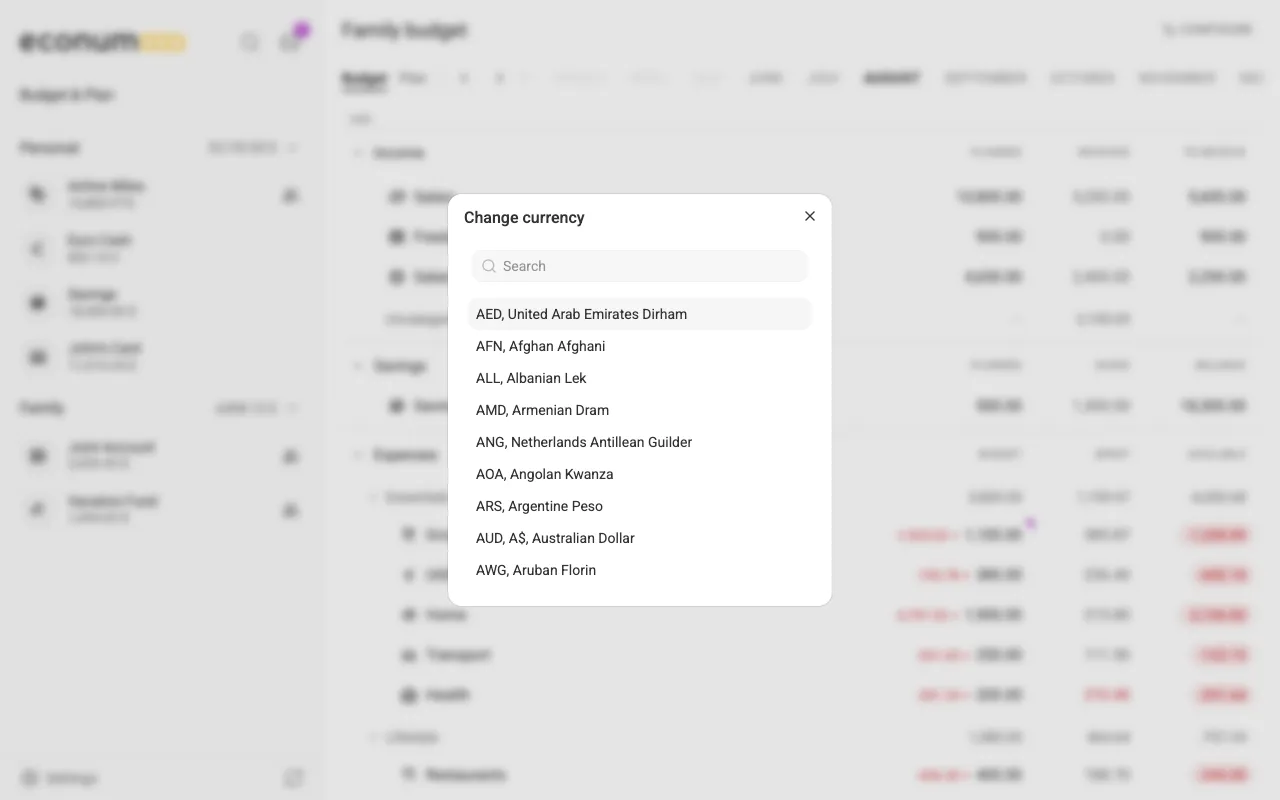
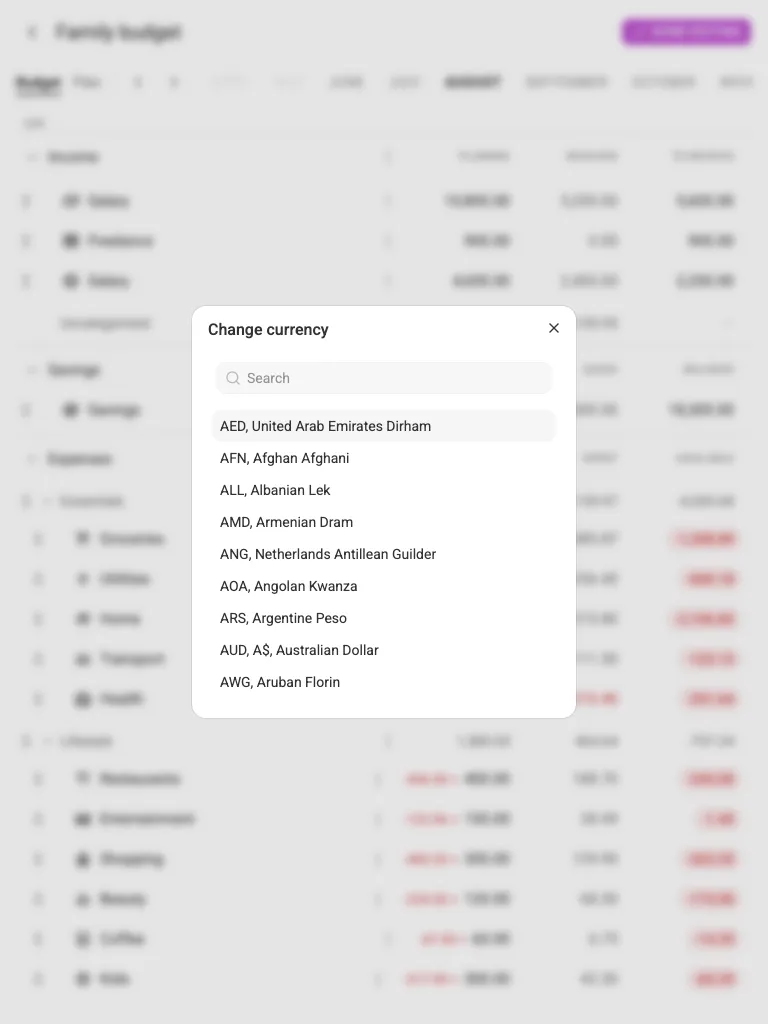
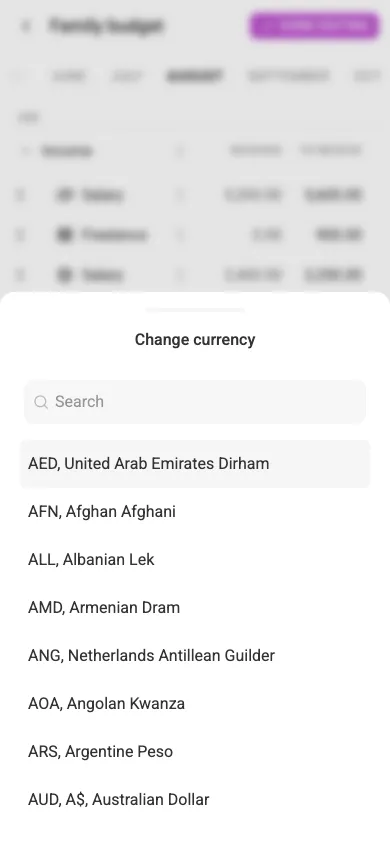
Element currency. Each element can be budgeted in its own currency: open the element’s three-dots menu and choose Change currency. Amounts spent and available for that element are converted automatically.
Work with the budget #
Tag and envelope breakdown #
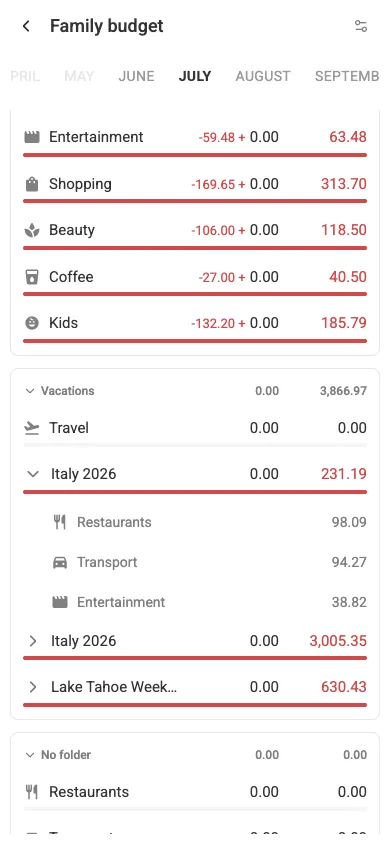
Tags and envelopes aggregate several categories. Expand one by clicking its name to see where the money actually went:
Spending details #
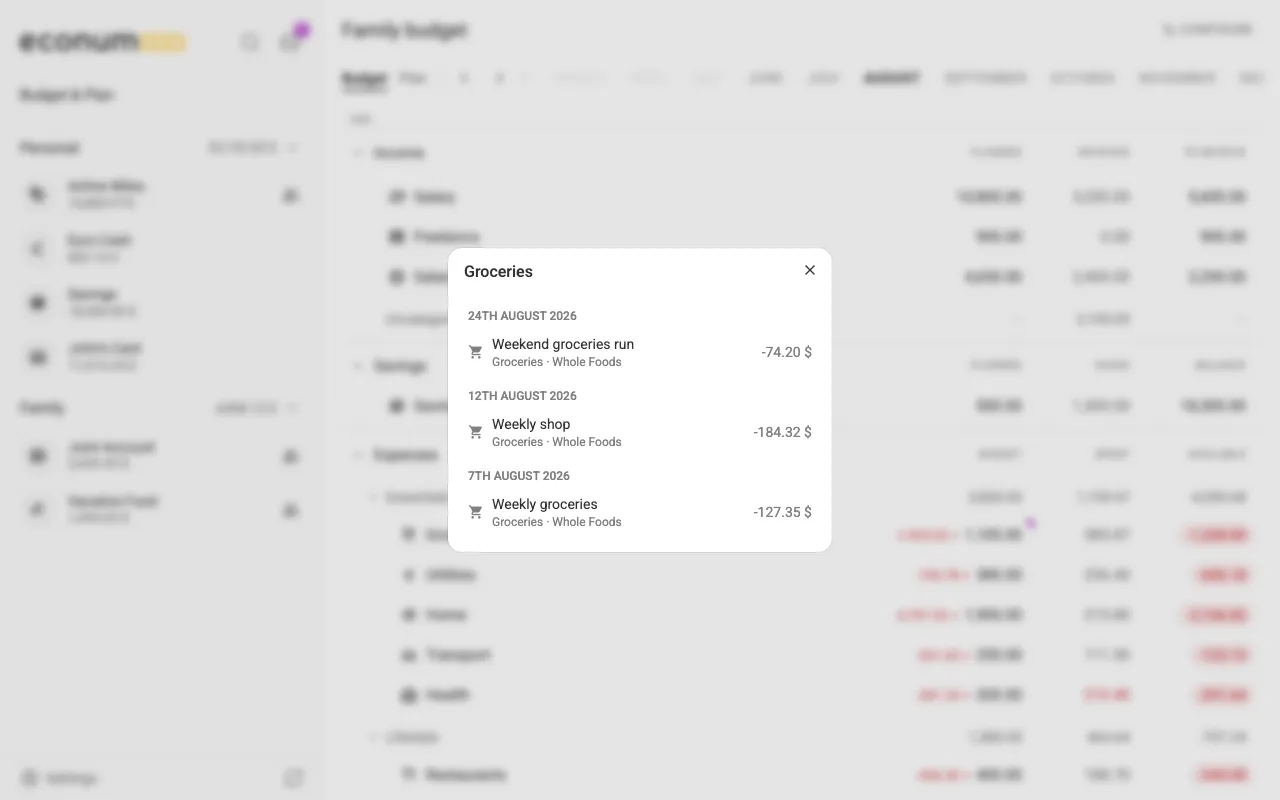
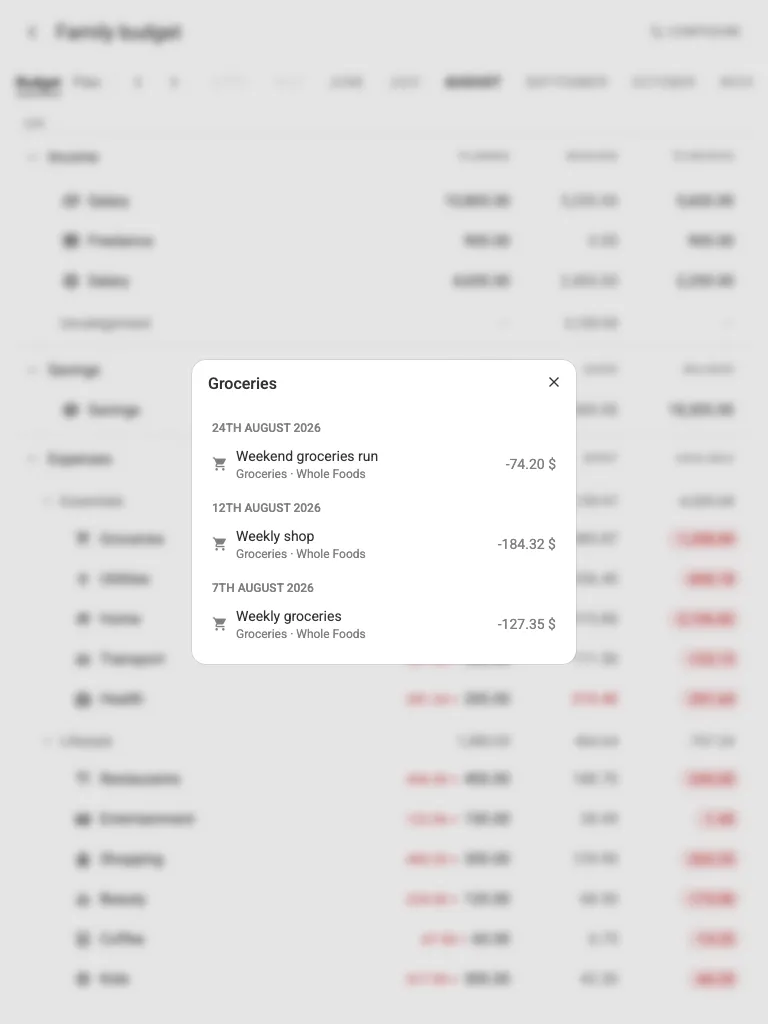
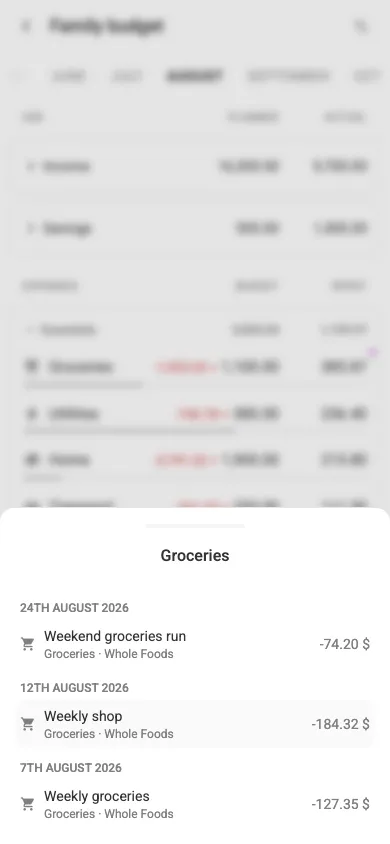
To see the transactions behind any number, click the amount in the Spent column (on a phone, open the row’s sheet and press Transactions):
Reporting tags #
Below the expenses — under the Uncategorized line — sits a separate Reporting tags block. It totals what you spent per reporting tag in the month: people, pets, places. Expand the block by clicking its title, and expand a single tag to see the categories behind its total.
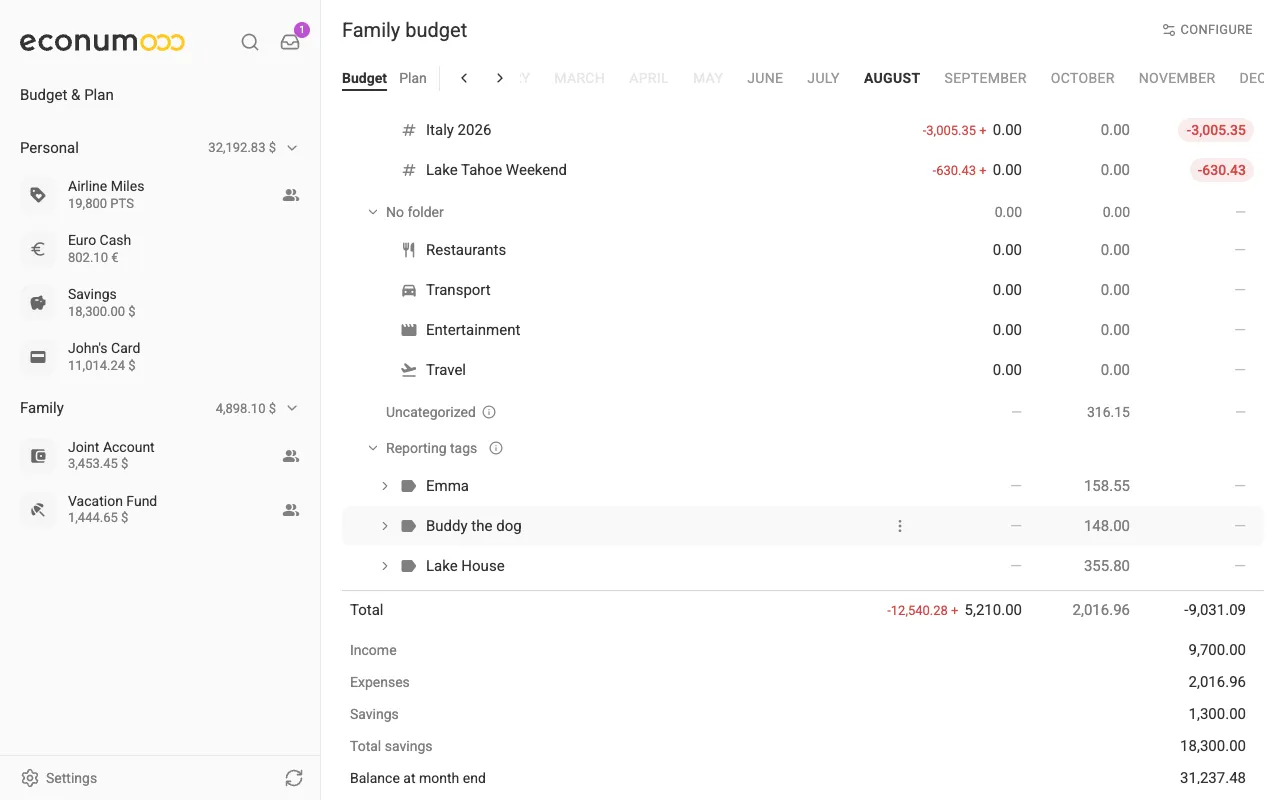
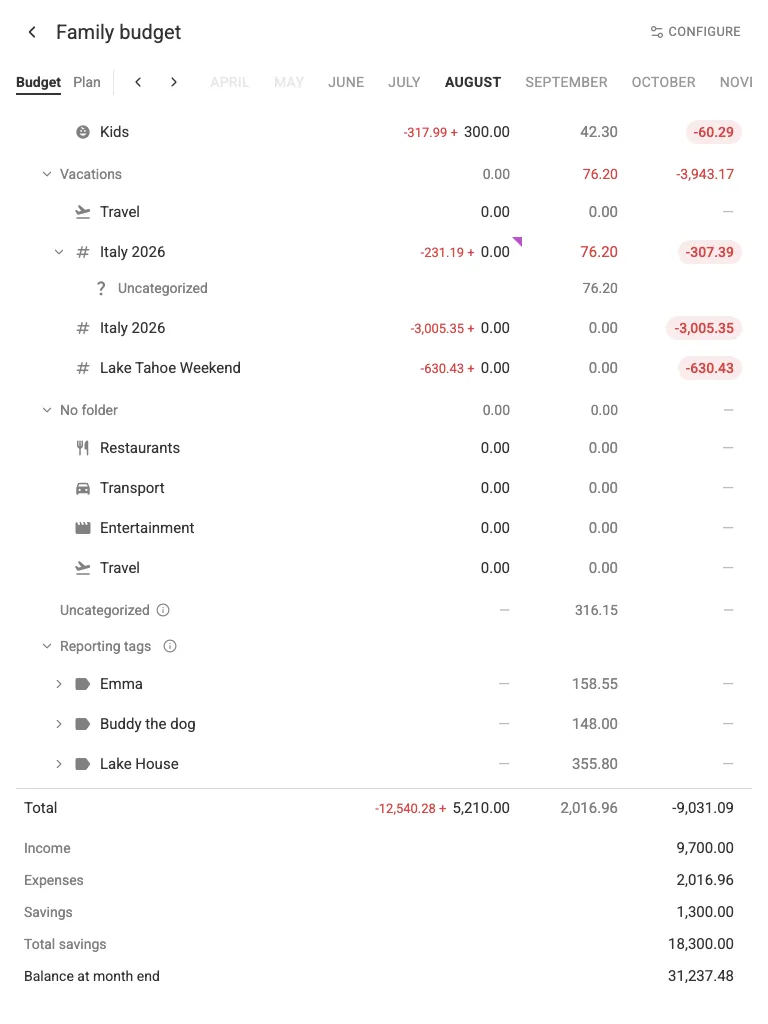
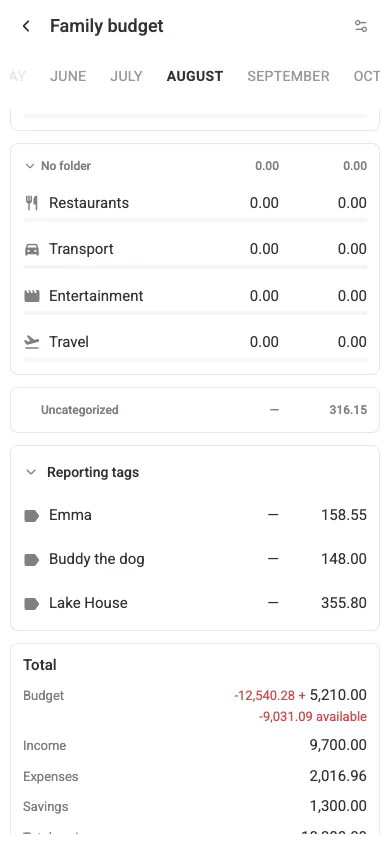
These rows show a Spent figure only — no Budget, no Available — and they sit outside the budget’s totals. That is deliberate: a transaction can carry several reporting tags at once, so its full amount counts under each of them, and adding the block into the budget maths would count the same money twice. Use it to answer “what did the dog cost us this month?”, not “how much is left to spend?”.
Multi-currency budgets #
Elements budgeted in a foreign currency are converted to the budget’s currency for folder and budget totals. See Multi-Currency for the full picture.
Comments #
Any budget cell — one item in one month — can carry a comment thread: a note like “trip to Lisbon” or “new TV” that explains a number. A small coloured triangle in the cell’s corner marks the cells that have one; on desktop, hovering it previews the latest comments.
Click the marker to open the thread, type in Comment (up to 500 characters), and press Post. On a phone, the row’s sheet shows the latest comment — tap Comments (N) to open the whole thread. In the Plan view you can also open a selected cell’s thread with Shift+F2.
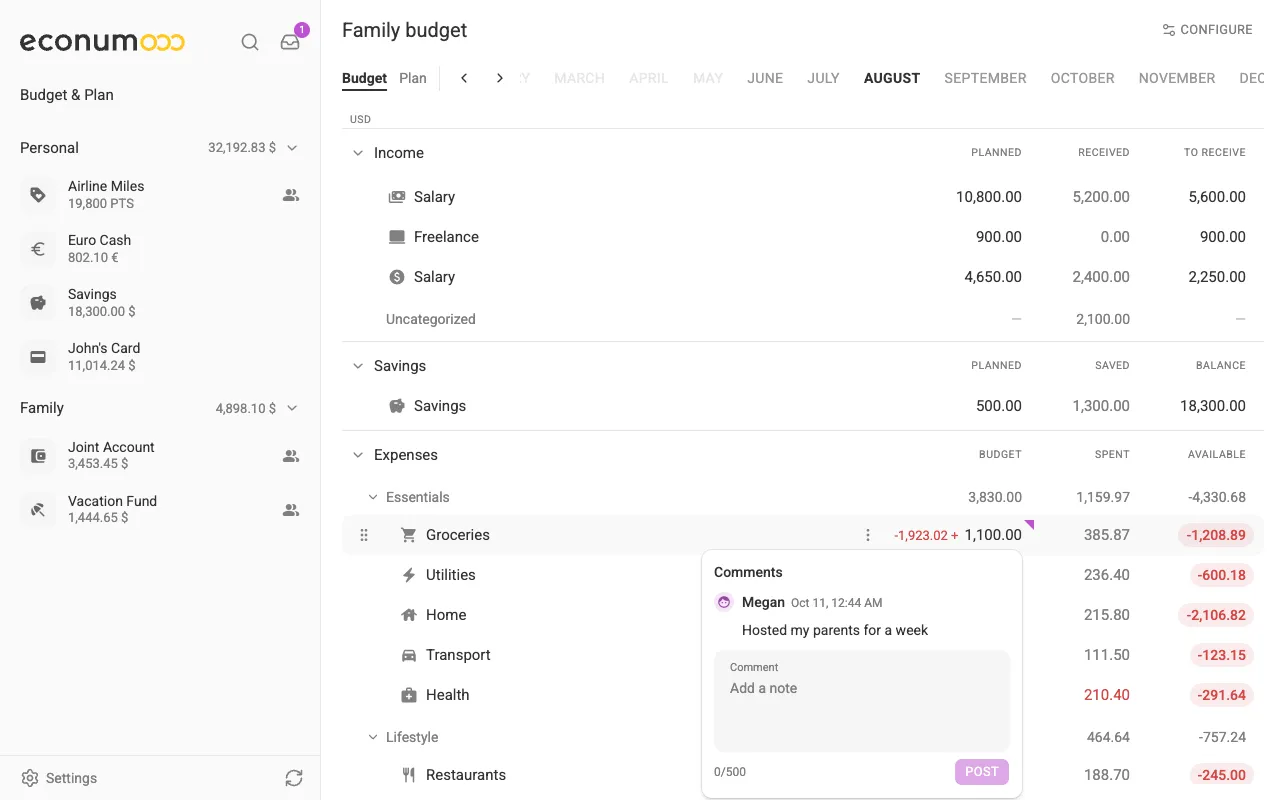
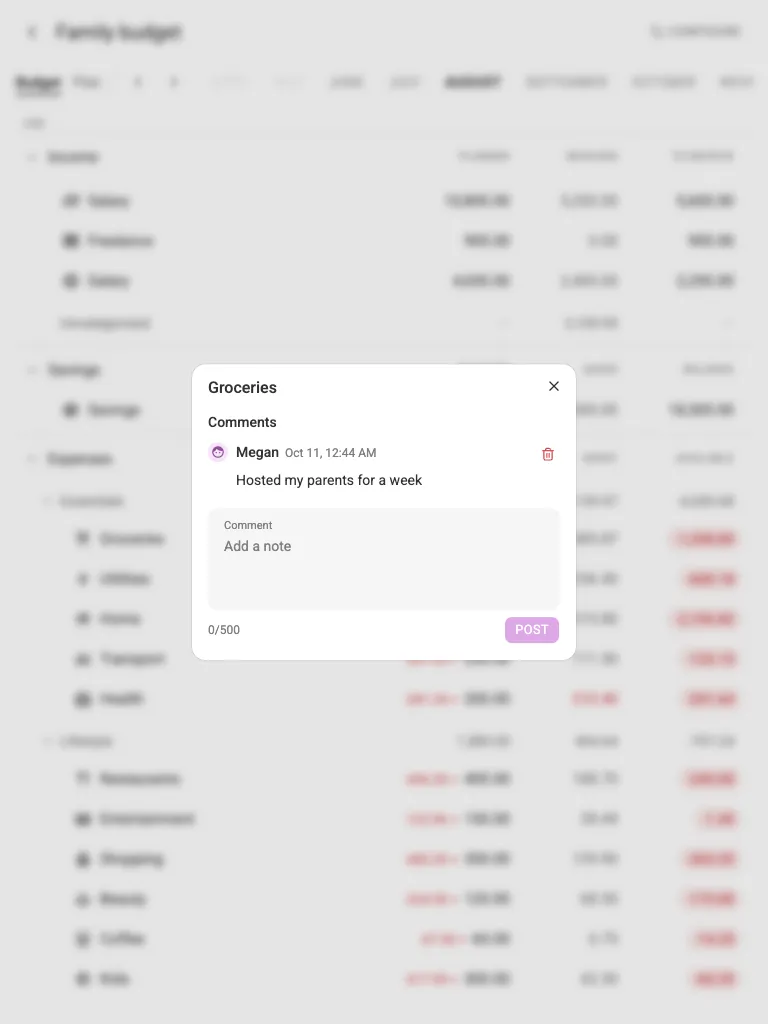
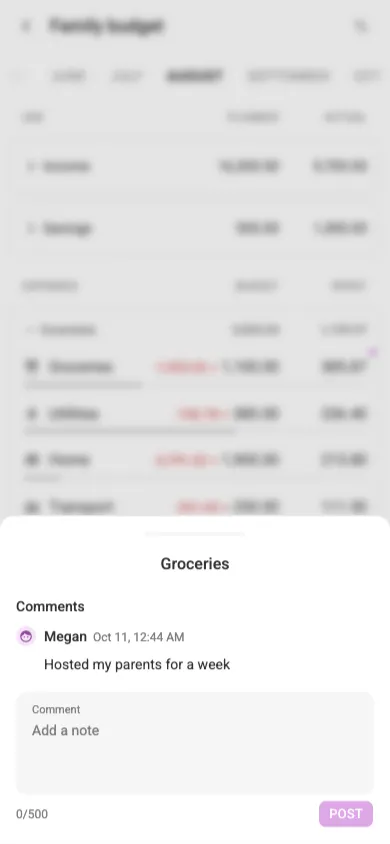
Everyone with access to the budget can read the comments and add their own — including people you shared it with as View only.
Budgets list #
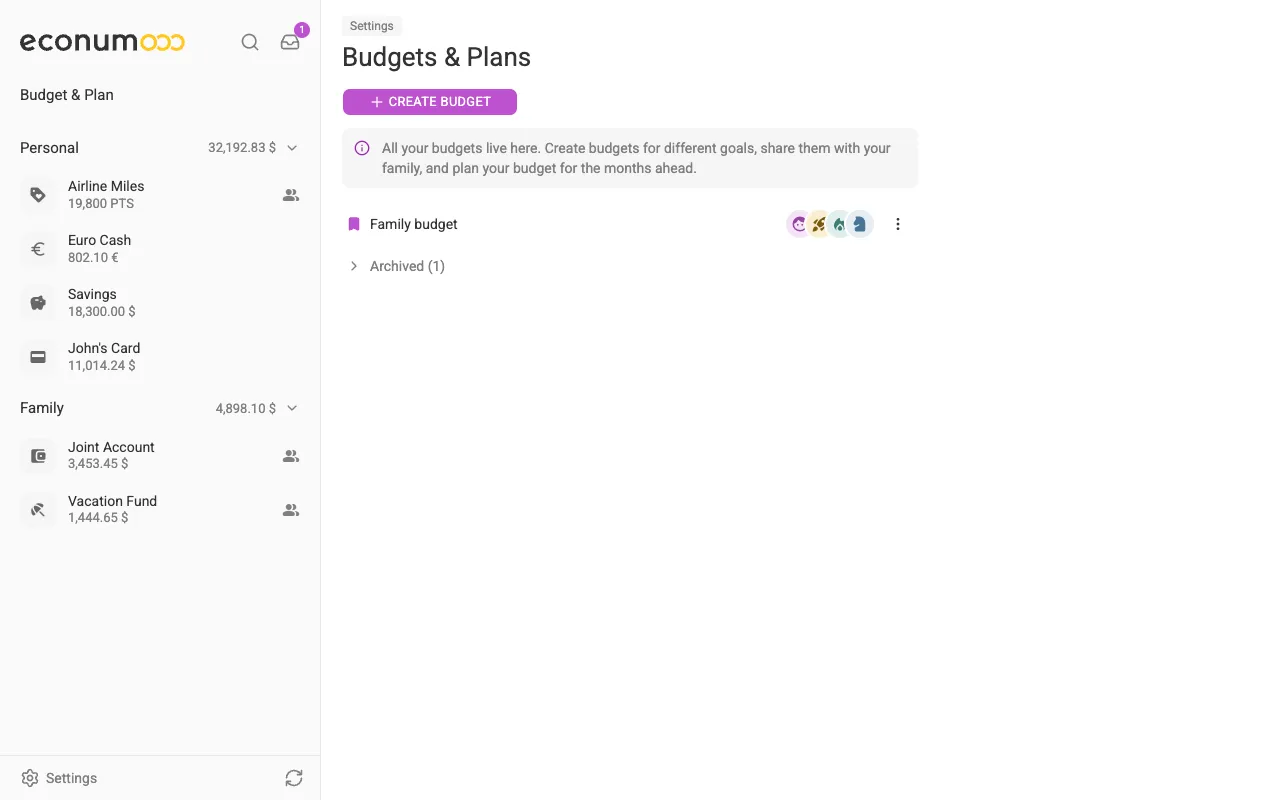
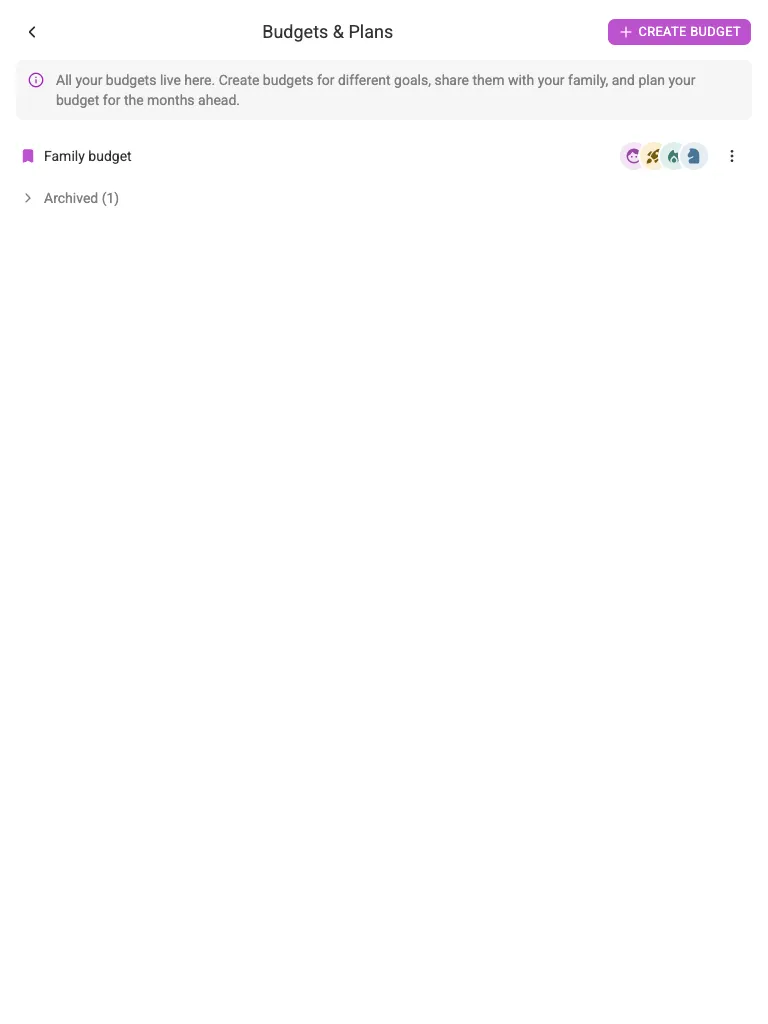
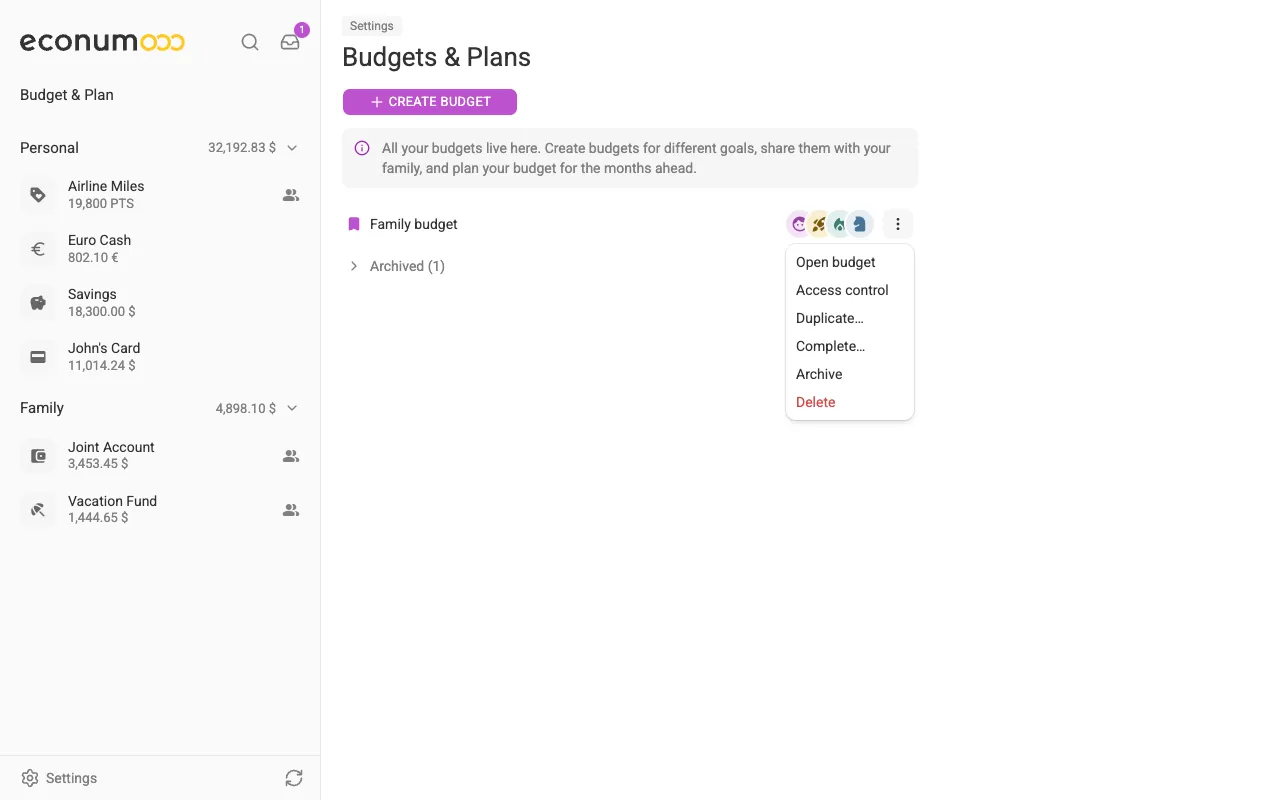
You can access your budgets list at Settings → Budgets & Plans. Shared budgets show the avatars of everyone who uses them, and the bookmark icon marks your default budget — the one that opens from Budget & Plan in the sidebar. Budgets you have archived collapse into an Archived (N) group at the bottom of the list:

Completing, duplicating and archiving a budget #
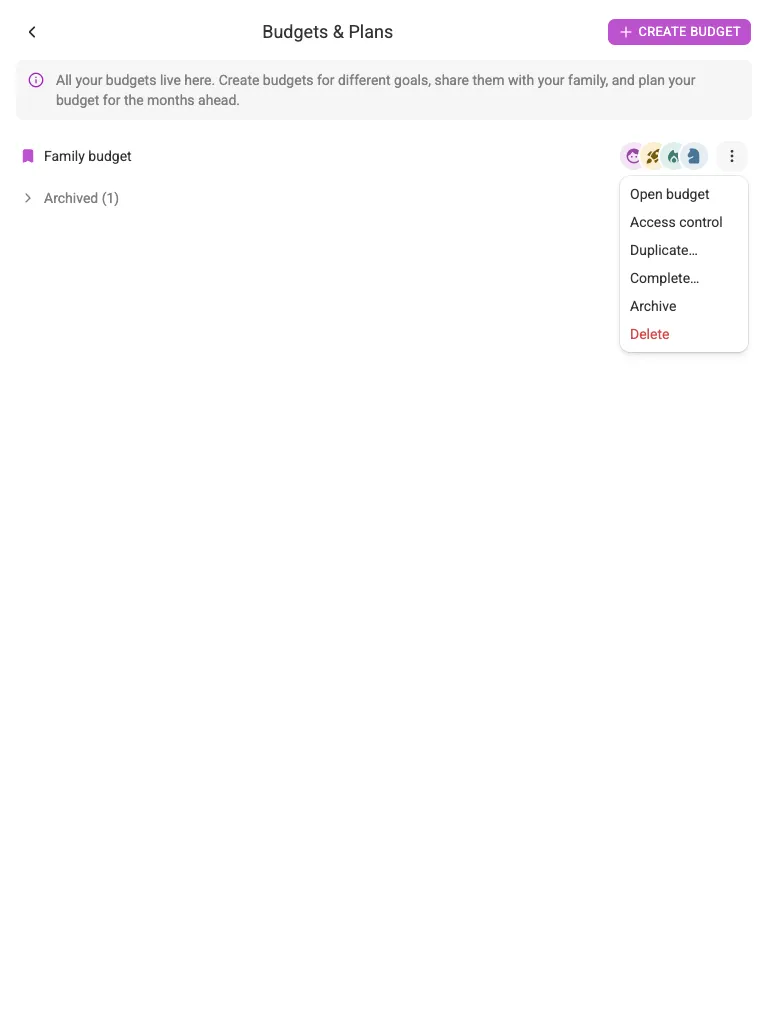
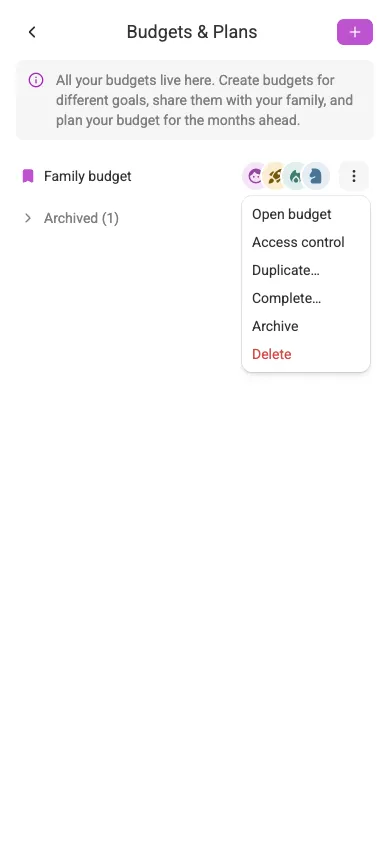
A budget does not have to run forever. Every budget’s three-dots menu in Settings → Budgets & Plans carries its whole life cycle: Open budget, Access control, Duplicate…, Complete…, Archive, and Delete.
Complete a budget #
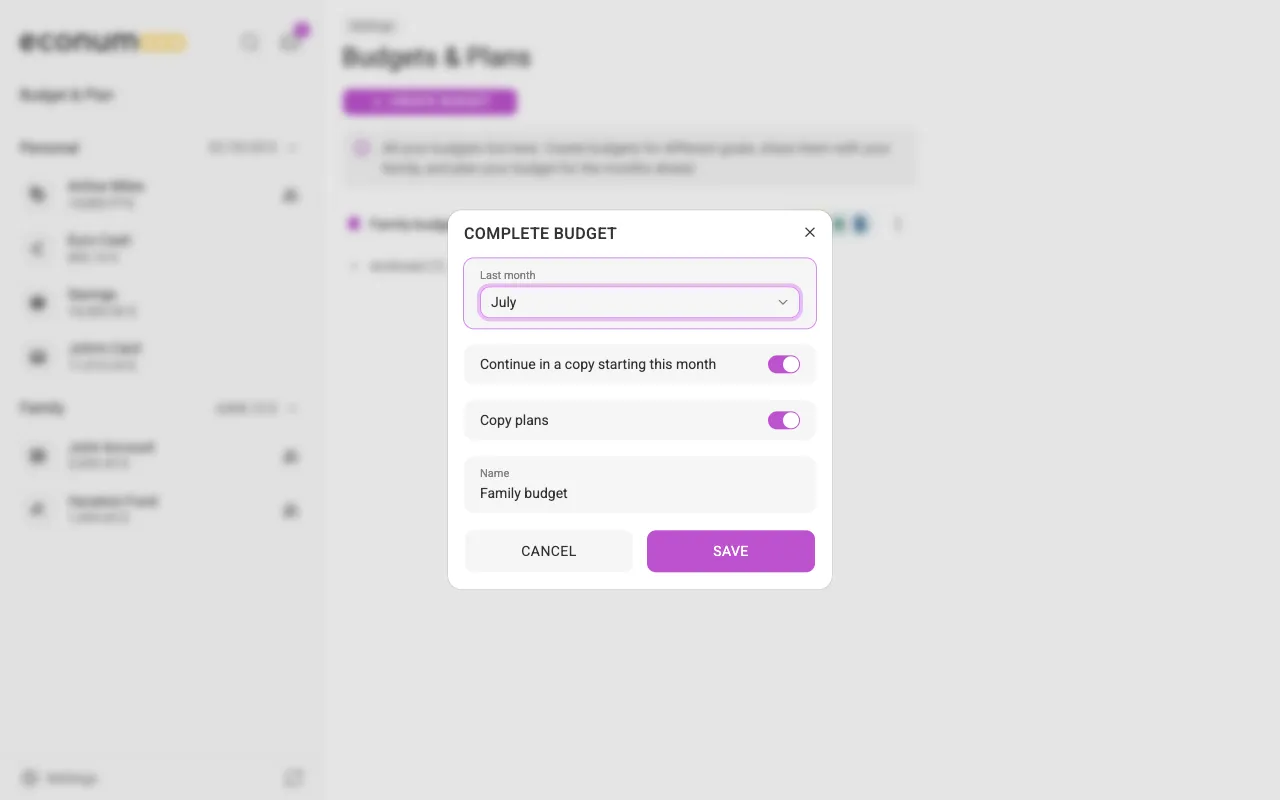
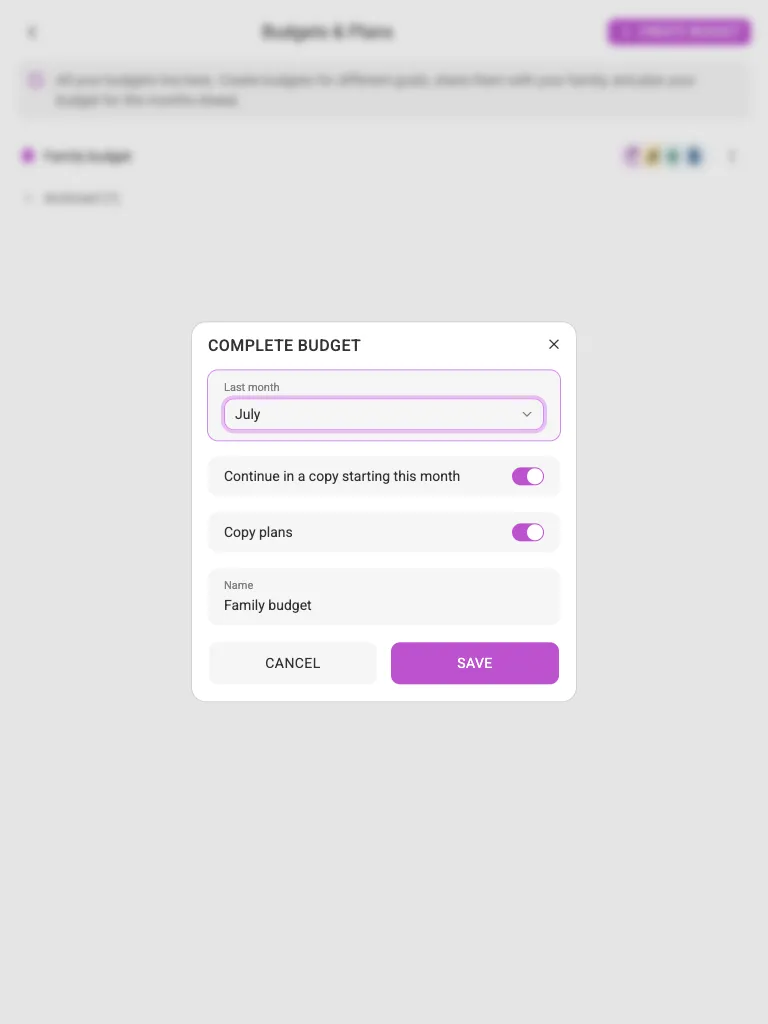
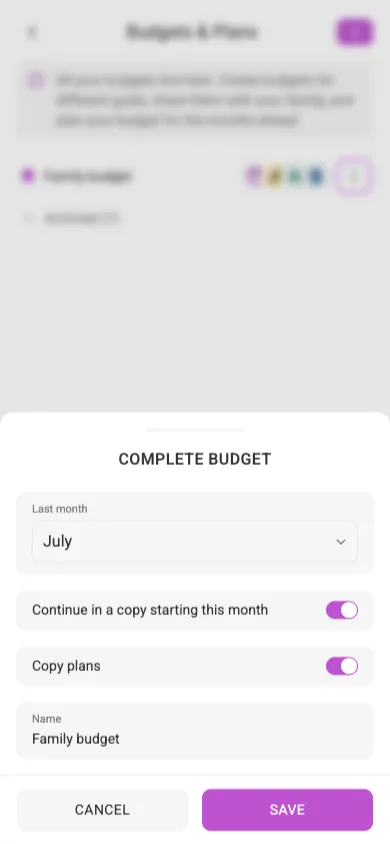
Complete… closes a budget off at a chosen month. Pick the Last month it covers; leave Continue in a copy starting this month on to name and start its successor in the same step, with Copy plans deciding whether the planned amounts come along. Turn that switch off and the Copy plans and Name fields disappear — the budget is simply closed, with no successor. Press SAVE and the budget is archived straight away: it leaves the active list immediately and joins the Archived group below it.
Duplicate a budget #
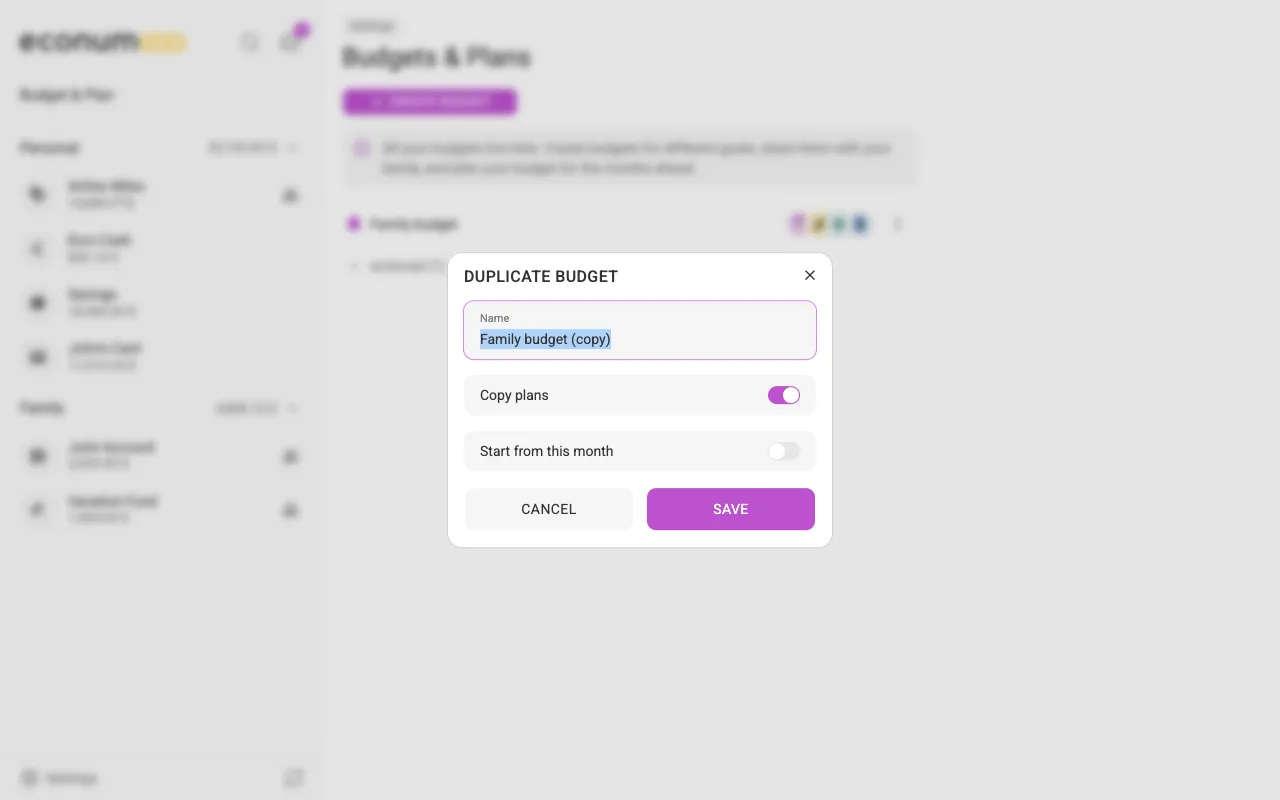
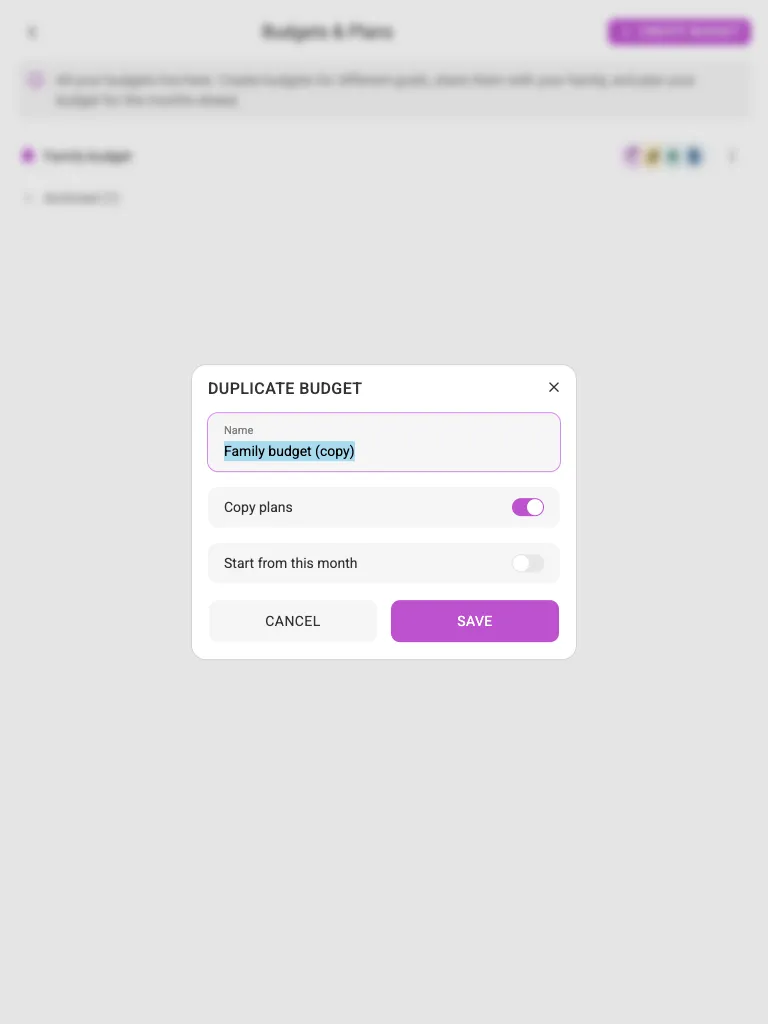
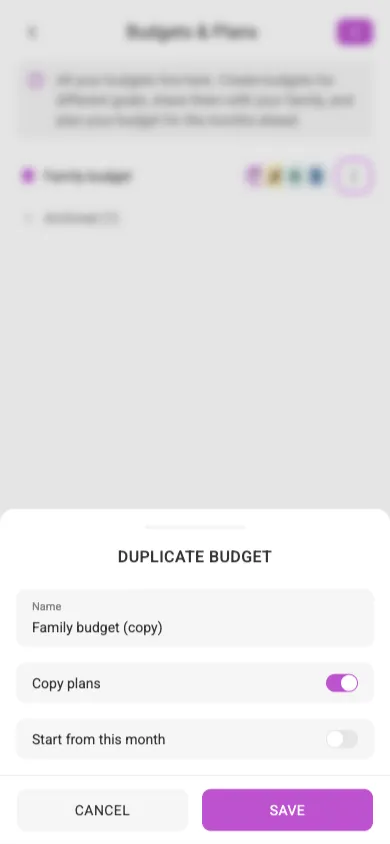
Duplicate… copies a budget on its own, without closing the original: its structure, folders, envelopes, member accounts and sharing all come across. The copy is pre-named after the original with “(copy)” appended, keeps Copy plans on, and can Start from this month instead of the original’s first month.
Archive and unarchive #
Archive files a budget away without completing it. An archived budget stays in the list under Archived (N) and stays fully browsable — opening it shows a banner reading “This budget is archived and read-only”, and its numbers stay exactly as they were. Its menu offers Unarchive in place of Archive, which brings it back to the active list.
Shared access #
To budget together with your partner, you first need to connect with them. Then open the budgets list, click the three dots on the budget you wish to share, and select Access control. Pick the person and the access level:
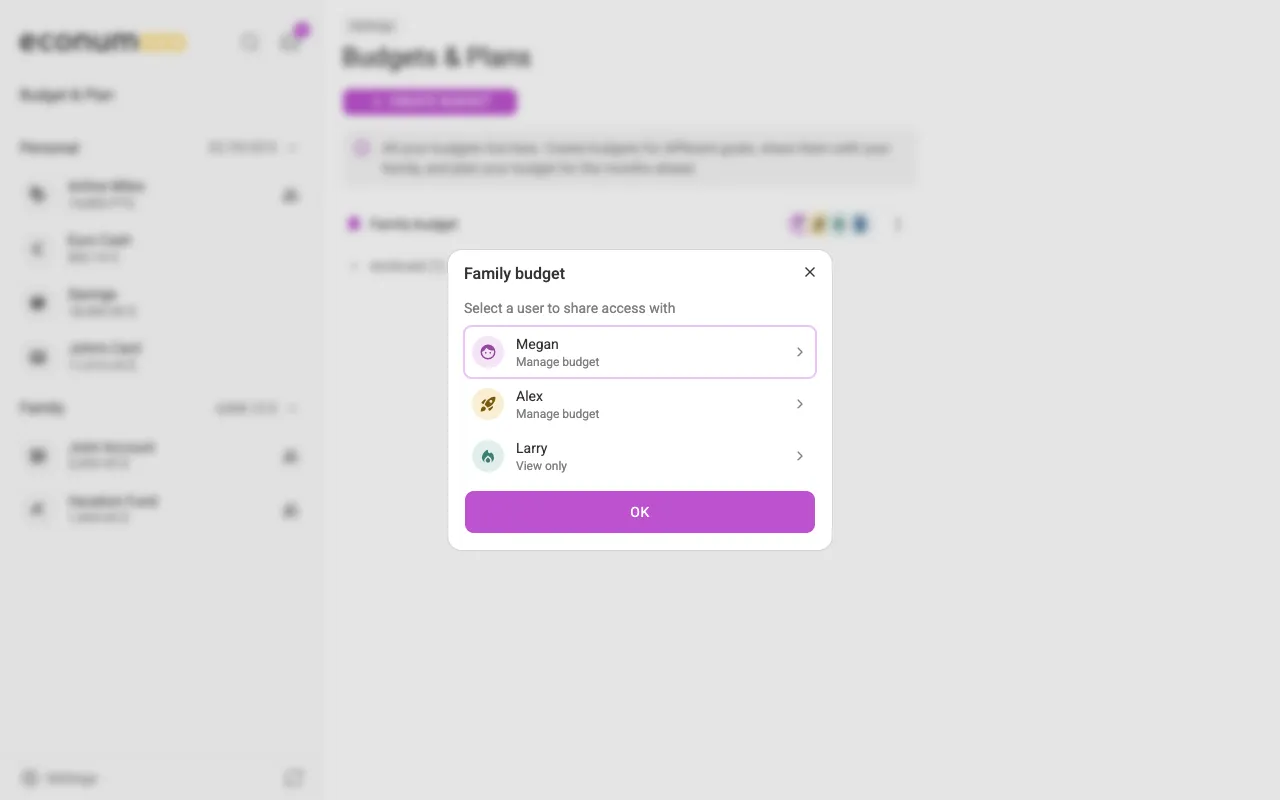
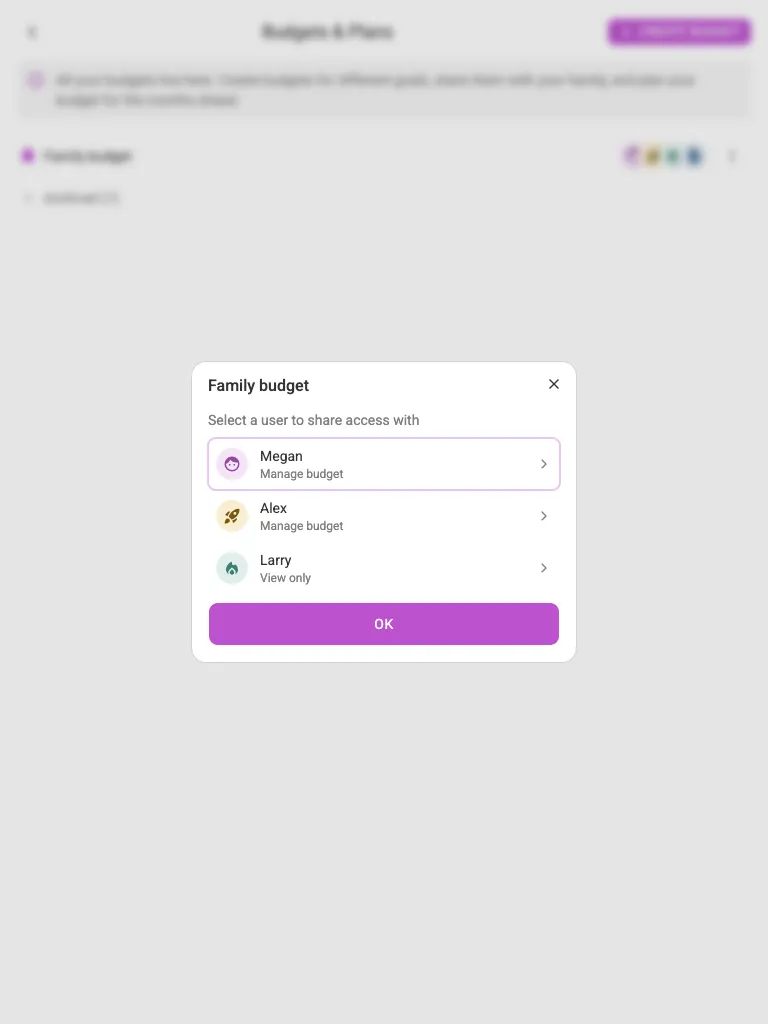
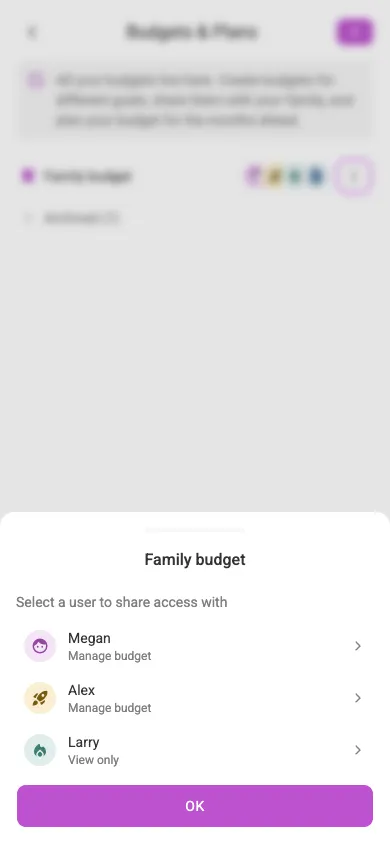
Econumo supports the following access levels for budgets:
- View only — you share your budget only for viewing.
- Manage budget — you and your partner can collaboratively manage this budget and contribute to it together.
- Full control — like Manage budget, but your partner can also delete and rename the budget.
As with accounts, this sends a pending invite rather than sharing the budget outright — your partner accepts or declines it from their Inbox, as described in Shared Access. Once accepted, your partner sees the budget in their own budget list, and you budget the same envelopes together — as John and Megan do with the “Family budget” in the screenshots throughout this page.