Classifications #
This section introduces the basics of ‘Classifications’ in Econumo, including Categories, Tags, and Payees. All three entities share similar functionality:
- Create a new item.
- Update or delete an existing item.
- Merge a duplicate into another item.
- Archive or unarchive any item.
Categories answer “what kind of spending is this?” — they’re optional on a transaction, but picking one is what makes a budget useful. Tags cut across categories to group related spending (a trip, a renovation, the dog). Payees record who you paid or who paid you.
In this section #
- Create a category, tag, or payee
- Budget tags and reporting tags
- Update or delete
- Merge duplicates
- Archive or unarchive
- Searching a long list
Create a category, tag, or payee #
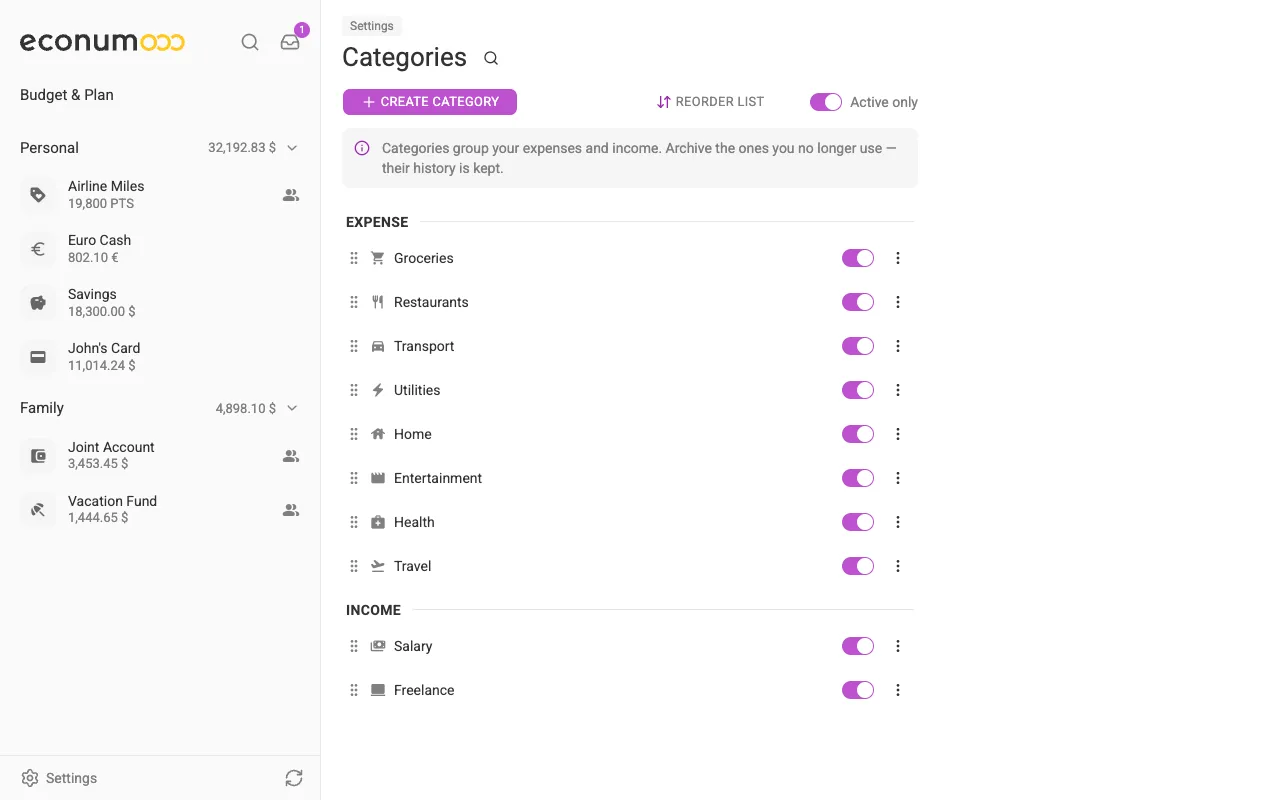
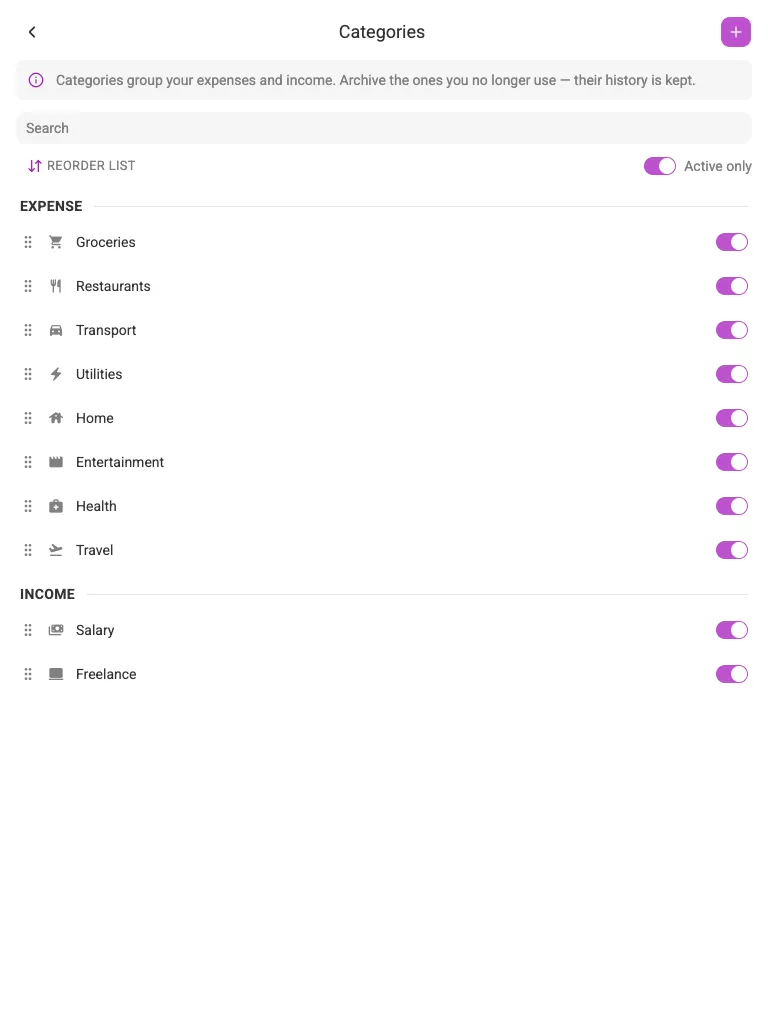
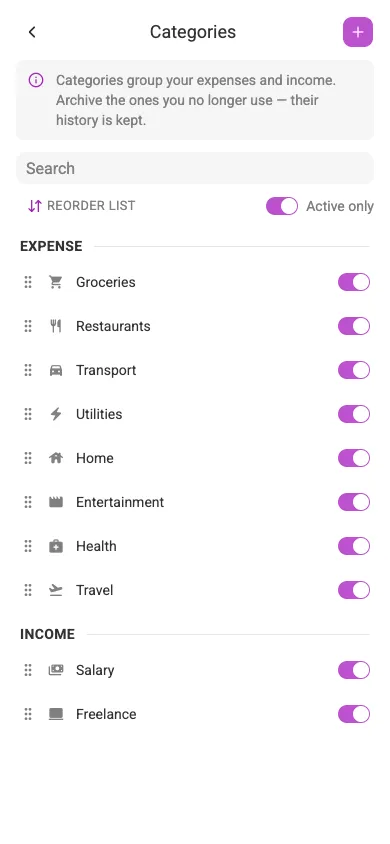
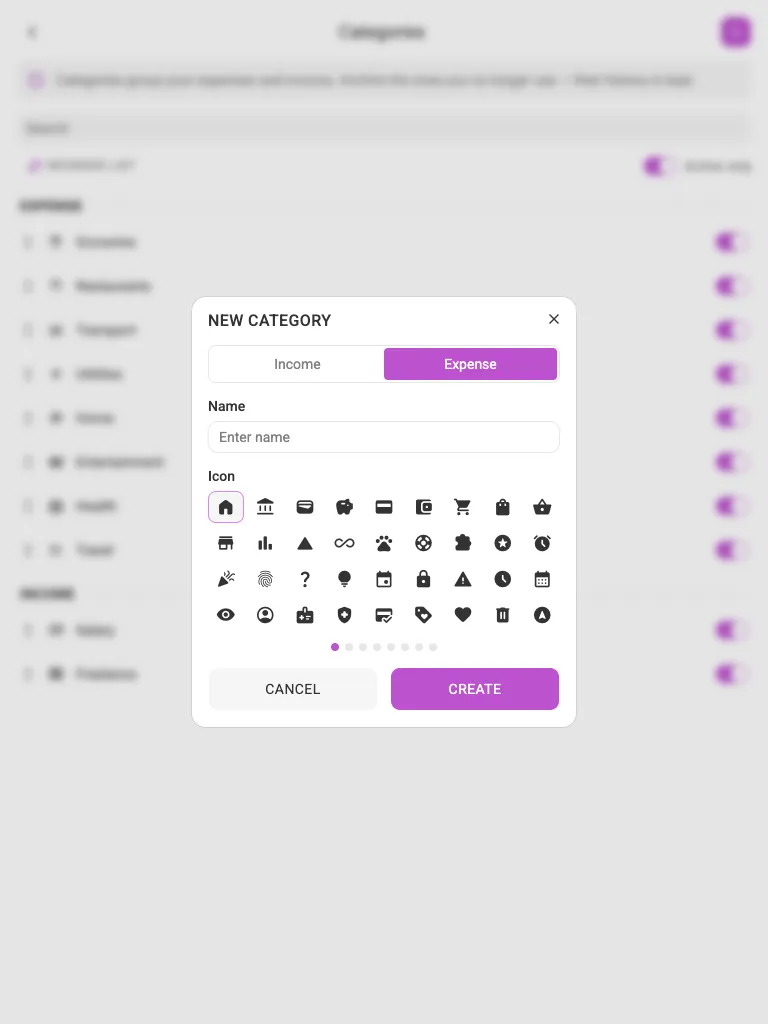
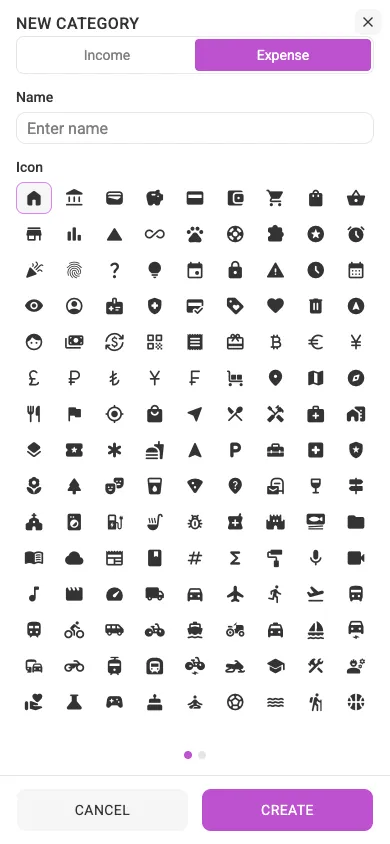
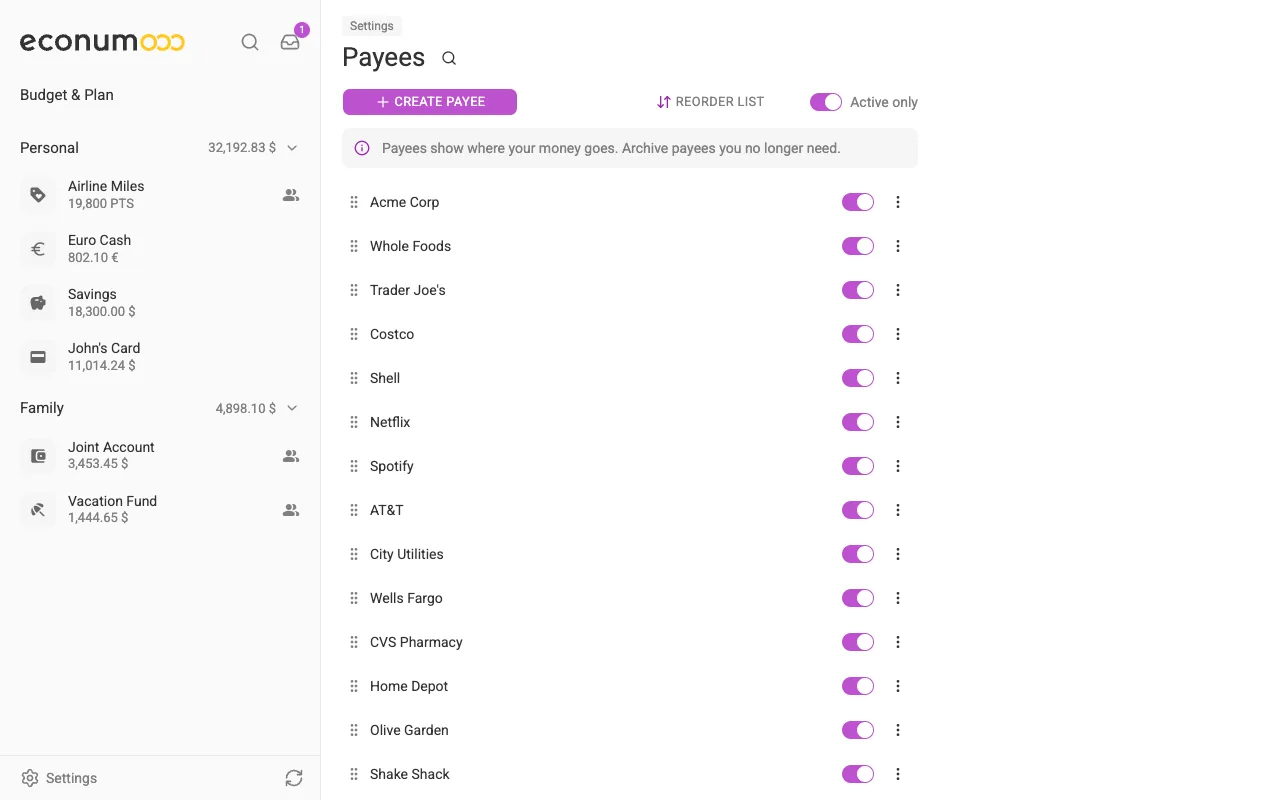
To create a new item, go to Settings → Categories / Tags / Payees and press Create category / Create tag / Create payee (on mobile, the + button in the header). Expense and income categories are listed separately:
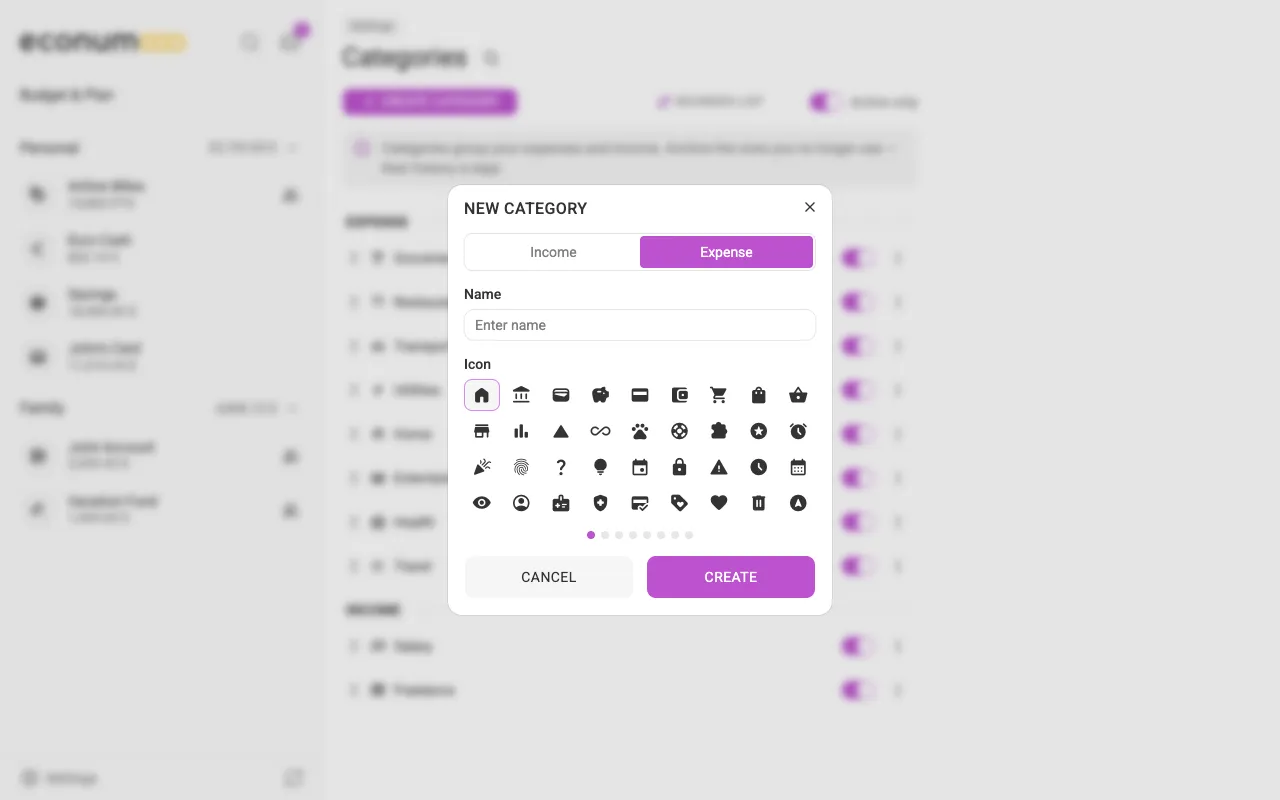
You will need to fill out a few fields, such as:
- Type (income/expense) — only for categories
- Icon — only for categories
- Kind (reporting/budget) — only for tags, see below
- Name (3–64 characters)
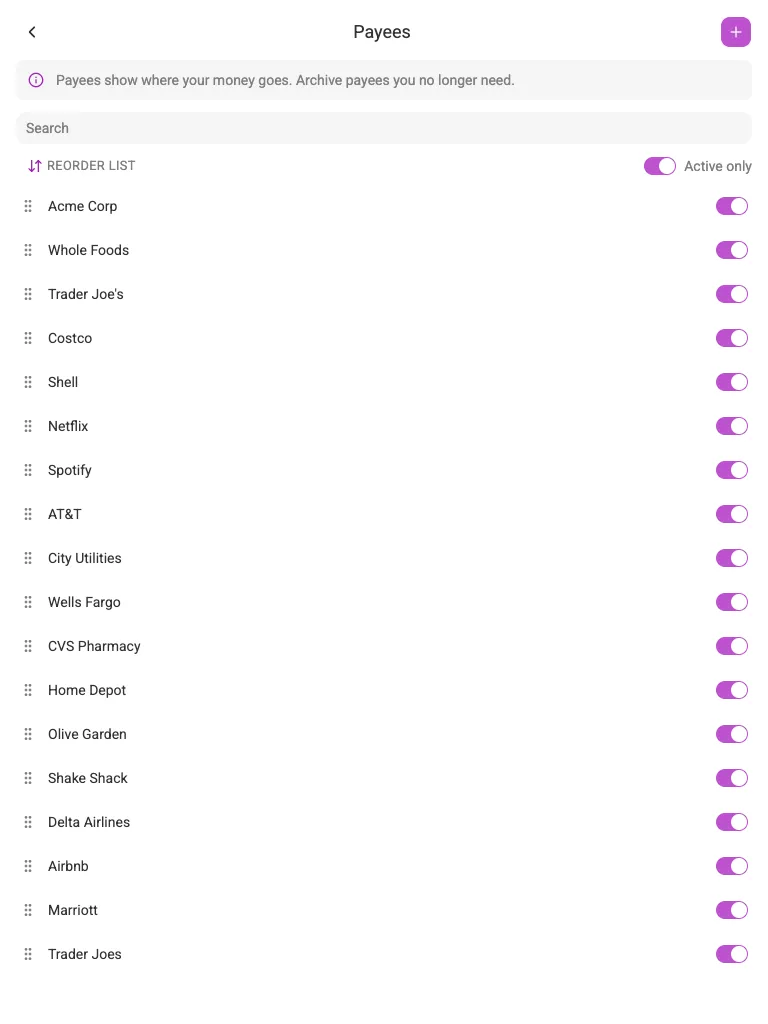
Payees need nothing but a name:
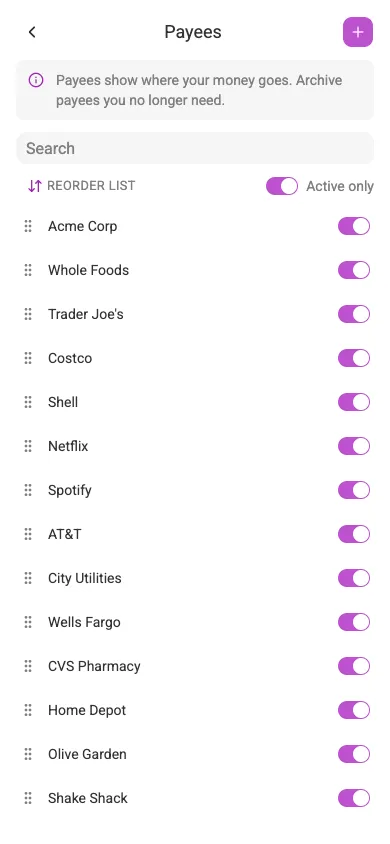
Note You can also create categories, tags, and payees on the fly, right from the transaction dialog — no trip to Settings required.
Budget tags and reporting tags #
Tags come in two kinds, and the New tag dialog asks which one you are making before anything else:
- Budget tag — “Plan a project or event. Only one tag per transaction.”
A vacation, a wedding, a renovation. Because a transaction can carry only
one, its spending adds up cleanly, so a budget tag gets a row in your
budget with a limit of its own. Budget tags are
marked with
#. - Reporting tag — “Analyse what the money went on. Several tags per transaction allowed.” A kid, a dog, a second home. A transaction can carry as many as you like, so the totals deliberately overlap and take no part in the budget maths. Reporting tags show up in their own Reporting tags block at the foot of the budget page.
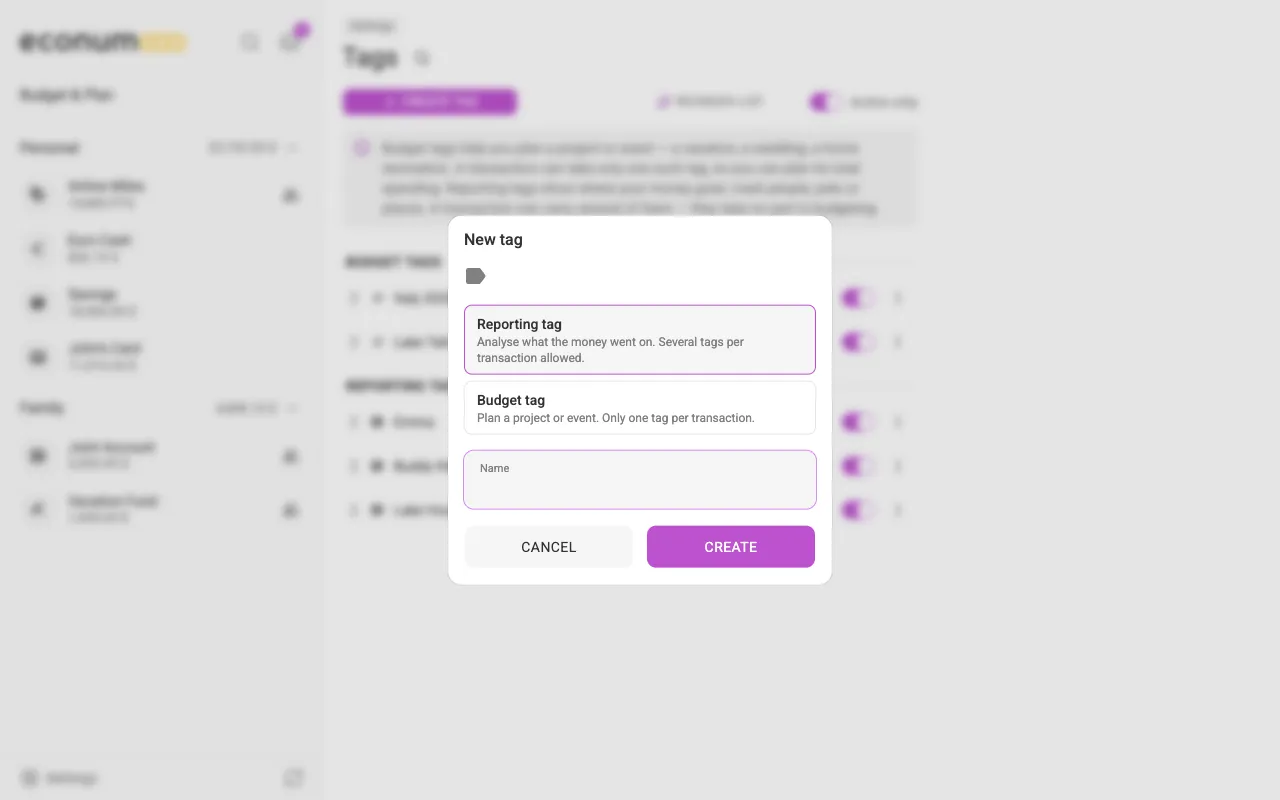
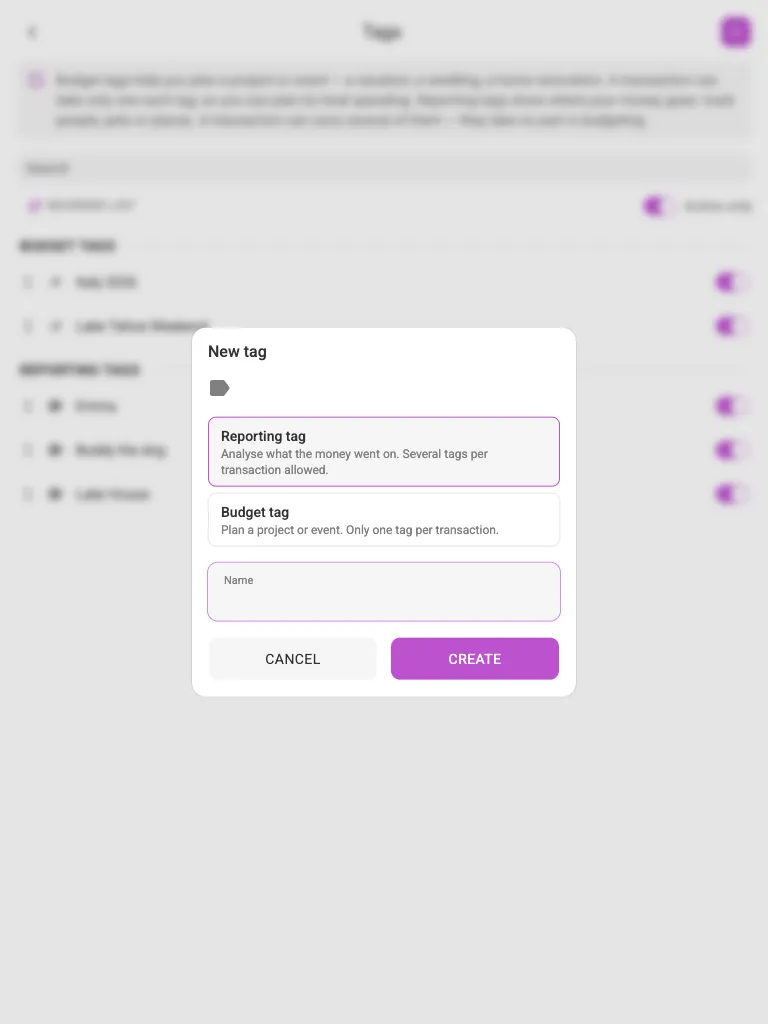
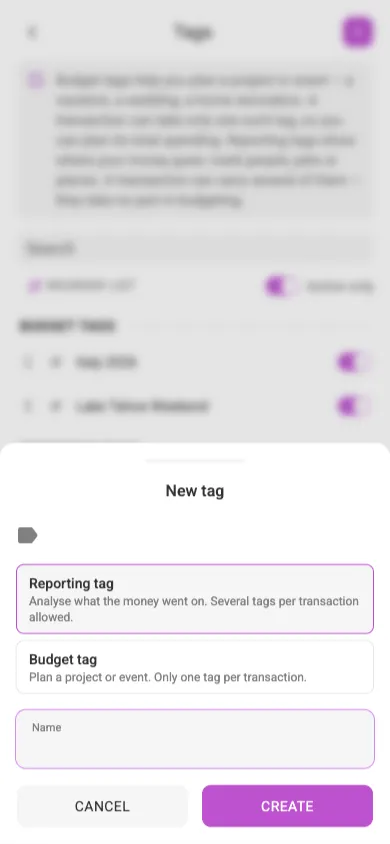
The Tags screen keeps the two apart in BUDGET TAGS and REPORTING TAGS sections:
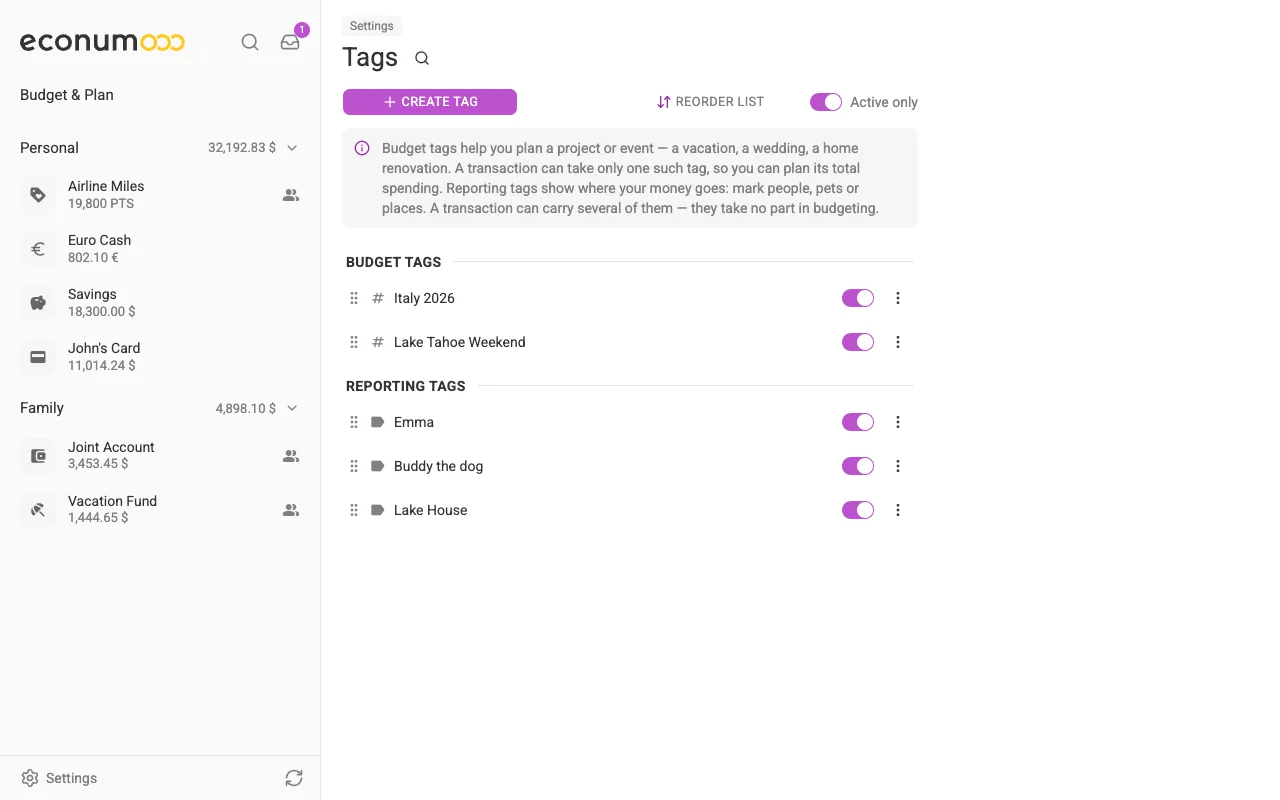
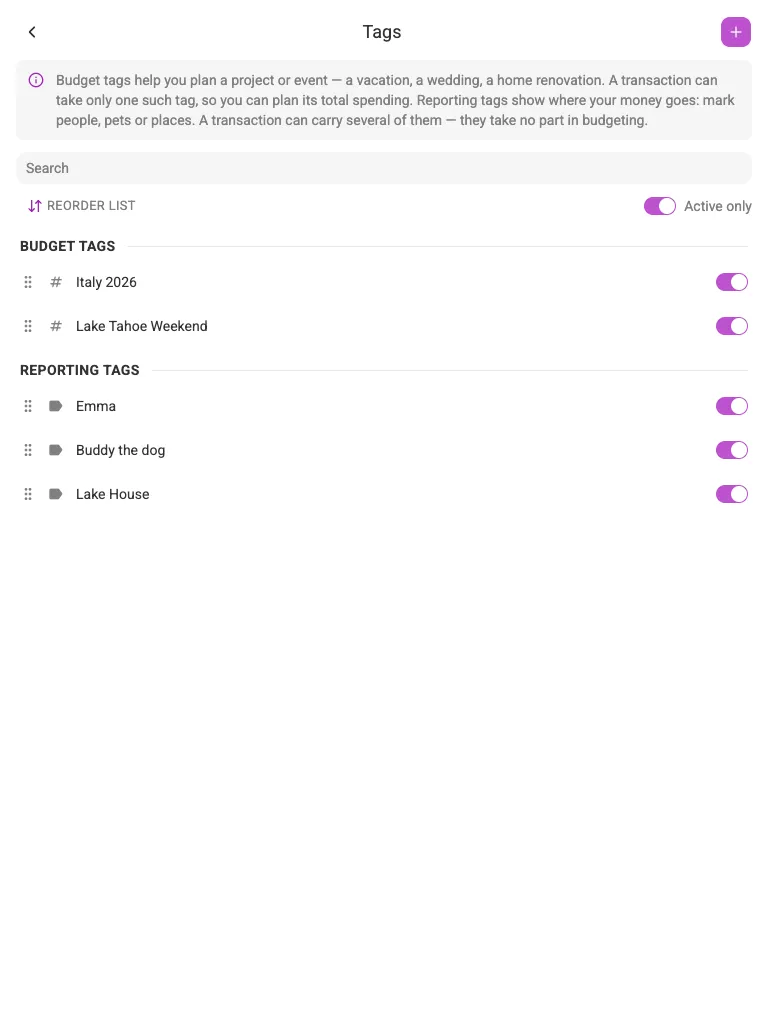
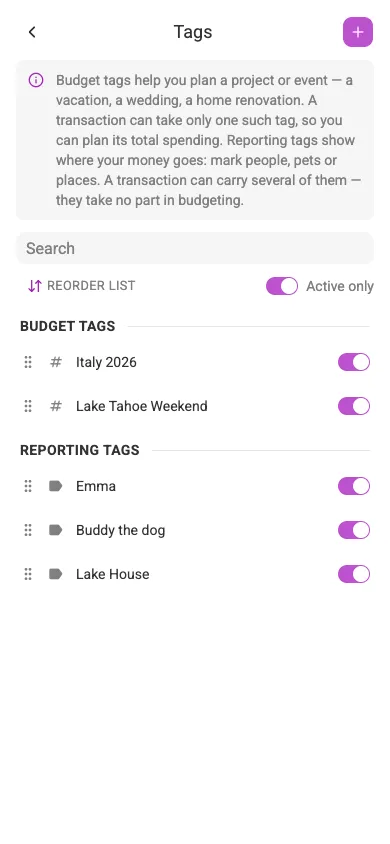
Note A tag’s kind is fixed when you create it and cannot be changed afterwards. If you picked the wrong one, create the tag you meant and merge the other into it.
Update or delete #
On desktop and tablet, click the three dots next to an item and select Edit or Delete. On mobile, tap the item to open the same actions in a bottom sheet.
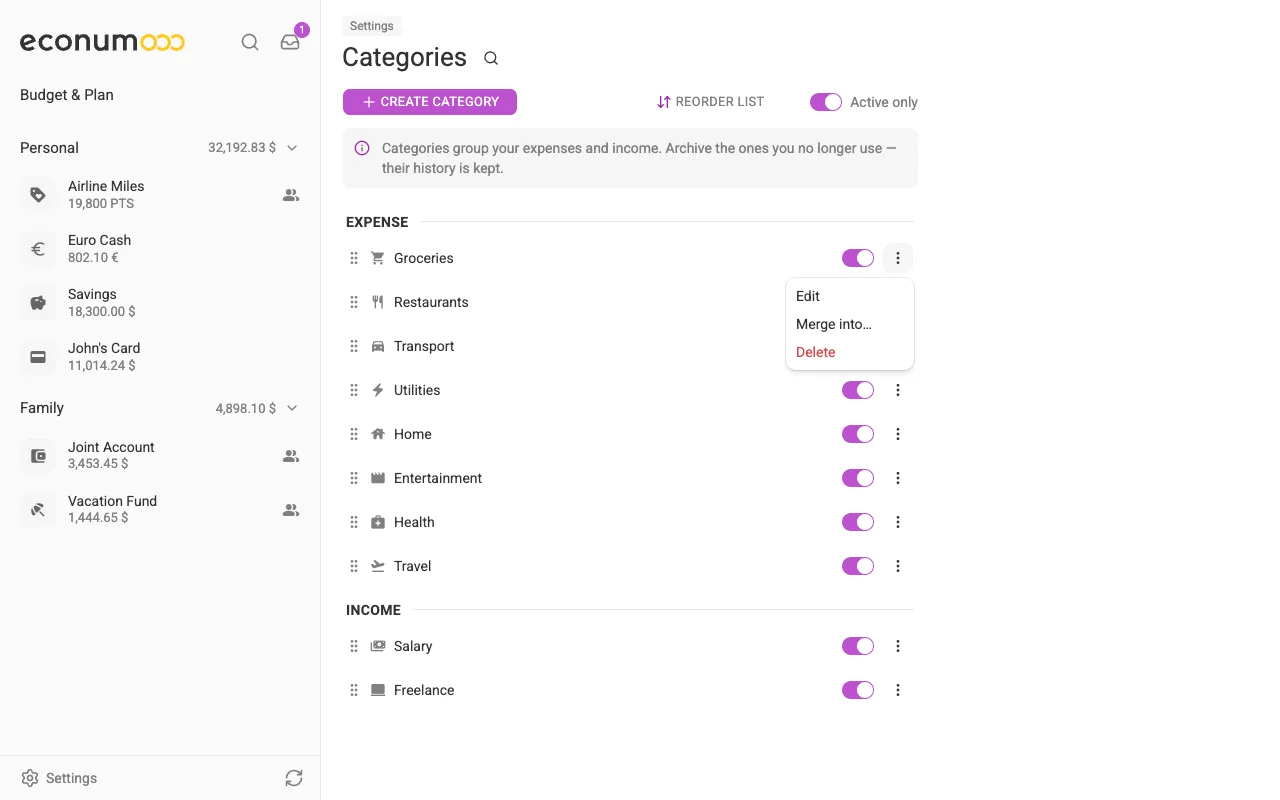
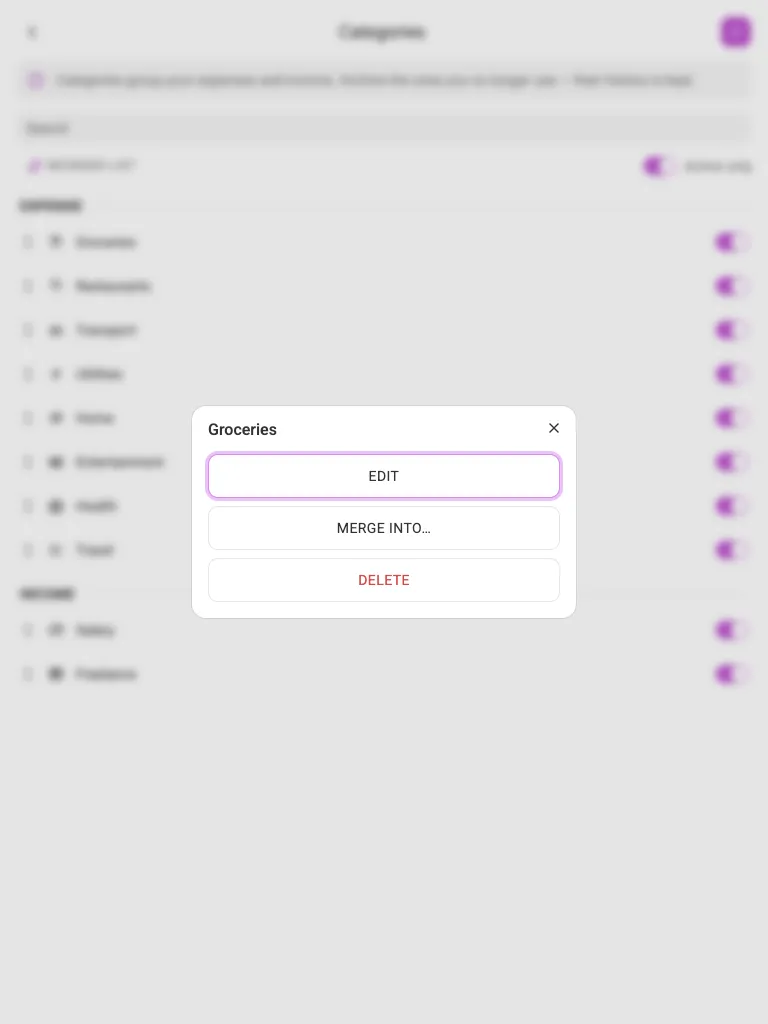
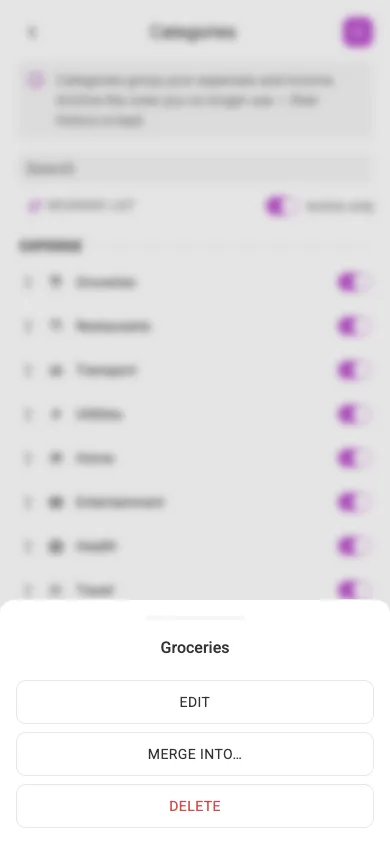
Deleting an item will remove it from all transactions and budgets.
Use Reorder list to change the order in which items appear in pickers and in the budget.
Merge duplicates #
Long-lived data collects duplicates: a “Groceries” and a “Food”, two spellings of the same shop. Merge into… in the same three-dots menu folds one into another instead of deleting it and losing the history.
- Open Settings → Categories (or Tags, or Payees).
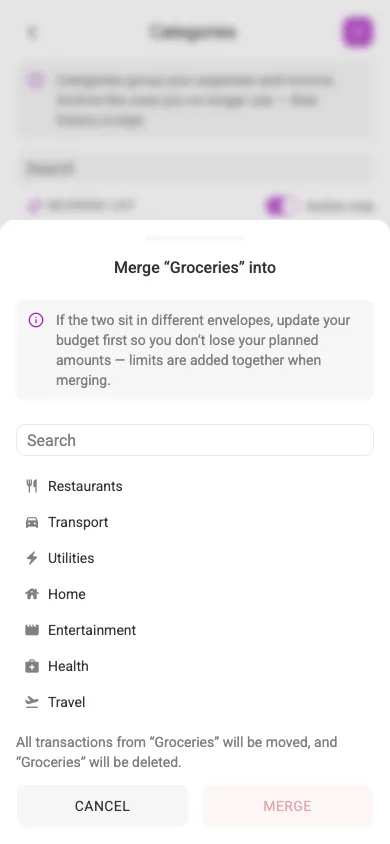
- Choose Merge into… in the duplicate’s menu. On a phone the same dialog arrives as a bottom sheet.
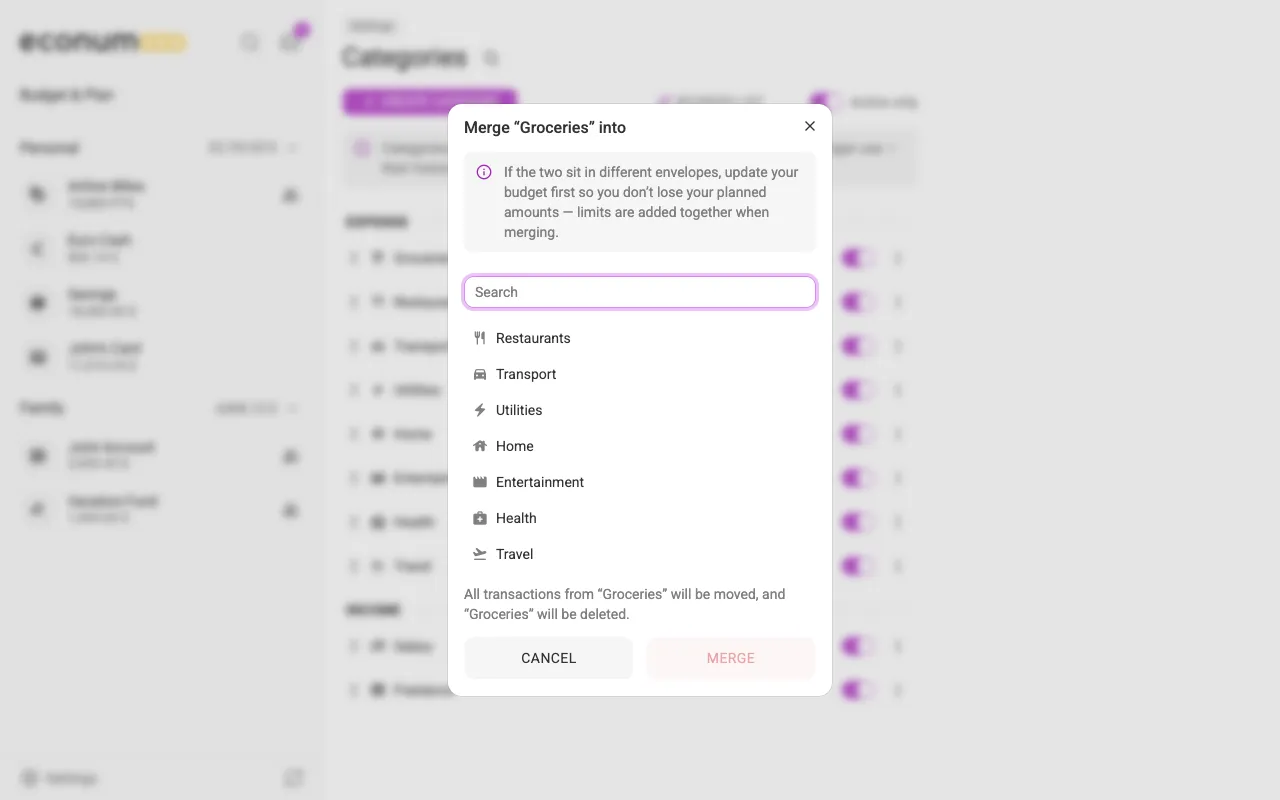
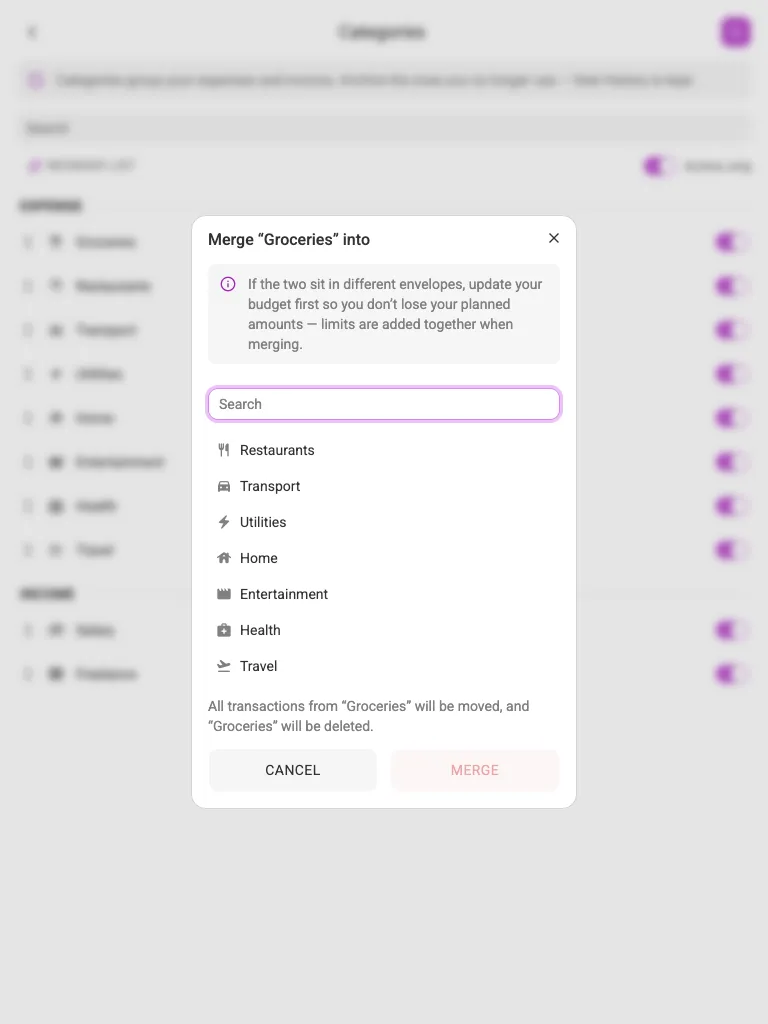
- Pick the survivor from the list, or find it with the Search box. The dialog spells out what will happen: “All transactions from … will be moved, and … will be deleted.”
- Press MERGE.
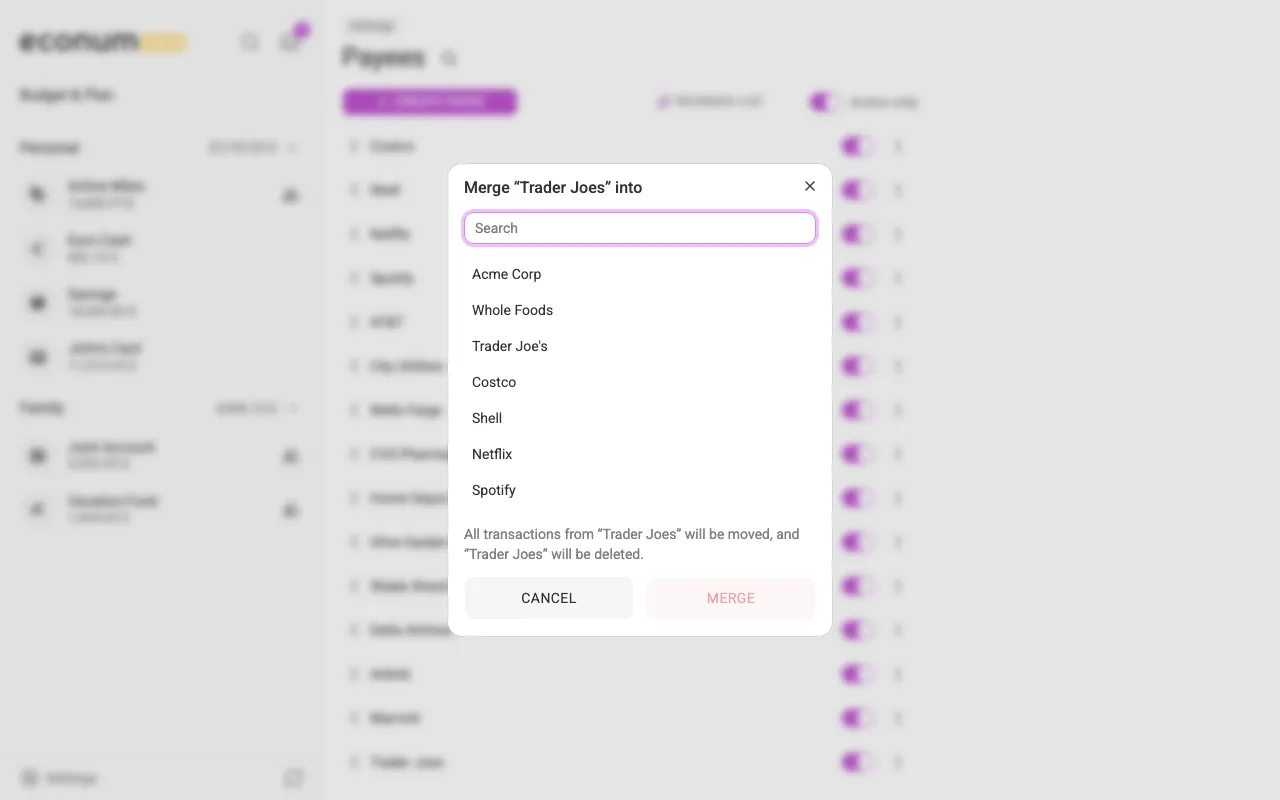
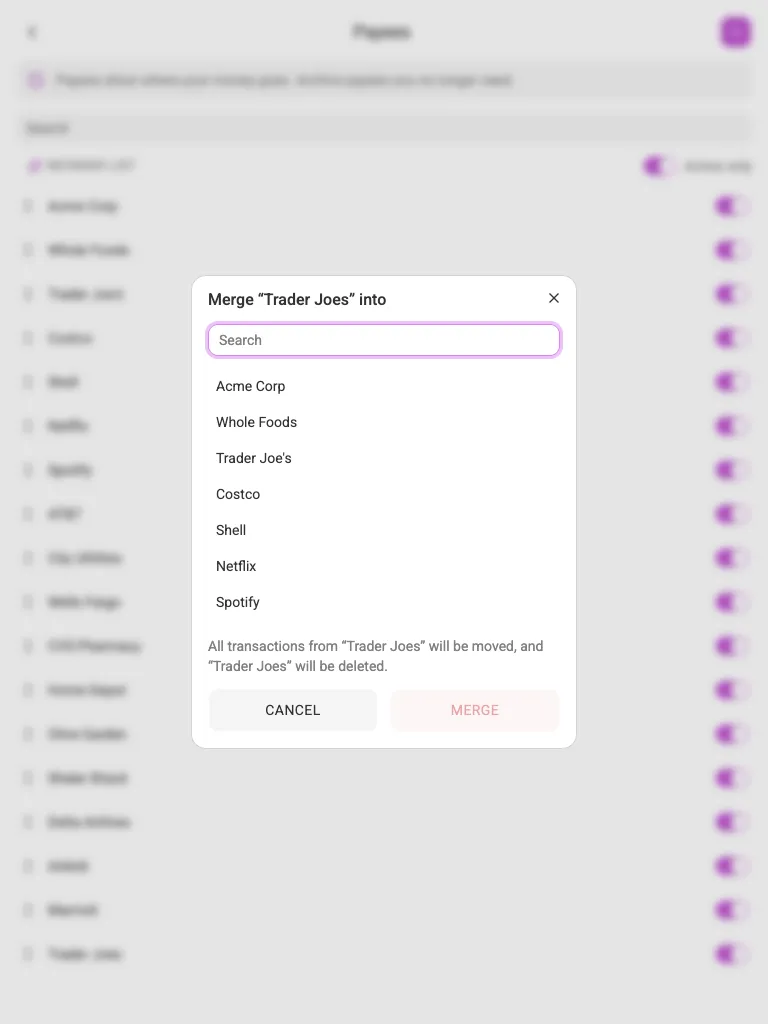
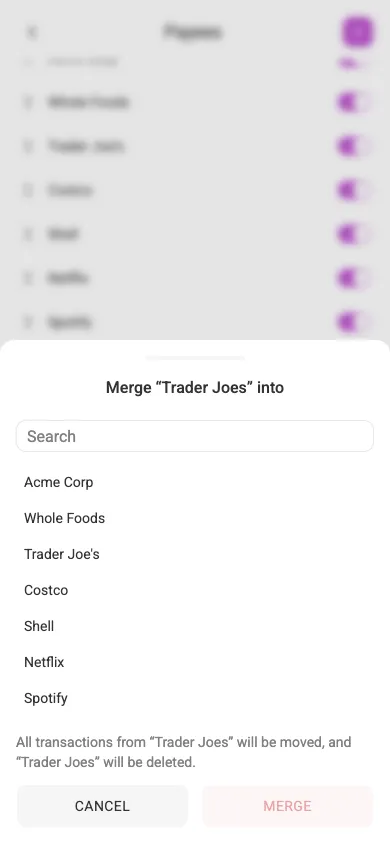
Every transaction pointing at the duplicate is moved to the survivor, and the duplicate is then deleted.
Note Merging two categories also merges their budget rows: the planned amounts are added together per period rather than thrown away. The dialog says so before you commit — “If the two sit in different envelopes, update your budget first so you don’t lose your planned amounts — limits are added together when merging.”
Archive or unarchive #
You can archive items that are no longer relevant to you. Archived items won’t appear in the transaction dialog but will still be visible in the transaction list, and in a budget if you’ve budgeted them or had any associated spending.
Use the switch on the right side of each element to archive or unarchive it. The Active only toggle at the top of the list controls whether archived items are shown.
Searching a long list #
Press the search icon next to the page heading to reveal a filter field — handy once your list of categories, tags, or payees grows past a quick scan. It filters the list as you type.