Apple Wallet #
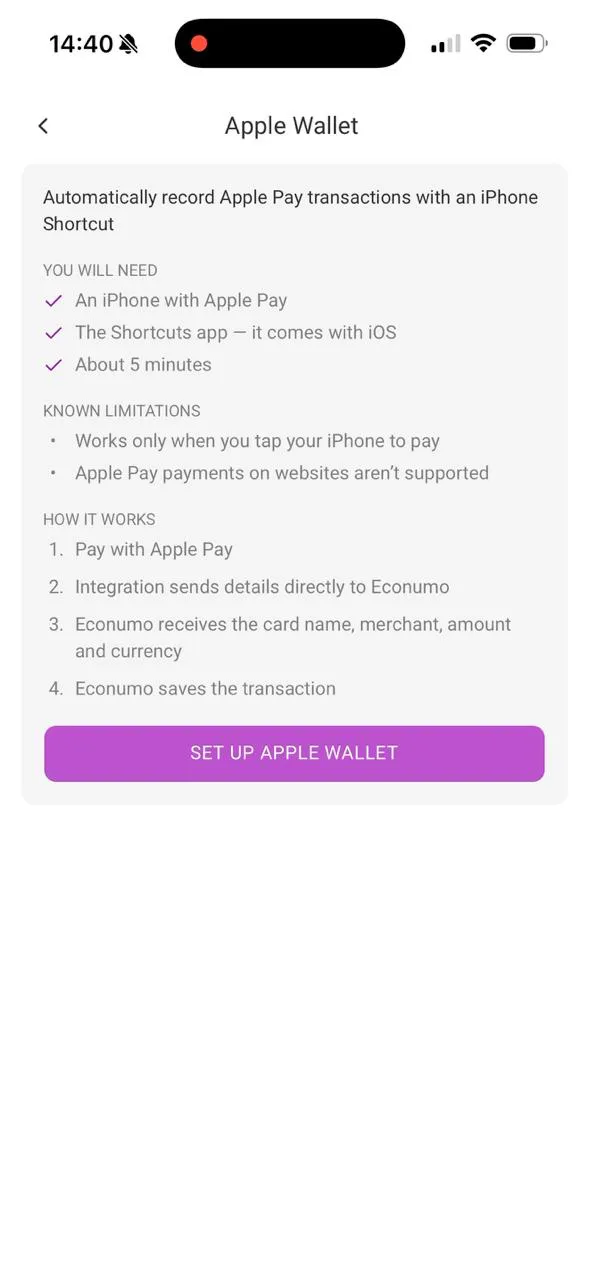
Connect Apple Wallet to Econumo to record purchases when you tap your iPhone to pay with Apple Pay. An iPhone Shortcut sends the card name, merchant, amount, and currency directly to Econumo.
In this section #
Before you start #
You will need an iPhone running iOS 26 or iOS 27, Apple Pay set up with a payment card, and the Shortcuts app, which comes with iOS. Allow about five minutes for setup; the first payment needs to happen at a payment terminal.
Open Econumo on your iPhone and go to Settings → Apple Wallet. Tap Set up Apple Wallet to open the five-step checklist. Keep it available so you can return to it as you switch between Econumo and Shortcuts.
This integration works when you tap your iPhone to pay. Apple Pay payments on websites aren’t supported.
Setup #
The five setup steps are the same on both versions. The redesigned Shortcuts app on iOS 27 changes how you create the automation in step 3 and enable automatic runs in step 5; follow the instructions for your iOS version in those steps. Screenshots for the shared steps were taken on iOS 26.
Keep confirmation enabled until the first payment has reached Econumo and you have granted the requested permissions: Run After Confirmation on iOS 26, or Confirm Before Run on iOS 27.
1. Install the Shortcut #
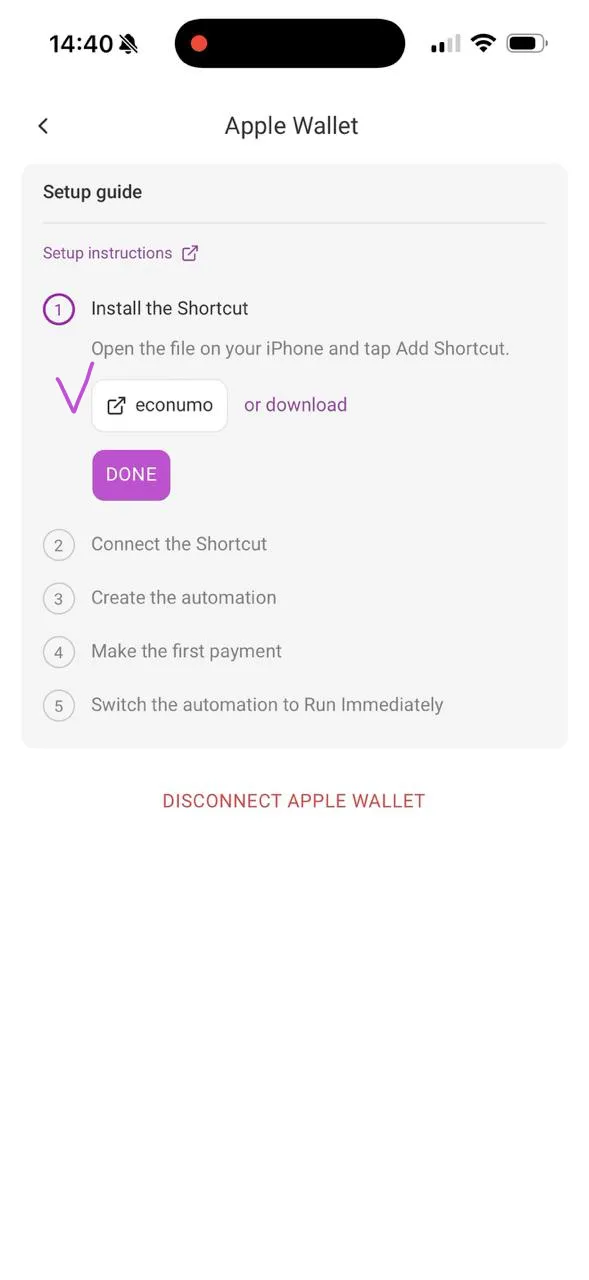
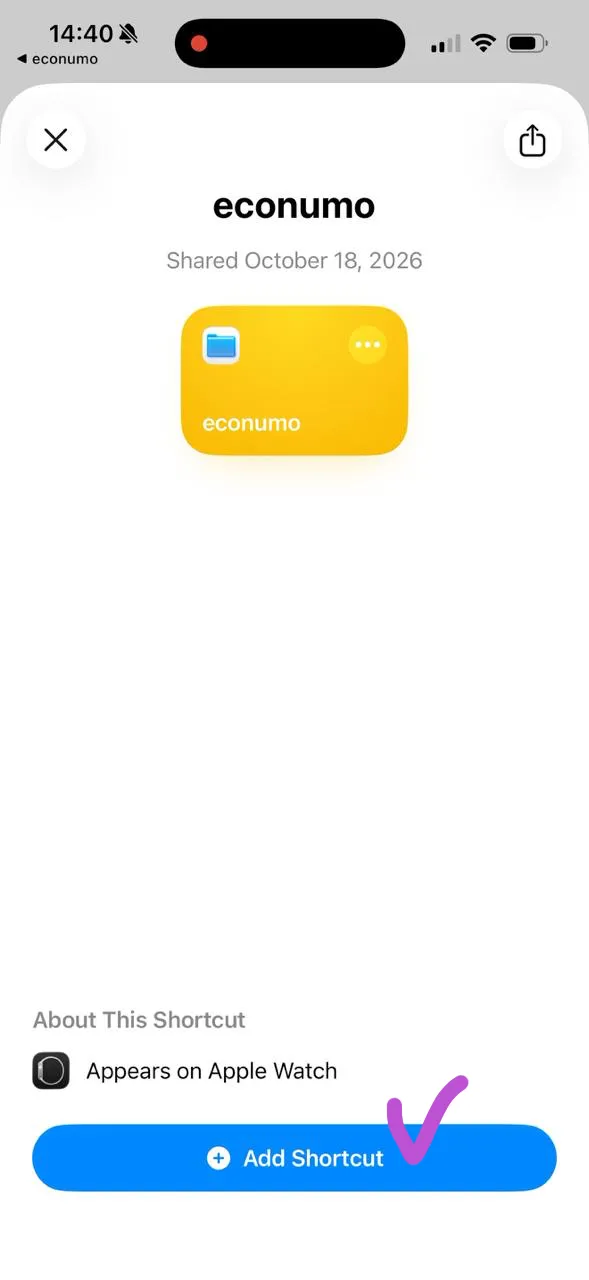
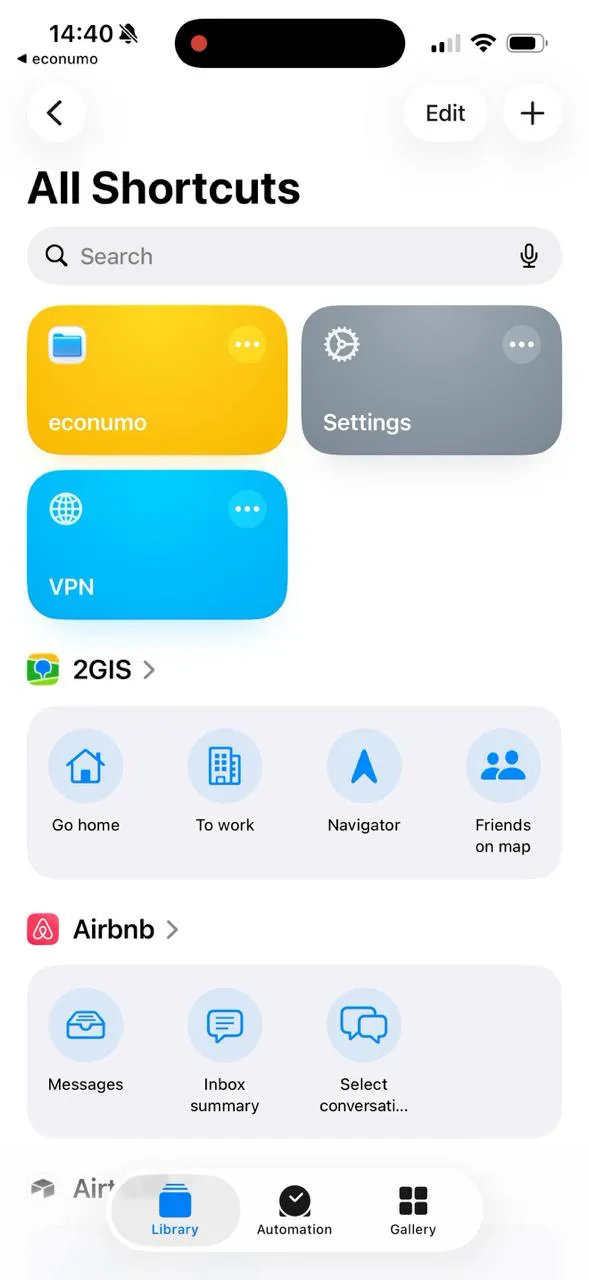
In Econumo’s setup checklist, open the econumo Shortcut link under Install the Shortcut. In Shortcuts, tap Add Shortcut. The yellow econumo tile will appear in your library.
Return to Econumo and tap Done under step 1.
2. Connect the Shortcut #
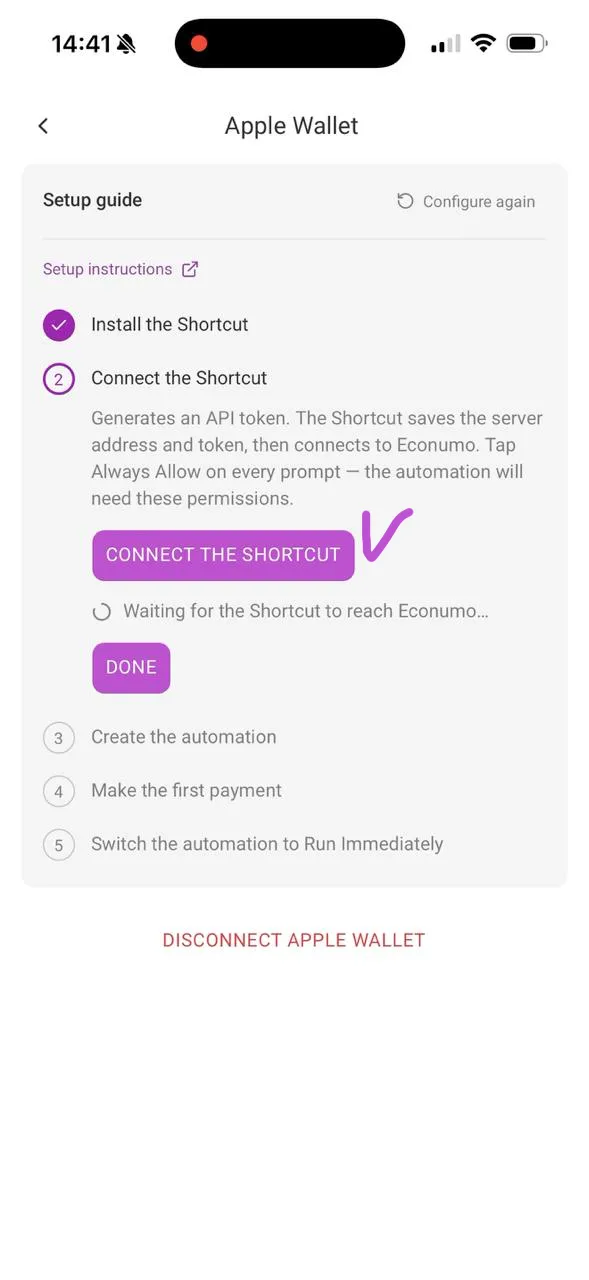
Tap Connect the Shortcut in Econumo. This creates an API token and opens the Shortcut, which saves your Econumo server address and token.
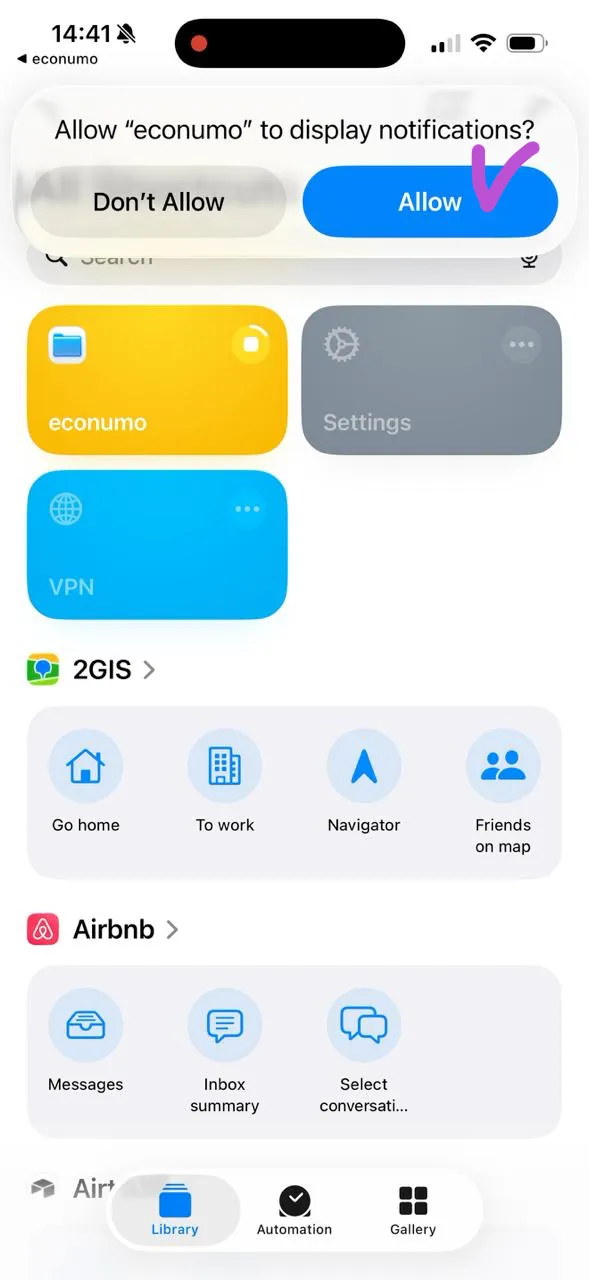
When iOS asks whether econumo can send data to your Econumo server, choose Always Allow. Use Always Allow for each data-access prompt that offers it, so future payments can be sent without asking again. If Shortcuts asks to display notifications, tap Allow.
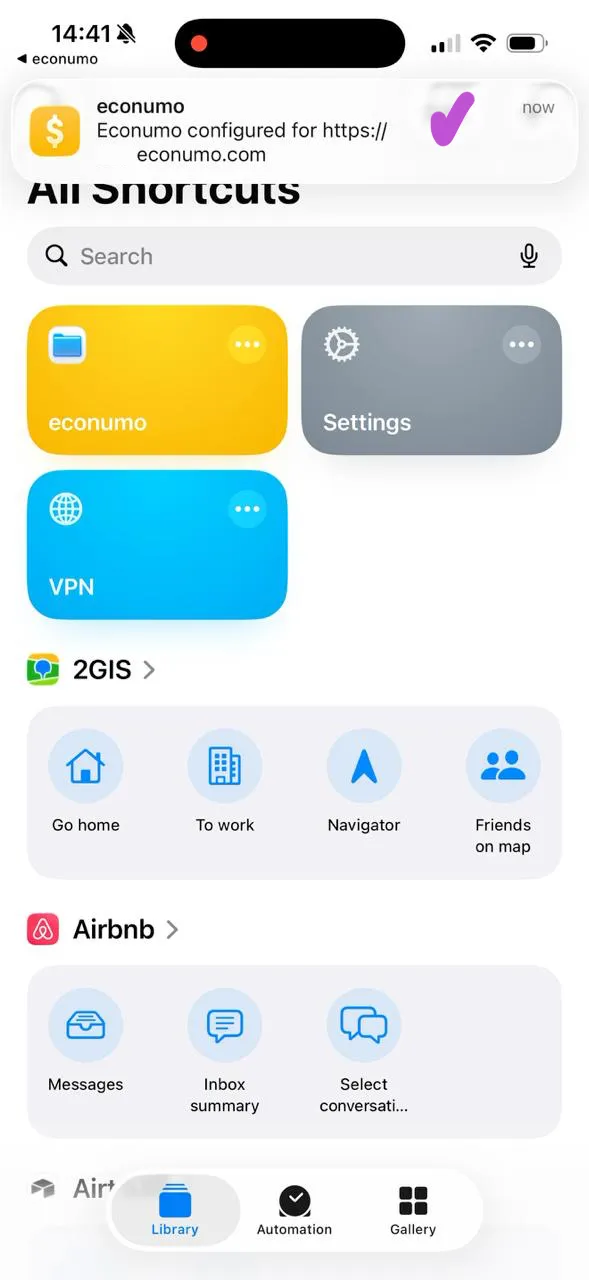
Wait for the Econumo configured notification, then return to Econumo. The checklist advances once the Shortcut has reached your server.
3. Create the automation #
iOS 26 #
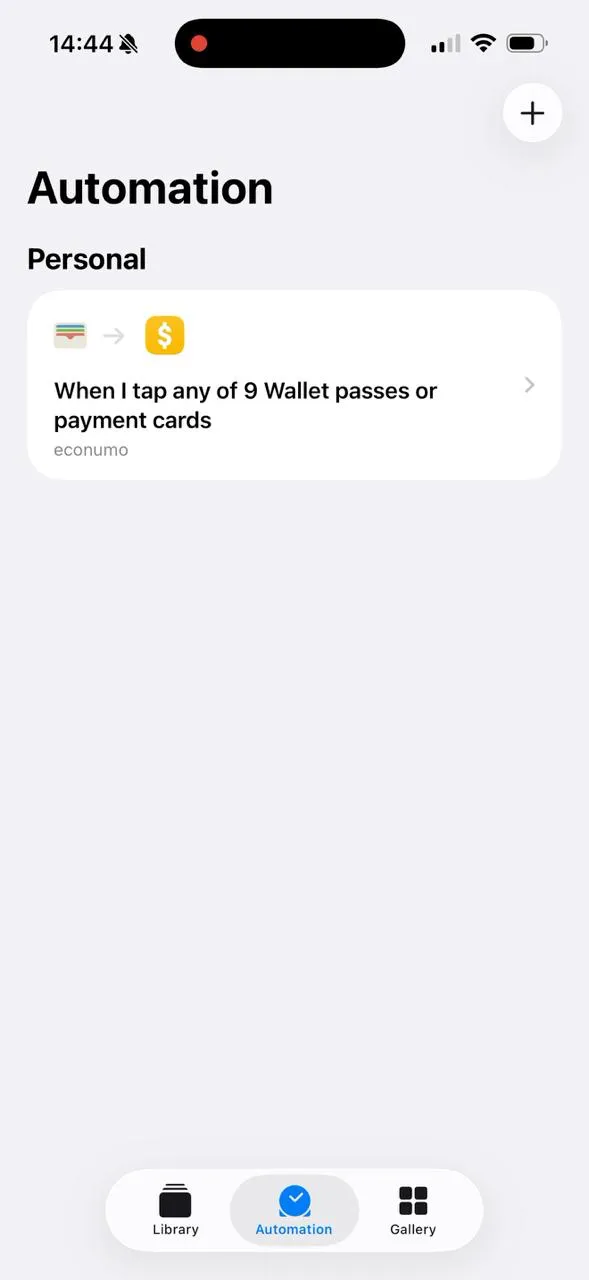
- Open Shortcuts and select the Automation tab.
- Tap New Automation, or + if you already have automations.
- Find and select Wallet.
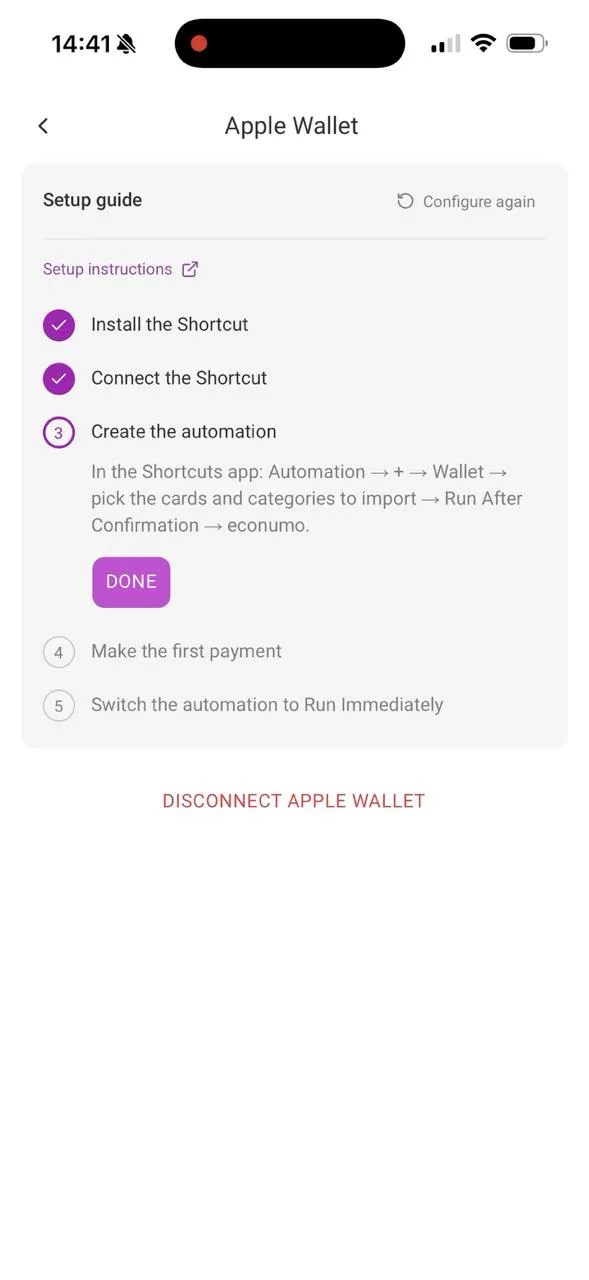
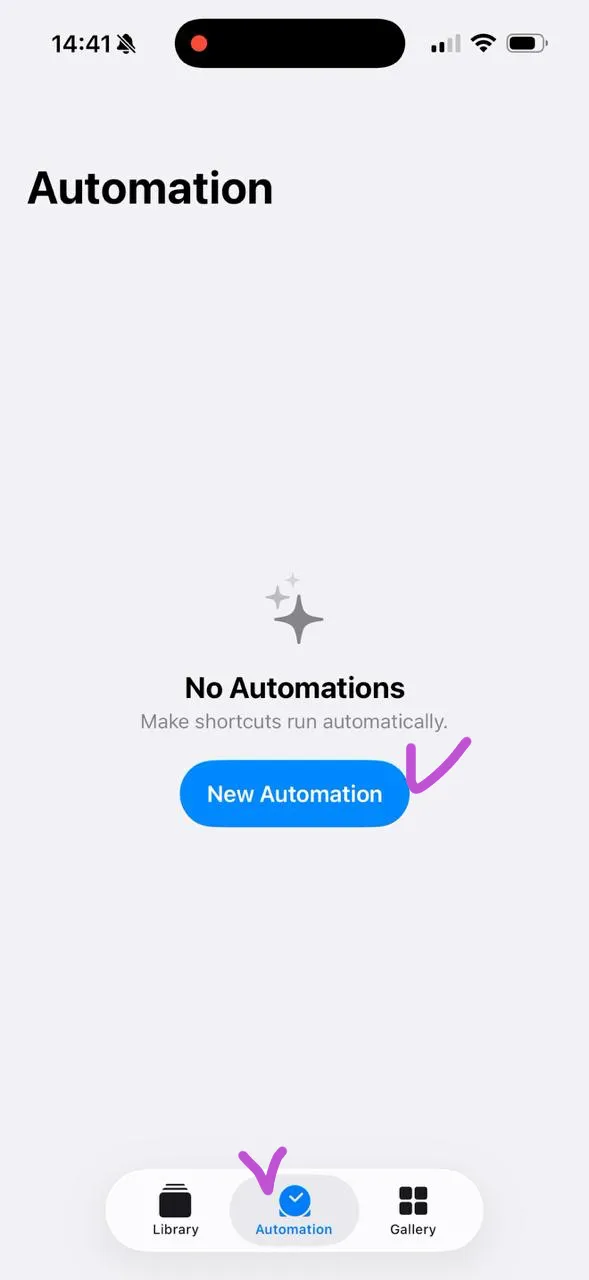
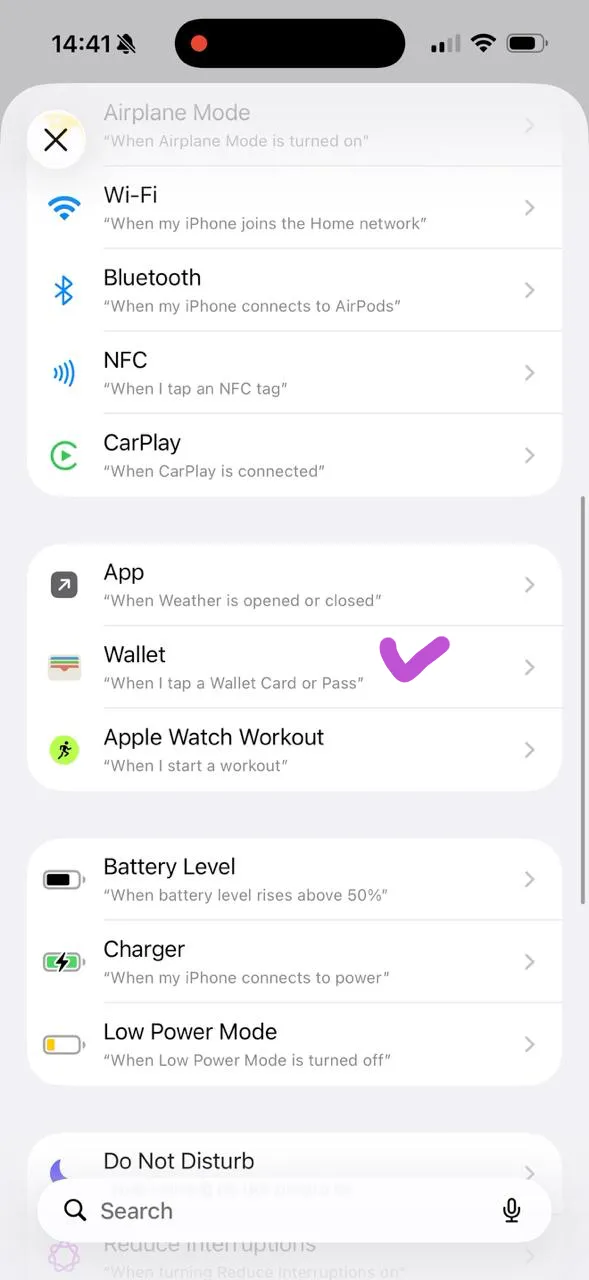
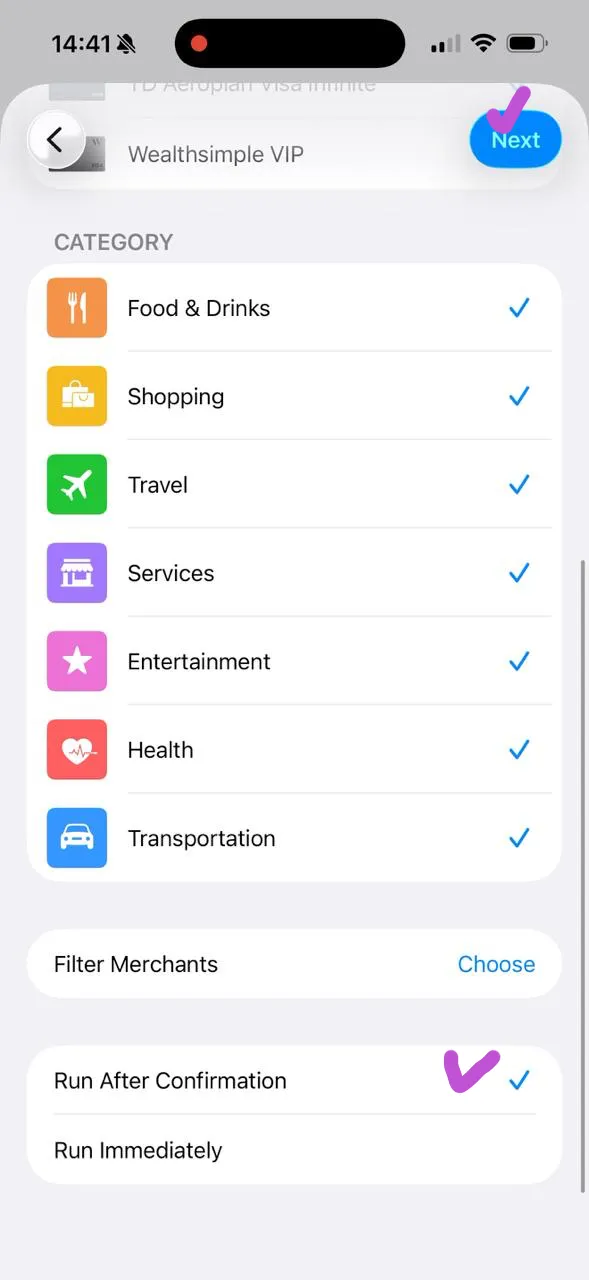
- Select the payment cards and purchase categories you want to import. Select every category if you want all purchases from those cards. Leave Filter Merchants unset unless you want to limit which merchants trigger the automation.
- Select Run After Confirmation, then tap Next.
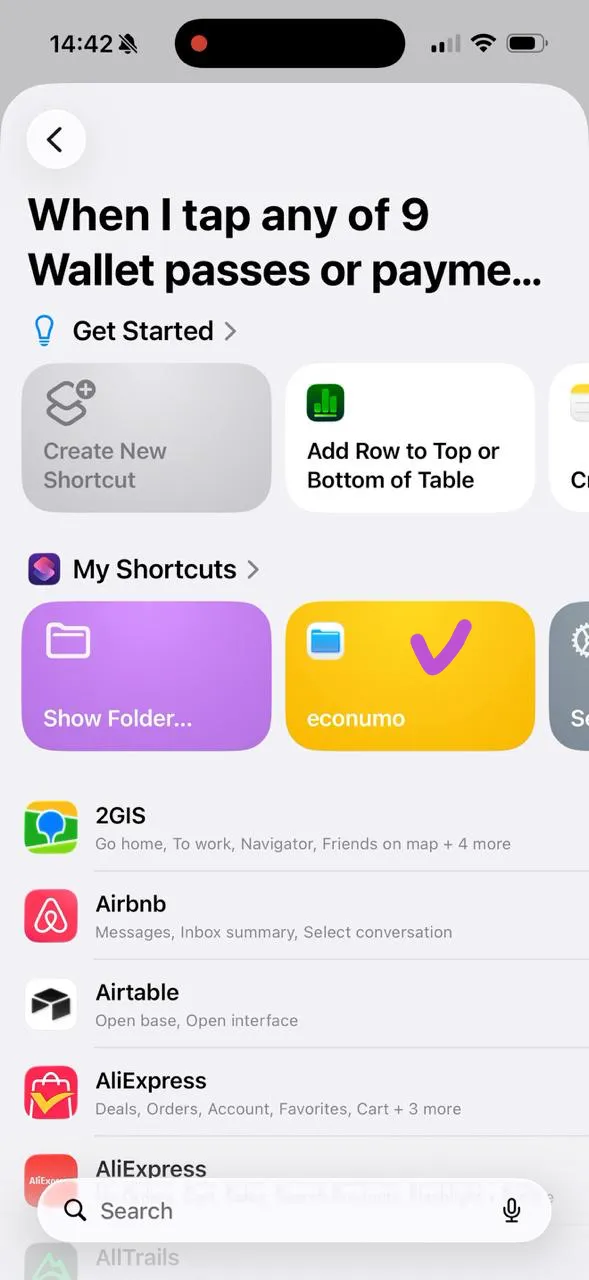
- Under My Shortcuts, select econumo. The automation now appears in the Automation tab.
Return to Econumo and tap Done under step 3.
iOS 27 #
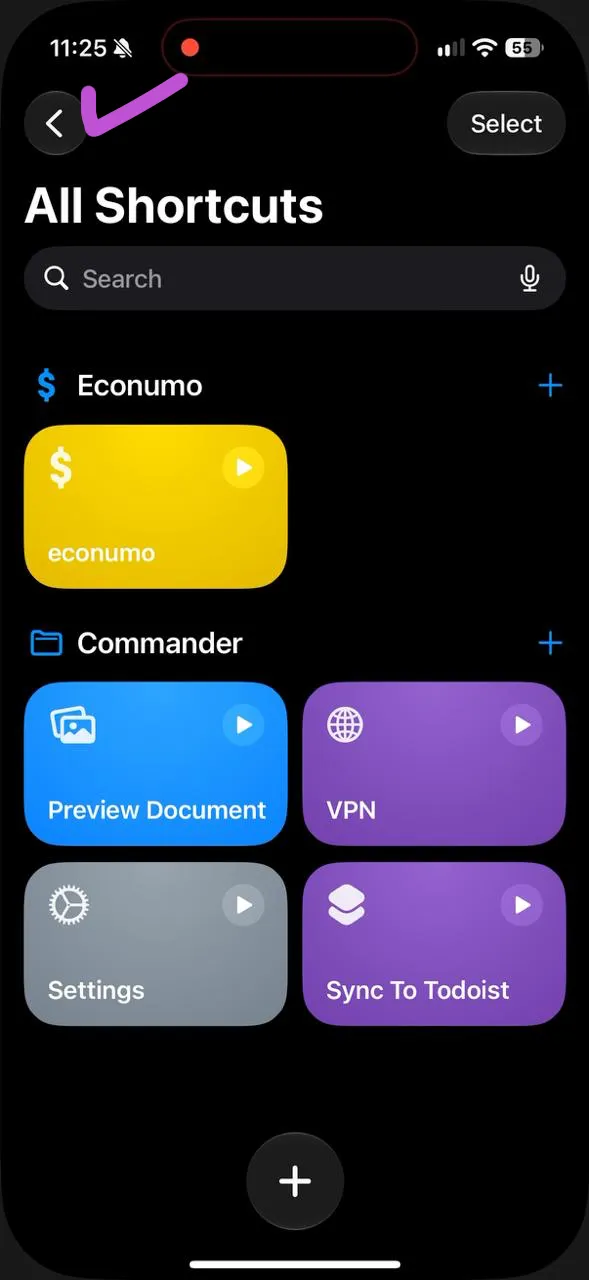
- Open Shortcuts. If you are in All Shortcuts, tap the back arrow to return to Library.
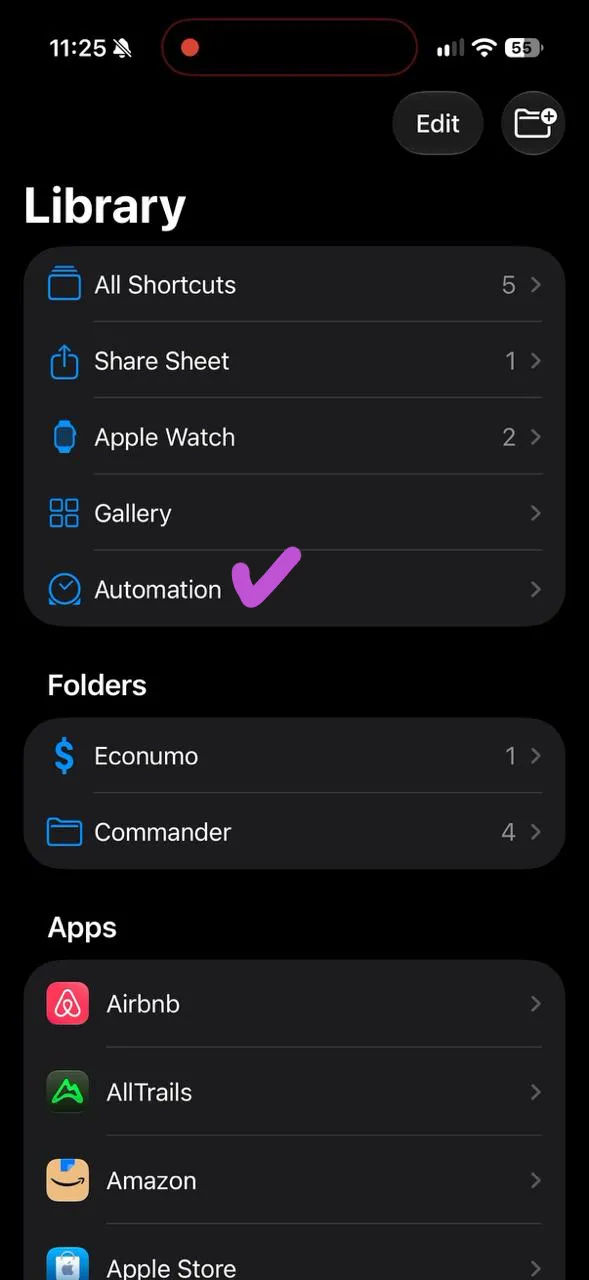
- Select Automation in Library.
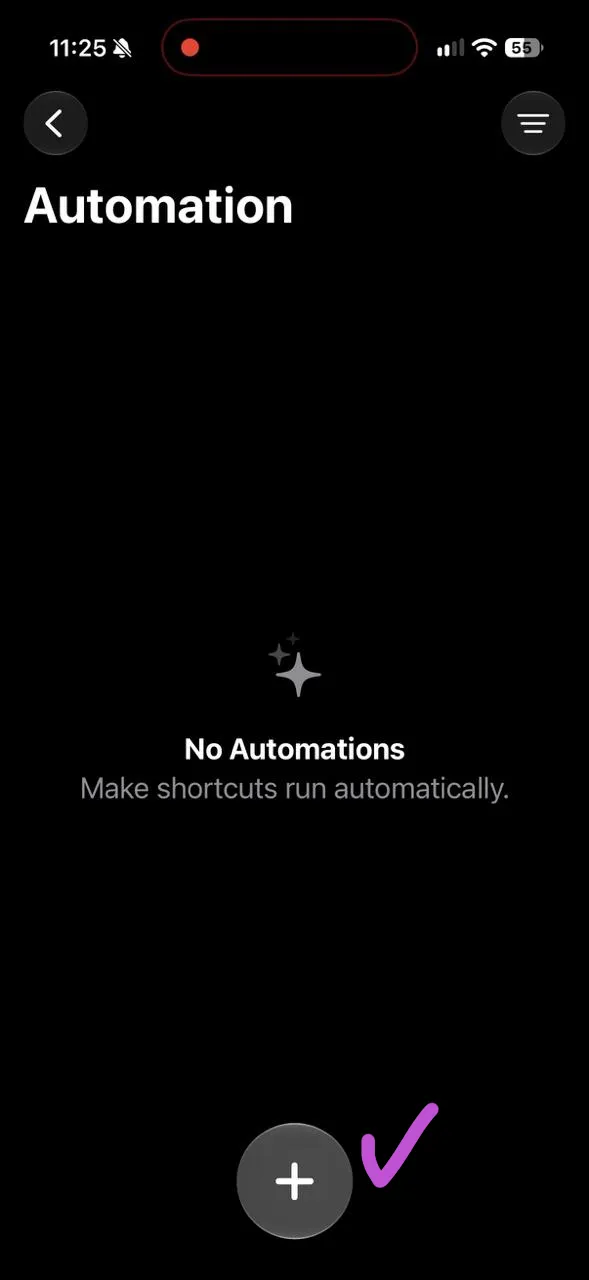
- Tap + at the bottom to create an automation.
- On the New Shortcut screen, tap Edit in the top-right corner.
- Tap the Search field at the bottom and search for Wallet.
- Choose Wallet under Automation, with the description When I tap a Wallet Card or Pass.
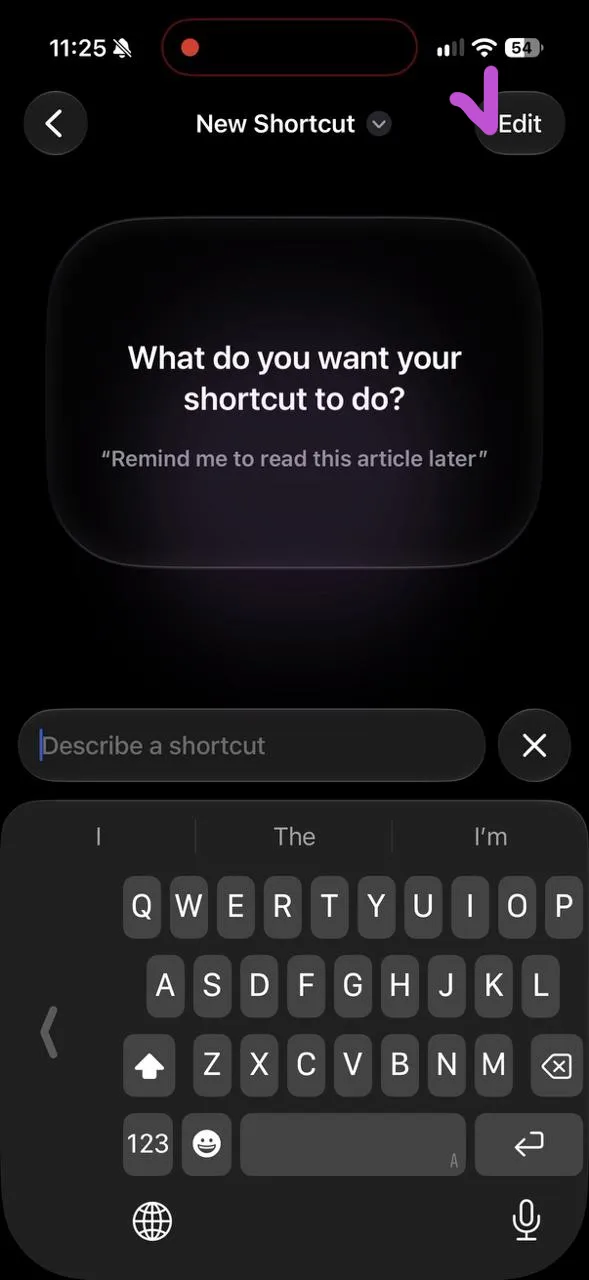
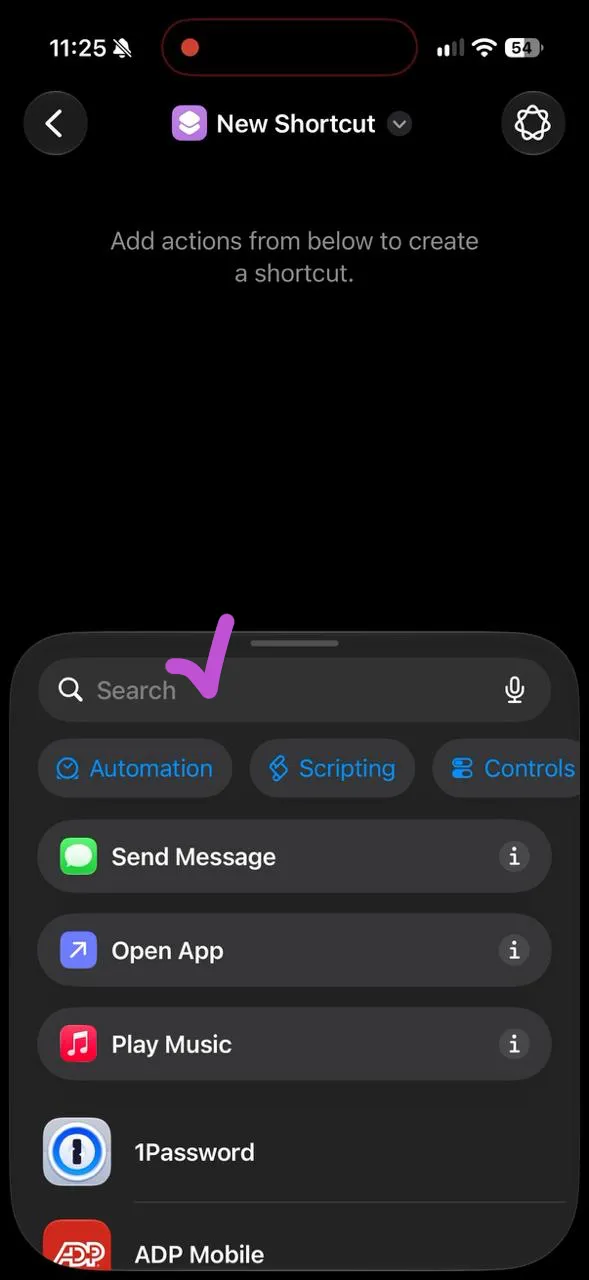
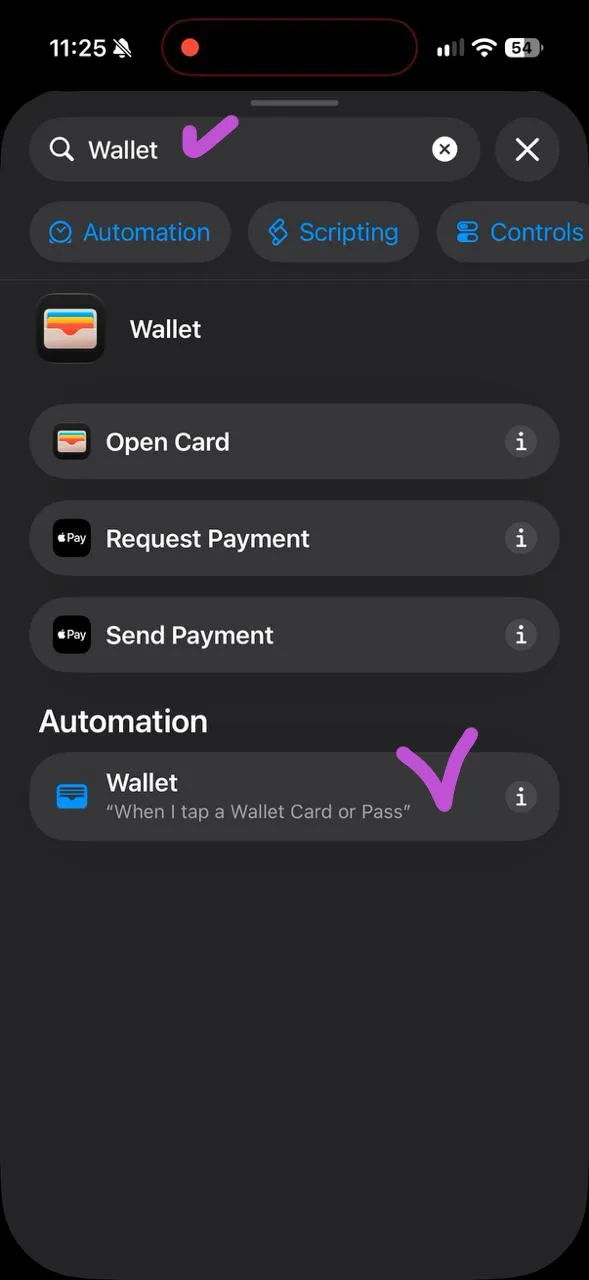
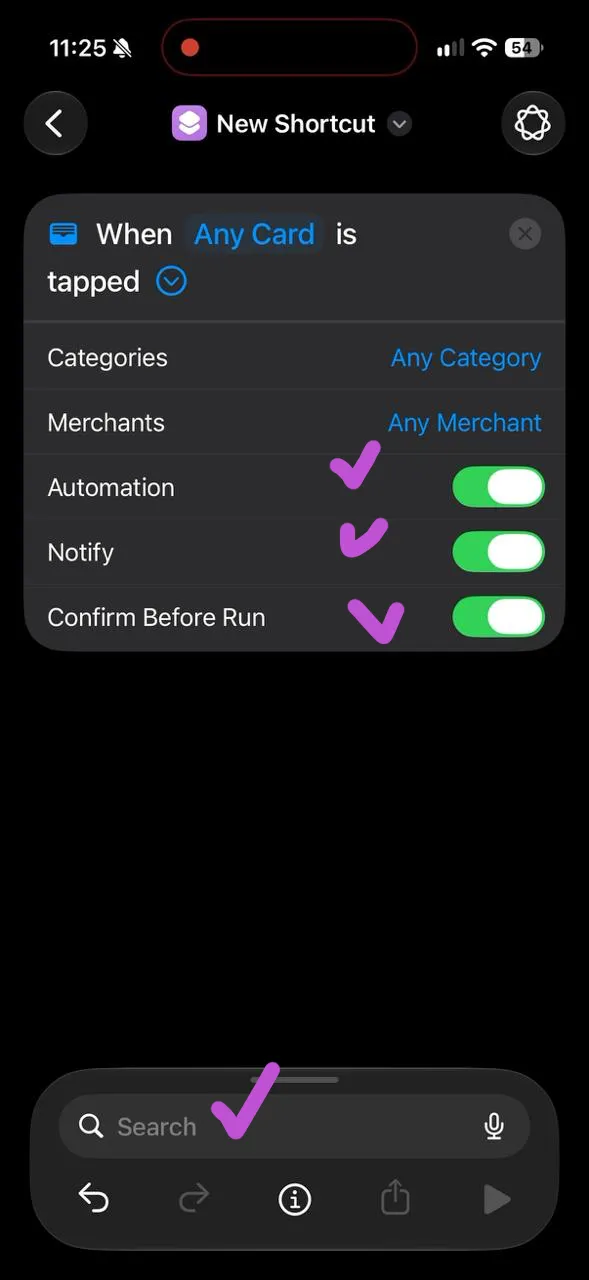
- Tap Any Card to choose the cards to import, or leave it as Any Card to include all cards. Leave Categories and Merchants as Any Category and Any Merchant to include all purchases from those cards. Keep Automation, Notify, and Confirm Before Run on for the first payment.
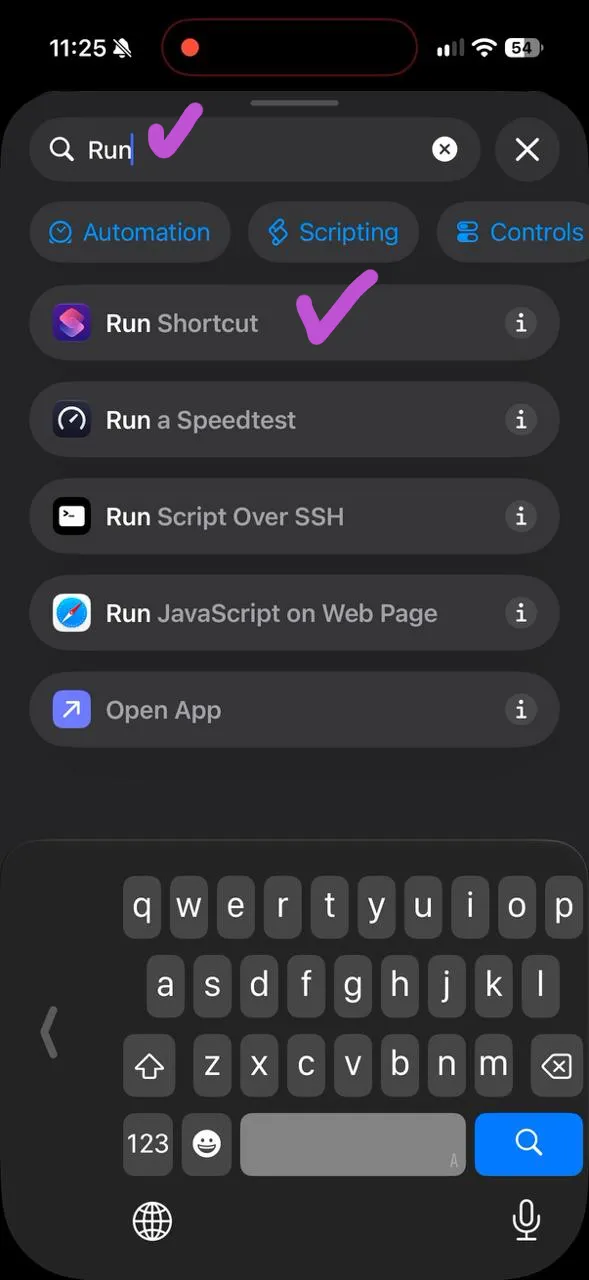
- Search for Run Shortcut and add that action.
- In the new action, tap the blue Shortcut placeholder and choose econumo.
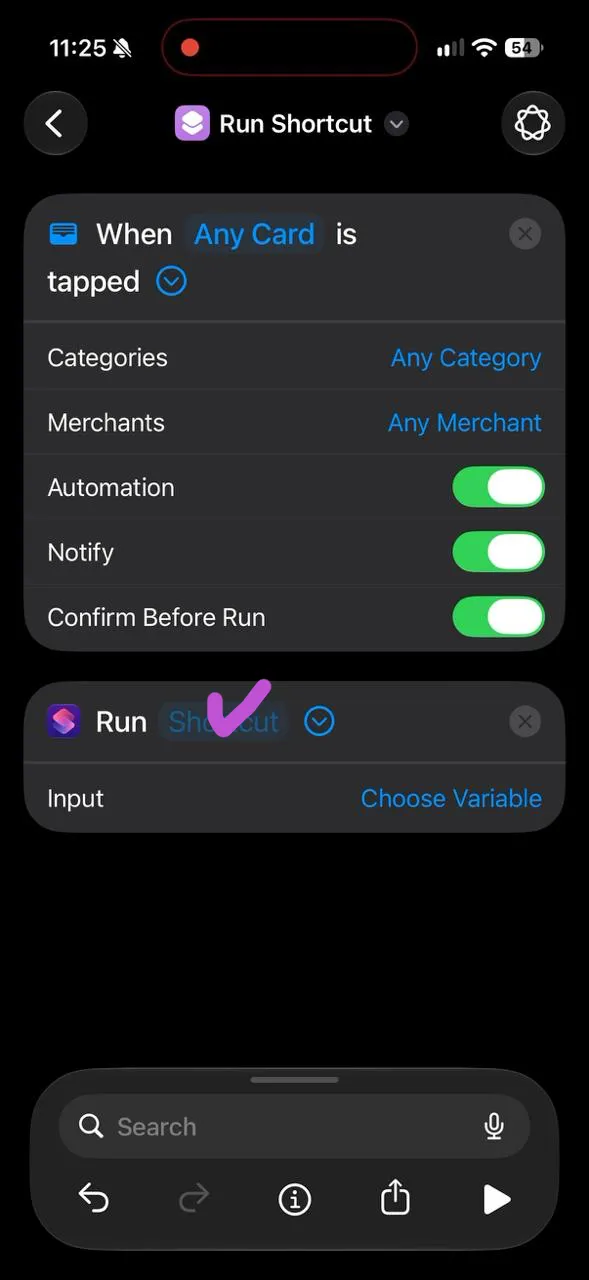
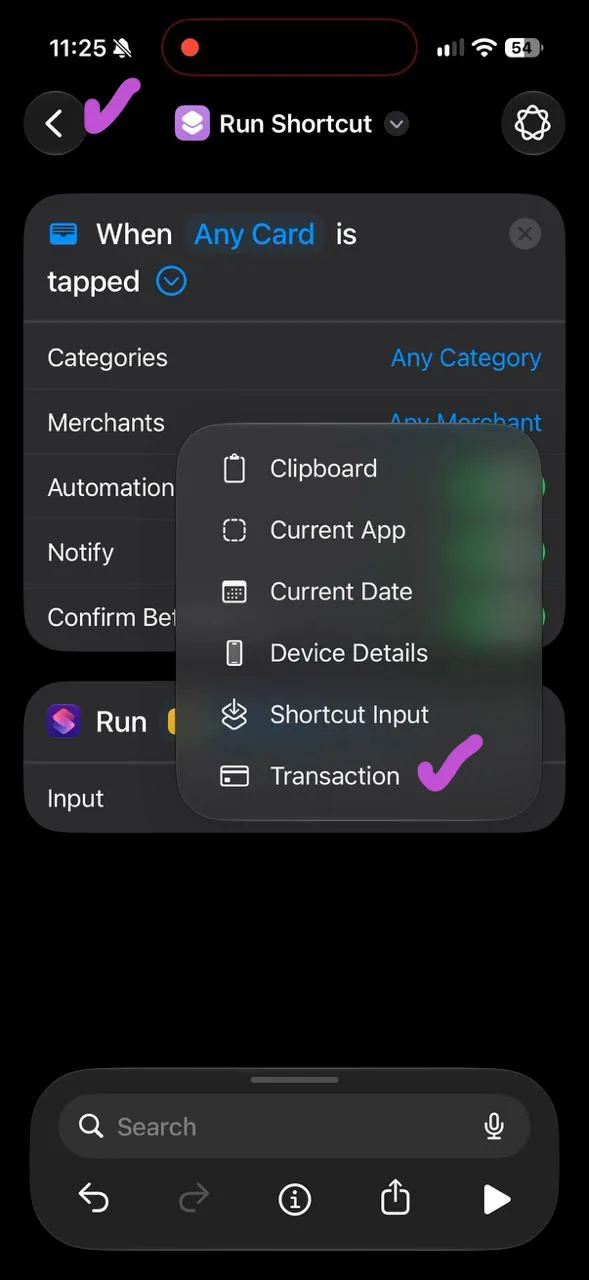
- Expand the Run econumo action using its blue arrow if needed. Tap Choose Variable beside Input and select Transaction.
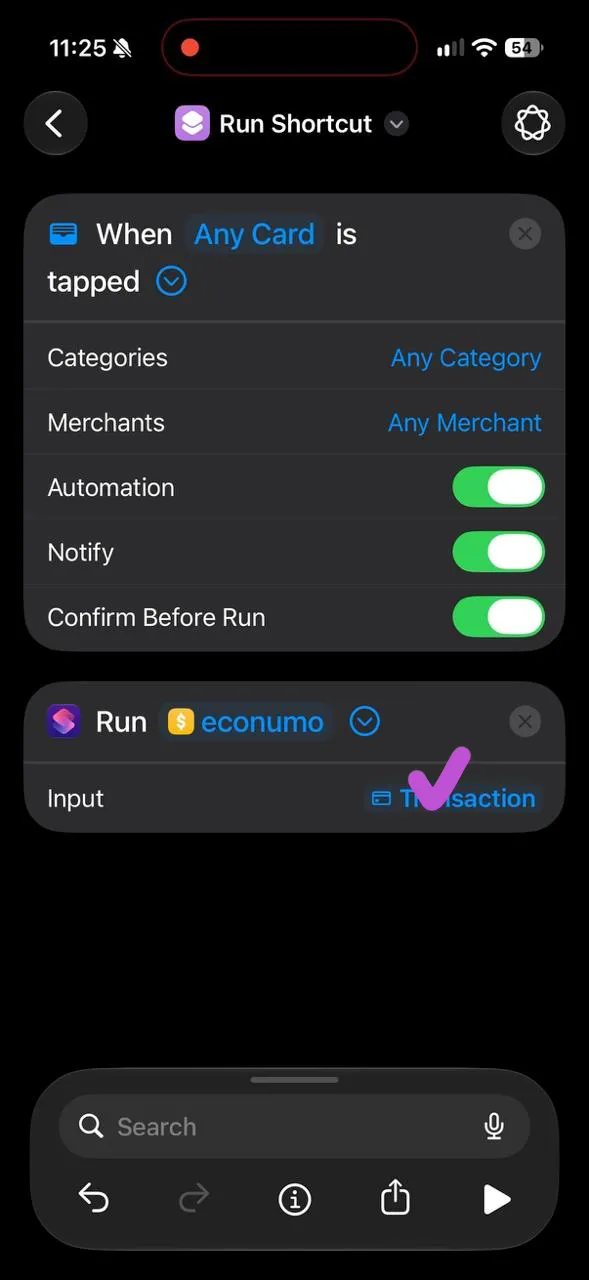
- Check that the action reads Run econumo with Input: Transaction, then tap the back arrow. The new automation appears in the Automation list with its switch on.
Set the input to Transaction so Econumo receives the Wallet payment details when the automation runs.
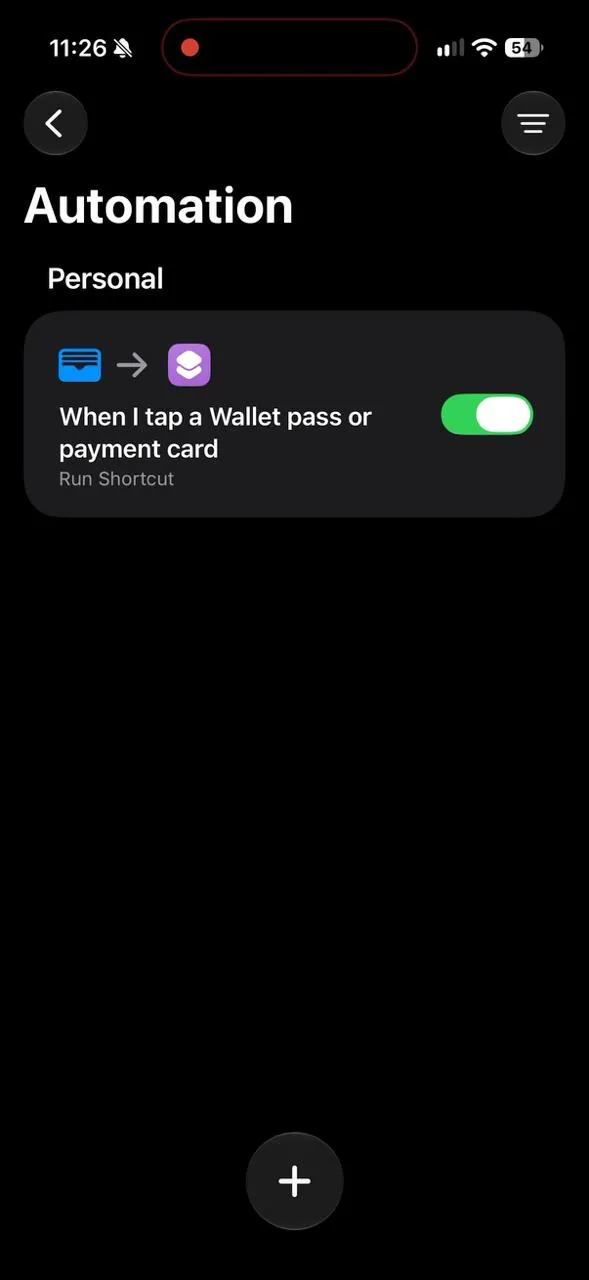
Return to Econumo and tap Done under step 3.
4. Make the first payment #
Make a purchase by tapping your iPhone to pay with one of the cards you selected. When the automation asks, tap Run.
The first payment may bring up additional permission prompts. Choose Always Allow on every prompt that offers it, including permission to send the transaction to your Econumo server.
Return to Econumo and wait for the payment to arrive. Step 4 completes automatically when Econumo receives it. The card will also appear under Cards, where you can map it to an account.
5. Switch the automation to Run Immediately #
After the first payment has reached Econumo:
On iOS 26 #
- Open Shortcuts → Automation and tap your Wallet automation.
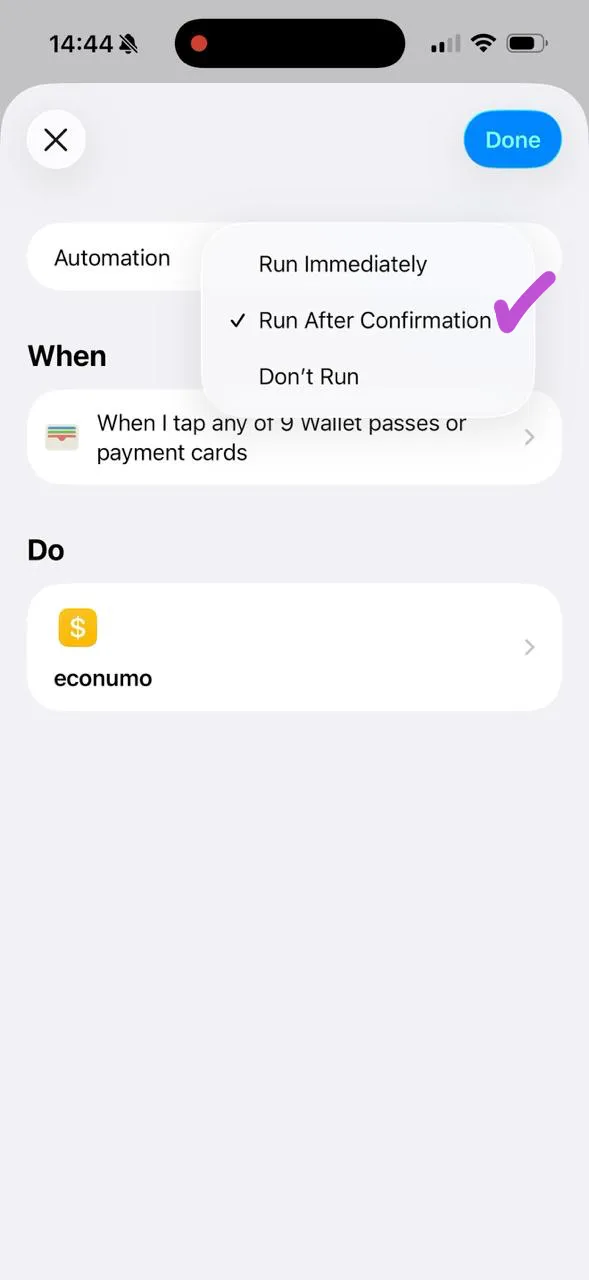
- Tap Run After Confirmation beside Automation at the top.
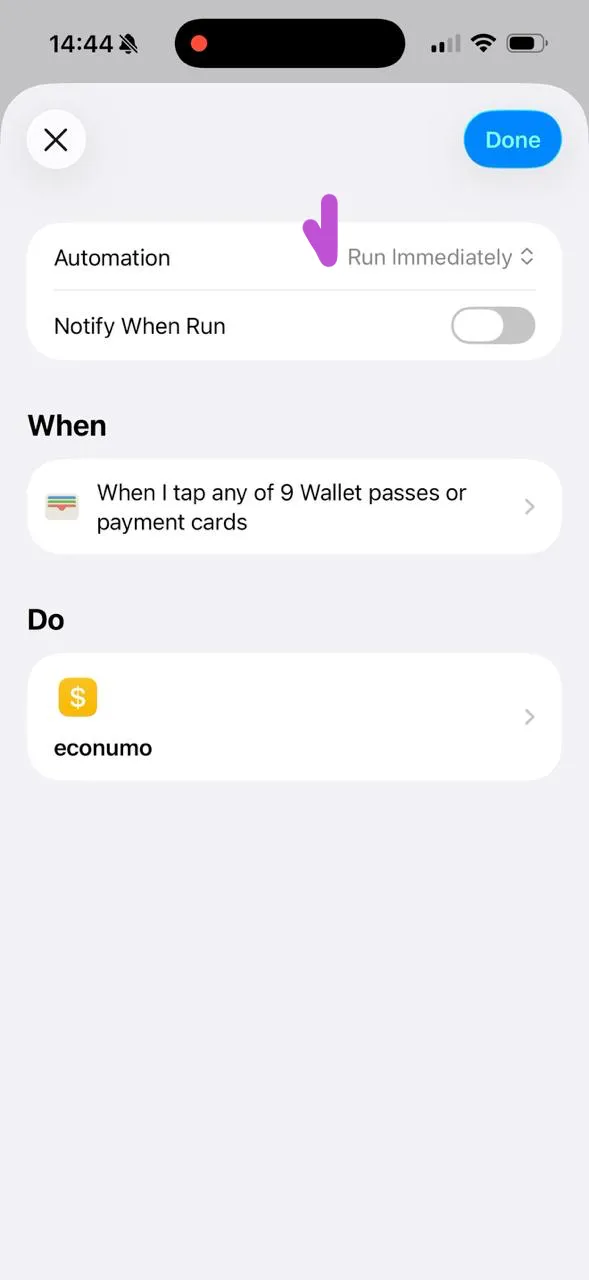
- Choose Run Immediately.
- Leave Notify When Run off if you don’t want a notification each time the automation runs, then tap Done to save.
On iOS 27 #
- Open Shortcuts → Library → Automation and open the Wallet automation you created. It may be named Run Shortcut.
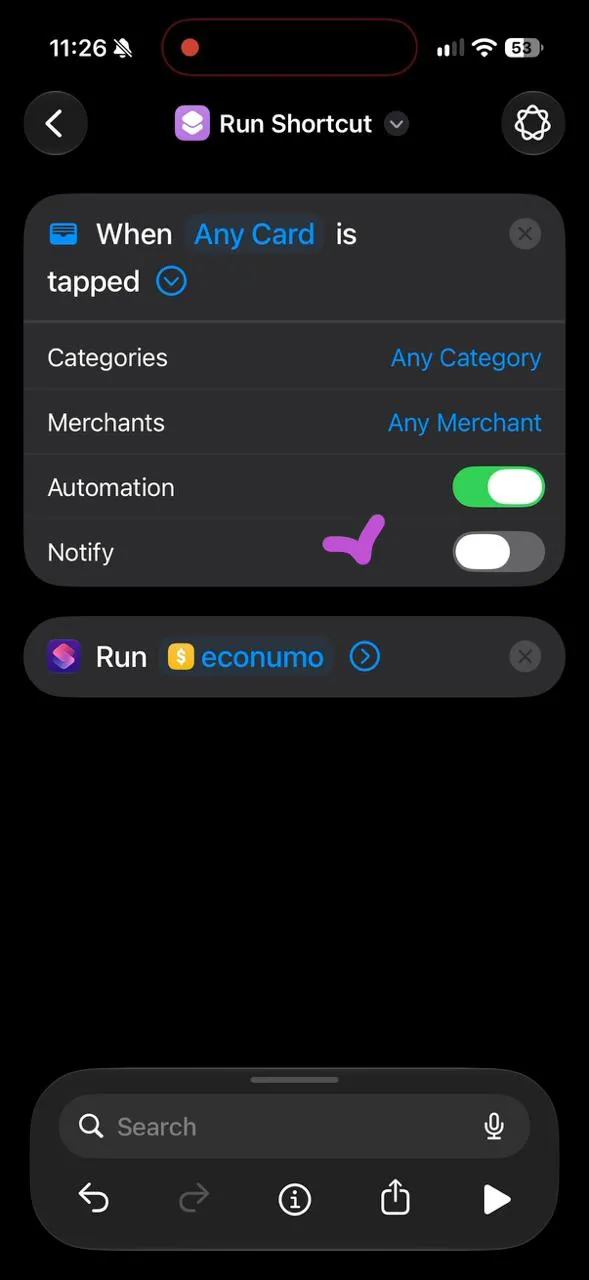
- Turn off Confirm Before Run if it is shown, then turn off Notify. Keep Automation on. The final settings should look like the screenshot below, with Automation on and Notify off.
- Tap the back arrow to return to the Automation list.
Return to Econumo and tap Done under step 5 to finish the checklist. This completes Switch the automation to Run Immediately in Econumo’s checklist on either version of iOS.
Future payments that match your selected cards, categories, and merchant filters will be sent to Econumo without a confirmation prompt.
Map your cards to accounts #
In Econumo → Settings → Apple Wallet, find the card under Cards. Choose Map, select the Econumo account that represents that card, and confirm. Payments waiting for that card can then be imported into the account, along with future payments.
Each newly used card needs its own mapping. Cards with the same name in Wallet appear as one card in Econumo. Choose Ignore for a card you don’t want to import, or Remap to change its destination account later.
Troubleshooting #
- The first payment hasn’t arrived: check that the automation uses the econumo Shortcut, includes the card and category you paid with, and doesn’t exclude the merchant. While confirmation is enabled, you must tap Run after paying and grant the requested permissions. On iOS 27, also check that Run econumo has Transaction selected as its input.
- The card appears, but the payment isn’t in an account: map the card to an Econumo account under Settings → Apple Wallet.
- Every payment still asks for confirmation: complete step 5 and save the automation with Run Immediately selected on iOS 26, or confirmation disabled on iOS 27.
- You need to connect the Shortcut again: use Configure again in Econumo’s setup guide and follow the checklist. Connecting again replaces the token; open the Shortcut from the new connection link before expecting further imports.
For more about the Wallet trigger, see Apple’s Shortcuts User Guide for iOS 26. For the redesigned Shortcuts app, see Add automations on iOS 27.