The v1.7.0 release brings two headline features. Econumo now has a dark mode. And Apple Pay transactions are added automatically: pay with your iPhone and the transaction appears in Econumo.
The release also lets you drag transactions into the order your bank shows them, lists the recurring payments still due while you set a budget or plan, and groups a couple’s same-name tags in a shared budget.
Self-hosting Econumo? Upgrade steps, the new mail settings and API changes are in For self-hosters at the end of this page.
Dark mode #
Econumo now comes in a dark theme. The choice is stored per device, so your phone and your laptop can differ.
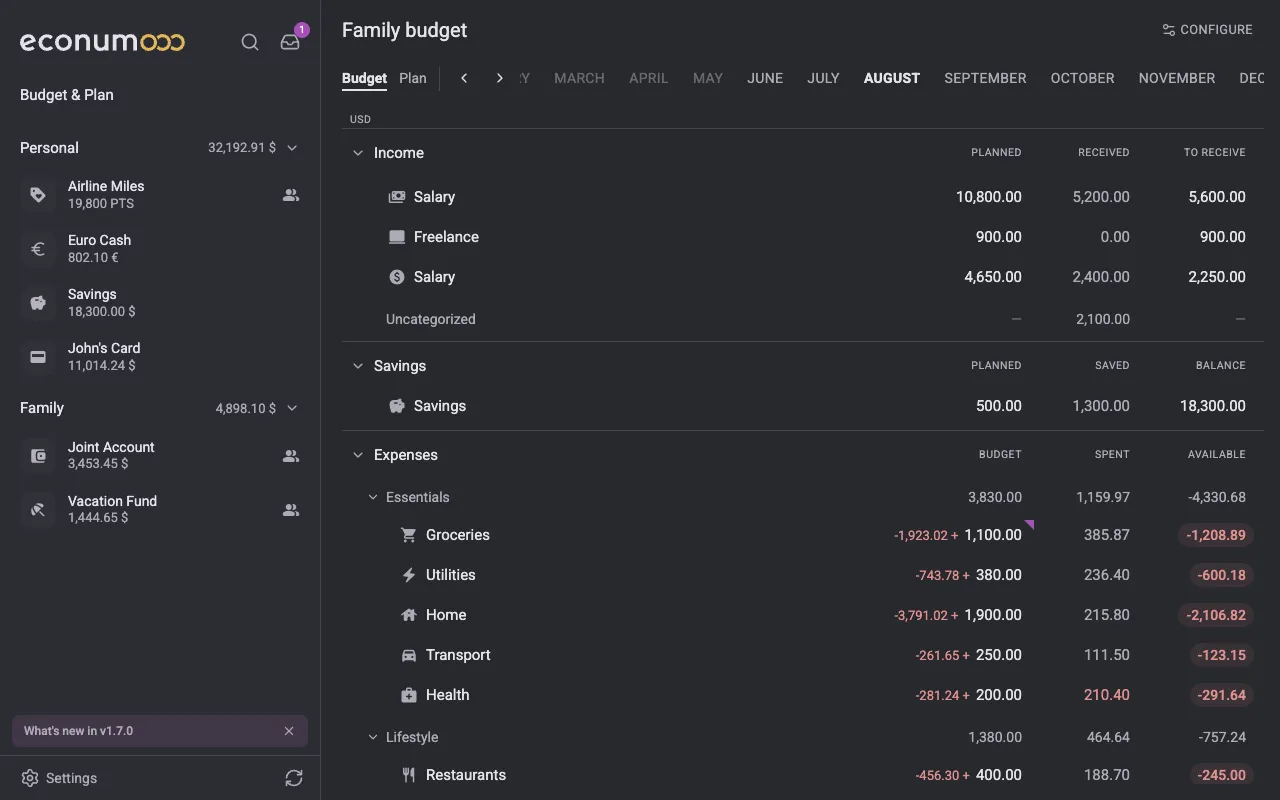
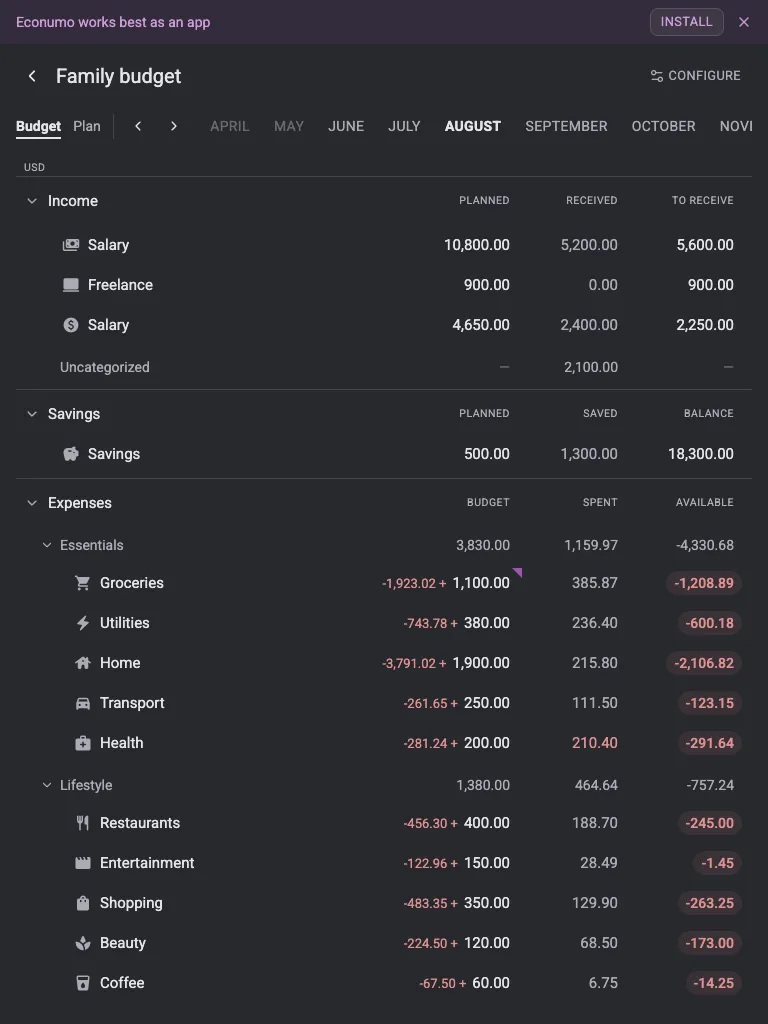
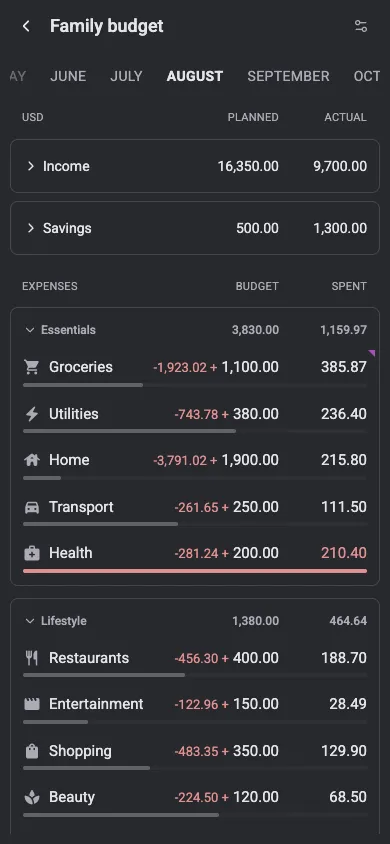
To switch it on:
- Open Settings → Personal settings.
- Under Preferences, tap Theme.
- Choose System, Light or Dark. System follows your device’s appearance as it changes.
Apple Pay transactions, added automatically #
Set it up once, and every Apple Pay tap on your iPhone is sent straight to Econumo by a Shortcut. Econumo receives only the card name, merchant, amount and currency, never card numbers. The full setup, with screenshots for iOS 26 and iOS 27, is in the Apple Wallet guide.
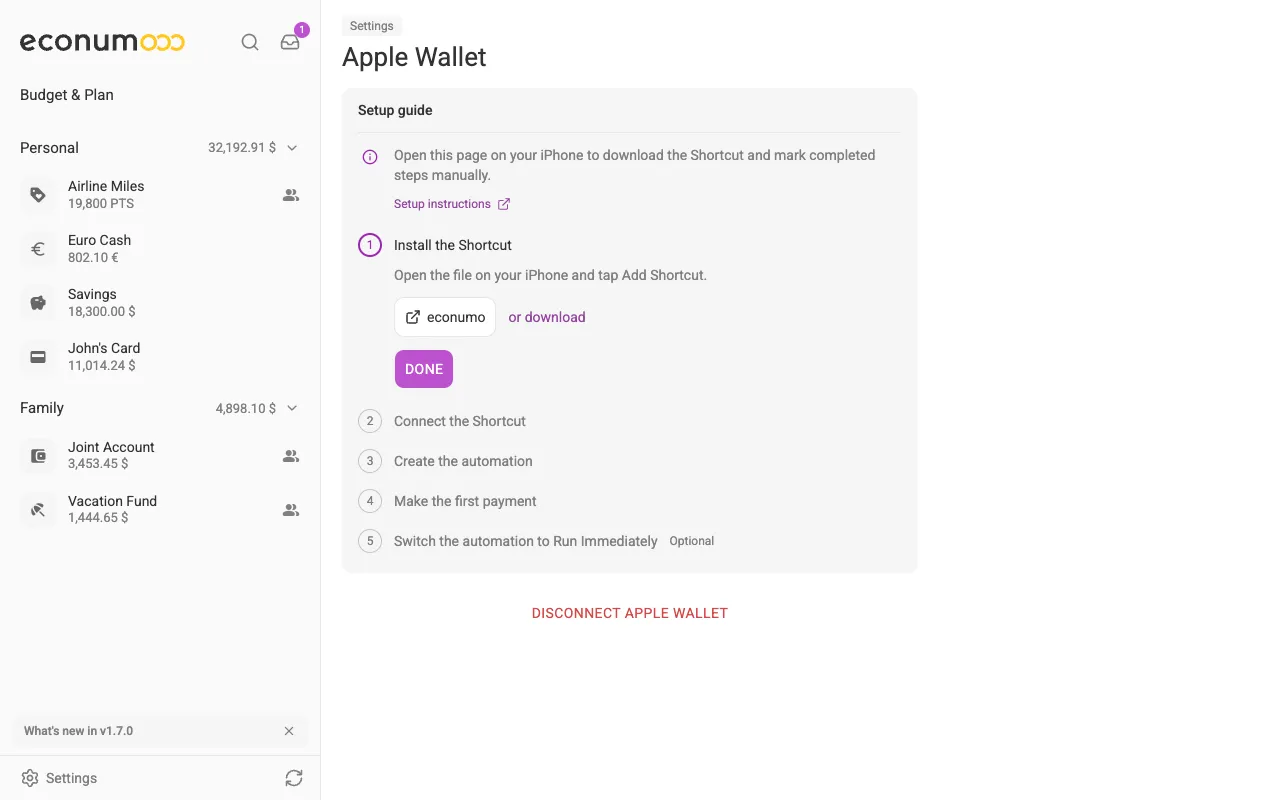
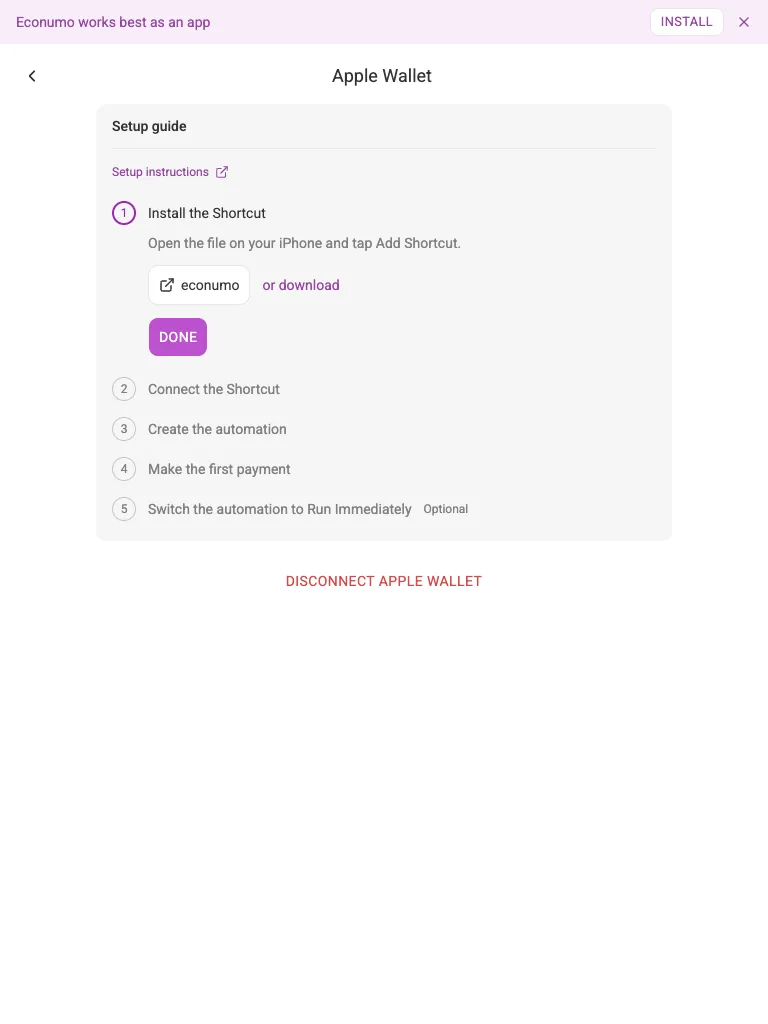
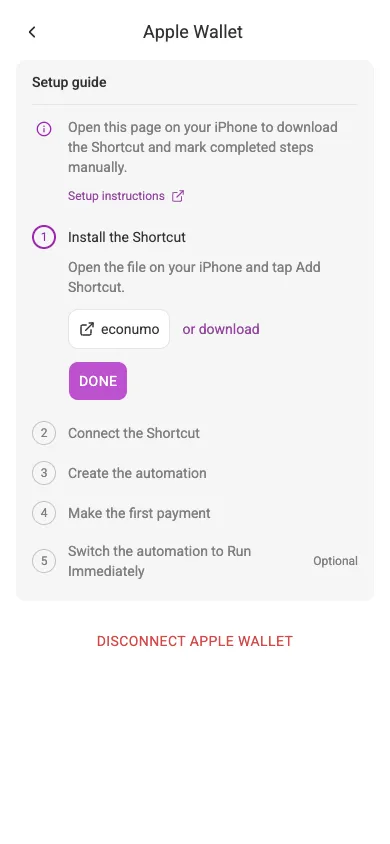
Setup takes about five minutes:
- On your iPhone, open Econumo and go to Settings → Apple Wallet.
- Install the Shortcut: tap econumo to open the file, then tap Add Shortcut.
- Connect the Shortcut to your Econumo.
- Create the automation in the Shortcuts app, so a Wallet payment runs the Shortcut.
- Make the first payment at a payment terminal.
- Optionally, switch the automation to Run Immediately, so it stops asking for confirmation.
The page ticks steps off by itself as your phone reaches Econumo. The Shortcuts app changed between iOS 26 and iOS 27, so the Apple Wallet guide walks through steps 3 and 6 for each version, with screenshots.
Then, as payments arrive:
- The first time a card is used, map it to one of your accounts, or ignore it. Its payments wait in the Inbox until then. After that, its payments land in that account as they happen.
- Remap or unmap a card at any time. Payments you already have stay where they are.
- Import rules (Settings → Import rules) fill in the category, payee, tag and labels of imported payments, or skip them. Rules run top to bottom, and you drag them to change the order. After you edit an imported transaction, Econumo offers to turn the change into a rule.
- The Apple Wallet page lists every tap received and what happened to it.
Note It works only when you tap your iPhone to pay. Apple Pay on websites isn’t supported, and a payment made with no signal may not be added.
Recurring payments help you plan #
When you set a budget or a plan, the editor now lists the recurring payments still due that month, so you don’t forget the rent that hasn’t gone out yet.
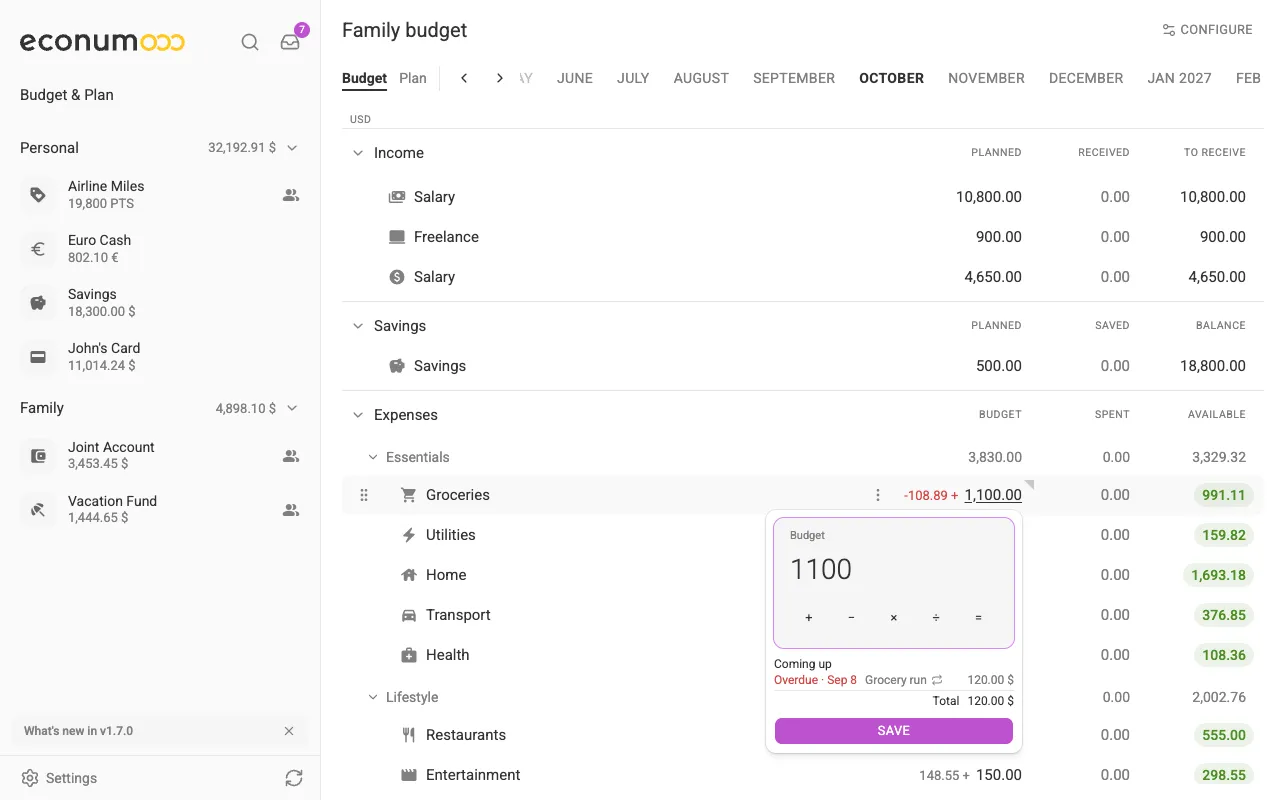
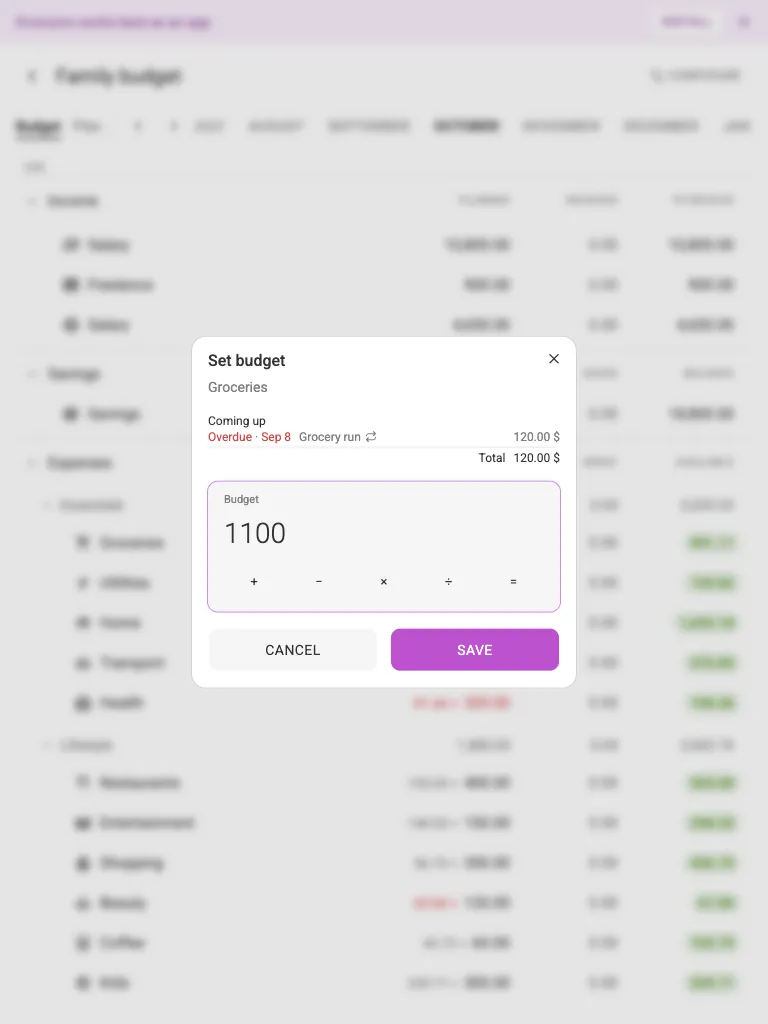
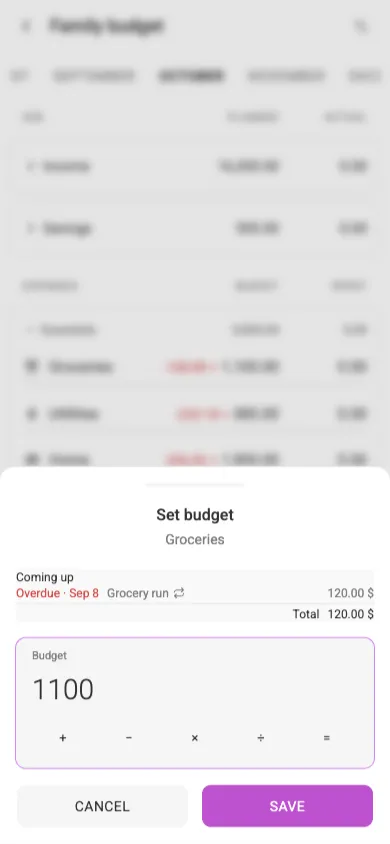
To use it:
- Open Budget & Plan and pick the current month or a later one.
- Click a row’s Budget amount. On a phone, tap the row and then SET BUDGET.
- Under Coming up, check the recurring payments still due, plus the item’s transactions dated later in the month, converted to the item’s currency. The list ends with Spent and Total.
- Tap the list to put the Total into the input, adjust it if you like, and save.
The list also appears in the Plan grid. Spent, Actual and Available still count only real transactions. For expenses, a plan below what’s spent plus what’s still due turns red.
Same-name tags grouped, for couples #
In a shared budget, each partner often keeps their own tag with the same name. They now show as one line, such as Italy 2026 · 2 tags, with the combined Budget, Spent and Available, or the combined plan and actual in the Plan grid.
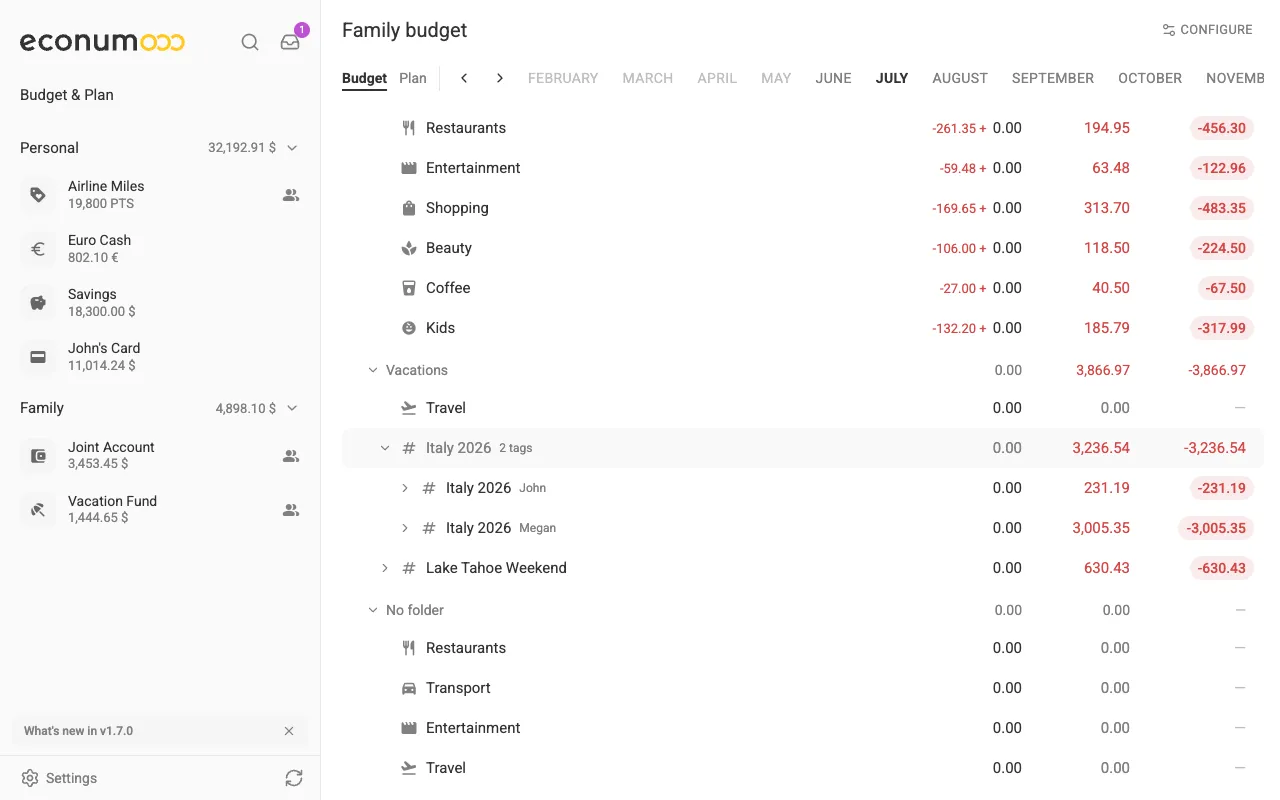
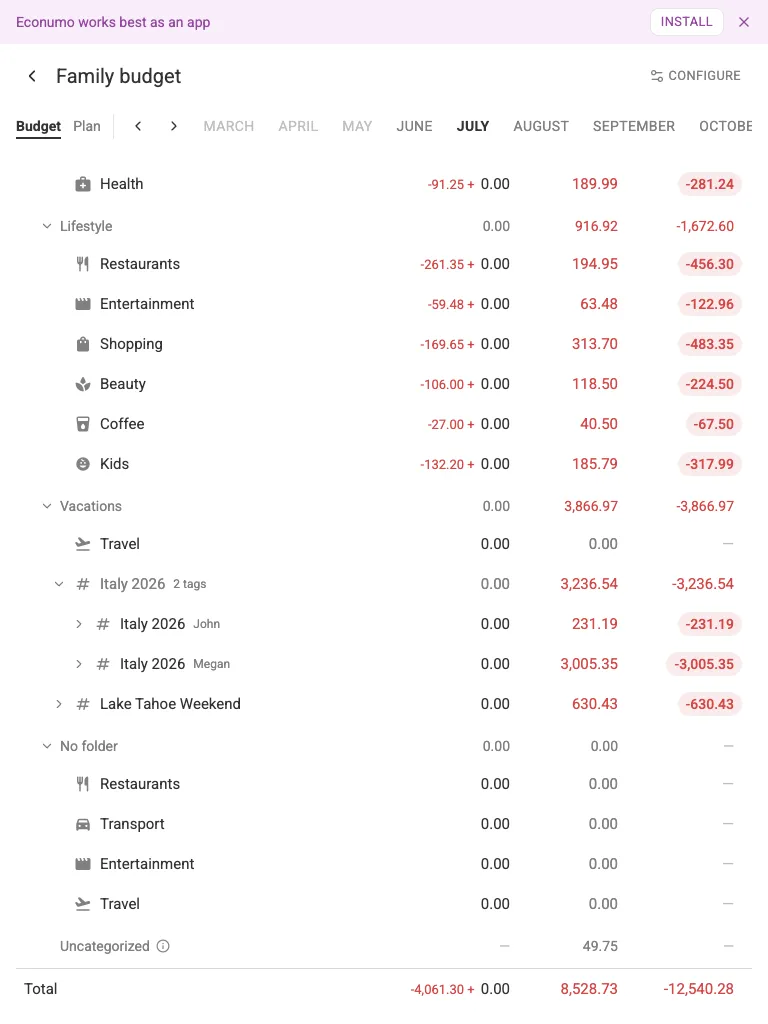
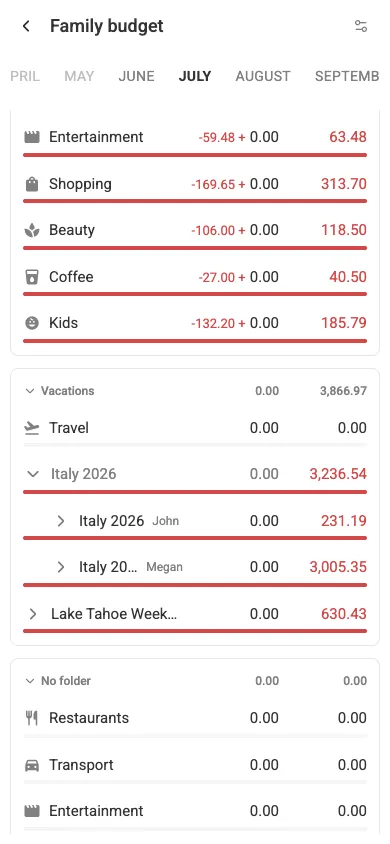
Open the line to see each tag with its owner’s name. Each tag keeps its own limit, and nothing is merged. Tags in the Plan grid also expand into their categories now, as they already did in the Budget.
Drag to reorder transactions #
Put a day’s transactions in the same order as your bank statement:
- On desktop, hover a row on the account page and drag it by the grip that appears in place of its icon.
- On a phone or tablet, press and hold a row, then drag it.
Dropping a row into another day moves it to that day and keeps its time. On a transfer, each account keeps its own order.
More in this release #
- What’s new. After an upgrade, a card at the bottom of the sidebar links to that release’s notes. Dismiss it on one device and it’s gone on all of them.
- Jump to a month and year. On an account page, drag the marker along the timeline to scroll through the history, with the date shown as you drag, or click it to pick a month. In the transaction form, the date picker’s month and year headers now open lists, so you can enter an old transaction without stepping back month by month.
- Faster loading, and history you can read offline. Transactions are kept on your device, and only accounts that changed are downloaded again. If something looks out of date, use Settings → Clear cache and reload, or hold the sync button.
- Install as an app. Econumo offers to install itself on your phone or computer, with steps for each browser.
- The recurring payment date picker opens at the planned month.
- The home page reopens the Budget or Plan view you last used on that device.
- In the Budget and Plan, the income Uncategorized row opens its transaction list.
- Strings refined across all 11 languages, and dependencies updated.
For self-hosters #
Upgrading — pull the new image and restart; database migrations run automatically on boot. Back up your database file or volume first. On the first boot, a migration gives every existing transaction a sort position that keeps the order you see today. It works one account at a time and may take a little longer on large databases.
The upgrade also clears the category on income transactions that carry an expense category, and the reverse. Each affected transaction gets a note in its description saying the category was removed. Recurring templates are cleaned the same way.
- Apple Pay import is always available. The Shortcut sends each payment from the iPhone to your instance, so your instance has to be reachable from the phone wherever you pay (on the internet or over your VPN), not just on your home network.
- Any SMTP server can send mail. Set
MAILER_DSNtosmtp://user:pass@host:587?from=…(STARTTLS) orsmtps://user:pass@host:465?from=…(implicit TLS); for a trusted relay with no TLS, add&insecure=true. - API clients: everything is additive. Transactions can be reordered with
POST /api/v1/transaction/move-transaction, lists are ordered by day and then sort key rather than time of day, and responses are gzipped when the client asks. The GitHub release lists every new route and field.
GitHub release #
- Econumo: v1.7.0
- Full changelog: v1.6.1…v1.7.0