The v1.6.0 release redesigns the budget. The Budget and Plan views now share one structure on every screen size: a single-month view on phones, everything editable in place on desktop and tablet, and a Plan grid that works like a spreadsheet. Budgets can now carry savings accounts, and any budget cell can hold a comment thread.
Two new ways to get around arrive with it: global search on Ctrl/⌘+K, and an Inbox that collects everything waiting on you. Claude and Codex can also now connect to Econumo by URL alone and sign in through the browser, with no token to paste.
Upgrading from v1.5.x — this release adds several database migrations (savings membership, budget comments, folder sides, the MCP sign-in tables and more). They run automatically on boot, but back up your database file or volume before pulling the new image.
Third-party API clients:
POST /api/v1/budget/create-foldernow requiresside("expense"or"income"); a request without it gets a 400. The MCP toolcreate_foldertakes the same argument. Everything else in the API is additive. The GitHub release lists every new route and field.
A redesigned budget #
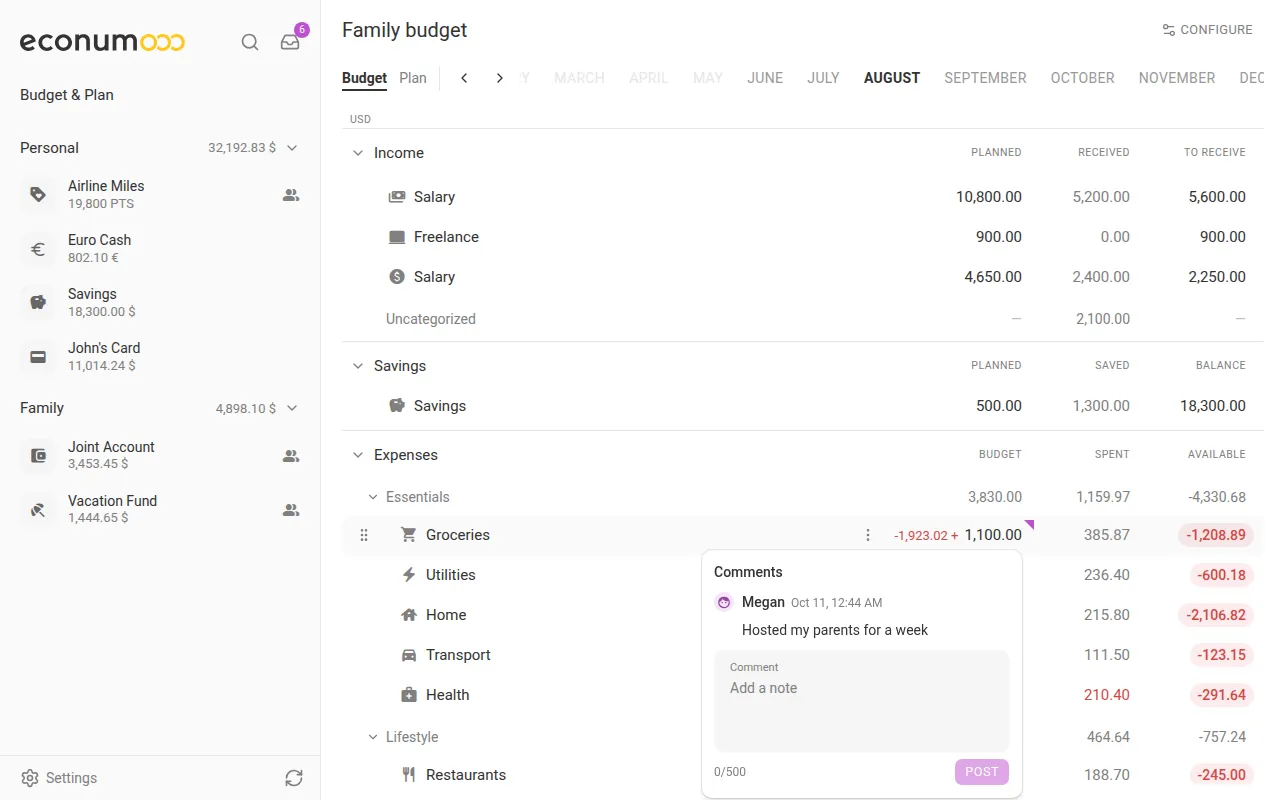
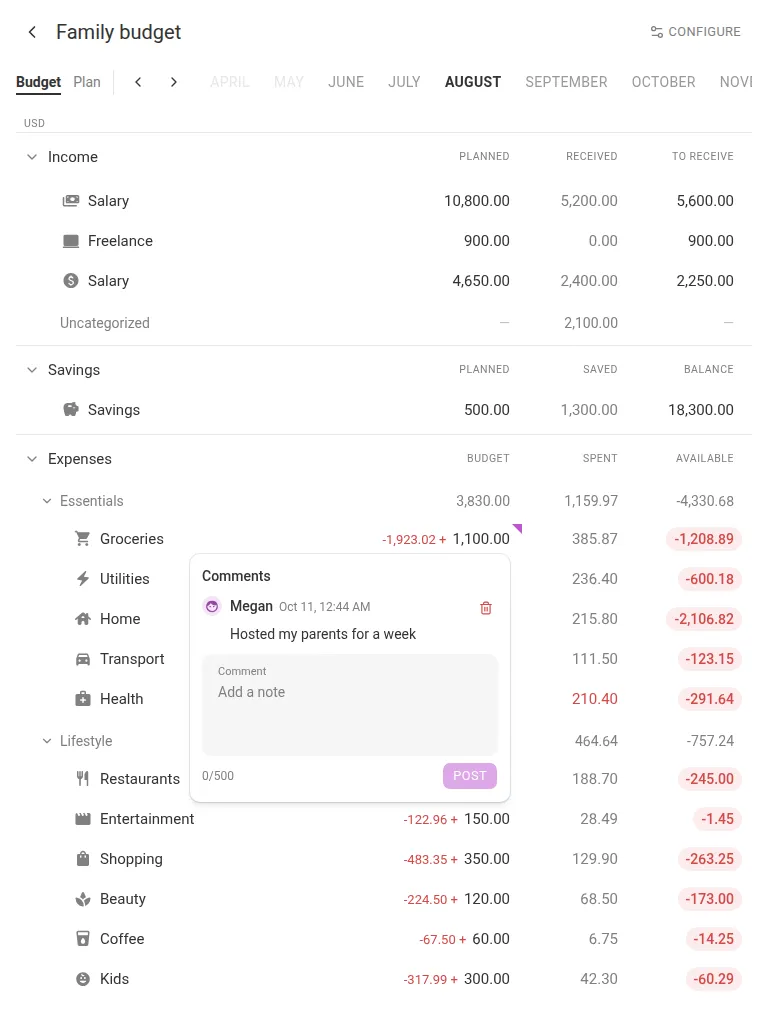
The budget now reads top to bottom in the same order on every device: Income (Planned · Received · To receive), then Savings, then Expenses (Budget · Spent · Available), with the month’s totals underneath, ending with the Balance at month end. Available shows as a green or red pill again.
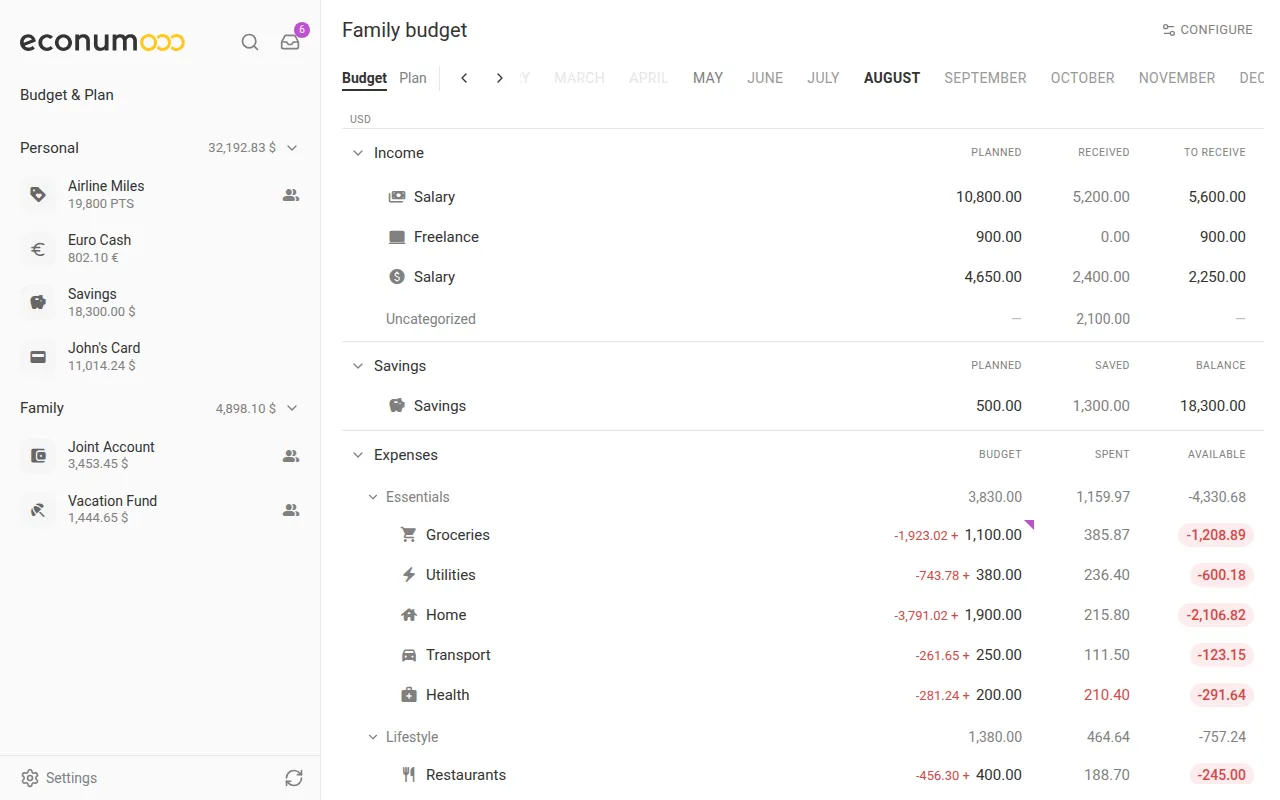
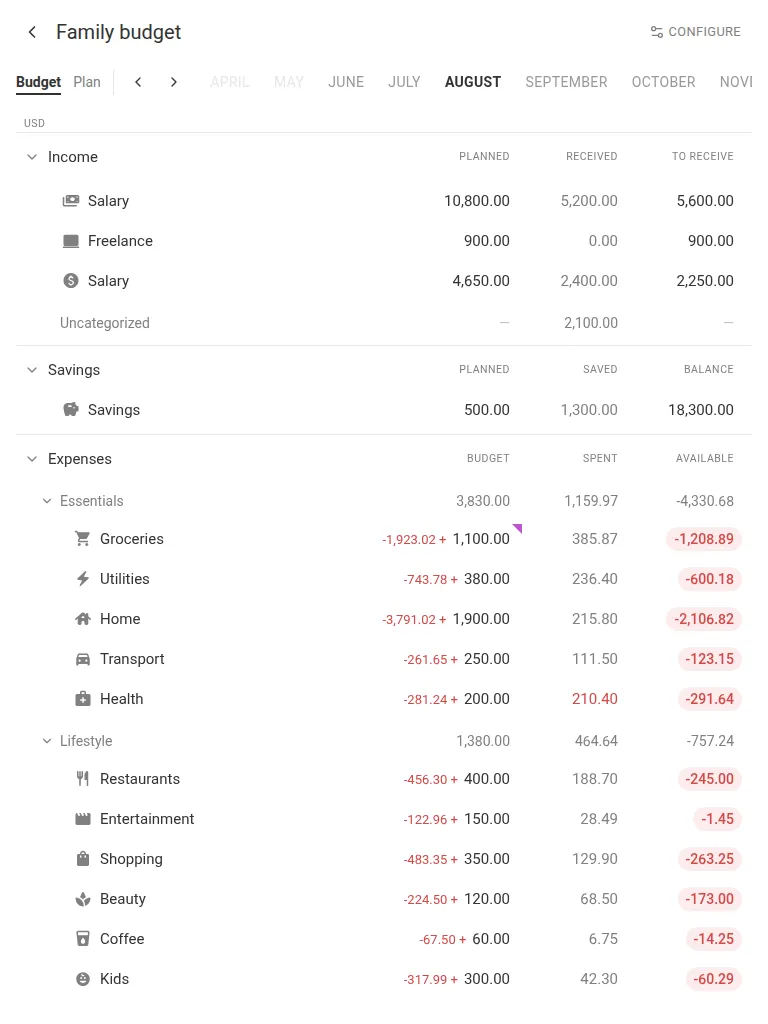
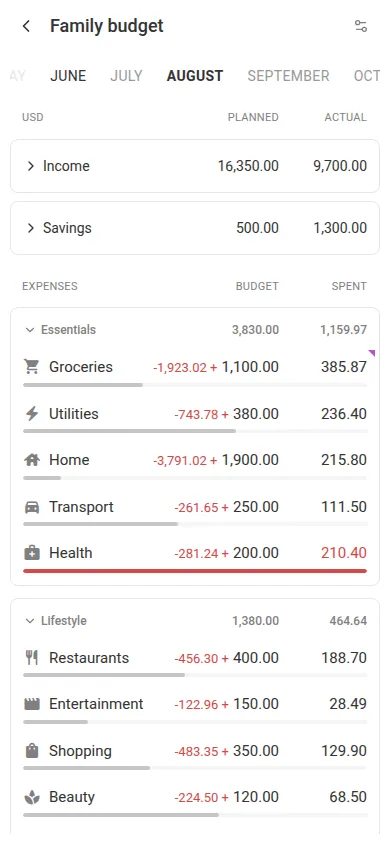
To find your way around it:
- Open Budget & Plan from the sidebar.
- Pick a month in the strip along the top. The bold month is the one you’re looking at.
- Scroll past Expenses for the totals: Income, Expenses, Savings, Total savings and Balance at month end.
You edit the structure in place:
- On desktop, hover a row and open its ⋮ menu: Edit, Change currency, Move to folder…, Archive, Merge into… and Delete. Drag a row or folder by its handle to reorder it. An action you can’t take is greyed out and says why, for example “(no access)” or “(not empty)”.
- On a tablet, tap Configure → Edit structure to turn on the same menus.
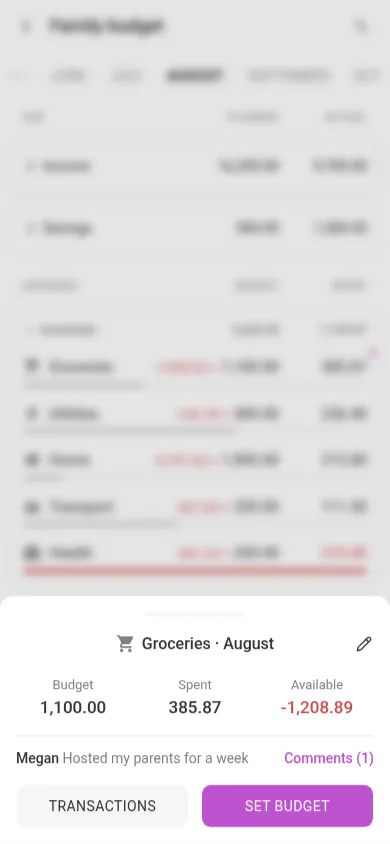
- On a phone, each expense row shows Budget and Spent with a thin progress bar that turns amber or red when spending runs over. Tap a row to open its sheet, with Budget, Spent and Available, the TRANSACTIONS button, and SET BUDGET.
Note Income envelopes can be created again, so Income and Expenses work the same way. Budget and Plan also fold their sections and folders independently now. Your current layout carries over on upgrade.
A Plan that works like a spreadsheet #
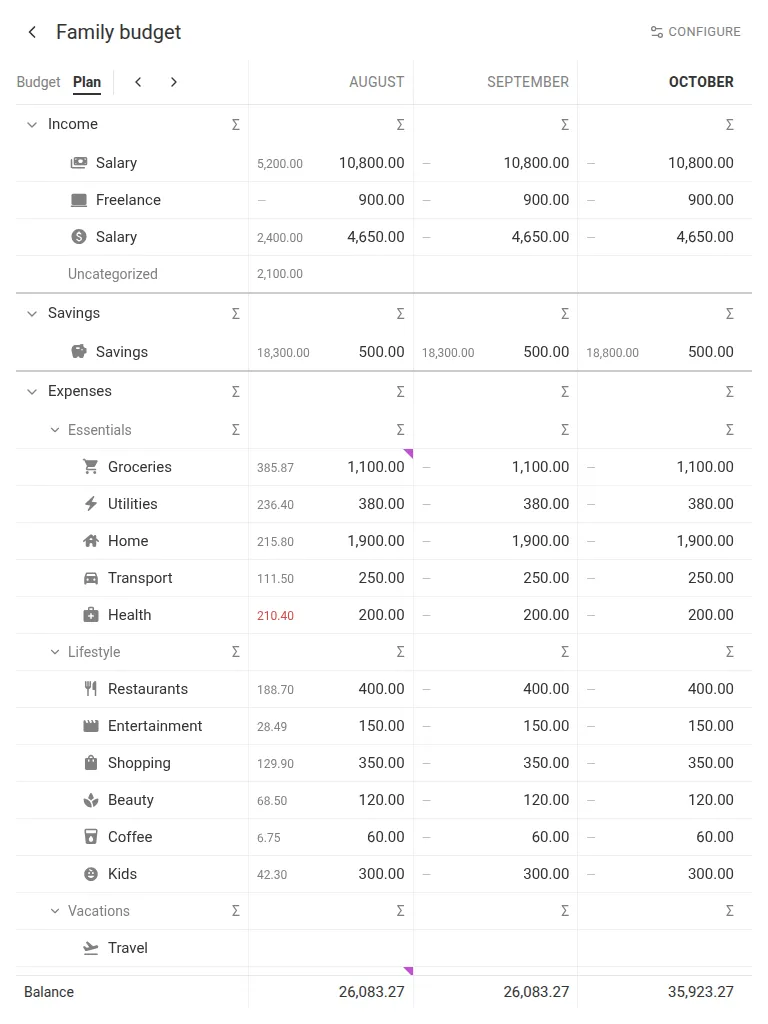
The Plan tab is one row per item and one column per month. Each cell shows the plan in black with the month’s actual in small grey figures beside it, so you can see at a glance where reality drifted from the plan.
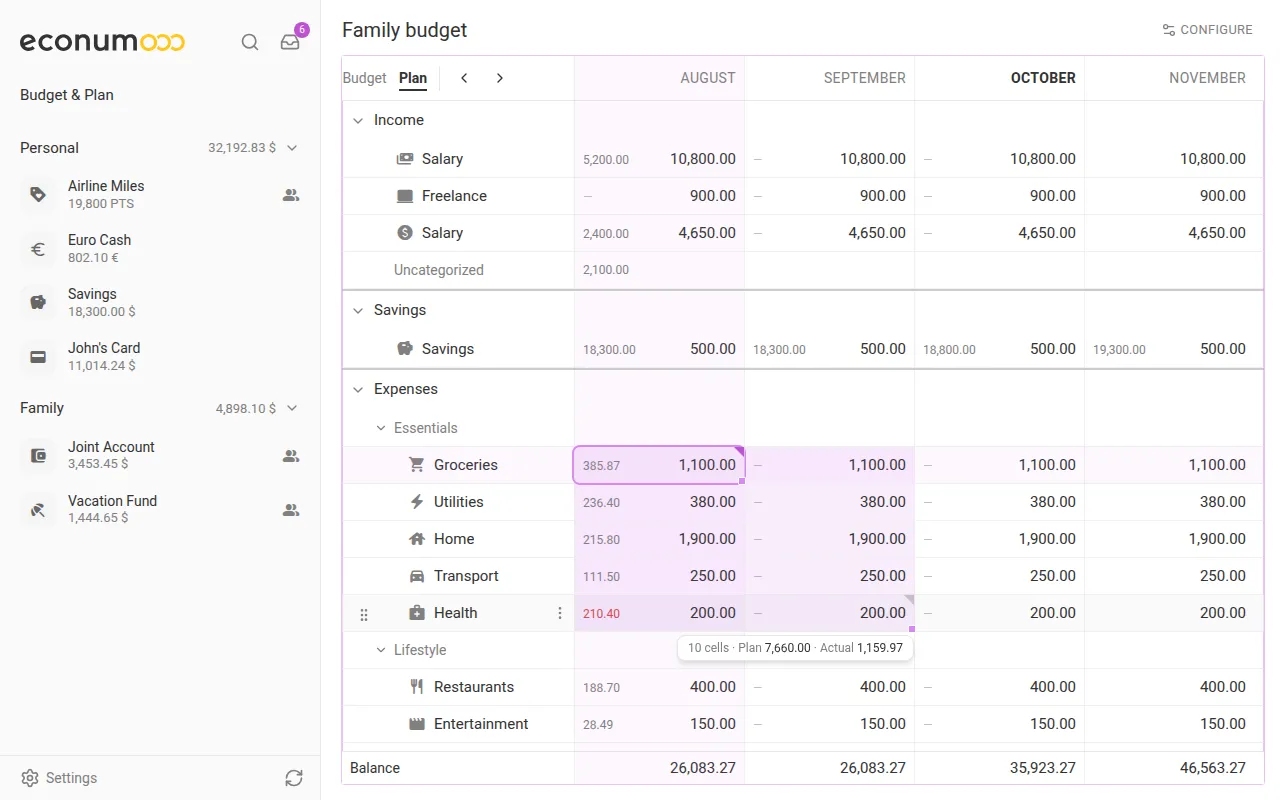
To plan a month:
- Open Budget & Plan and switch to the Plan tab.
- Use ‹ and › next to the tabs to move through the months.
- Click a cell and type the amount, then press Enter. The month-end Balance row recalculates straight away.
- To add up a block, click one cell and Shift+click another. Ctrl/⌘+click adds single cells, and dragging works too. A chip under the selection shows its totals, for example 10 cells · Plan 7,660.00 · Actual 1,159.97.
- To see section and folder sums, click a Σ button.
The keyboard works as it does in a spreadsheet: arrows to move, typing to replace, F2 to edit, Delete to clear, plus paste and fill. You can also drag the name column wider.
On a phone there’s no grid. Tap a row in the month view and use SET BUDGET in its sheet.
Savings accounts in budgets #
Money you move into savings is no longer “spent”. Mark any of the budget’s accounts as savings, and each one gets its own row with Planned, Saved and its Balance at month end. Future balances are projected from your plans.
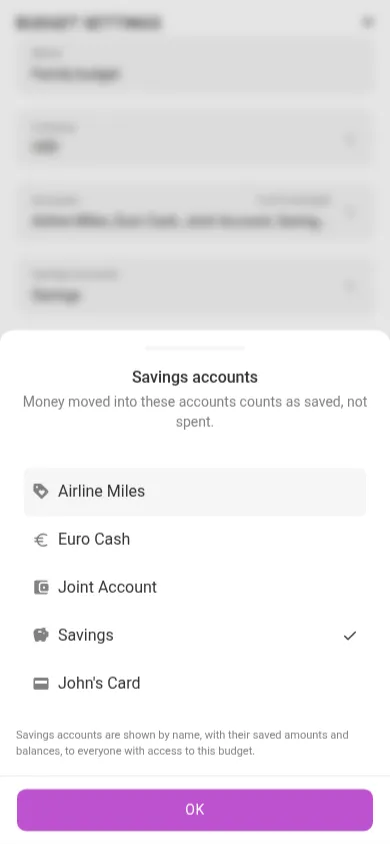
To set up a savings account:
- Open Budget & Plan and tap CONFIGURE. On a tablet or phone, choose Budget settings from the menu that opens.
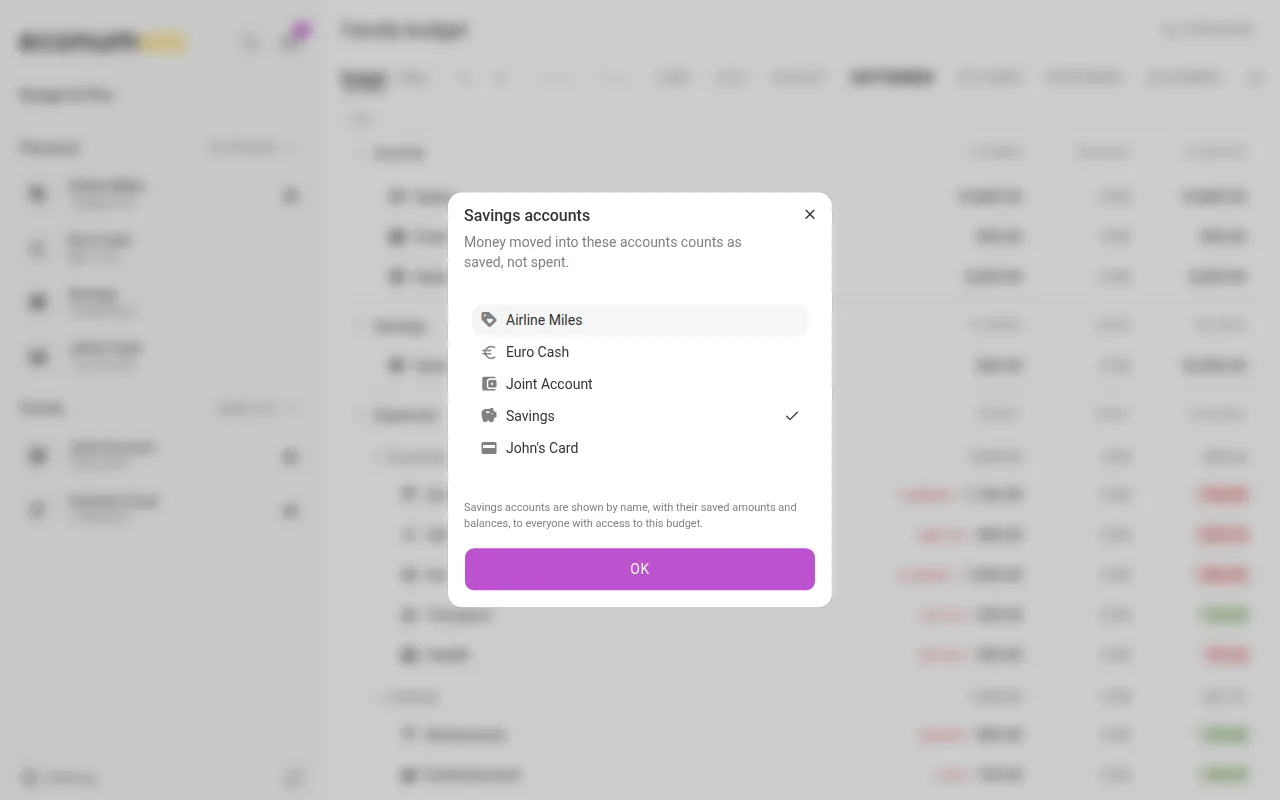
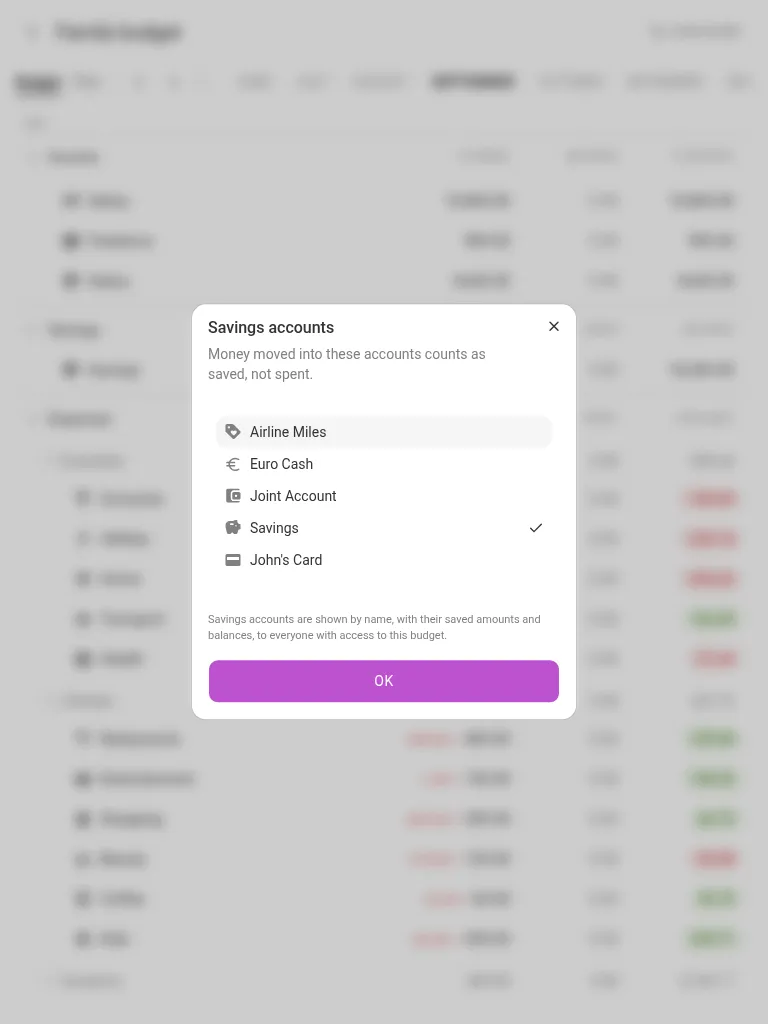
- Tap Savings accounts.
- Tick each account that holds savings, then tap OK.
- Tap UPDATE. A Savings section appears between Income and Expenses.
- To plan a monthly contribution, open the Plan tab and type an amount in the savings row, as you would for any other row.
Saved is the account’s whole net change for the month, so transfers in, interest and fees all count.
Note The savings flag belongs to the budget, not the account. The same account can be savings in one budget and everyday money in another. Savings accounts are shown by name, with their saved amounts and balances, to everyone with access to the budget.
Comments on budget cells #
Any item and month can carry a comment thread, for notes like “trip to Lisbon” or “new TV”. Everyone with access to the budget can read and post, including read-only guests, so a shared budget can now explain itself.
To leave a comment:
- Open Budget & Plan and pick the month.
- Open the thread for the row:
- On desktop or tablet, click the small corner marker on a cell that already has comments. Hovering over the marker previews the latest ones. To start a new thread, select a cell in the Plan grid and press Shift+F2.
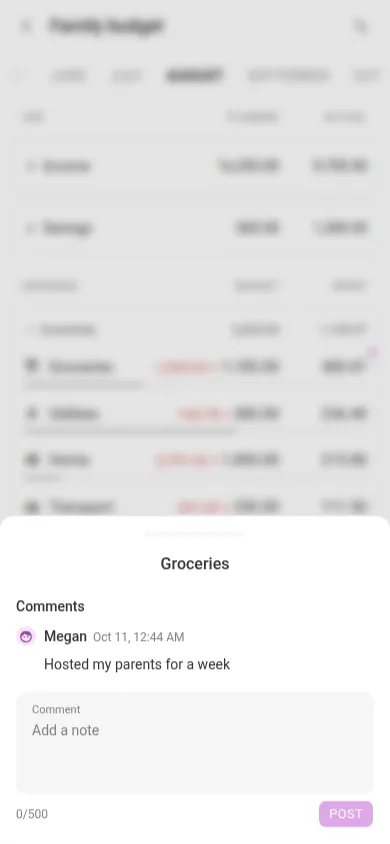
- On a phone, tap the row. Its sheet shows the latest comment and a Comments (1) link. Tap that link.
- Type in Add a note (up to 500 characters) and tap POST.
Search everything with Ctrl/⌘+K #
One search box now covers accounts, categories, payees, tags, labels and transactions. Matching tolerates missing letters, and amounts match whether you type them as stored or as displayed.
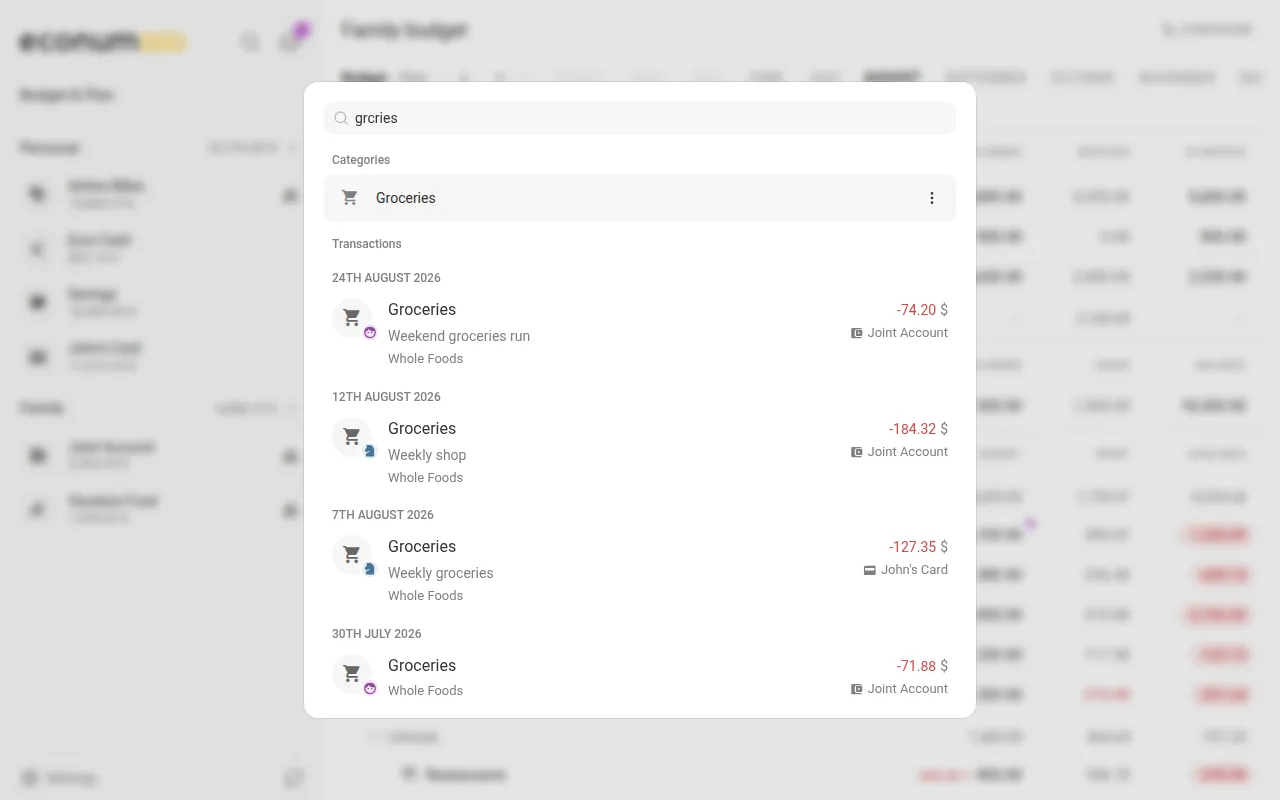
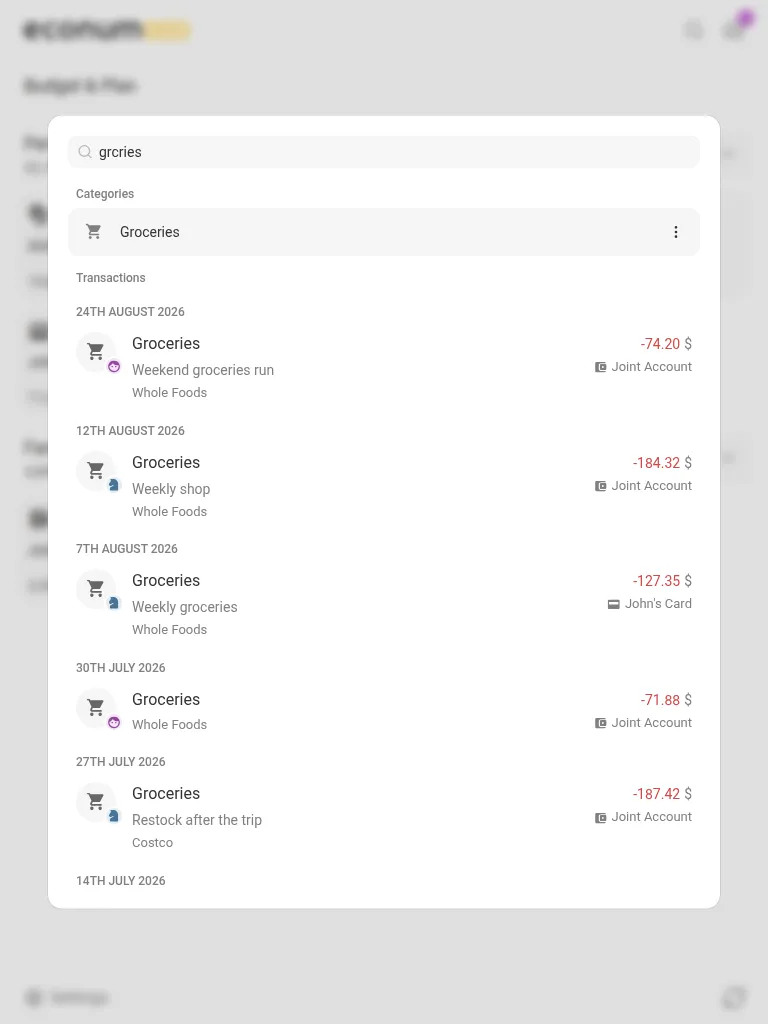
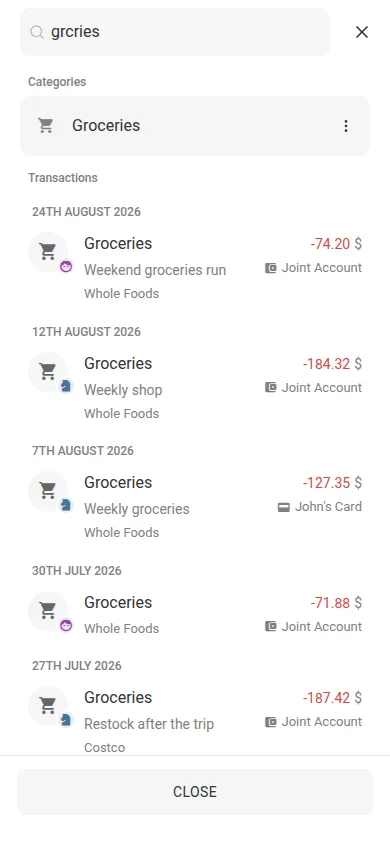
To search:
- Press Ctrl+K (⌘K on a Mac), or tap the magnifier next to the Econumo logo.
- Before you type, the dialog lists your most recent transactions.
- Start typing. Even grcries finds Groceries: matching categories, payees and tags come first, then transactions, newest first.
- Pick a category, payee or tag to list its transactions, or open a result’s ⋮ menu to edit, archive, merge or delete it.
Note Every picker you can type into now uses the same ranked matcher, including the category, payee, account and currency pickers.
Inbox #
The Inbox collects everything waiting on you, with a count badge on the sidebar’s Inbox button. Recurring transactions that are due today or overdue come first. Sharing invites sit at the bottom.
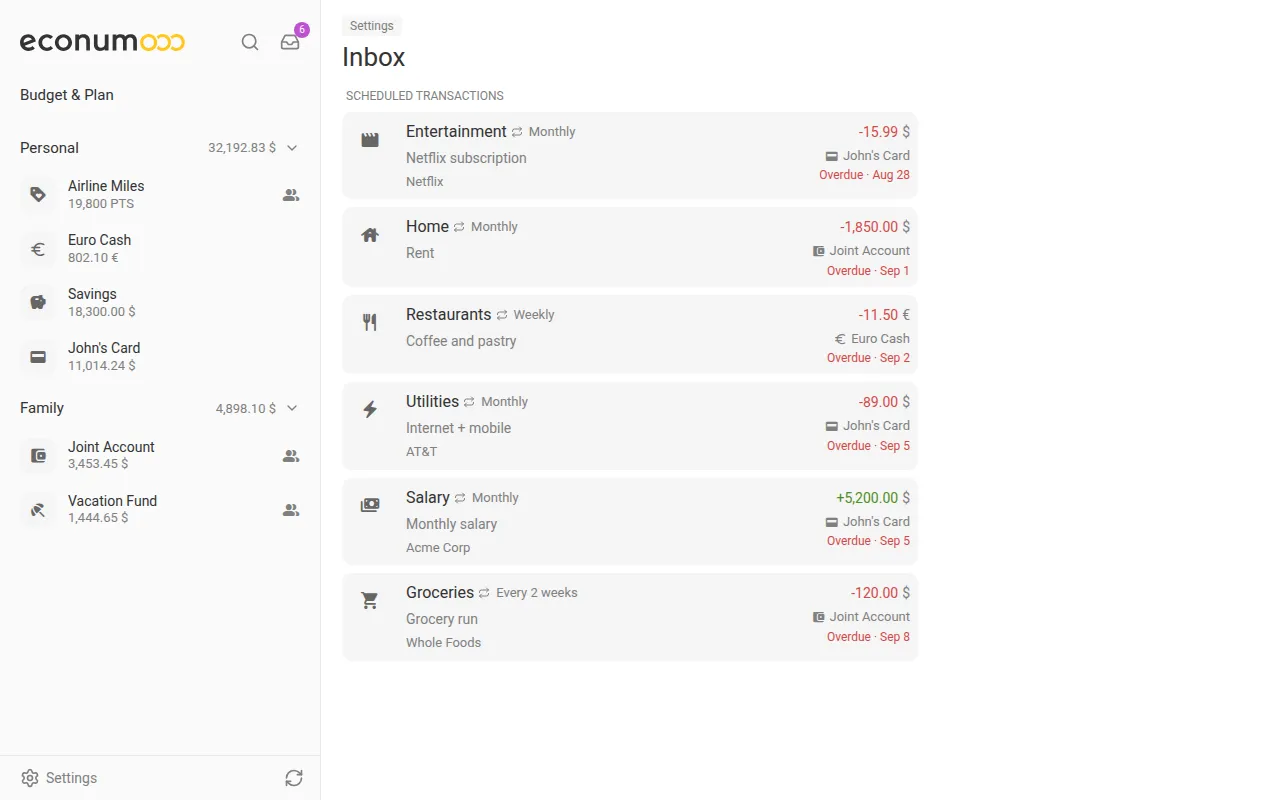
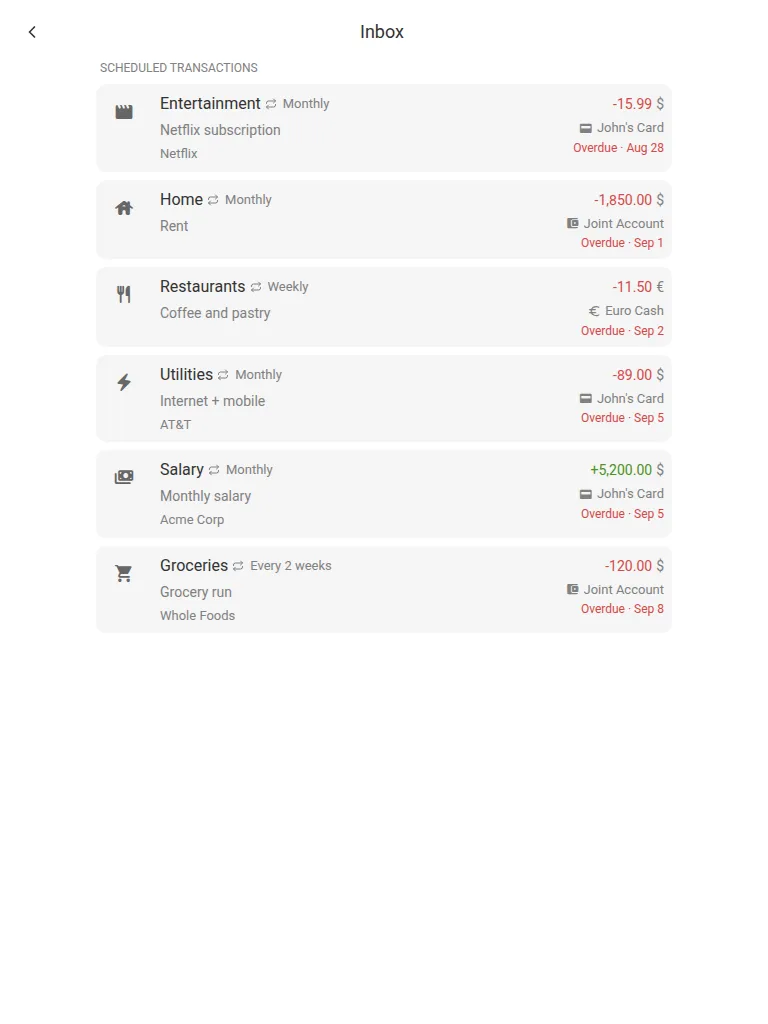
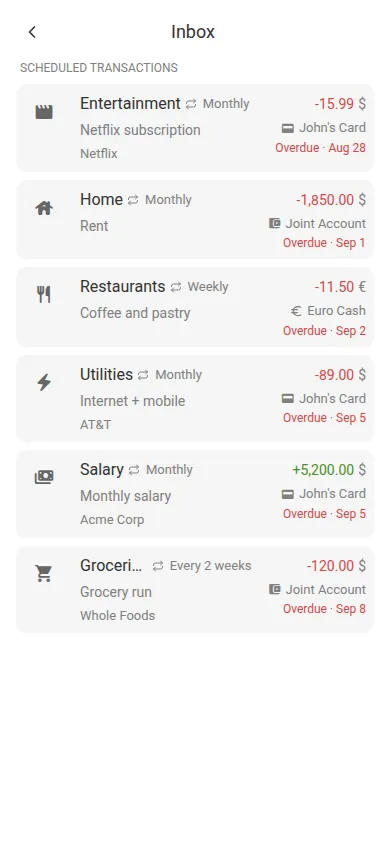
To clear it:
- Tap the Inbox button (the tray icon with the badge) at the top of the sidebar, or on your phone’s home screen.
- Tap a scheduled transaction to open its details.
- Tap POST to record it, or Skip (the curved arrow) to skip this occurrence.
- For a sharing invite, choose Accept or Decline.
With nothing pending, the page reads “All caught up”. The Inbox replaces the old Sharing requests sidebar item and dialog.
Connect Claude and Codex by URL #
Claude and Codex can now reach your Econumo data through its MCP endpoint without a personal access token. You add one address to the client, sign in to Econumo in your browser, and press Allow.
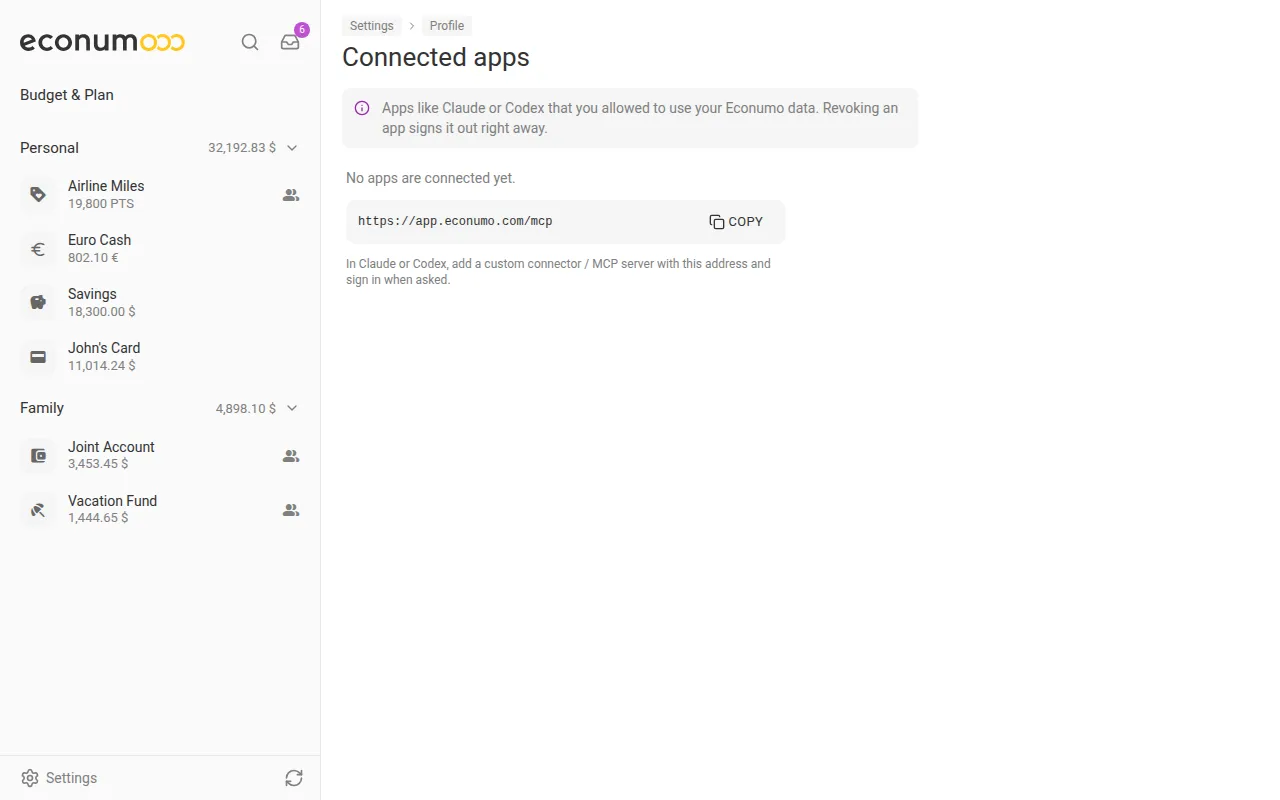
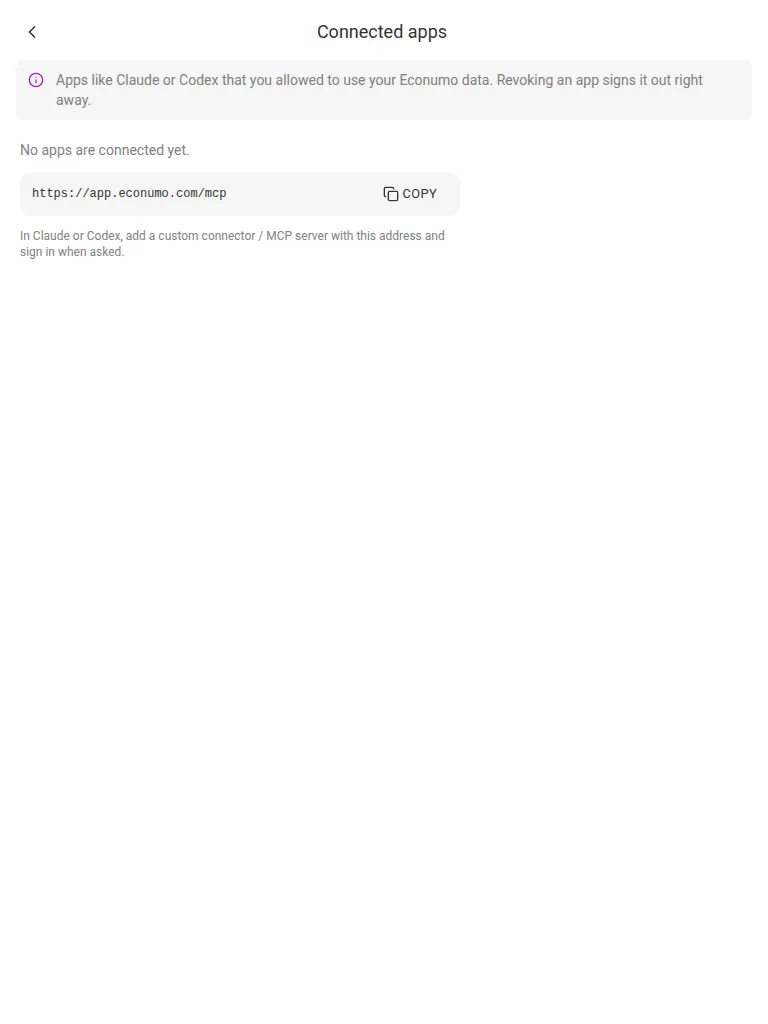
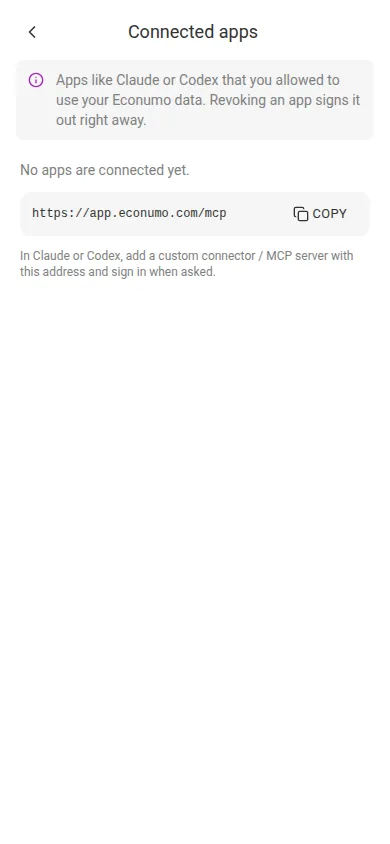
To connect a client:
- In Econumo, open Settings → Personal settings → Connected apps and tap COPY next to the address. It’s your Econumo URL followed by
/mcp. - Add it to your client:
- Claude (web, desktop or mobile): Settings → Connectors → Add custom connector, paste the address, and add it.
- Claude Code:
claude mcp add --transport http econumo <your Econumo URL>/mcp, then run/mcp, pickeconumoand choose Authenticate. - Codex:
codex mcp add econumo --url <your Econumo URL>/mcp, thencodex mcp login econumo.
- The client opens Econumo in your browser. Sign in if you aren’t already, check the app’s name, and press Allow.
Approved apps are listed on the same Connected apps page, with when each was connected and last used. Revoke any of them there to sign it out right away.
Self-hosters: browser sign-in needs
ECONUMO_URLset to your instance’s public https origin, with no path (for examplehttps://econumo.example.com). Without it, the sign-in stays off, Connected apps is hidden, and/mcpaccepts personal access tokens as before. Claude on the web, desktop and mobile connects from Anthropic’s servers, so the instance must be reachable from the internet for those. Claude Code and Codex only need to reach it from your computer. The full guide isdocs/mcp-setup.md.
More in this release #
- A refreshed sidebar and settings. The sidebar header carries the colour logo, Search and Inbox, and Settings and Sync sit in a slimmer footer. The Profile page is now Personal settings, and Log out is on the Settings page.
- A user with Full control of a shared account can now edit its name and balance. Before, saving failed with “Access denied”.
- On phones, dragging an account into another folder under Settings → Accounts no longer sometimes crashes the page.
- The search’s recent list leaves out future-dated transactions, but a typed query still finds them.
- A phone budget row with spending but no budget now fills its bar in red.
- On phones, the month view’s header figures line up with the rows.
- Posting a future recurring transaction no longer makes the account list jump.
- Strings refined across all 11 languages, and dependencies updated.
GitHub release #
- Econumo: v1.6.0
- Full changelog: v1.5.2…v1.6.0