User profile #
This section provides an overview of user profiles in Econumo.
In this section #
Accessing your user profile #
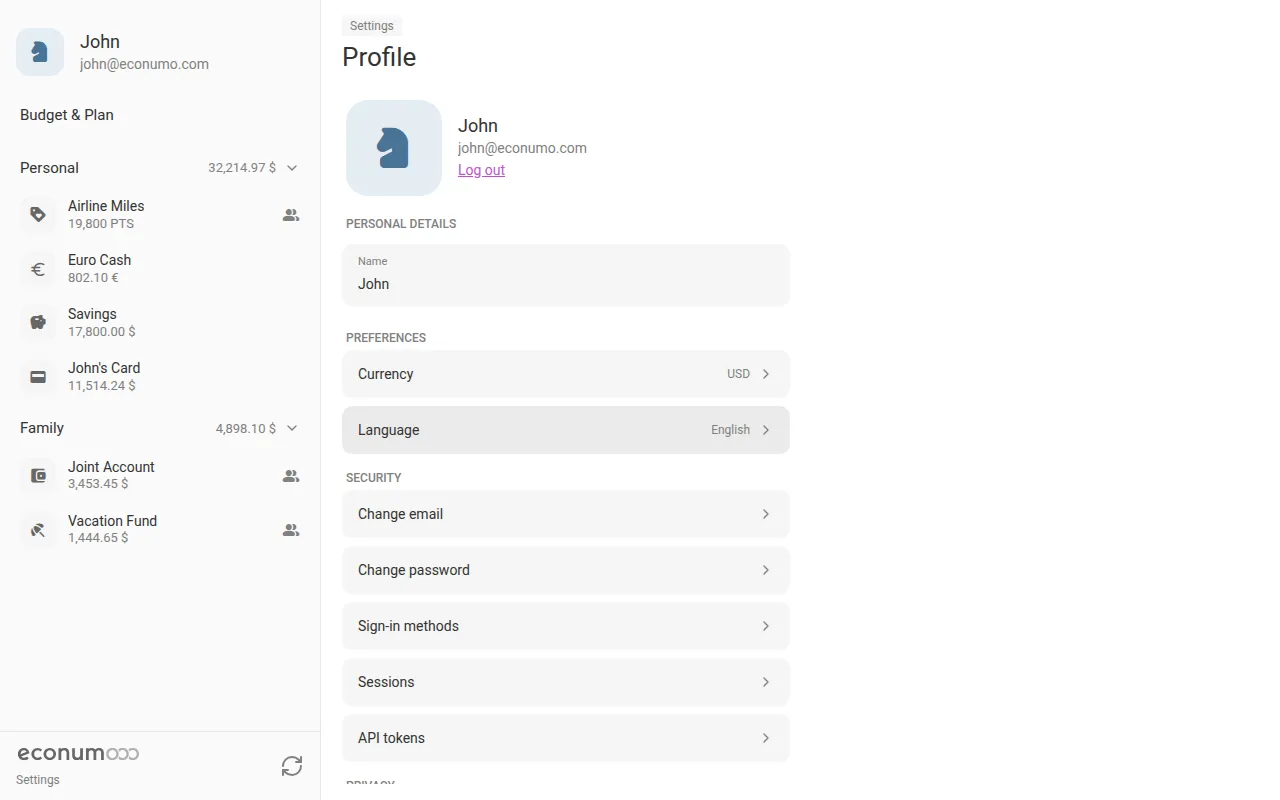
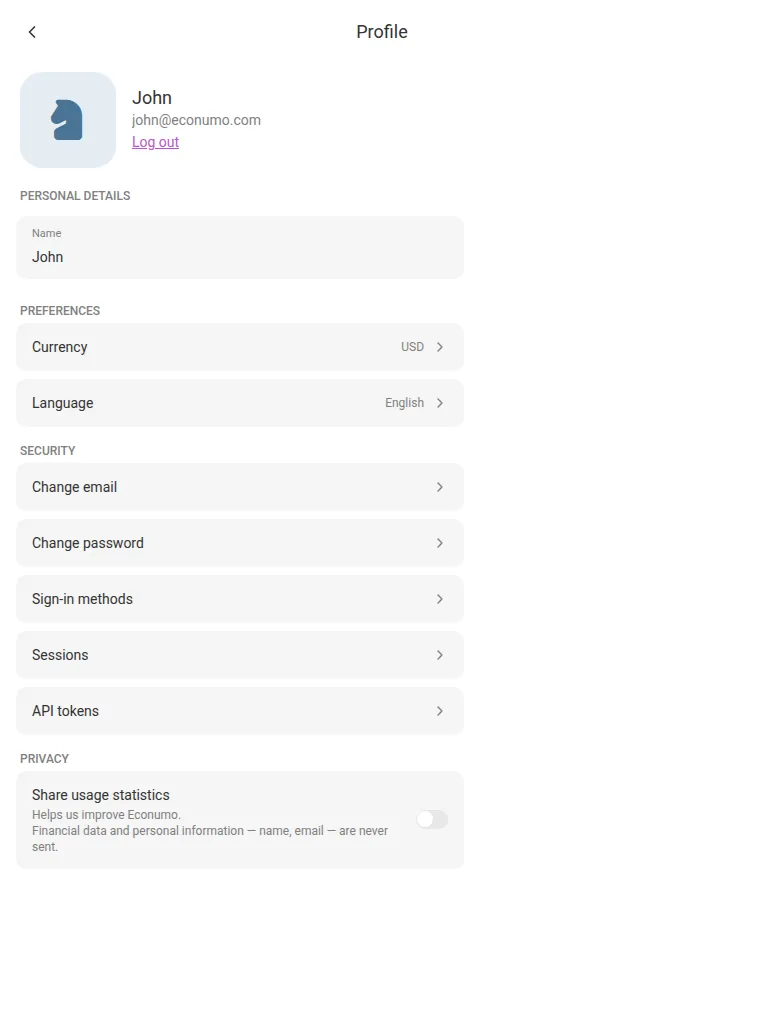
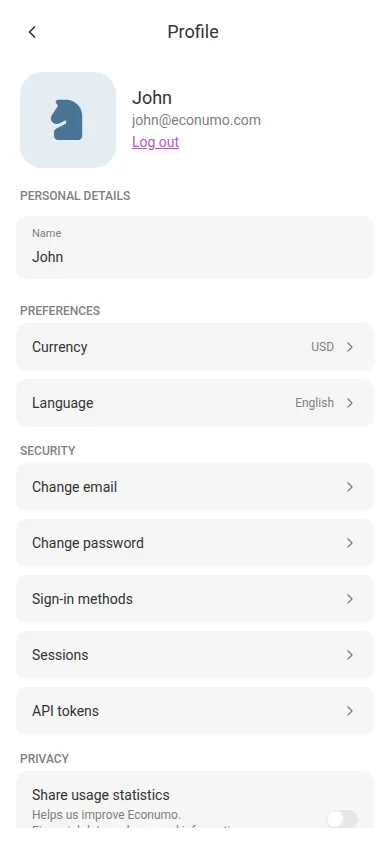
Click on your avatar in the left sidebar (or open Settings and tap your name there). The profile screen shows your personal details, preferences, and security settings, and is also where you log out:
Updating your user profile #
How to change your name #
Type the new name in the “Name” field and tap outside it — the change is saved automatically.
How to change your email #
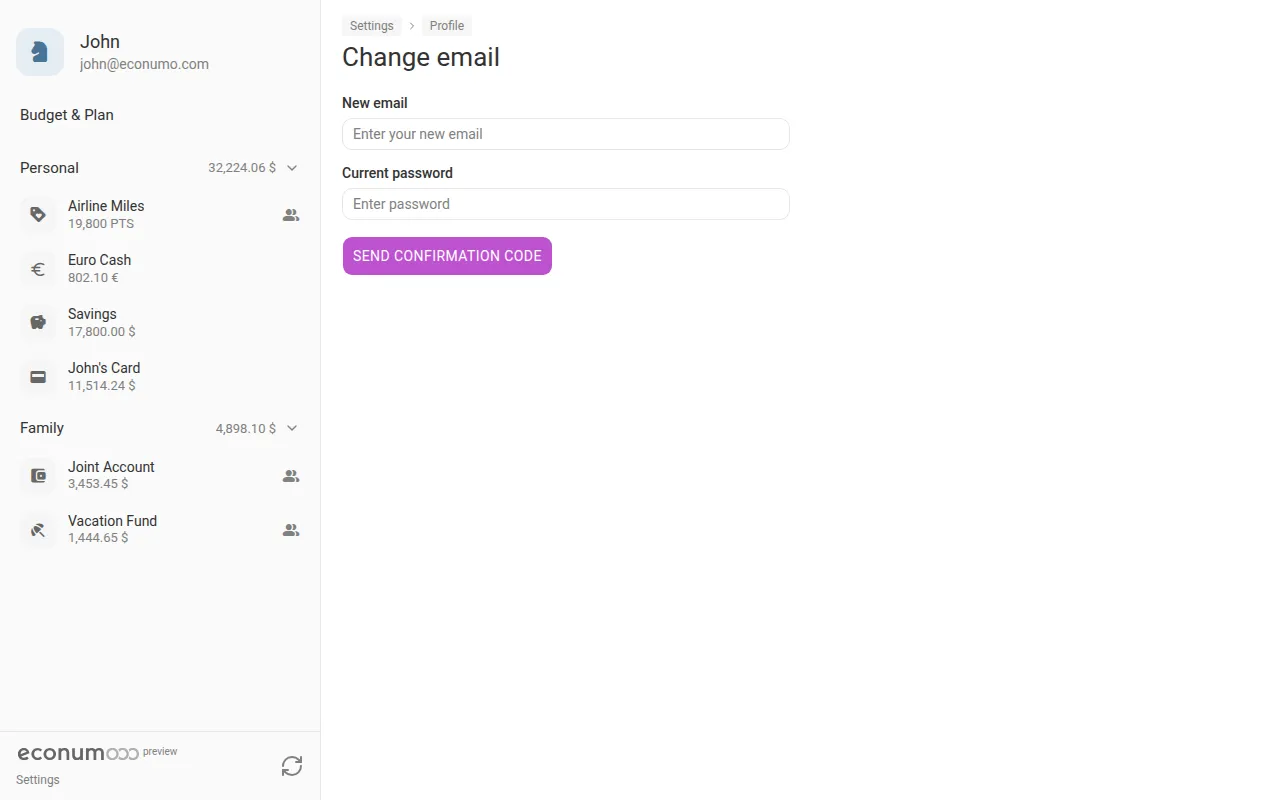
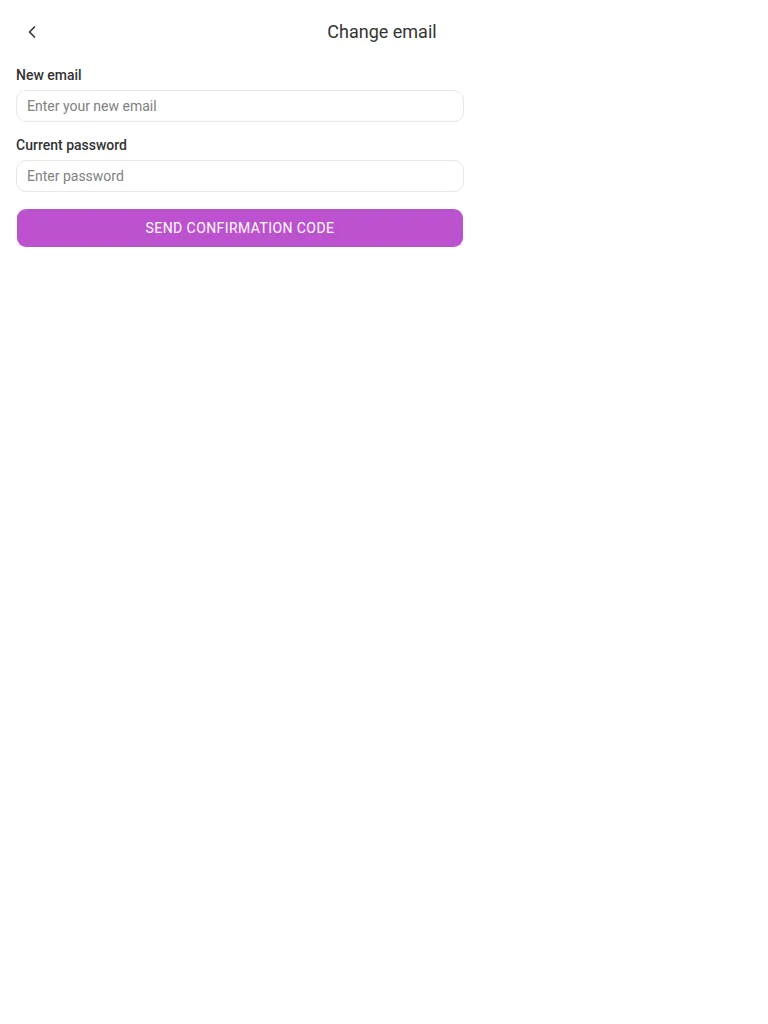
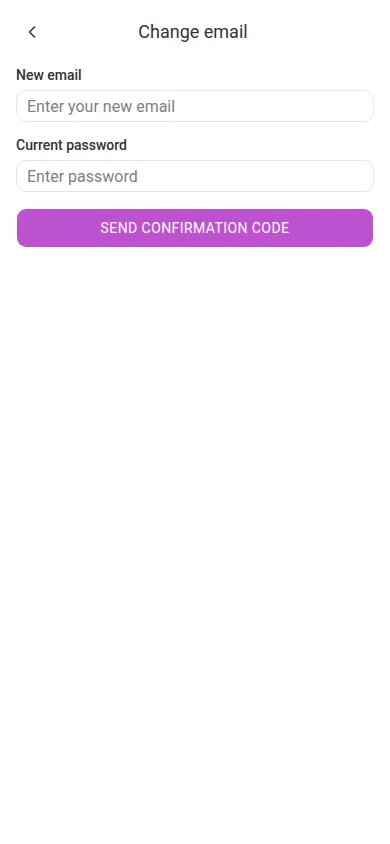
Choose Change email in the Security section, enter your New email and Current password, and press Send confirmation code. Econumo emails a code to the new address to confirm you own it before the change takes effect; your old address gets a notice, and every other session is signed out.
How to change your avatar #
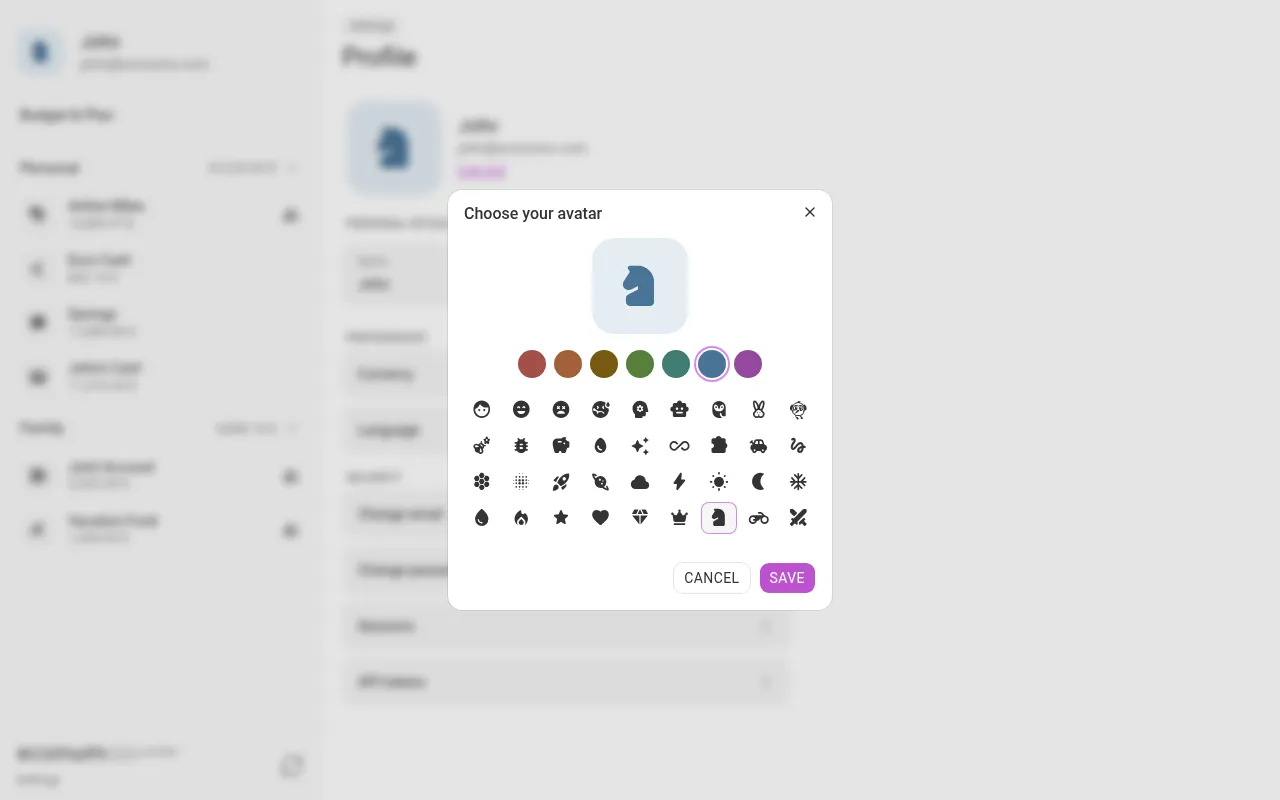
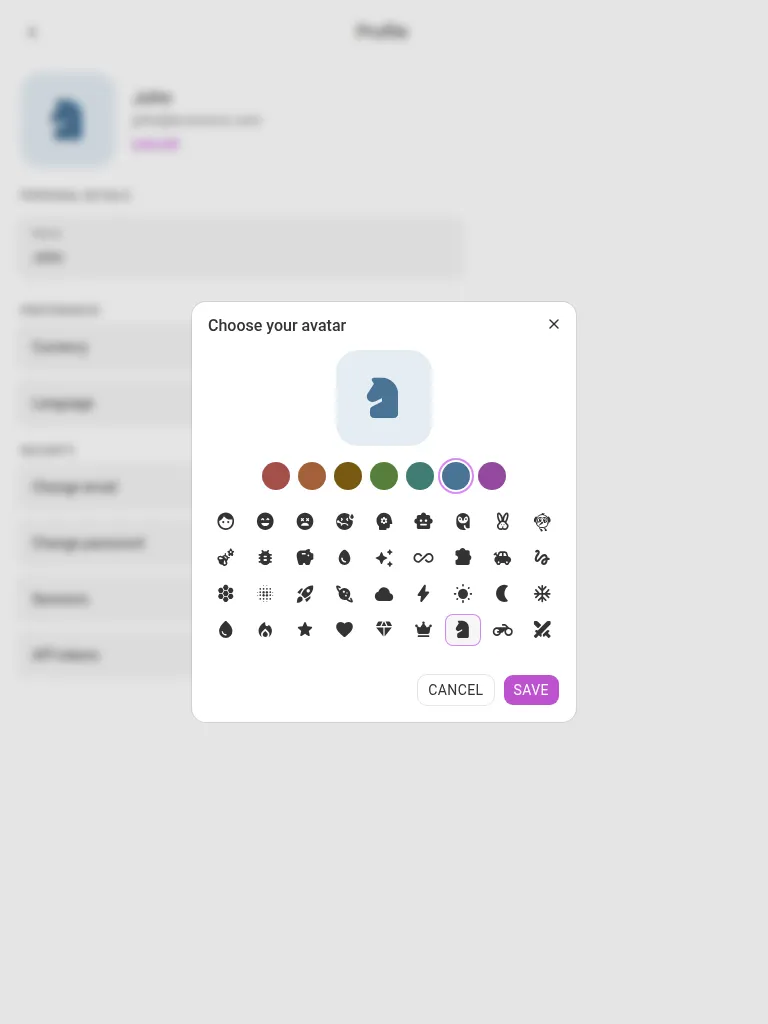
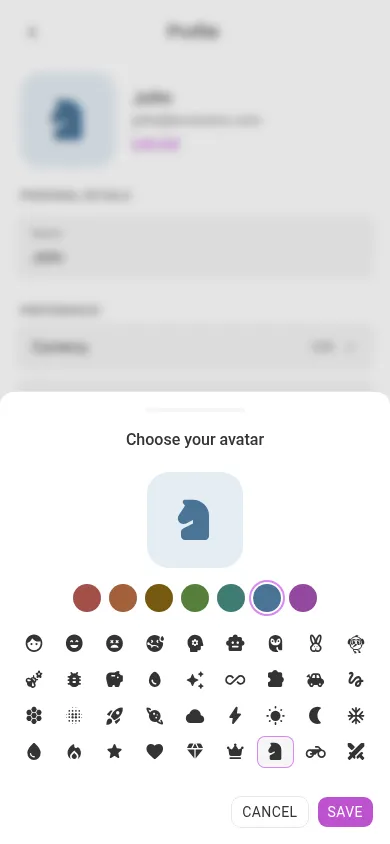
Click your avatar on the profile screen to open the avatar picker. Choose a color and an icon, then press Save. Your avatar is shown to everyone you share accounts and budgets with.
How to change your password #
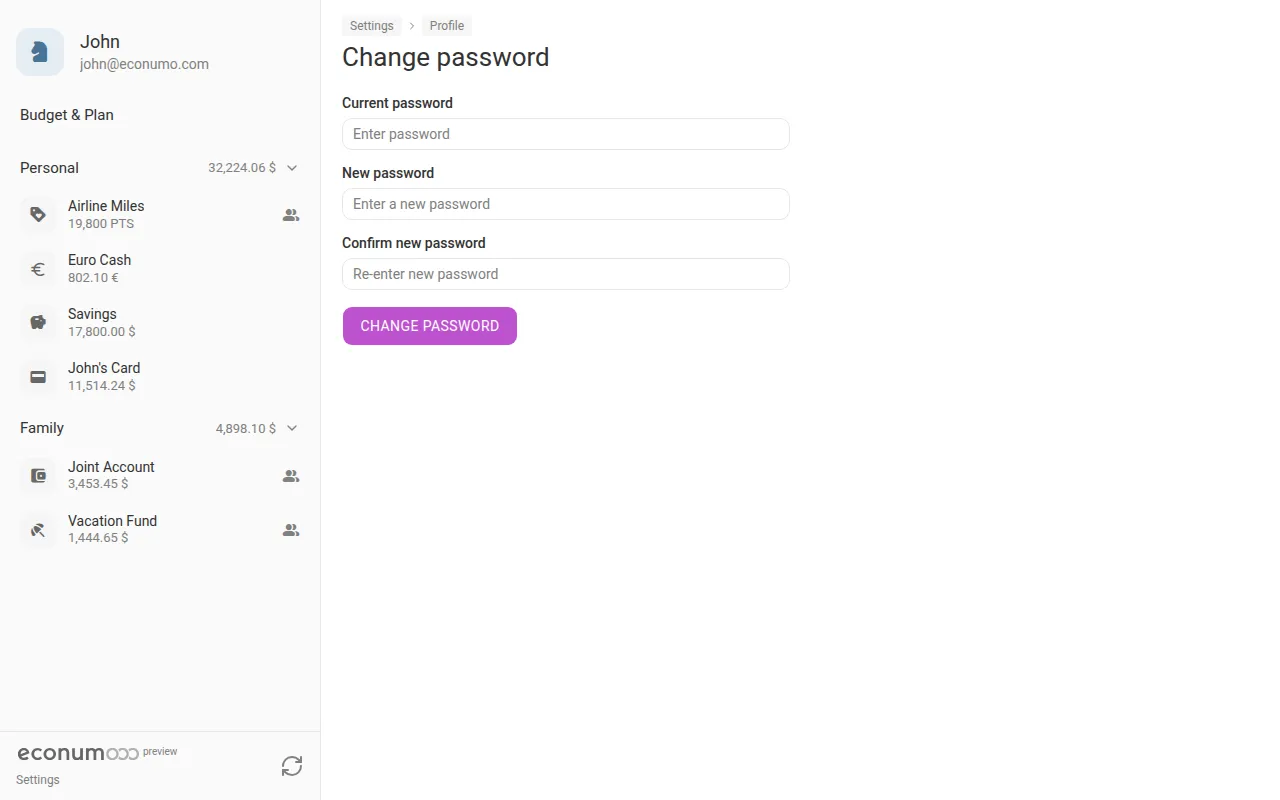
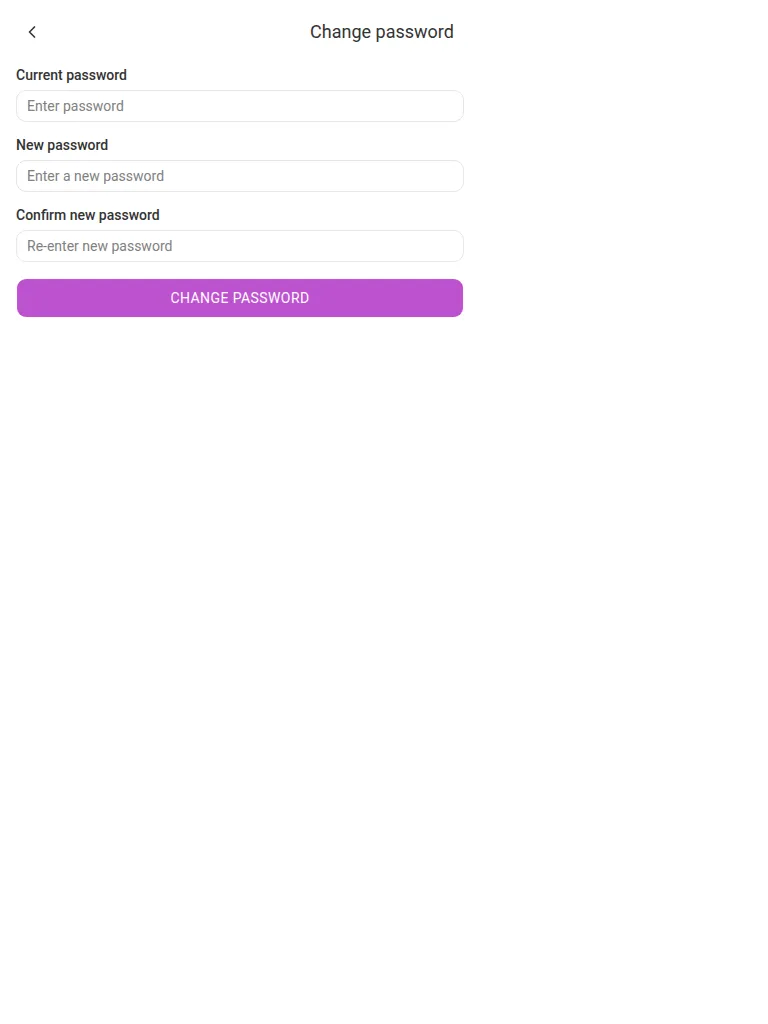
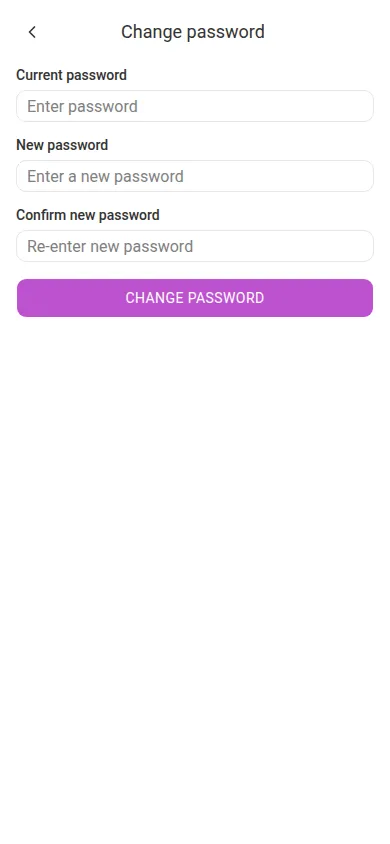
Choose Change password in the Security section. Enter your current password, then the new one twice:
Note On a self-hosted instance with password sign-in turned off (
ECONUMO_PASSWORD_LOGIN=false), neither Change password nor Set a password appears here — every sign-in goes through a linked provider instead.
How to change your default currency #
The Currency preference in the Preferences section sets your default currency in Econumo.
How to change the interface language #
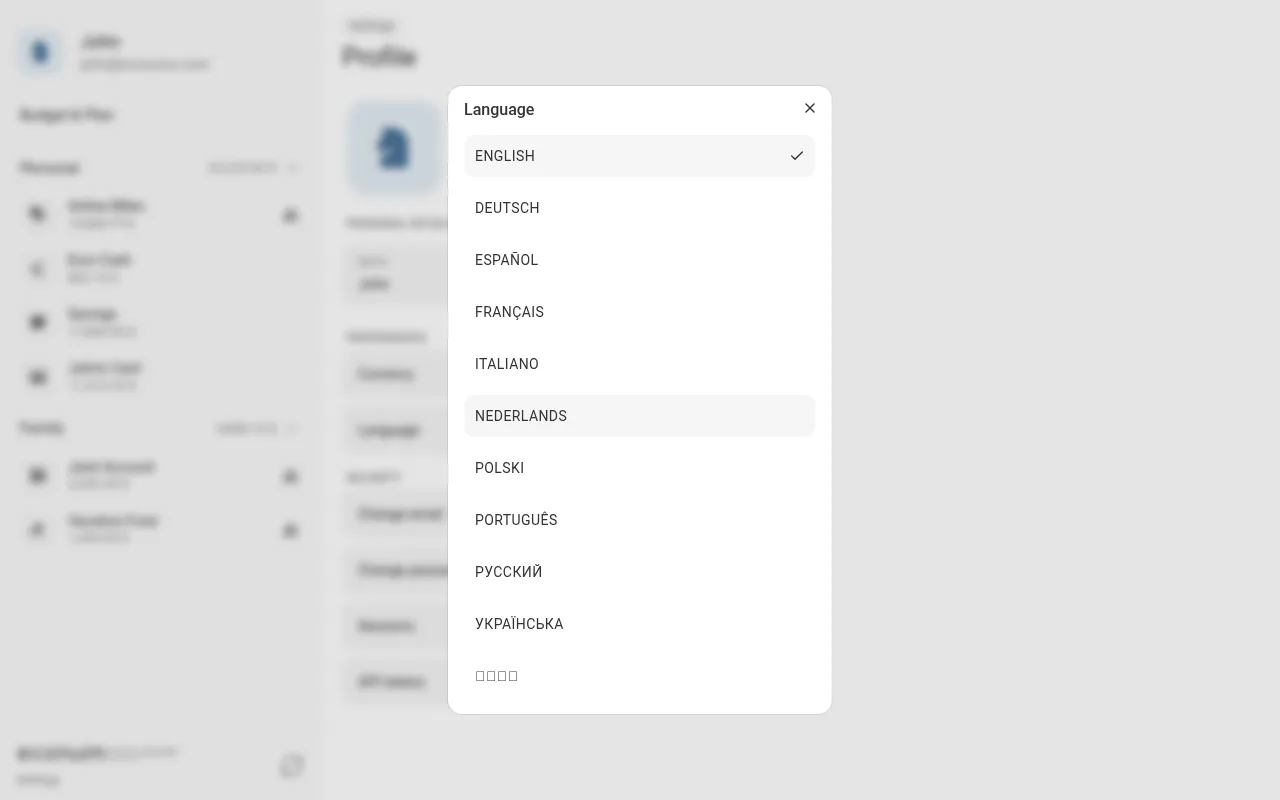
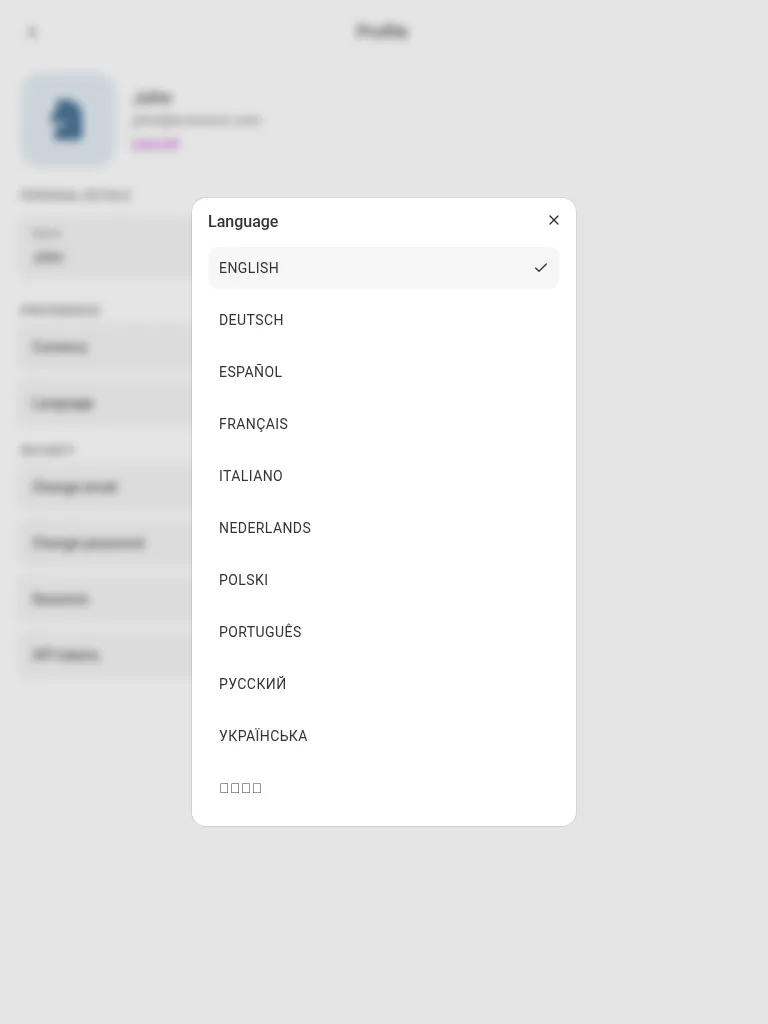
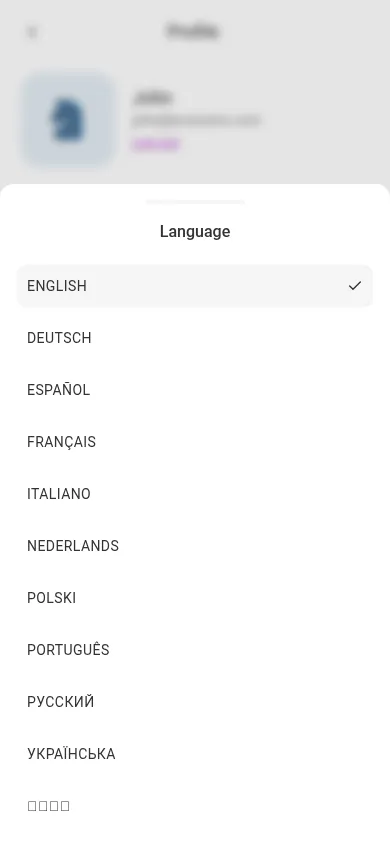
The Language preference sits right below Currency. Open it and pick one of the 11 available languages — English, Deutsch, Español, Français, Italiano, Nederlands, Polski, Português, Русский, Українська, and 简体中文. The same dialog is available from the language badge on the sign-in and sign-up screens, before you have an account.
Sign-in methods #
Security → Sign-in methods lists the external accounts you can use to sign in instead of a password — Google, Apple, or a custom OpenID Connect provider, whichever your Econumo instance enables. Each provider your instance turns on appears here with a LINK button.
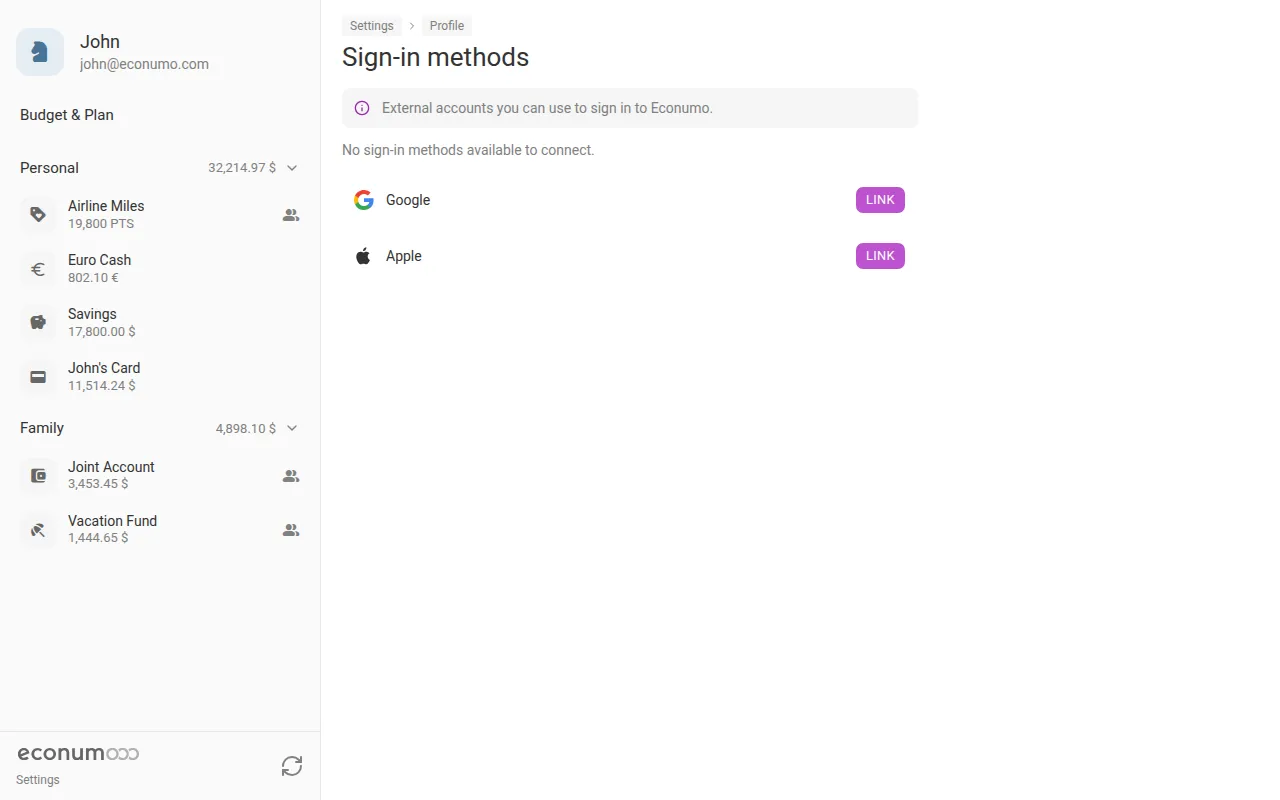
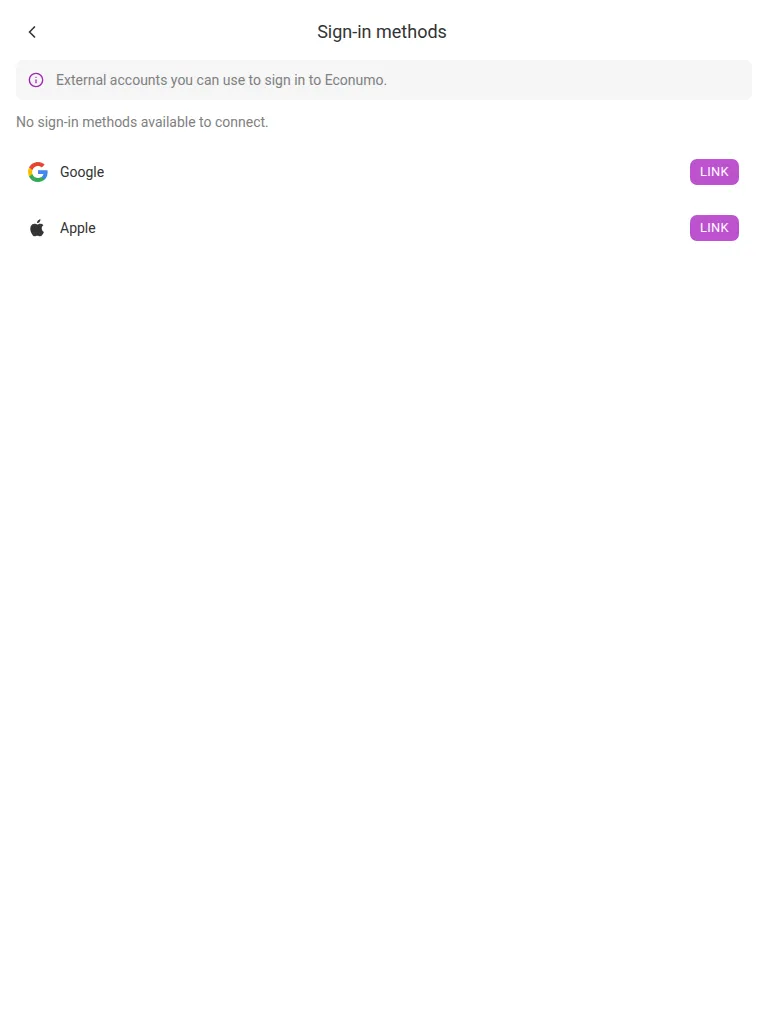
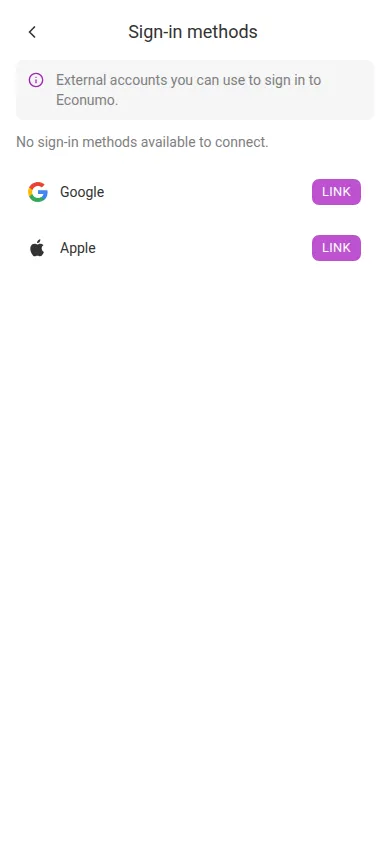
Press LINK to connect a provider: Econumo hands you off to it to confirm it’s you, then brings you back with the provider listed as linked, its button now reading UNLINK. From then on you can sign in either with your password or with that provider.
Note Unlinking is the same button in reverse. If a linked provider is the only way into your account, Econumo won’t let you remove the last one. For a passwordless account, set a password first from Change password. On an instance with password sign-in turned off, a stored password no longer counts as a way in either, so the last remaining provider can’t be unlinked at all — the button is disabled with a note explaining why.
Linking or unlinking a provider emails you a notice, so gaining or losing a way into your account never happens without you knowing.
Sessions #
Security → Sessions lists every device currently signed in to your account, with the browser and operating system it was identified as and when it was last active. Your current session is marked Current.
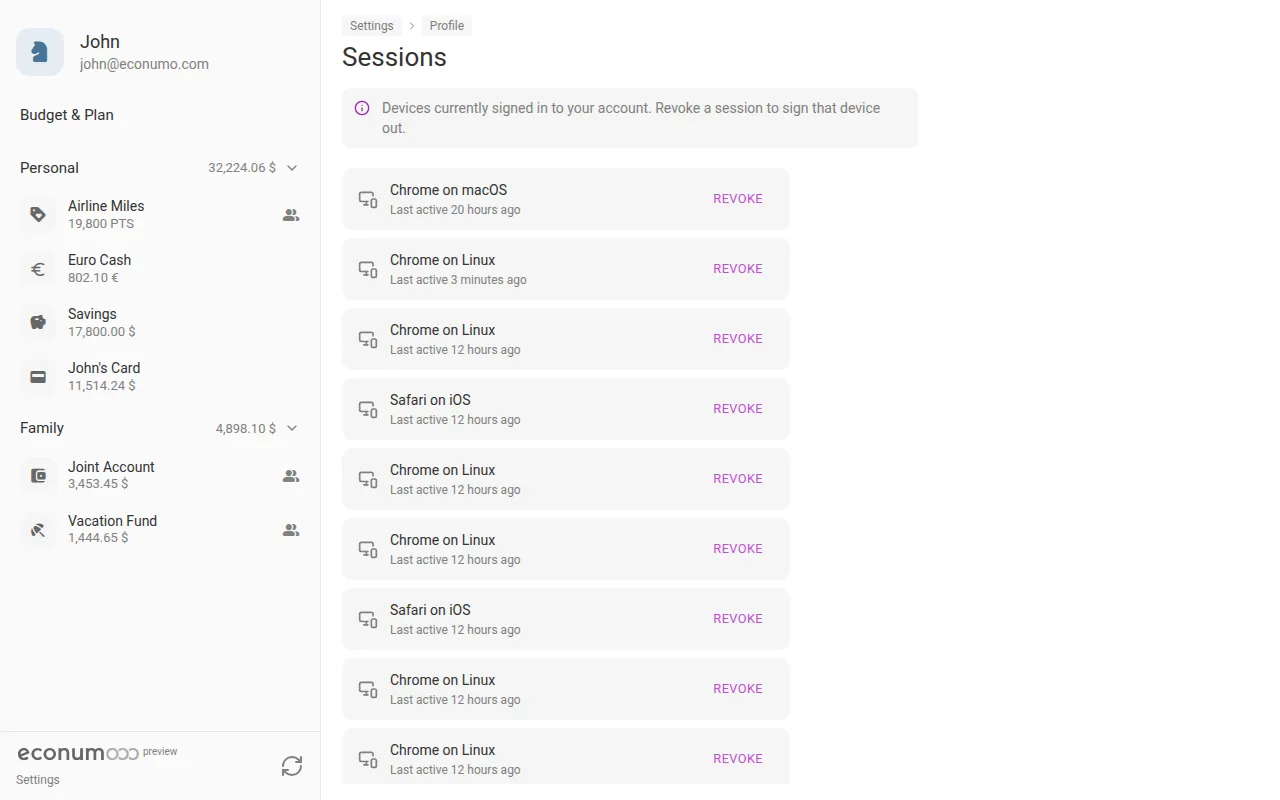
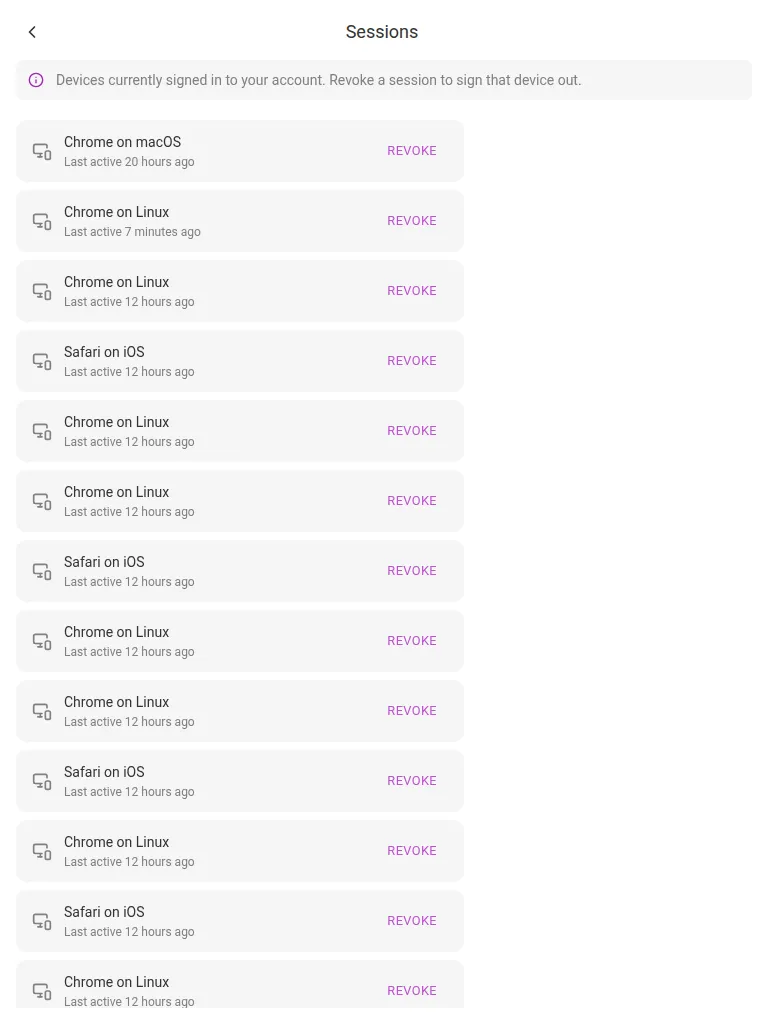
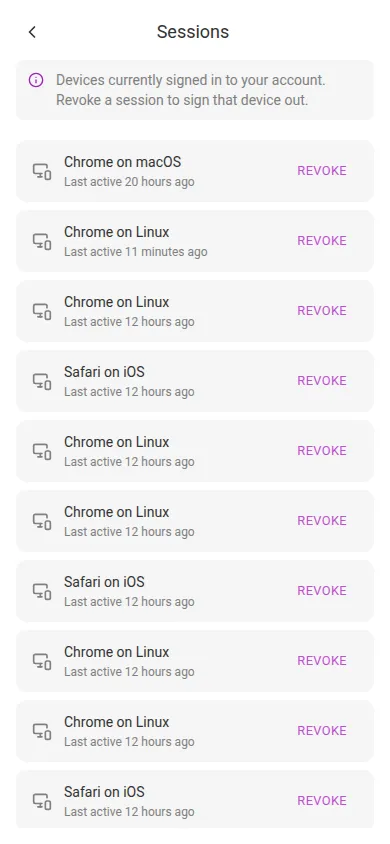
Press Revoke next to a session to sign that device out, Sign out to end the session you are using right now, or Sign out other devices to end every session except the current one.
Note If you spot a session you do not recognise, revoke it and change your password.
API tokens #
Econumo has a REST API, and personal access tokens are how you authenticate against it — handy for scripts, home-automation dashboards, or any integration of your own. Open Security → API tokens to manage them.
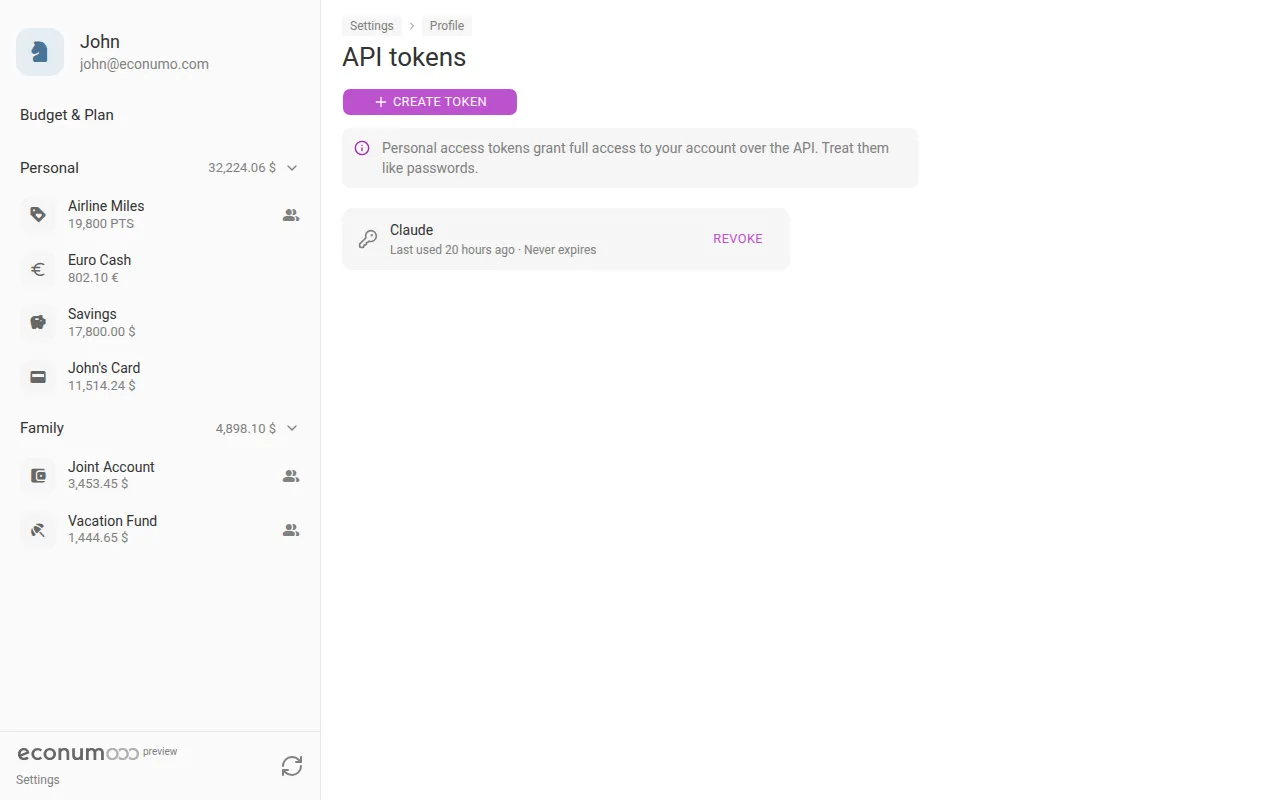
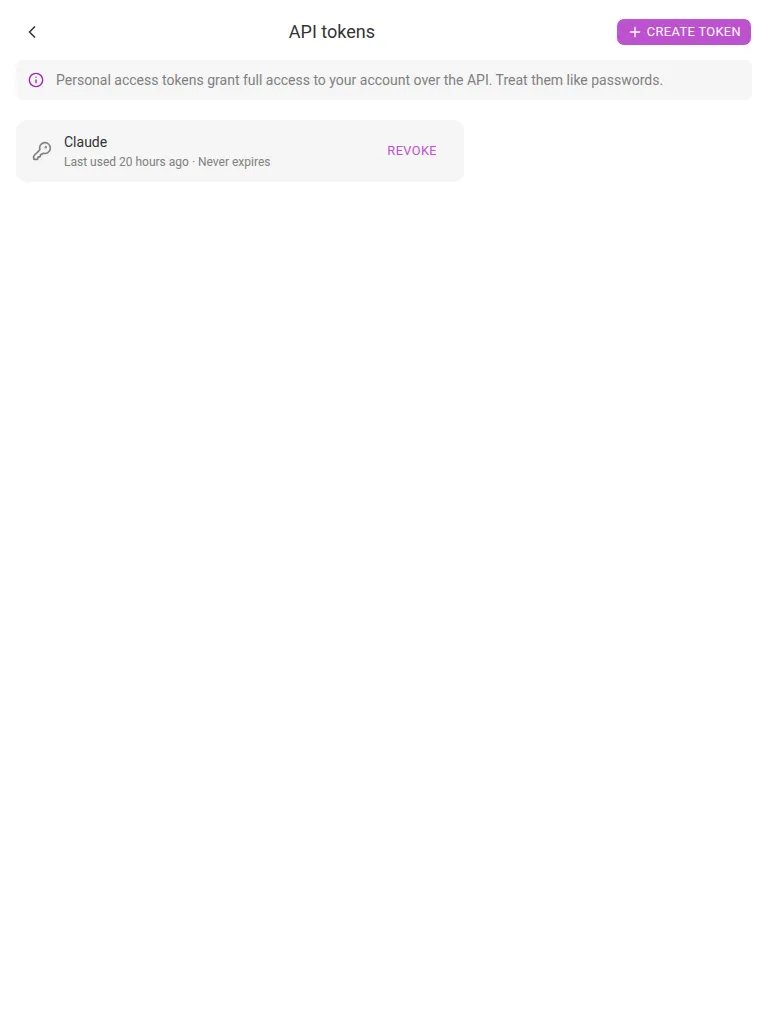
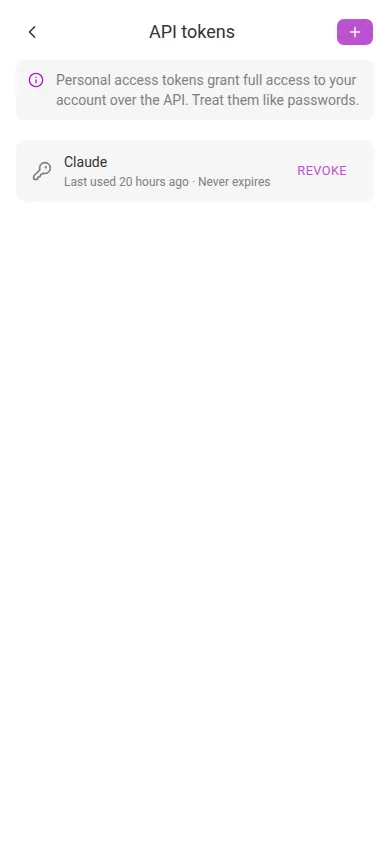
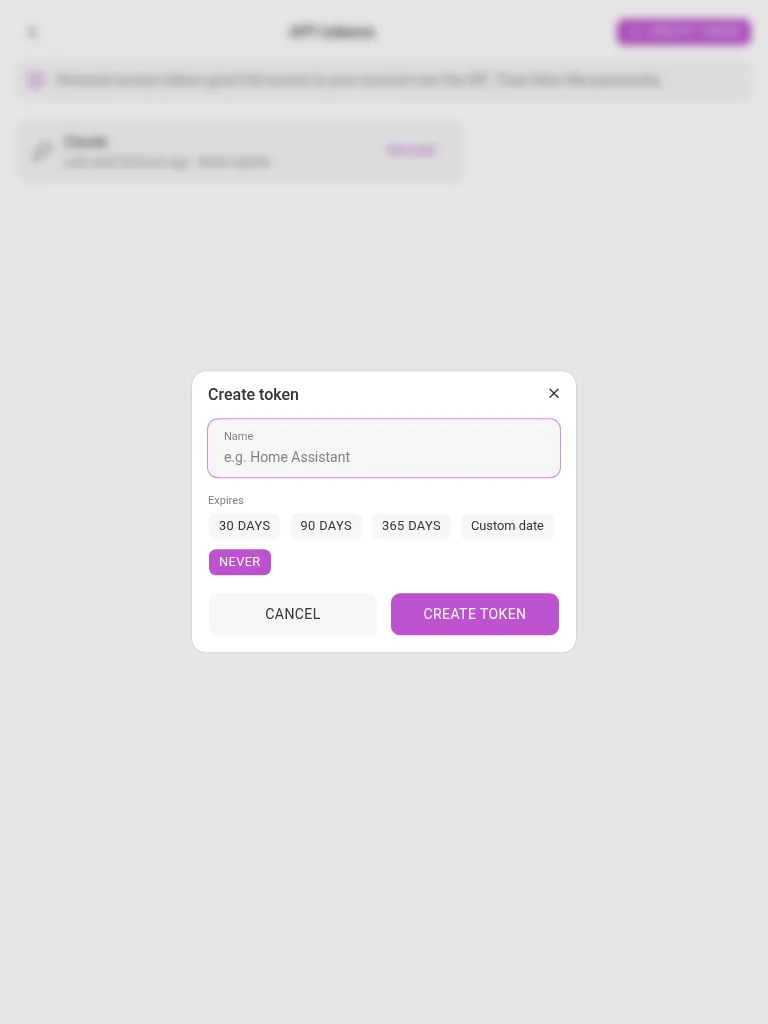
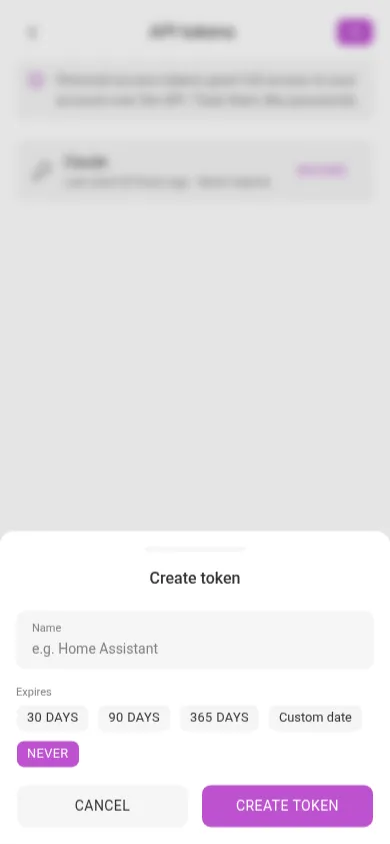
Press Create token, give it a name that will remind you what it is for (for example, “Home Assistant”), and choose when it expires: 30 days, 90 days, 365 days, a custom date, or never.
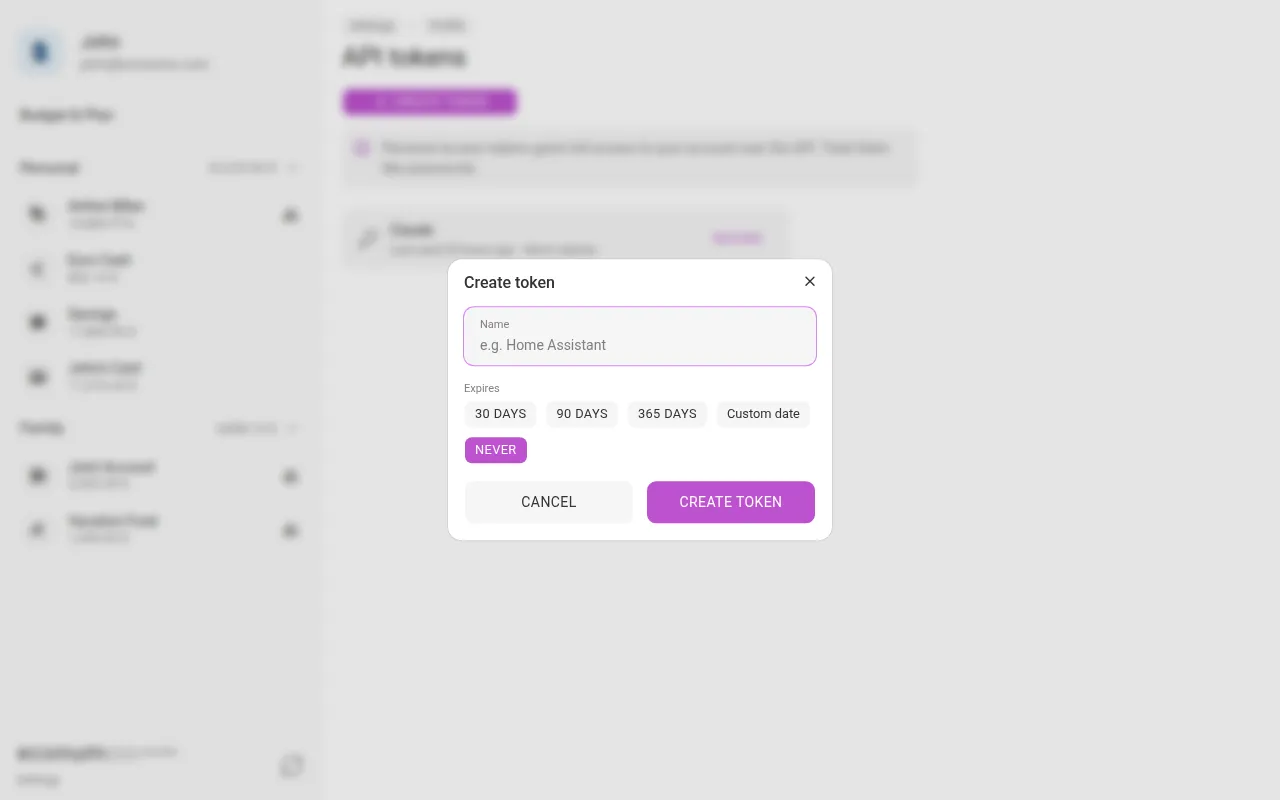
Note A personal access token grants full access to your account over the API — treat it like a password. Create a separate token per integration so you can revoke one without breaking the others.
The same tokens also authenticate Econumo’s built-in MCP server, so an MCP-compatible AI assistant (Claude Code, Claude Desktop, Cursor) can list your accounts and log transactions on your behalf — see the v1.2.0 release notes for the client setup steps.
Privacy #
The Privacy section, below Security, holds a single switch: Share usage statistics.
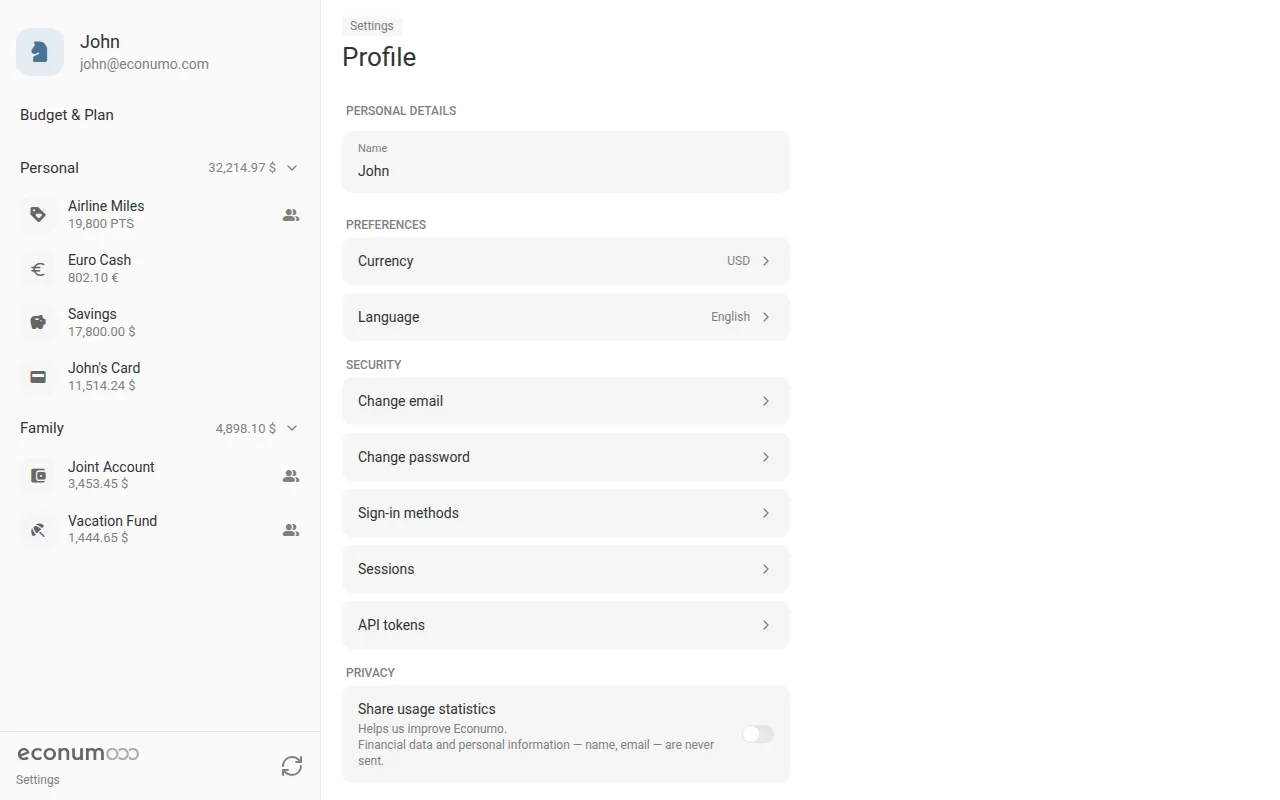
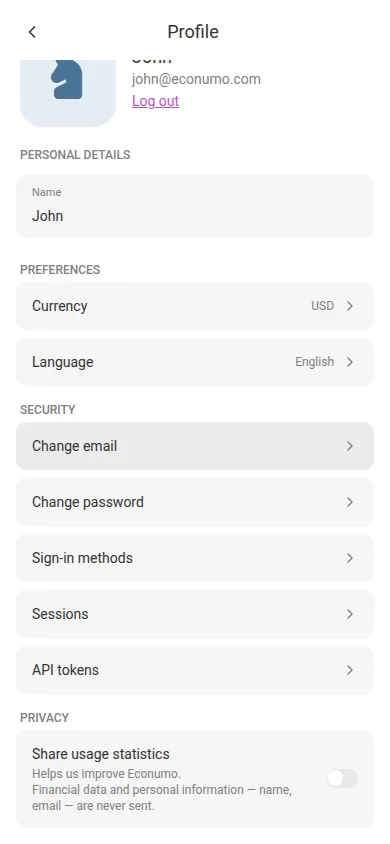
Sharing is on by default. Switching it off stops Econumo from sending in-app usage events right away — no page reload needed, and the setting follows your account across devices.
Note Turning usage sharing off never touches your budgets, transactions, or any other data in your account. Financial data and personal information such as your name or email are never sent either way, whichever way the switch is set.